In 2010, Internet Explorer for the first time dipped below 50% market share, an impressive slide from ten years ago, when nearly 90% of users decided on it. Part of the problem has been IE itself, as Microsoft’s development of the browser tends to be slow, but much of the blame for IE’s slide can be levied at the fact that there is actual competition in the form of Chrome, Firefox and Opera web browsers, all of which are now mature alternatives.
For the most part, users who abandon Internet Explorer end up joining the Firefox crowd, but not me. I’m a dedicated Chrome user, and have been since just a few months after its release. Despite the high-profile brand (Google) behind Chrome, only 13% of users choose it as their browser. I believe that’s awfully low, so allow me to help you become acquainted with the wonderful world of Chrome.
 Why Chrome?
Chrome’s development focused on two important themes. One was speed, and the other was excellent web page rendering. Many steps were taken to achieve this, among which was the development of the V8 JavaScript engine, which used new optimization techniques to achieve better performance.
Thankfully these efforts were not in vain. Though it’s been available nearly three years now, Chrome remains the unchallenged performance leader. Peacekeeper browser benchmark scores for Chrome are much higher than they are for other browsers – in fact, when compared to IE9, the latest version can almost double Internet Explorer’s score.
Compatibility is another strong point. In the Acid3 web standards test, Chrome can achieve a score of 97/100, which until recently was a leading result. However, changes to the Acid3 test now allow Firefox and Internet Explorer to achieve a 100/100 score.
Even so, I find that Chrome’s web rendering is superior to either, particularly Firefox, which has presented trouble with text on some high-resolution monitors. Chrome has always rendered images and text smoothly, and because of its speed, zooming in and out of pages is quick as lightening.
Installing Chrome
To demonstrate Chrome’s focus on speed, the installation process has been made simple and fast. When you visit the Google main page on a computer without the browser installed, you’ll see a prompt on the page asking if you’d like to install it. You may have banished this, already – so you can also access the installer by going directly to the Google Chrome website.
When you click the install or download button, you will be prompted with the terms of service, which you’ll need to accept. Then, the installer will download and installation will begin. On an average desktop or laptop the process will take only a couple minutes from start to finish.
Chrome, unlike many other browsers, doesn’t require that users re-download the browser when new updates are made available. Once you have it installed, you will never need to re-install it unless you’ve purchased a new computer or reformatted your hard drive. Updates are pushed out automatically, so you don’t even have to click a button to obtain the newest version.
Understanding the Chrome Interface
When Chrome was released, the interface was bold and new. Tabs are used to manage multiple browsing sessions, a concept that was still gaining steam when the browser was released, and the drop-down menus and large interface icons that used to dominate browsers are gone.
Now, this has actually become the norm. Internet Explorer, Firefox and Chrome have all homogenized at least some of their interface elements, so users will find some familiarity between them. They all use tabs that are managed at the top of the window, they all have just a few, abstracted icons, and they all tuck bookmarks under the URL bar.
However, all the browsers have very different menus for managing critical browser options. In Chrome, you will find the browser options by clicking on the wrench icon in the upper right, then navigating to Options. An options page will open like a web page in a new tab. Every single function of the browser is managed from this one area except for Bookmarks, Downloads and History.
Otherwise, there’s not much to understand about the basics of the interface, because there’s simply not a lot of interface there – but let’s take a closer look at some individual features.
Bookmarking
In Chrome, adding a bookmark is best accomplished by clicking the star icon on the right hand side of the URL bar. Once you click it, a small pop-up menu will ask you which folder you’d like to store the Bookmark in. This can be changed later, of course.
Sites that are bookmarked will from then display a yellow star icon (instead of the standard, uncolored icon) in the URL bar when you visit them.
Users have the choice to display or not display bookmarks in Chrome interface. This can be turned on or off by opening the wrench menu, going to bookmarks, and then de/selecting Show Bookmarks Bar. The bookmarks bar can contain both folders full of bookmarks or individual bookmarks, and can be edited directly by right-clicking.
There’s also a Bookmark Manager found in the options, but I doubt you’ll have much need for it. Since the Bookmarks Bar can be edited, the Manager is only needed by users who choose not to show the bar, or who prefer that interface for management of very large bookmark folders.
Downloads
In the toolbar menu you’ll find Downloads. Clicking on it opens the download manager, which appears like a web page in its own tab. There’s not a lot to comment on here. All of your recent downloads will be shown in chronological order. There is no option to filter them by name or size.
The only way to find a specific download is to either search for it, which is effective as long as you know the file name, or bypass Chrome by clicking on Open Downloads Folder. This will simply open your Windows download folder.
Extensions
Add-on software to Chrome is called an extension, and can be managed by going to the wrench menu, clicking on Options, and then going to Extensions. Users have the choice to disable or enable extensions through this menu, or uninstall them completely.

Official extensions can be found at the Chrome Web Store. Recent updates have made this site very similar to the Android marketplace. Most of the extensions available are free, but developers can charge if they choose, and there is also support for in-app payments.
In addition to extensions, Chrome also supports “apps.” These are vaguely defined as web services that can be accessed through the Apps section of the Chrome homepage. At the moment, most of the apps are just than links to websites. Installing the Gmail by Google app, for example, does nothing more than install a new icon that takes you to the standard Gmail interface. However, there are some true apps available, including games like Angry Birds and Plants vs. Zombies.
Security and Privacy
When you open a new tab in Chrome via a right-click, you have the option to open the tab in “incognito mode.” This is a built-in private browsing feature. When a tab goes incognito, it doesn’t record the browsing or download history of that tab, and all cookies related to that tab are deleted when the tab is closed.
Sometimes users misunderstand incognito mode, thinking it provides some protection against keyloggers, spyware, or other such threats. It does not. The main purpose is to provide on-the-fly private browsing. Let’s say, for example, you want to research some Christmas gifts. Incognito mode lets you do this on the family computer without tipping anyone off.
Another important security feature, this time related to extensions and apps, is permissions. In order for the extensions that you install to function, they sometimes need “permission” to perform certain functions, such as access location data or information from a certain site.
You can find the permissions needed by going to the Details section of an extension on the Chrome Web Store. Unfortunately, permissions are not shown in the Extensions section of the Options menu.
Syncing
Google likes the cloud, most likely because they offer a lot of cloud services. Chrome does, as well, in the form of its sync feature. You can find this feature in the Personal Stuff section of the Options menu.
What this does is save your Chrome settings using your Google account. Once saved, these settings can then be loaded to Chrome on any other computer by going to the Personal Stuff section once again and entering your Google account information.
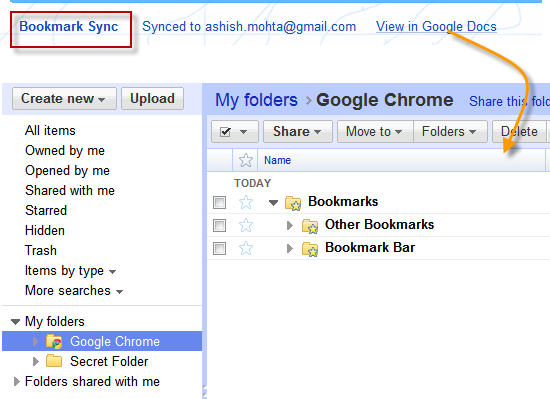
You can choose what to sync, including everything from passwords to extensions to bookmarks. If you make a change to your settings on any of the now synced Chrome browsers, it will be migrated to all of them. But you don’t have sync everything if you don’t want to, and you can pick-and-choose. You can, for example, choose not to sync extensions if you like to customize your extensions for each PC.
To protect your privacy, sync data is encrypted while it is sent. Normally the encryption passphrase if your Google account password, but if you want extra security, you can enter a different passphrase manually.
Tab Management
Chrome tabs can be moved about at your leisure by click-dragging them. When they are moved inside an open Chrome window, a tab’s position can be re-arranged. But you can also click-drag a tab away from the Chrome window in order to open another, separate browser window. Likewise, you can click-drag tabs from separate instances of Chrome into a single browser window to combine them.
New tabs can be opened using keyboard shortcuts or the small “+” icon beside the last currently open tab. All new tabs that are not opened to display a link will instead display the default home screen, which consists of a tile display of recently visited websites and installed apps. You can also access a list of recently closed tabs from the menu in the lower right hand corner.
There’s no hard cap on the amount of tabs you can have open at once in the browser, but once you go past about twelve, the titles of open tabs become difficult to see because so little space is available. If you need to frequently use a large number of tabs, you may want to download a tab management extension from the web store.
Important Shortcuts
Like any browser, Chrome has a number of keyboard shortcuts that can help you navigate the user interface. Here are some of the most important ones to know.
Ctrl+N – Opens new window
Ctrl+Shift+N– Opens new incognito mode window
Ctrl+T – Opens new tab
Ctrl+P– Print the page
Ctrl+S– Save the page
Ctrl+F5 – Reloads the page
Ctrl+D – Saves page as a bookmark
Ctrl+Shift+D– Saves all open pages as bookmarks
Ctrl+Click a link – Opens the link in a new tab in the background
Ctrl+Shift+Click a link – Opens the link in a new tab and switches to the new tab
Ctrl+Shift+T – Reopens the last closed tab
Ctrl+Tab– Switches to the next tab
Ctrl+Shift+Tab– Switches to the previous tab
Alt+For Alt+E– Opens the wrench menu
Ctrl+Shift+B– Toggles the bookmarks bar on and off
Ctrl+H– Opens the History page
Ctrl+J– Opens the Downloads page
Shift+Esc– Opens the Task Manager
Ctrl+Shift+Delete– Opens the Clear Browsing Data dialog
Come to Chrome
These are all of the basic features that make up the Chrome web browser. It’s an impressive suite, and generally better than what other browsers offer by default. But some of its biggest advantages – such as its speed – are only apparent after using the browser for a few minutes.
If you still feel a little overwhelming, try taking a look at Google’s official Chrome FAQ. There’s a nice introduction there that advanced users will find too fundamental, but newcomers may appreciate.
Editors' Recommendations
- 5 web browsers you should use instead of Google Chrome or Edge
- How to fix the ‘Google Drive refused to connect’ message
- How to change your Google background in Chrome
- How to change your language in Google Chrome on desktop
- The 23 best Google Chrome themes in 2024