Windows 8 has gotten lots of buzz, and plenty of criticism, for its attempt to shake up your PC’s operating system. With so many big changes, you may want to keep your old Windows 7 OS on your machine, just so you have something familiar to ease the transition. Fortunately, you can work a little hard drive wizardry to make space for both the old and the new. Here’s how you can dual boot Windows 8 on a computer that already runs Windows 7.
Step 1: Back up your current system
This is always a good practice when you are tweaking an operating system. The risk of losing data is usually pretty low, but you don’t want files to disappear the one and only time you didn’t back up. Make sure you save a copy of your entire hard drive in addition to your regular backups. (You are backing up your files, right?)
Step 2: Create a new partition on your hard drive
You’ll need to set aside a separate chunk of your hard drive to house the new OS and everything you’ll run on it. Windows 8 on its own will take about 20GB of space, but you’ll also need room for all your programs and files, so you may want to allot as much space as you can take from your existing hard drive.
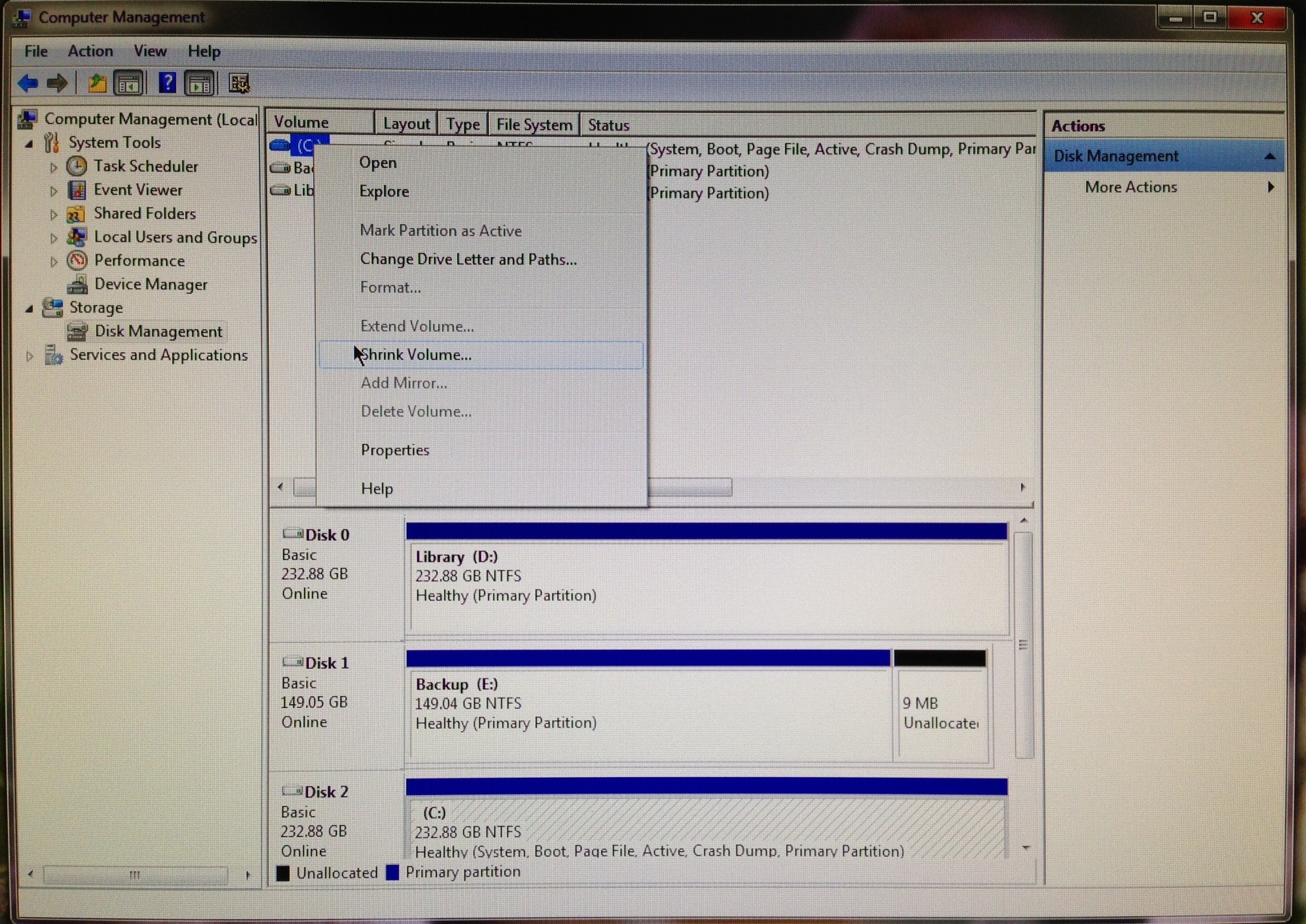
From the Start menu, right-click on the “Computer” option. Select “Manage” from the drop-down menu, then double-click on “Disk Management.”
The top of the Disk Management window displays a list of any existing partitions in your hard drive. Right-click on the entry for your main hard drive, which is C: for most machines, and select “Shrink volume.” Minimize the hard drive until you have the desired amount of free space. Once you have made the room for Windows 8, click the empty block and select “New Simple Volume.” This will launch a wizard to walk you through the final steps.
You won’t have to change anything until you reach the “Format Partition” window. The settings you will need for formatting are NTFS for File System and the default for Allocation Unit Size. Be sure to give the new partition a name under “Volume label.” Titling it “Windows 8″ will ensure that you can find it in the next step. After you’ve named the new space in the hard drive, click “Next” and your computer will complete the formatting.
Step 3: Obtain your copy of Windows 8
Depending on how you want to purchase the new OS, you can install it either by DVD or by USB drive. If you purchase a copy in your friendly local computer store, you’ll be using the DVD and DVD drive approach in the next step. If you prefer to download it directly from Microsoft, put the files on a large thumb drive and use the USB approach in the next step.
Step 4: Install Windows 8 in the new partition
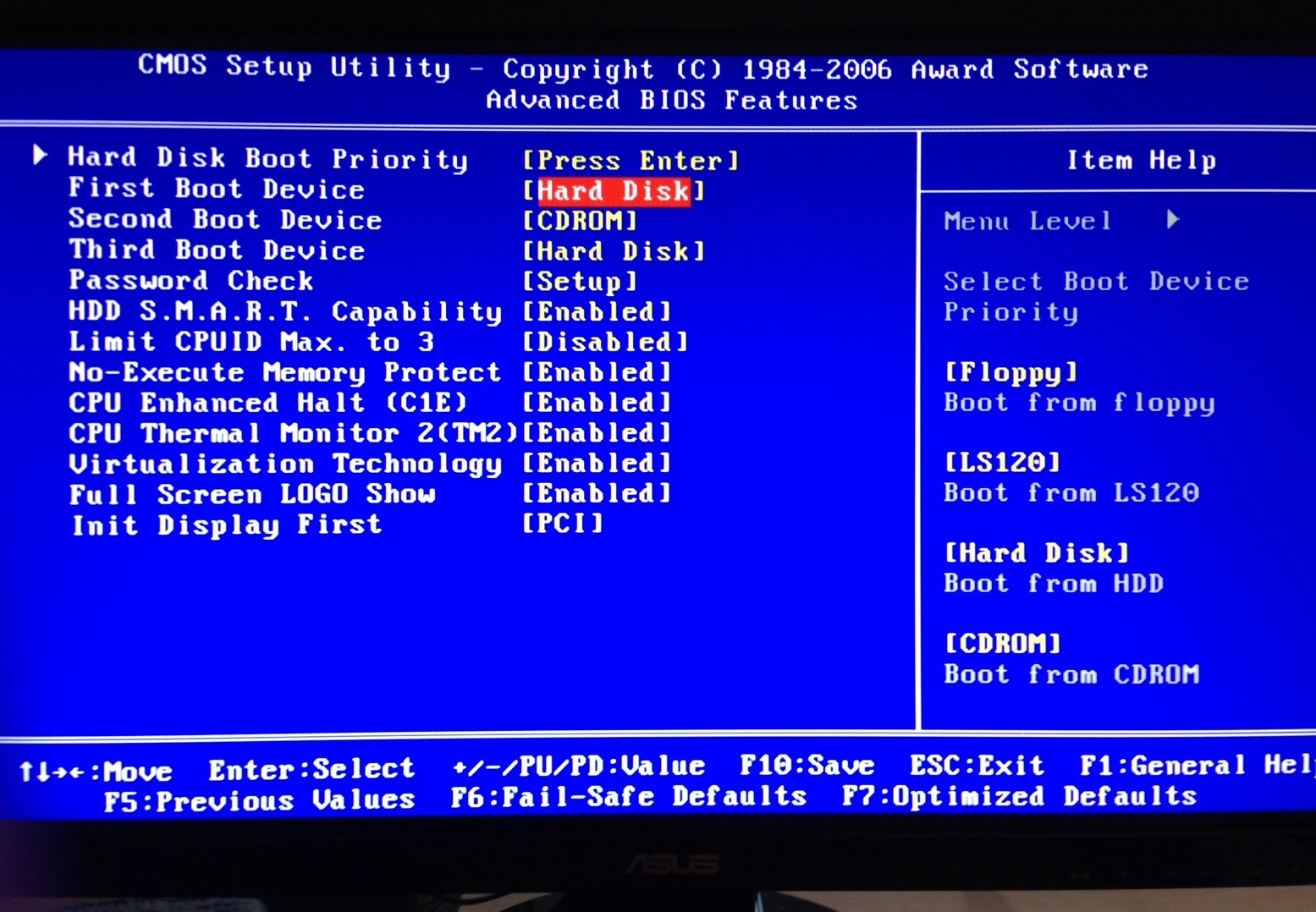
This is the most complicated step. Depending on your computer’s settings, you may need to change your computer’s BIOS settings so that it will boot from the drive with Windows 8 installation files on it. To do that, restart your computer and mash a hot key as the machine wakes up; the “Delete” key will accomplish this on most PCs. Go to the boot menu and switch the settings so that the first choice for booting up is the DVD or USB drive, depending on where you’ve stored your Windows 8 files, instead of the hard drive. Then go ahead and start up your computer.
You’ll first have to accept the installer’s software license, and the next screen will ask which type of installation you want. Choose the Custom option, then select your newly created hard drive partition, the one you probably named “Windows 8,” for its location. The installer will probably take about 20 minutes to complete the task.
Step 5: Enjoy playing with your new OS
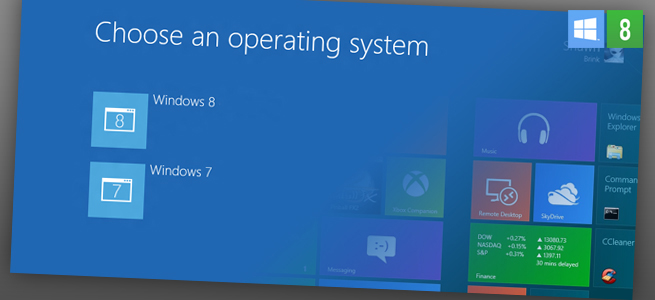
You’ll now see a screen asking which operating system you want to use when you boot up your computer. It will default to launching Windows 8 if you don’t make a selection within 30 seconds, but you can change that setting under the “Change defaults” link on the launch page.
Dual booting on a Mac
If you have a Mac computer that also runs Windows 7, the process for adding Windows 8 is the same as for its predecessor. Apple’s Boot Camp can help you perform similar hard drive partitioning to make space for the new Microsoft OS. Parallels Desktop 8 and VMware Fusion 5 are other popular virtualization programs that allow you to switch between Mac and Windows without needing to reboot your computer. Both products should support the new Microsoft offering as well as Apple’s latest OS, Mountain Lion.
For those of you who still aren’t sure if you want to make the leap to the new OS, check out our guide to Microsoft’s Windows 8 for more insights about whether the OS is a good fit for you.


Looks like I will be doing a dual boot until I am 100% convinced that Windows 8 is the system for me. Great piece Anna!
Thanks, Ian!
Dual boot 2 Windows OS? Yea, that’s sounds like a really stable environment. Just incase you thought 1 sucked, you could move to the other, then wish for the old days and move back and forth easily until you decide to kill yourself.
Mountain Lion
YESSSSSSSSSSSSSSSSSSSSSSSSSSSSSSSSSSSSSSSSSSSSSSSSSSSSSSSSSSSSSSSSSSSS – LETS SETUP MY LAPTOP TO BOOT LUNIX, BSD, WINDOWS 3.1, 95, ME, VISTA 7 AND 8. I CAN DO IT ALL
Thanks for the great tutorial,Anna. This made it possible for me to try out Windows8.
Just did the dual boot in a new Windows 7 home premium laptop. Worked very good. Based on all the comments, I wasn’t sure I wanted the upgrade but for 14.99, it was too good to pass up. Made a 50 gig partition as per the instructions and saved the download to a USB thumb drive. Everything worked as advertised. One thing to look out for though, even though the install is on a USB, the wizard puts an install shortcut on your Windows 7 desktop. If you just click on that, the install will wipe out all Windows 7. You MUST go into startup and switch the boot sequence to the USB drive first, then Boot up. After successful installation, I’ve got dual boot and I still have my reduced function free Office and Windows Media Center plus DVD codex. All my settings and files were saved and copied over to the Windows 8 partition. Set up was a breeze. All my installed programs and apps in Windows 7 work just fine. I’m very pleased with the dual boot capacity and after about an hour or so, Windows 8 is pretty slick. I like the best of both worlds with the dual boot. There’s things I’d like to do in Windows 7 and there’s things that are just more fun in windows 8. Maybe I like Win8 because I also have a 7″ android device that I’ve used for almost a year(Samsung 7plus) FYI: I’m not a computer expert. I’m one of those old grandpas (70) who came to computers late and most the stuff you guys talk about is Martian.
Bottom line, I love Windows 7 and I really like Windows 8 so far. I’m sure that in a relatively short time Microsoft will upgrade the Windows 8 experience and work out the kinks. Then the program will probably cost a lot more to get into the game. The 14.99 I spent for it is well worth the money. Especially since I can have my cake and eat it too with the dual boot. Cheers.
Help! Received my windows 8 pro upgrade dvd today and tried, unsuccessfully, to install. Setup does not recognize the partition I created. Message: “We couldn’t create a new partition or locate an existing one. For more information, see the Setup log files.” 1- where are the Setup log files? 2-Why isn’t my partition being recognized?
Check the numbers of your partition, if there are already four primary partition or three primary partition with one extended partition (maybe there are a lot of logical partition under it) on your MBR disk, you could not create any more.
dumbest fucking thing ever
I installed Windows 8 pro succesfully…but i have a probelem in booting.When I start my laptop, dual boot screen comes.This screen comes until I don’t boot wndows 7; once i booted Windows 7 and after that when i boot then window8 start loading and after that it freezes and a black screen appears without any cursor.When I manually restart laptop then i am able to see windows 8 login screen.Dual boot screen is alright when i keep booting windows…..And if i want to start windows 7 now then i have to shut down and start again……Please help-why black screen comes and dual boot screen does not appear and why I need to restart…Please help
I installed Win8 Enterprise using the normal procedure to preserve a Win 7 installation. However, after Win 8 was installed, and on re-boot I did not get the Win 8 boot screen manager screen. It booted directly into Win8. To recover my Win7 boot, I had to get “Visual BCD editor” and repair the boot sector, and create a new Launch entry for Win 7.
Is there any reason you know of, why the Win 8 install decided to phase out my Win 7 boot, and force a boot record repair?
What version of Windows 8 are you using to dual boot upgrade or new system install disc?
Well, this was my first read on here and this my first post!
TBF I did it slightly differently as I wanted to add an SSD to my Desktop and thought ah I’ll just use that rather thanpartition an existing HDD. I did not format it, I let W8 do it.
Well the good news is I have got both 7 & 8 working on the same machine on different disks but in order to switch between them I have to mess about with the BIOS/boot up entries to get it to switch and normally takes a couple of tries.
Probably because of how I did it, I was not offered a switching menu on boot up. Is there any way that I can get round this.
Cheers and great site.
Alan
Windows 8 is great. I took this approach just to be sure but there is no turning back for me. I currently work IT and had doubts and worries about Windows8Pro desktop. Win8 has been slick providing me with many great features and not getting in my way. There is a learning curve but exploring its great features can be fun if you approach this OS with the right mentality.
From what I can gather, in order to dual boot you need a full System Builder Version of Windows 8, as the licence terms of the upgrade version forbid dual boot installation.
Not sure about this. I only purchased the 14.99 upgrade and downloaded it using a product key. It was my understanding that it needed access and files from my existing OS to work properly. I could be wrong though. They may have downloaded the whole OS to my USB.. It sure took long enough.
Chip it probably uses a virtual machine and splits your computer resources. Parallels does this with ma an windows and runs very stable and works well hand in hand
Windows 8! Much better with system resources :)
Linux!
exactly what I done …
I would like to set up dual boot for Windows 8. Does anyone know if the Windows 8 pro Upgrade version will work to set up on a new partition? I can not seem to find a Full Version for sale anywhere.
Yep, if you have one of the required systems running already, you can download the upgrade files to a DVD or a USB drive and install it in a new partition. But you’re right, it seems like Microsoft hasn’t made the full version available for download.
Thanks so much for your help and thanks for the great article!
I will be setting this up soon. Ill let you know how it goes.
hi i want to do the same thing has it worked for you i am just about to download the it
from what I can gather you need a full Builders edition f Windows 8 as the licence terms of the upgrade forbid dual booting.