There are many reasons to want to block specific numbers on your phone. Whether it's nuisance spam callers, or a particularly persistent ex you no longer want to talk to, the humble Block option is a phone mainstay. It used to be you'd need to contact your carrier to stop a particular number from calling you, but thankfully, it's a lot easier to block numbers in this day and age.
Blocking numbers is now built into both Android phones and Apple iPhones, and it's easy to access too, being available directly from your phone dialer. No, you don't need to download a third-party app, or dive deep into your settings. Here's how to block a number on iPhones and Android phones.
How to block calls on an iPhone
You've been able to block contacts and callers on iOS since iOS 7, which means it's available to absolutely everyone using an iPhone — unless you're still using an iPhone 3GS or older. If you are, well, we highly recommend upgrading your iPhone. You won't regret it.
Step 1: To block a caller, head to your Dialer app.
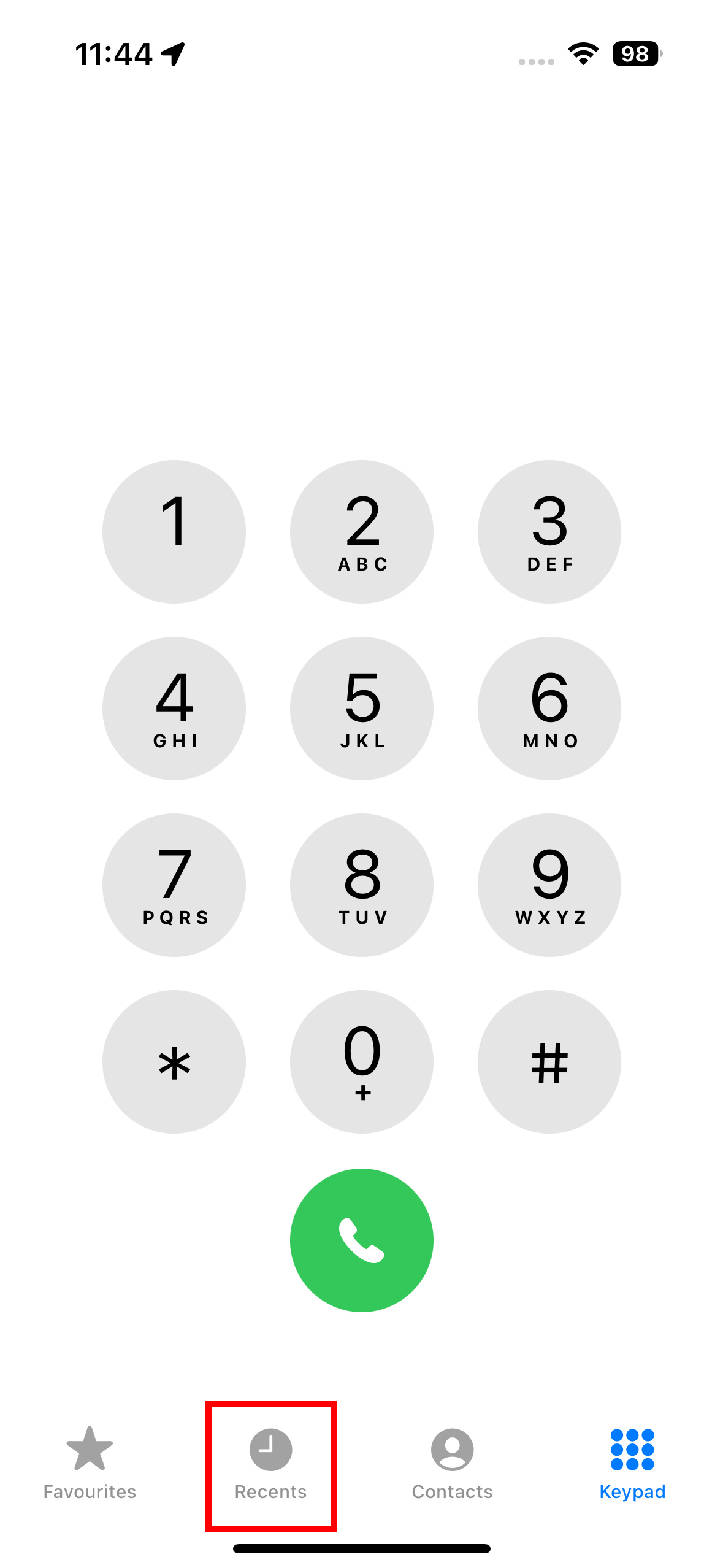
Step 2: Tap Recent.
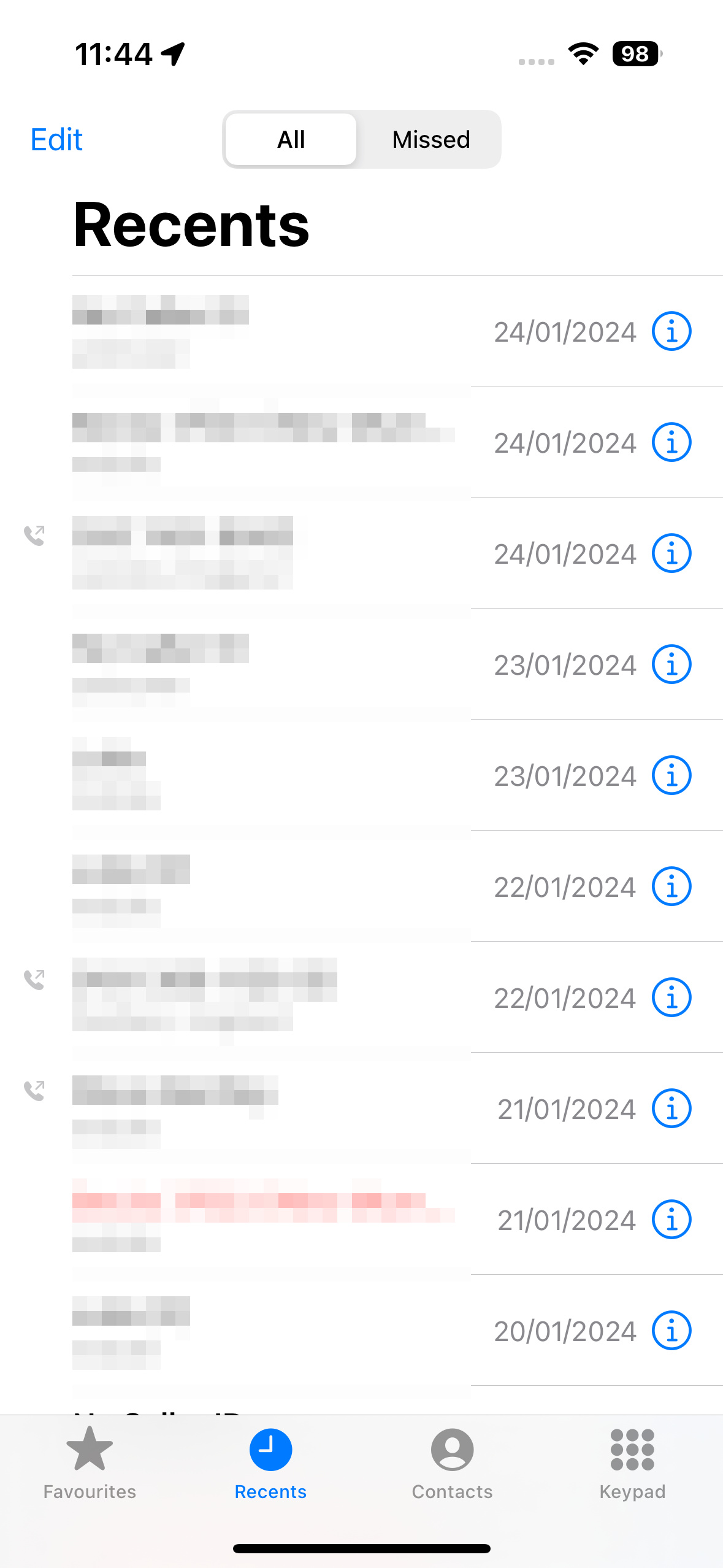
Step 3: Choose the number or contact you want to block.
Step 4: Scroll down and select Block this caller.
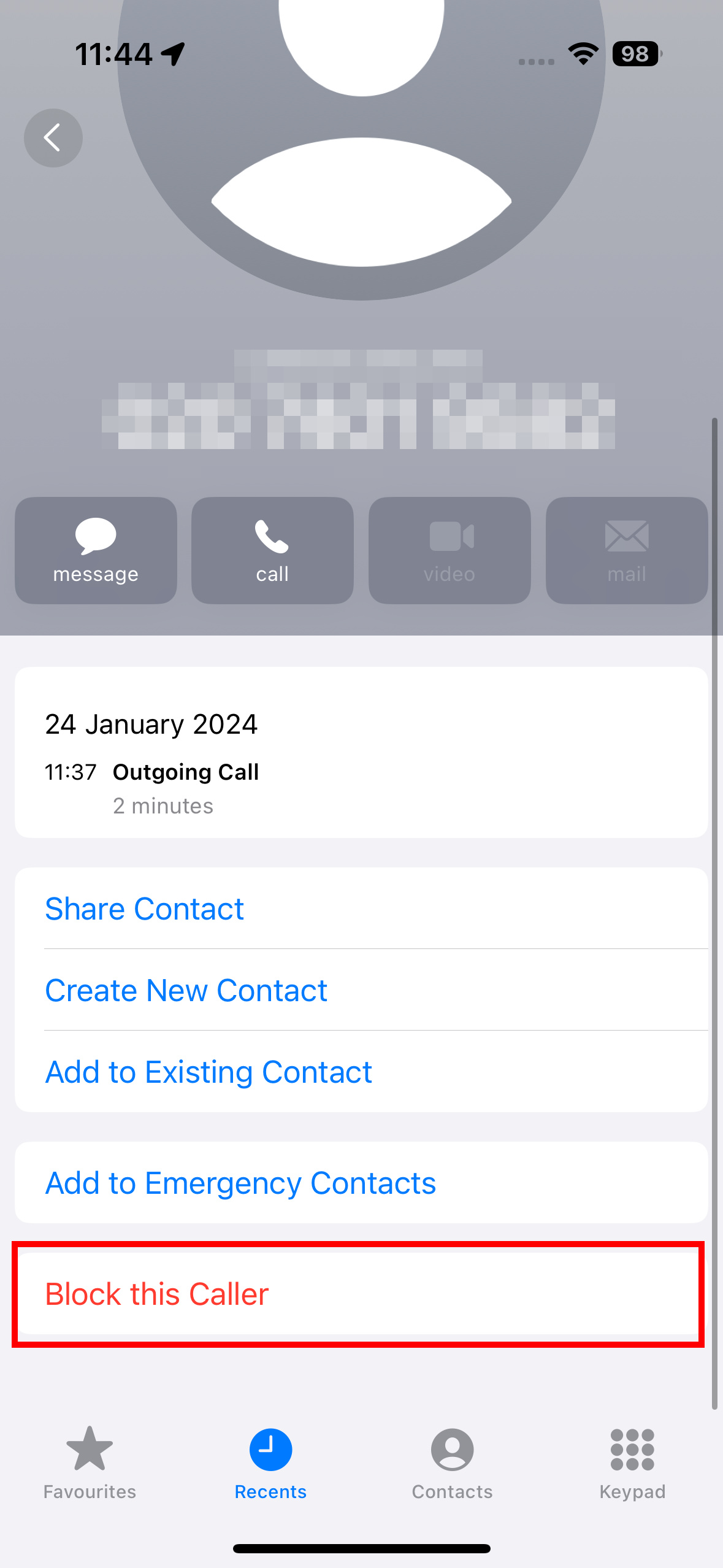
If you want to block an existing contact that isn't in your Recent list, follow these steps.
Step 1: Open the Dialer app again.
Step 2: Choose Contacts.
Step 3: Find the contact you want to block, and select them.
Step 4: Select Block this caller.
How to block calls on an Android phone
Blocking calls on an Android phone is just as easy as on an iPhone, though it's worth noting that different manufacturers will have slightly different processes to follow. However, the general idea will be similar, so you should be able to find the blocking option relatively easily.
Step 1: Open the Dialer or Phone app.
Step 2: Find the contact or number you want to block, and select their icon to open the profile.

Step 3: Choose Block numbers.
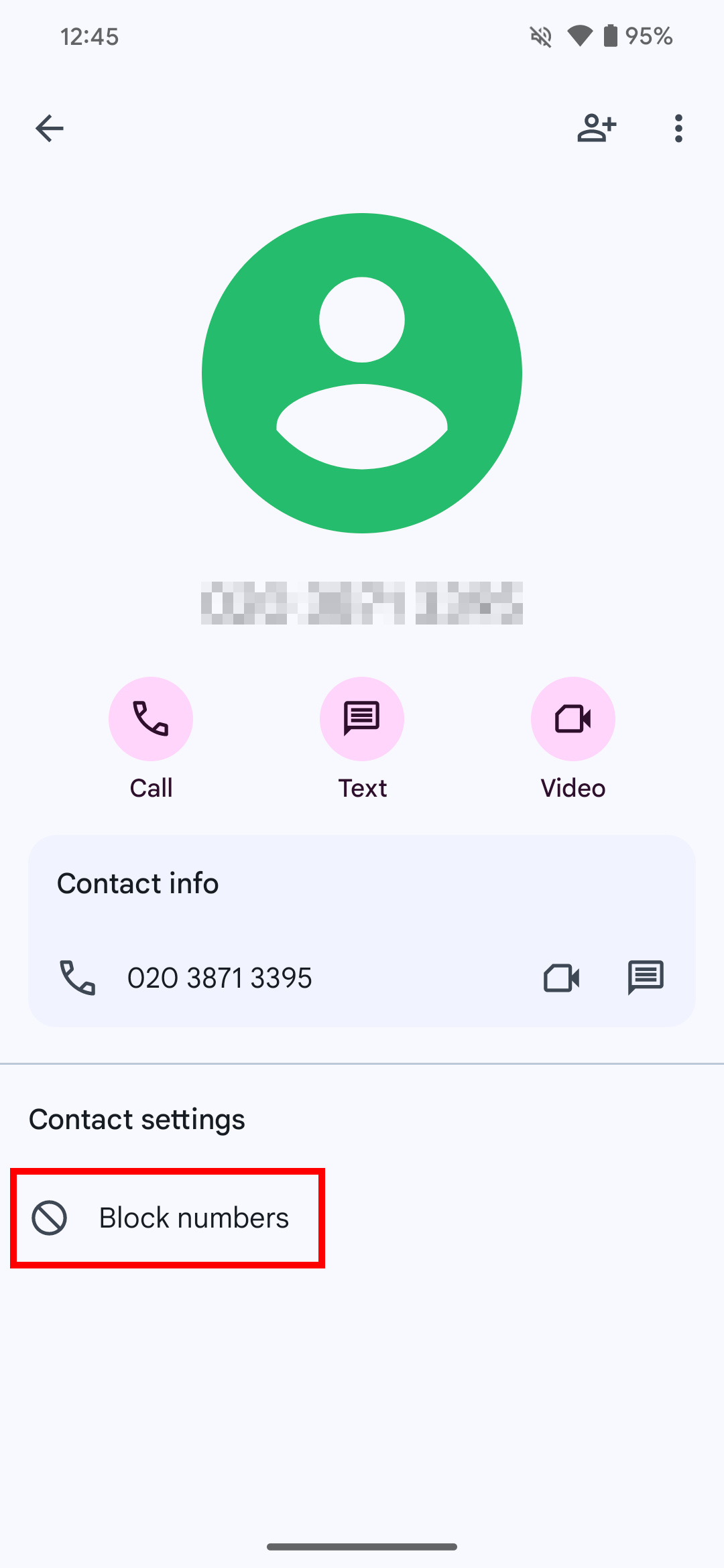
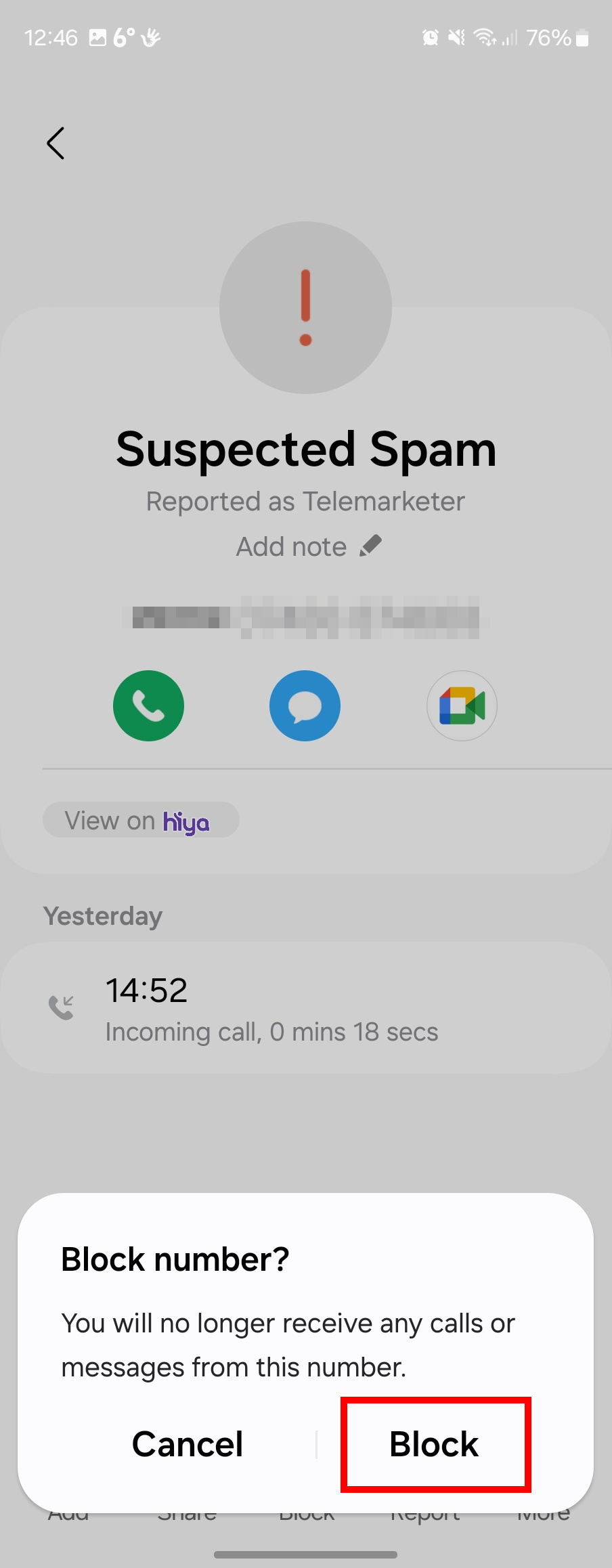
As mentioned, it can be slightly different on different phones. Here's how the block process looks on a Samsung Galaxy phone.
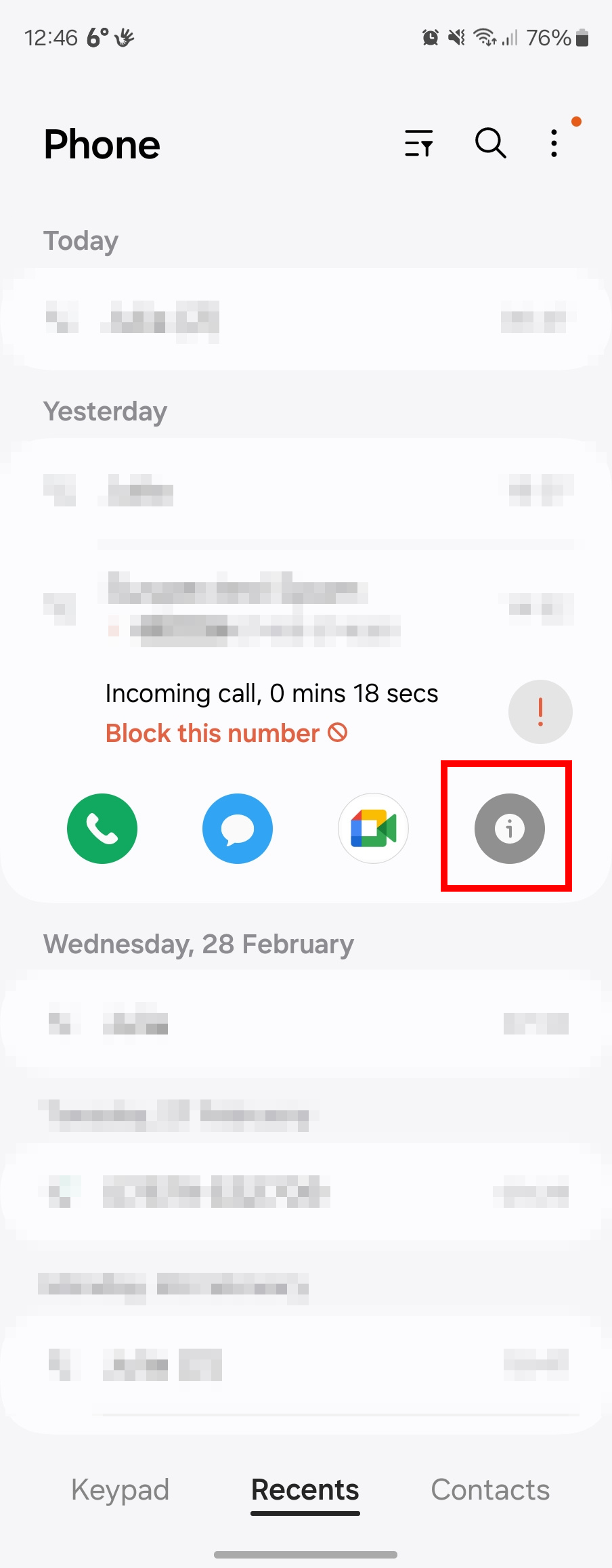
Step 1: Again, open the Dialer app and find the contact to block.
Step 2: This time, select it to open it, then choose the "i" button.
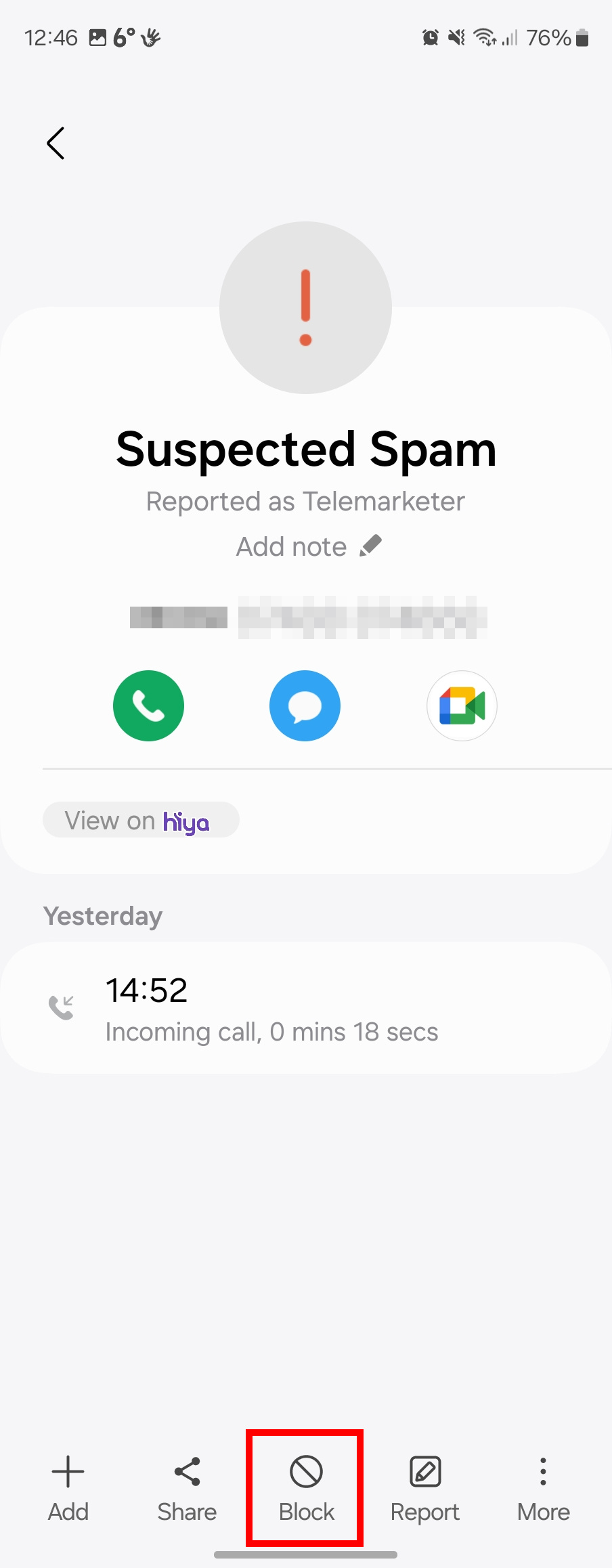
Step 3: When the profile is open, select Block at the bottom, and then Block again to confirm.
How to manage blocked numbers on an iPhone
Want to trim down your blocklist, or remove someone now that you've made up? It's easy to remove numbers from your block list. You can head to the individual contact in your contact list and unblock them using the same process as blocking, but if it's not a number you have saved, you can still find them elsewhere.
Step 1: Head to the Settings app.
Step 2: Open Phone or Messages.
Step 3: Find Blocked contacts and select it.
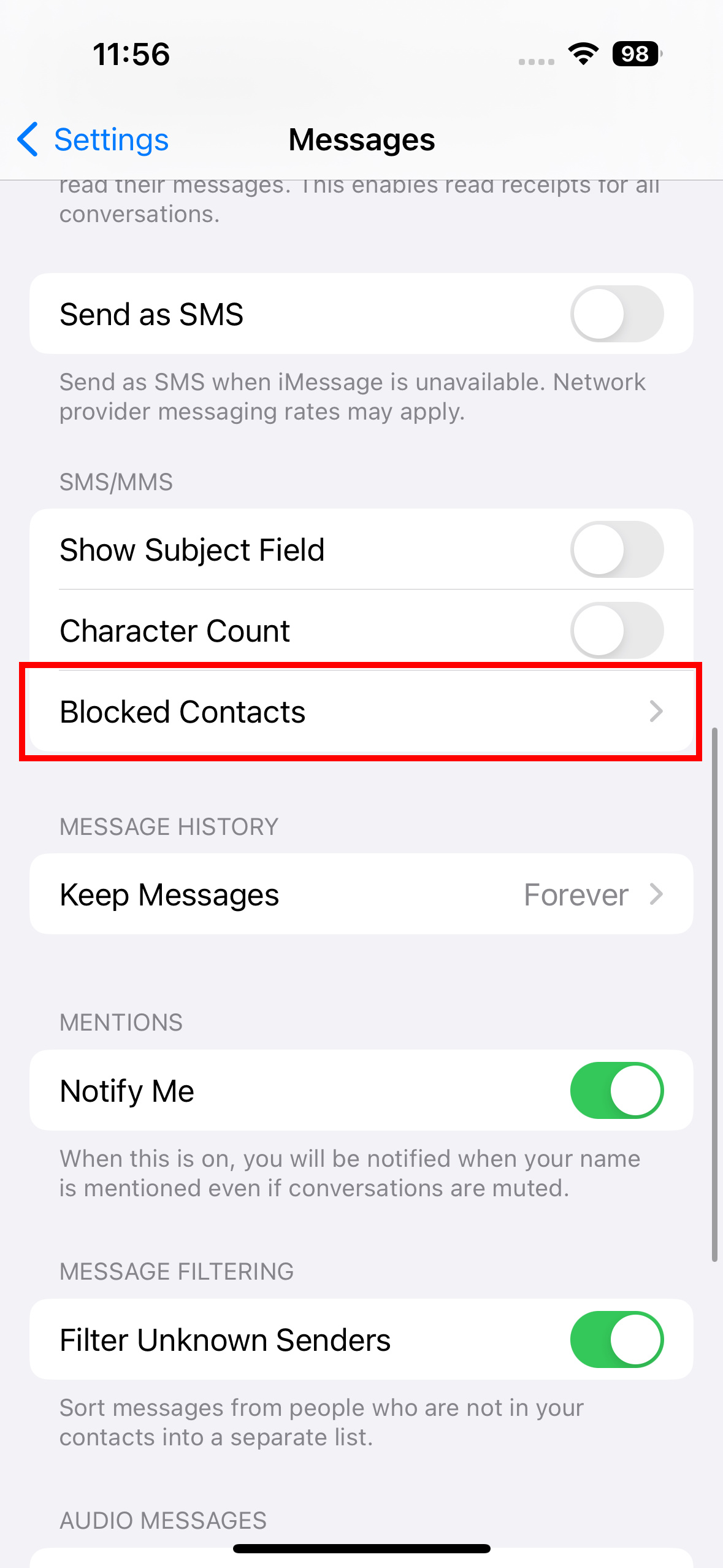
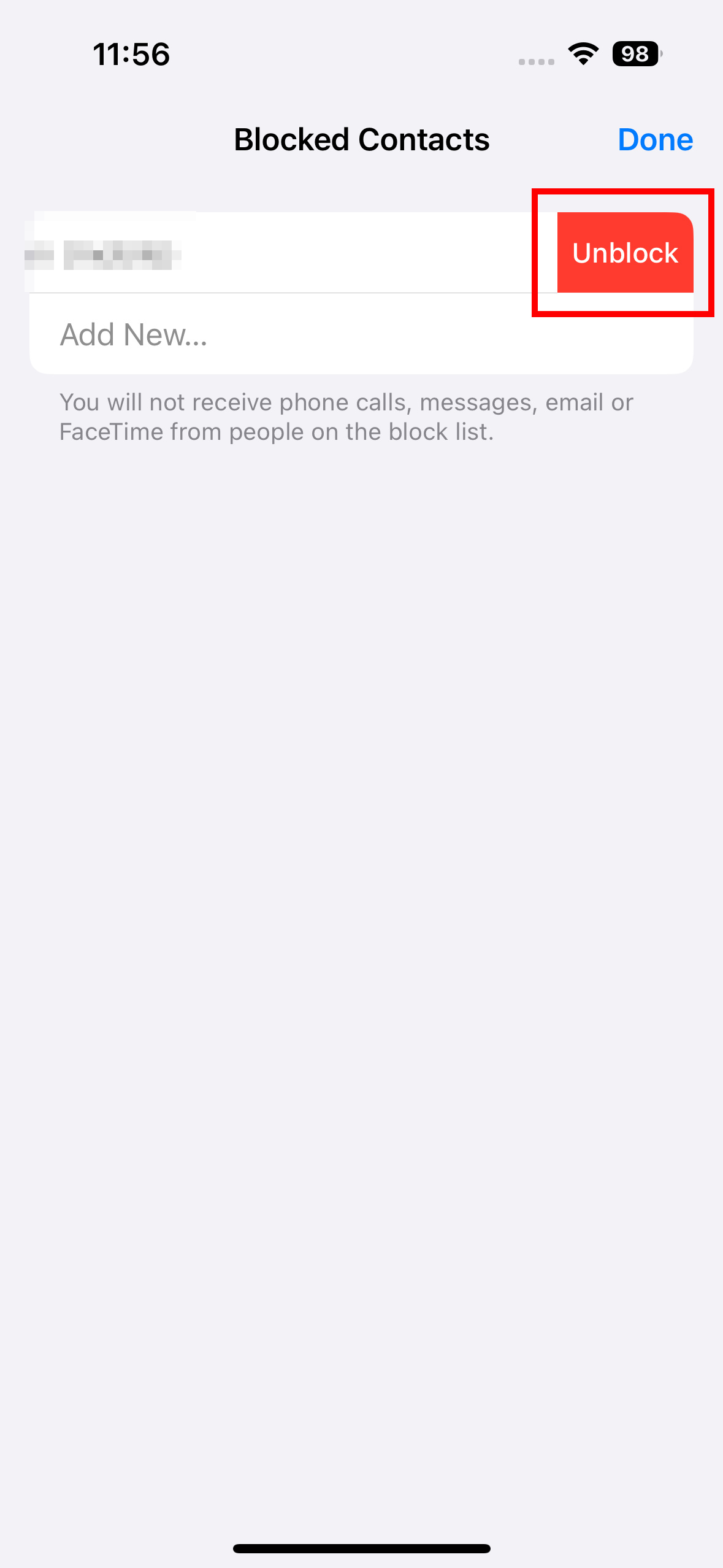
Step 4: You'll find a full list of your blocked numbers and contacts here.
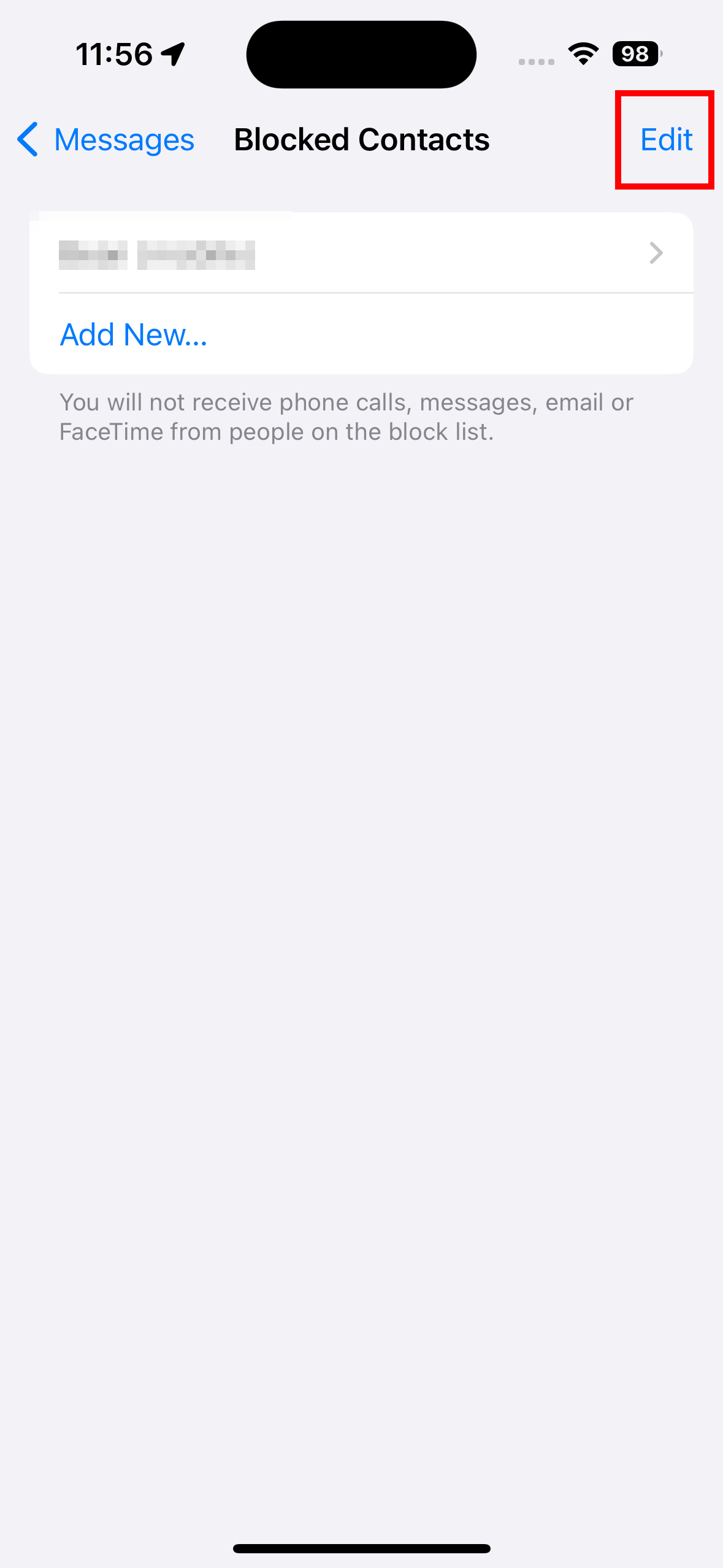
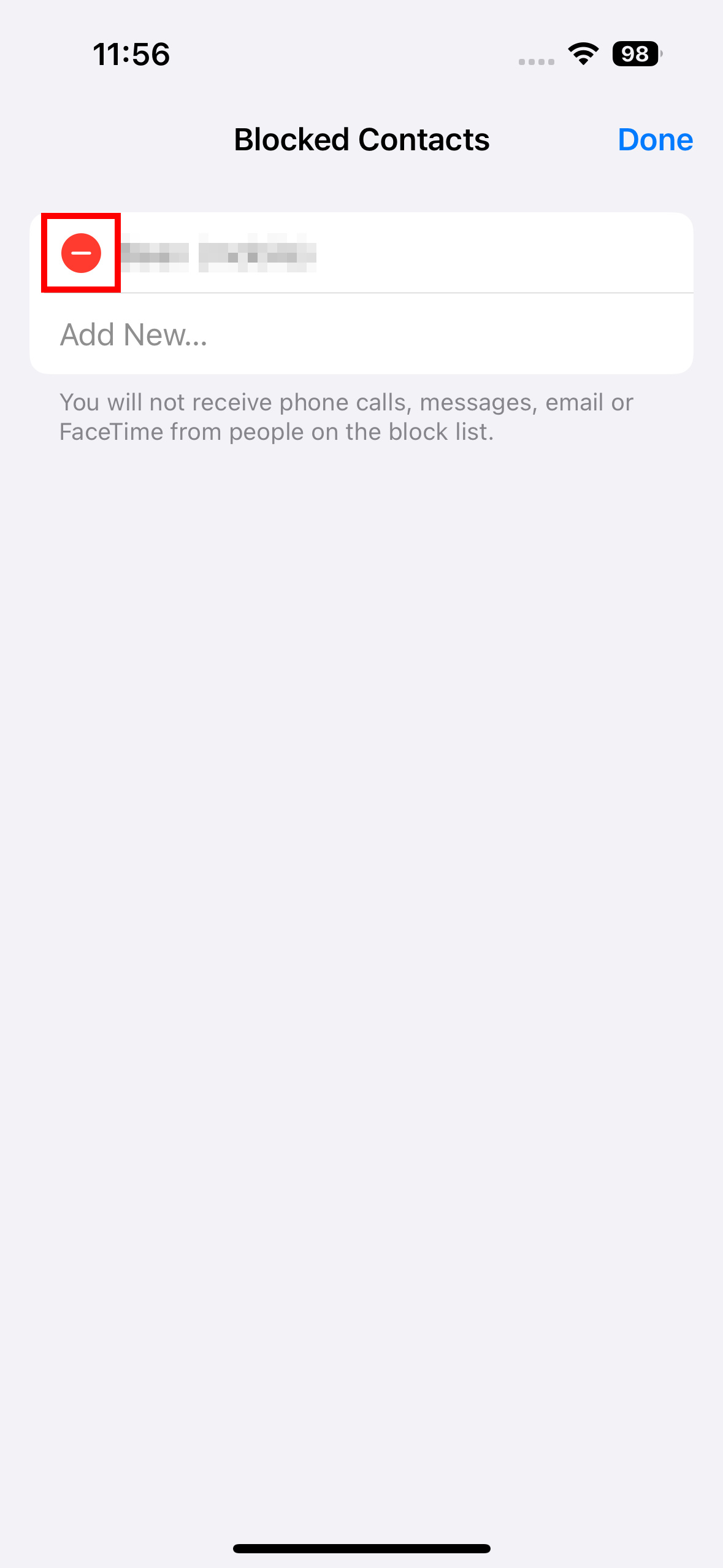
Step 5: To remove one, tap Edit, then the minus sign by the number or contact, then Unblock.
How to manage blocked numbers on an Android phone
As with iPhones, you can simply backtrack the blocking process to unblock a contact, but there's also a list of blocked contacts and numbers you can access to quickly see how many you've blocked.
This process may be slightly different on other manufacturer's phones (we used a Google Pixel for these screenshots), but in general, this guide should be close enough that you can find your way around without much issue.
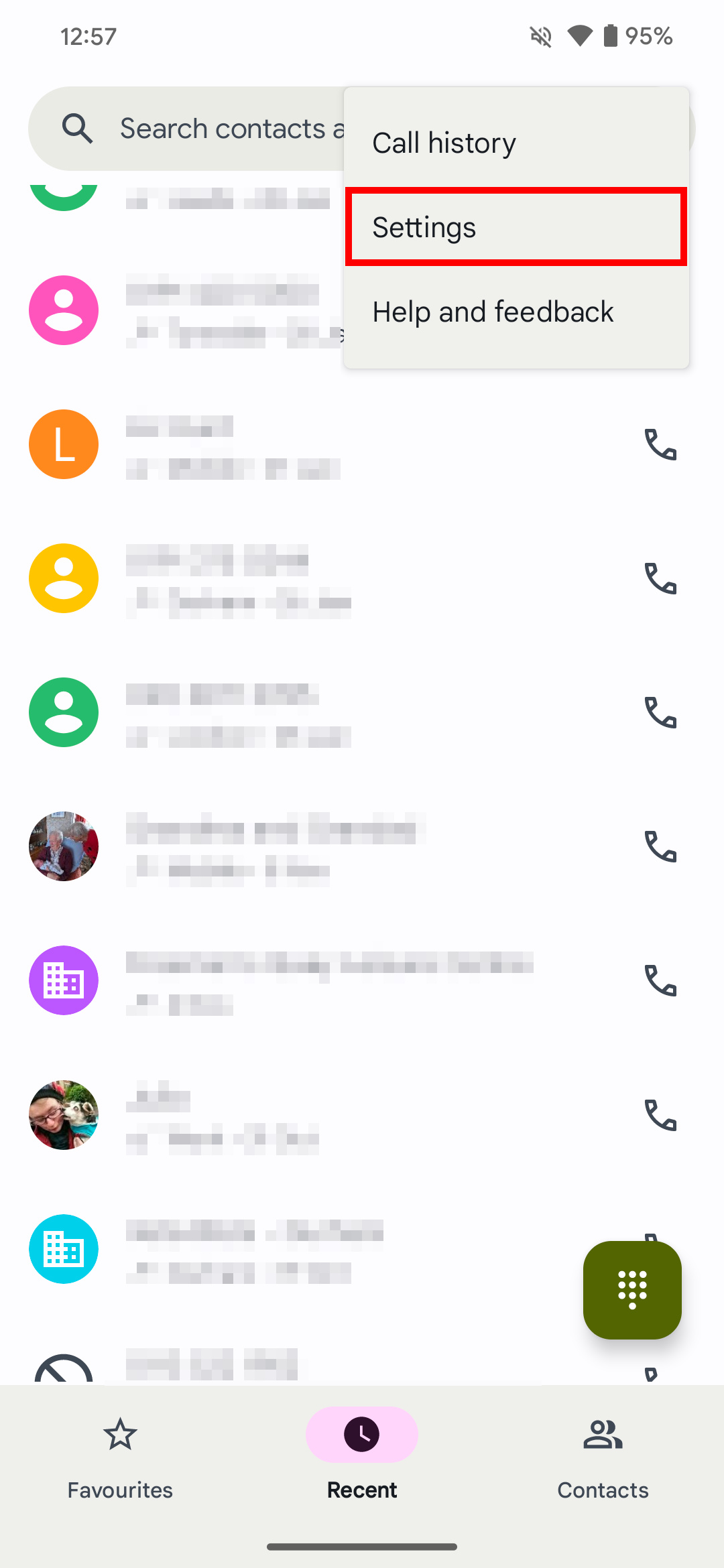
Step 1: Open your Dialer or Phone app and open the Settings menu by choosing the three-dot menu at the top-right corner.
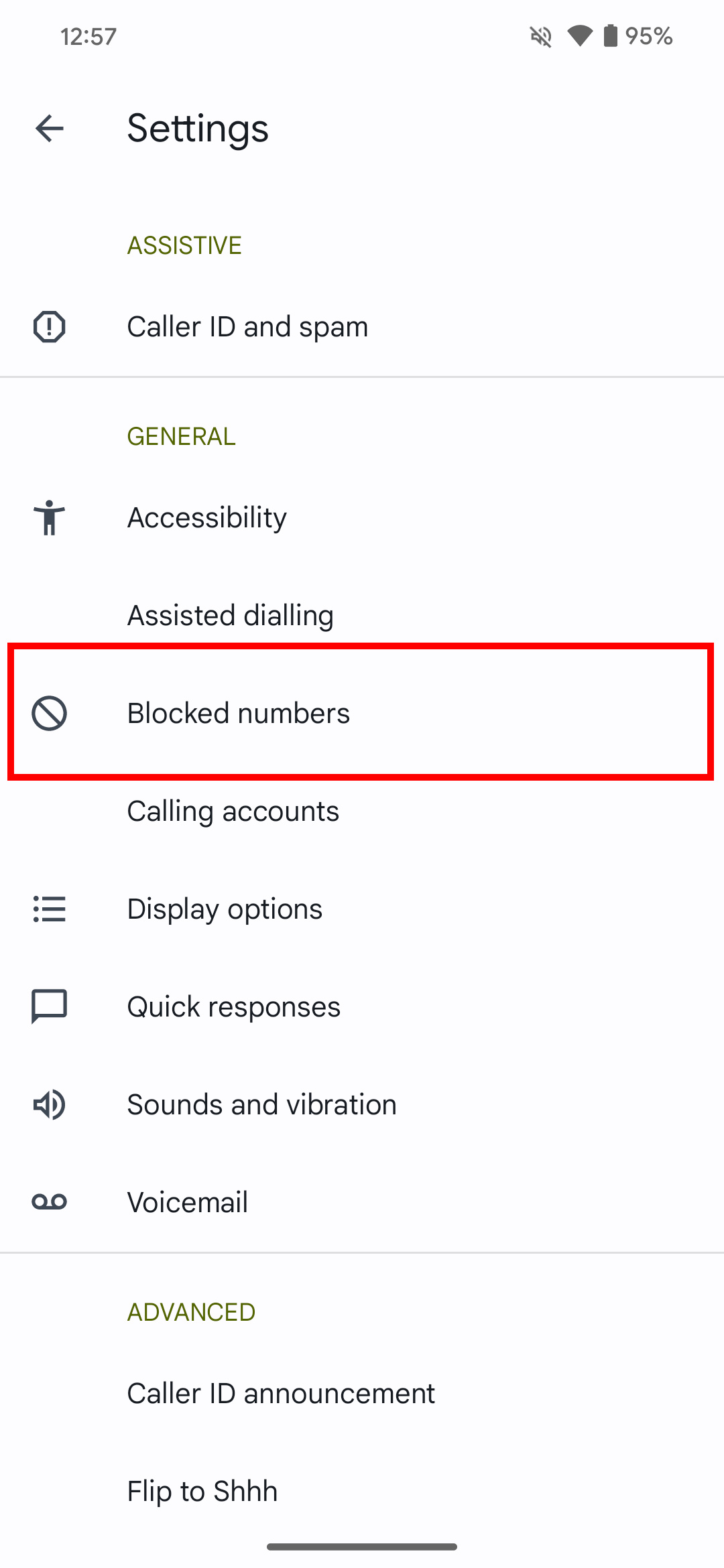
Step 2: Select Blocked numbers.
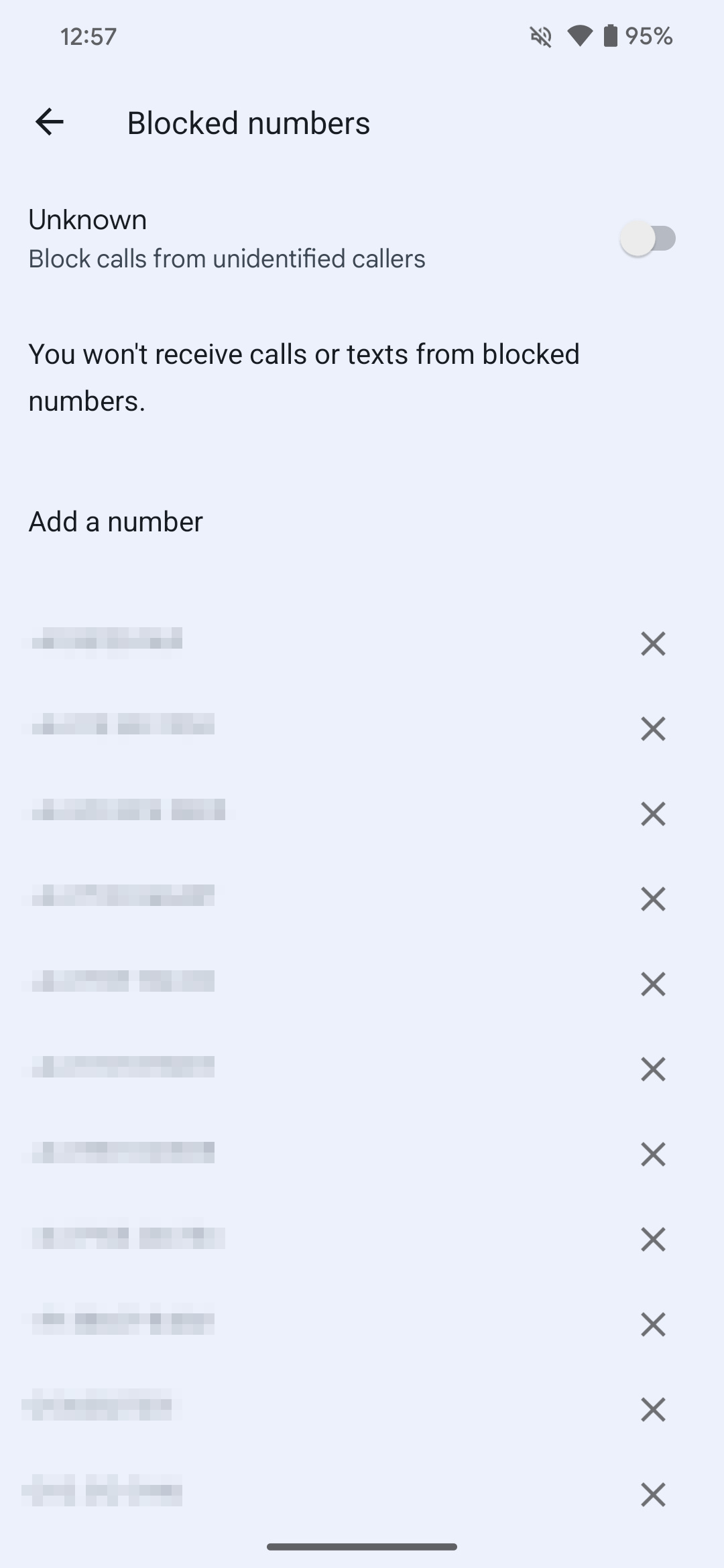
Step 3: Now, you can see a full list of your blocked contacts. To unblock one, just select the X by their number, and then confirm by selecting Unblock.
Just like that, you've becoming a number-blocking pro. Blocking numbers on iPhones and Android phones is a much simpler process in 2024 than it used to be, and now, you know everything about it. Good luck and happy number blocking!
Editors' Recommendations
- How to view Instagram without an account
- The best iPads in 2024: the 5 best ones you should buy
- AirTags range: here’s how far the tracker can reach
- Nomad’s new iPhone case and Apple Watch band may be its coolest yet
- An Apple insider just revealed how iOS 18’s AI features will work