One of the easiest ways to share memories with loved ones is through a shared cloud drive. But so far, Apple’s ecosystem has been missing a native system to do that. Google Photos, on the other hand, has offered a really polished media-sharing experience for a while now.
With iOS 16, that sharing facility has finally arrived on your iPhone, thanks to a feature called iCloud Shared Photo Library. In addition to creating a collaborative album that others can contribute to, the system also lets partners drop comments. And with cameras on the iPhone 14 and iPhone 14 Pro being better than ever, having an easy way to share those memories is a must.
How to get your iPhone ready for album sharing
The first step towards creating a shared album is enabling it via the iCloud media sharing system. Here’s how to do it:
Step 1: Open the Settings app on your iPhone and tap on your name at the top.

Step 2: As you land on the Apple ID page, tap on the iCloud option at the top of the list.

Step 3: On the iCloud section, tap on Photos.
Step 4: Scroll down on the Photos page and enable the Shared Albums toggle.

How to create and share a photo album
Now that you’ve enabled the fundamental system behind creating a shared iCloud photo album, it’s time to go ahead and make the collaborative album. Here are the steps you need to take:
Step 1: Open the Photos app on your iPhone.
Step 2: Launch the Album view by tapping on the Album option at the bottom.

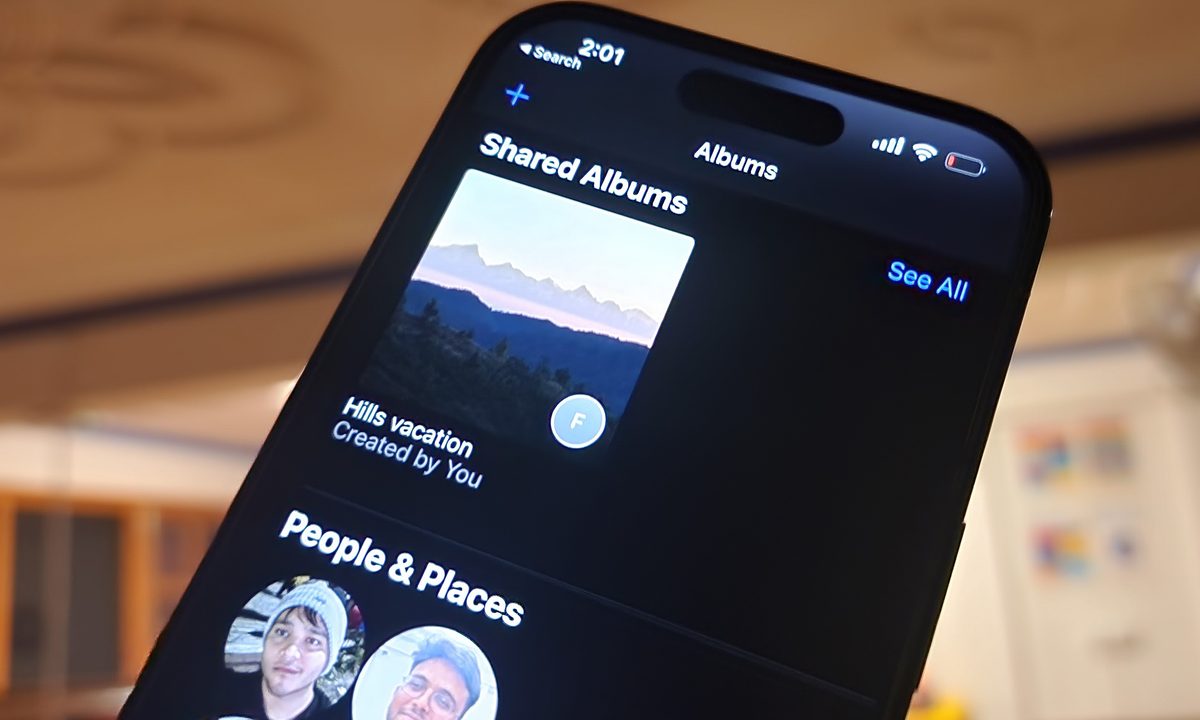
Step 3: Once you launch the Album mode, tap on the + icon in the top-left corner and select New Shared Album in the context menu.

Step 4: On the next page, you will be asked to choose a name for your shared album.

Step 5: After choosing a name, hit the Create button.
Step 6: Now, you have two options. Pick from amongst your contacts, or create a publicly shareable link. To do that, enable the Public Website toggle.

Step 7: Once you do it, a link button will appear underneath. Just tap it to copy the URL to your clipboard. You can now share it on any platform of your choice via the share sheet or opening a communication app.

Step 8: You can directly invite people to collaborate by adding/removing photos from the album using the contact button that appears at the top.

A few tips to keep in mind
The noteworthy aspect here is that you can extend a shared album invite even to people that don’t use iCloud. For them, it’s the Public Website option that allows access to the shared album via the URL generated in the Photos app. You can also create Shared Albums from your iPad and Mac, as well.
However, as the person who created the shared album in the first place, you can also add or remove members at your own whim. Another difference is how contribution works. A collaborator can only add new photos and delete those they have added.
The album creator, however, can delete any media or comment posted by a contributor. Moreover, if you delete a photo, it is deleted on all the participant devices automatically. In case you shared the link to an album that opens on the web, deleting the album permanently wipes the web version, too.
In case you’re wondering, shared albums support still images in HEIF, JPEG, RAW, PNG, GIF, and TIFF formats. As for videos, you can upload clips saved in HEVC, MP4, QuickTime, MPEG-4, and H.264 file types.
It is also worth keeping in mind that a shared iCloud album can only store a maximum of 5,000 items. Apple notes that the photos and videos in a shared album “don’t count against your iCloud storage limit."
Talking about iCloud, Apple recently rolled out its new Advanced Data Protection feature that puts a wider set of your data — including your photos and videos — behind a wall of end-to-end encryption. You can learn all about it and the steps to enable it in this guide.