
There’s a reason why apps frequently ask you for permission to access your location, even when they function adequately without it. Many companies like Google use your location services to provide accurate weather reports or the most up-to-date traffic incidents. In other cases, apps may want your location activity simply for their own market research. If you’re iffy about what information you’re sharing, or you just prefer to stay incognito, here’s how to disable location services on your iOS and Android smartphone.
Please note: While it’s easy to disable location services altogether on your iOS or Android device, you can also disable it for specific apps only. Some apps rely on location services to function properly so you may want to make some exceptions. We’ll show you how to do that as well.
How to disable location services on an Android phone
Due to the nature of Android versions and the variety of skins that manufacturers layer over the software, the following steps may vary based on which smartphone you own. However, the process should be similar enough to follow along. The pictures demo the Samsung Galaxy S20 Plus running Android 10 under Samsung’s OneUI skin.


To disable location services on your Android device, you’ll want to navigate to its location settings.
- Open up your Settings by tapping on the gear icon on your home screen or app drawer.
- Tap on the Location settings tab.
- Switch the toggle to Off to disable location services.
How to disable location services for specific apps
If you’re an avid user of Google Maps or any GPS-based application, you may not want to disable your location services as it’ll hinder its functionality. Luckily, it’s just as simple to disable a specific app instead of all at once.


- In your Location settings, tap on App permissions.
- Select the app you’d like to exempt from having location access.
- Make sure Deny is toggled. This will deny the app from accessing your location services even when it’s turned on.
How to disable Google location services
No matter what Android smartphone you have, there will be Google-specific location services operating in the background. Here’s how to disable those as well.
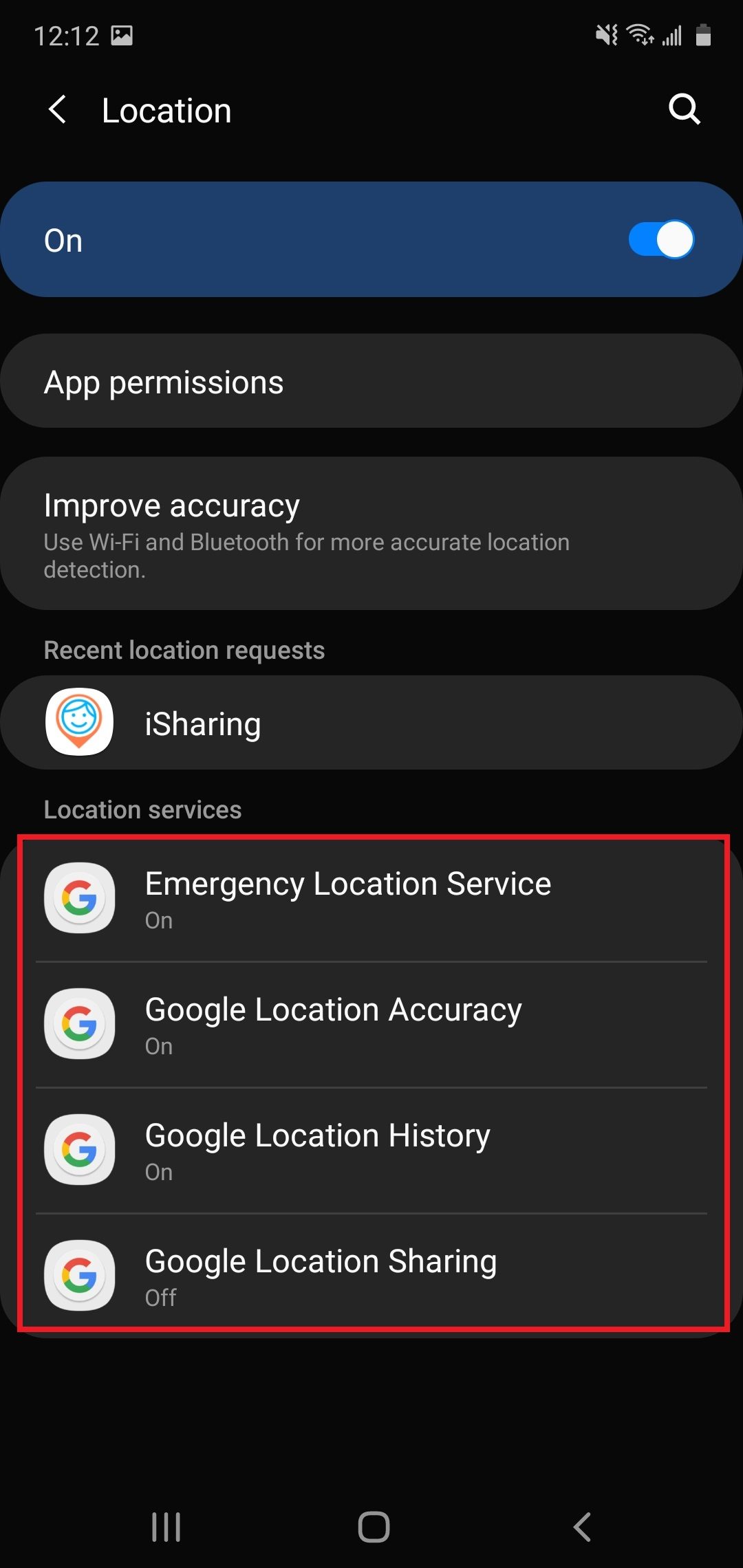

- Open up your Location settings to find Emergency Location Service, Google Location Accuracy, Google Location History, Google Location Sharing, and Location in Search.
- If labeled On, tap on the service and toggle it off to disable it.
One-time access
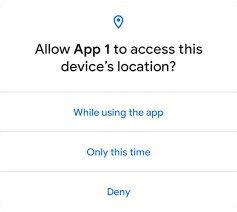
Android now has the ability to allow apps to ask for one-time access to location services to complete certain tasks. When this notification pops up, you can choose Only this time to have the app access location once and then disable again (iOS has a similar feature). This can be very useful for getting certain information without the need to give an app broad permissions.
How to disable location services on an iPhone
Disabling location services on an iPhone is a little more straightforward as iOS hasn’t really changed its appearance and settings over the generations.


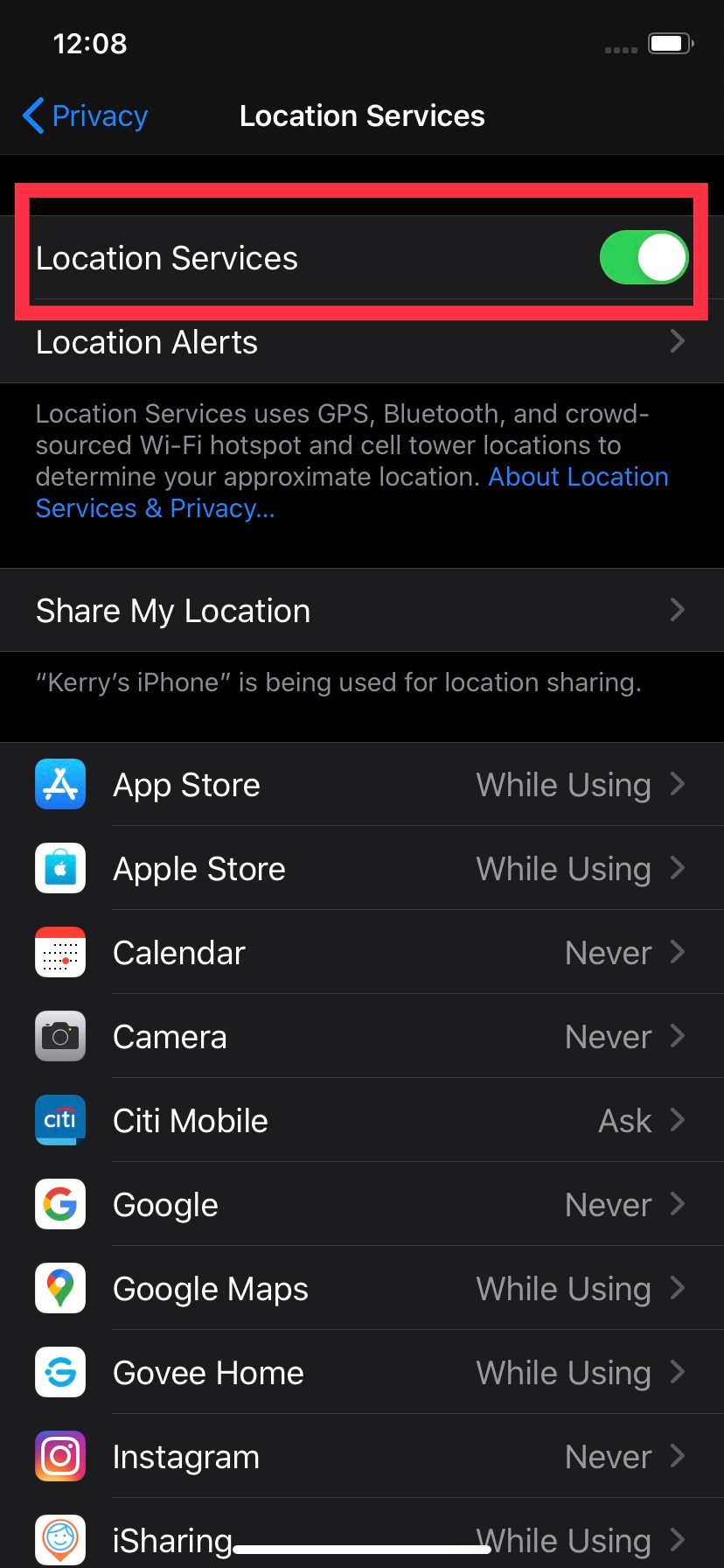
- Open up the Settings icon on your home screen.
- Scroll down and tap on Privacy.
- Tap on Location Services.
- Switch the Location Services toggle off to disable it.
How to disable location services for specific apps
To keep apps that rely on your location functioning, you’ll want to disable location services for specific ones and not all.

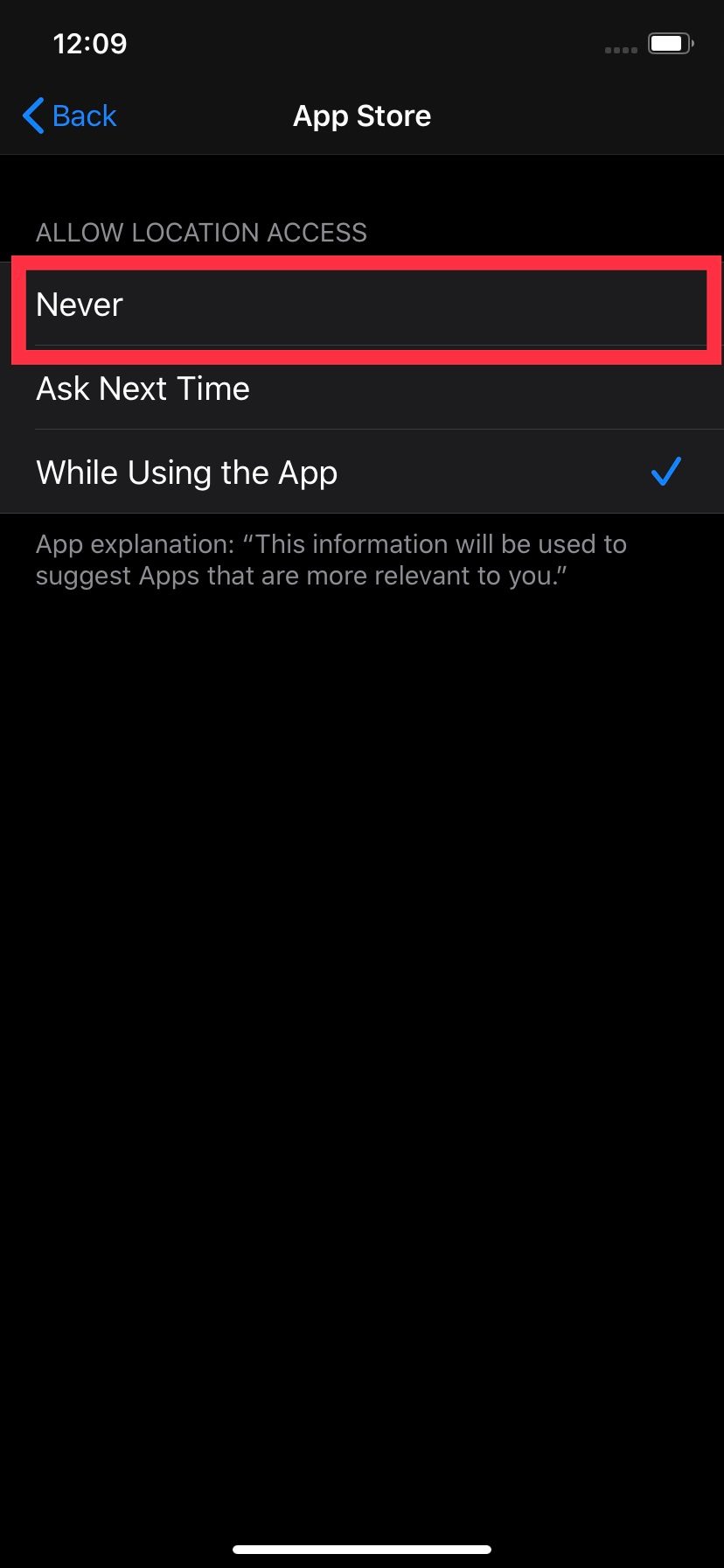
- Open up your Location Services settings to find a list of apps that may use location services.
- Tap on the one you’d like to disable.
- Check Never to ensure that the app can’t access your location even when it’s turned on. If you change your mind, check While Using the App.
Allow access once
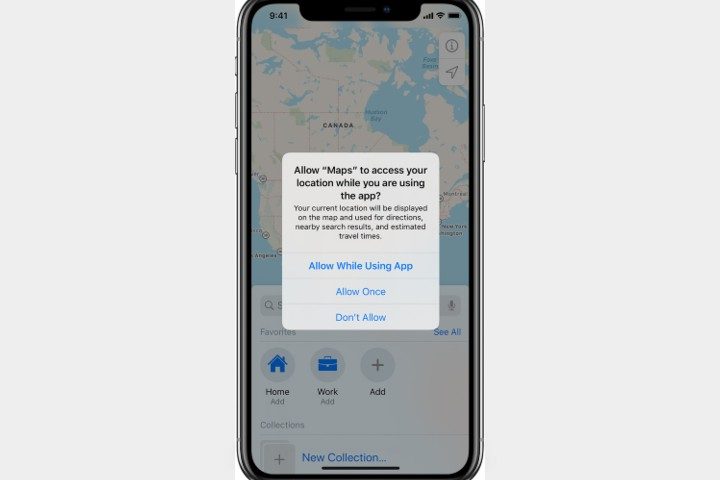
Like Android, iOS apps will ask if they can only use location data once to perform a specific task. When you see the notification come up, you can choose Allow Once so that the app can perform its function, but doesn’t get any lasting tabs on your location once it’s done.
You can manage the settings for these notifications in the Tracking section under Privacy, where the default should be allowing apps to ask you permission. Developers are now required to use this feature on iOS, so you shouldn’t have any apps that can sneak around it. Note that this feature allows approximate location data for compatible apps, so the app won’t know precisely where you are. If an app can be enabled for approximate location, you will see a map when the alert comes up with a small Precise button you can toggle on or off. Always toggle it off for increased privacy.


