Every iPhone camera emits a shutter click sound whenever you take a photo. Sometimes, that sound is an unnecessary and unwelcome intrusion—if you’re attending a meeting or are in a crowded room, you may prefer to take photos in silence. There are several methods for turning off the camera sound on your iPhone (whether you own the iPhone 15, iPhone 14, or an older model), including:
- Turning on Live photo
- Flipping the mute switch on your iPhone
- Turning the volume down on your iPhone
We will explain each of these solutions in detail below and discuss why you may not be able to turn it off in some locations.
How to turn off the camera sound with Live Photos
One of the easiest ways to shut off the camera sound is to enable Live Photos in the iPhone Camera app. When Live Photos is turned on, your shutter sound is turned off by default.
Step 1: Find the Live Photos icon. In iOS 18, the Live Photos control is the series of white circles at the top-right of the screen.

Step 2: Tap to switch it on. A yellow Live badge can be seen for an instant. Tap again to switch it off. A white Live Off badge is visible for an instant.
When the Live Photos button does not have a line through it, that means it’s on. A diagonal strike through means the button is off. Live Photos differs from traditional photos in that the live file saves a small video for every shot you take, which takes up more space than other photos. If you don’t need Live Photos on all the time, be sure to tap to switch it off.

Step 3: Tap the Yellow arrow at the top-middle, then tap on the Live Phone control button towards the center of the display to fine-tune the Live Photos control to Auto, On, or Off.

Step 4: Photograph silently by tapping the round, white Shutter button.
How to turn off the camera sound with the mute switch
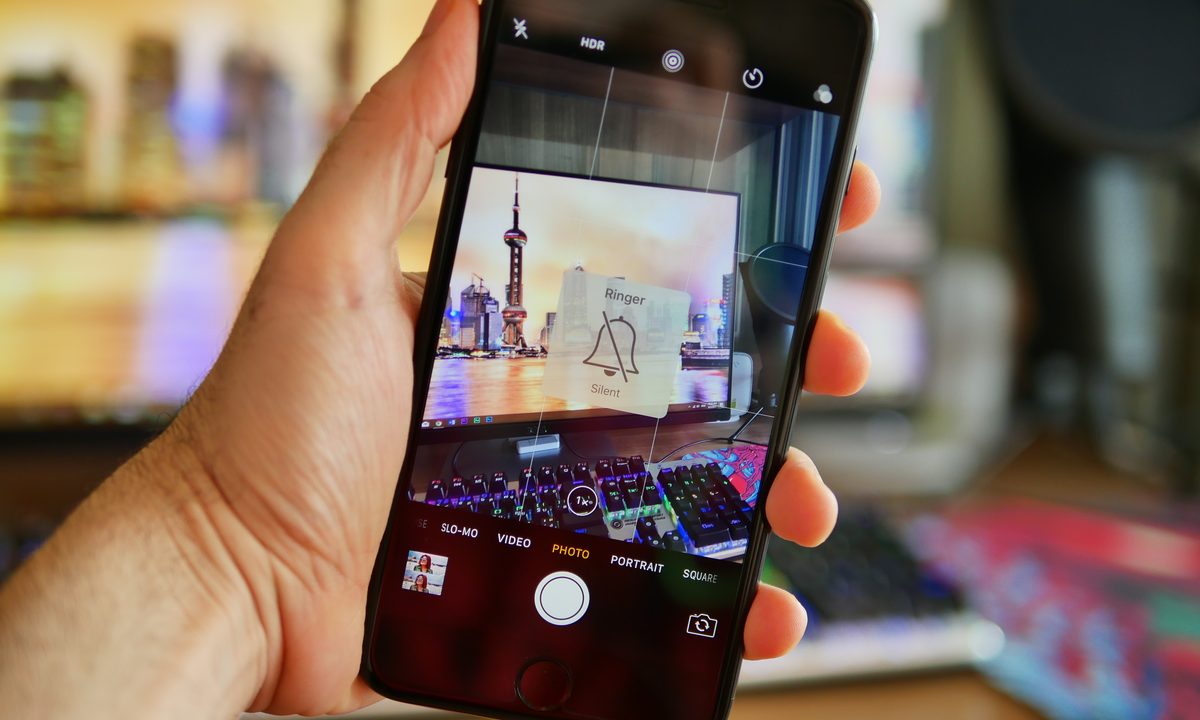
Another easy way to mute the iPhone camera sound is to use the hardware ring/silent switch (on older iPhones) or up/down volume slider (on newer ones) on the upper-lefthand side of the phone.
Step 1: When you mute, you won't ringer sounds for notifications, incoming calls, and other alerts, so use this control judiciously.

Step 2: Observe notations that let you know when Silent Mode is on or off.

How to turn down the volume to take silent photos
What can you do if the ring/silent switch isn’t working (on older phones)? If you’re having problems getting your ring/silent switch to cooperate, turning down the volume is the next best thing.
Step 1: Use the Volume button. Hold down the hardware volume button on the lefthand side of the phone until you see the screen-based volume indicator drop all the way down. But you have to do it at the right time, and if you do this in the iOS 14 or 15 Camera app, the camera will start shooting video.

Step 2: Be sure to lower the volume before taking a photo. The real trick is to reduce the volume before you open the Camera app.
Step 3: Alternatively, while you’re still in the Camera app, you can swipe down from the top righthand corner (in iOS 14 or 15) to reach the Control Center.

Step 4: Once you’re here, you can use the Slider to turn off the volume.
Be mindful of country restrictions
In some countries, predominently Japan and South Korea, the camera shutter sound remains on all the time. Shutter muting is not allowed, and phones bought and sold there are customized for those markets to guarantee total privacy and stop unknown recording or photographing.
Although it’s not statutory, producers and Japanese wireless providers have agreed to create phones that make a distinguishing noise whenever you launch or use the camera. If you’re living in or visiting these specific countries, your camera app will make a sound even if you mute your iPhone camera. Here are a few potential workarounds we've discovered.
Step 1: Muffle the sound by covering the speaker as you shoot.
Step 2: Plug headphones into the headphone jack and capture photos using your headphone as a shutter.
Step 3: Use a third-party camera app rather than your iPhone’s default Camera app.
Step 4: Use the Volume buttons on your iPhone as shutter buttons.
If you’re taking pictures legally and not infringing on anyone’s privacy in these nations, we suggest you give these alternative methods a try.
Frequently Asked Questions
How do I turn off the camera click sound on my iPhone?
There are three methods for turning off the camera click sound on your iPhone:
- Turn on Live photo
- Turn the camera sound off with the mute switch
- Turn the volume down on your phone
Which of the iPhone has the best camera?
The iPhone 15 Pro Max has the best camera in an iPhone—and arguably the best camera on the smartphone market, period. That's because the 15 Pro Max houses a 5x optical zoom versus the old 3x maximum. Check out our glowing review of the iPhone 15 Pro Max.
Why can't I turn off the shutter sound on my iPhone?
If you're having trouble turning off the shutter sound on your iPhone, try switching to Live photo, flipping the mute switch on the side of your phone, or turning the volume on your phone all the way down.