Back in the day, signing in to new apps meant revealing your email address and creating a new password for each account. When that became too confusing and time-consuming, many of us caved into the temptation of using a Facebook account as a universal login, despite justified reservations about privacy.
With iOS 13, iPadOS 13, WatchOS 6, tvOS 13, and MacOS Catalina, Apple introduced Sign In. This feature gives you a private way to sign in to and manage third-party apps and websites using your Apple ID instead of giving out your email to any app that asks. A Sign In With Apple button on an app or website means you can set up an account and sign in with your Apple ID. To use Sign In, you must have an Apple ID with two-factor authentication enabled, and you must be signed in to iCloud. You can use Sign In with various web browsers, including Apple’s Safari, or on your Mac.
Once you set it up, when apps and websites request your name and email address to set up your account, you can instead use Hide My Email — Apple’s private email relay service — to create an anonymous email address that forwards app messages to your real email address without revealing it to third parties. Only the registered app or developer can communicate with you via this address, and you can turn it off if you don’t want to continue using it. Here’s how to start the process in iOS 14.
Use Sign In on your iOS device


- Sign in with your Apple ID on your device.
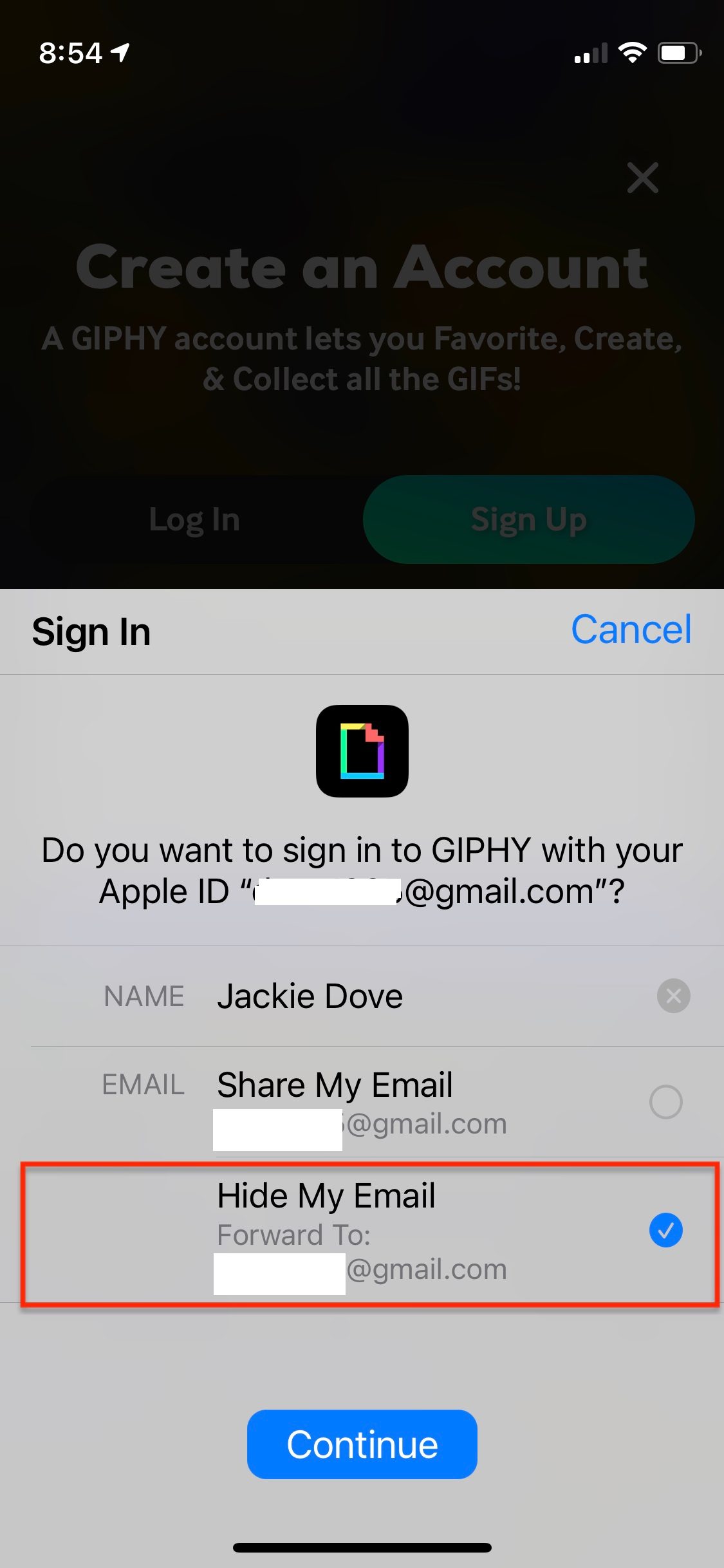
- Tap the Sign In With Apple button on the app or site you want to use.
- If you’re asked for your name and email address, Sign In With Apple automatically fills in the information from your Apple ID. You can edit your name, or choose either Share My Email or Hide My Email.
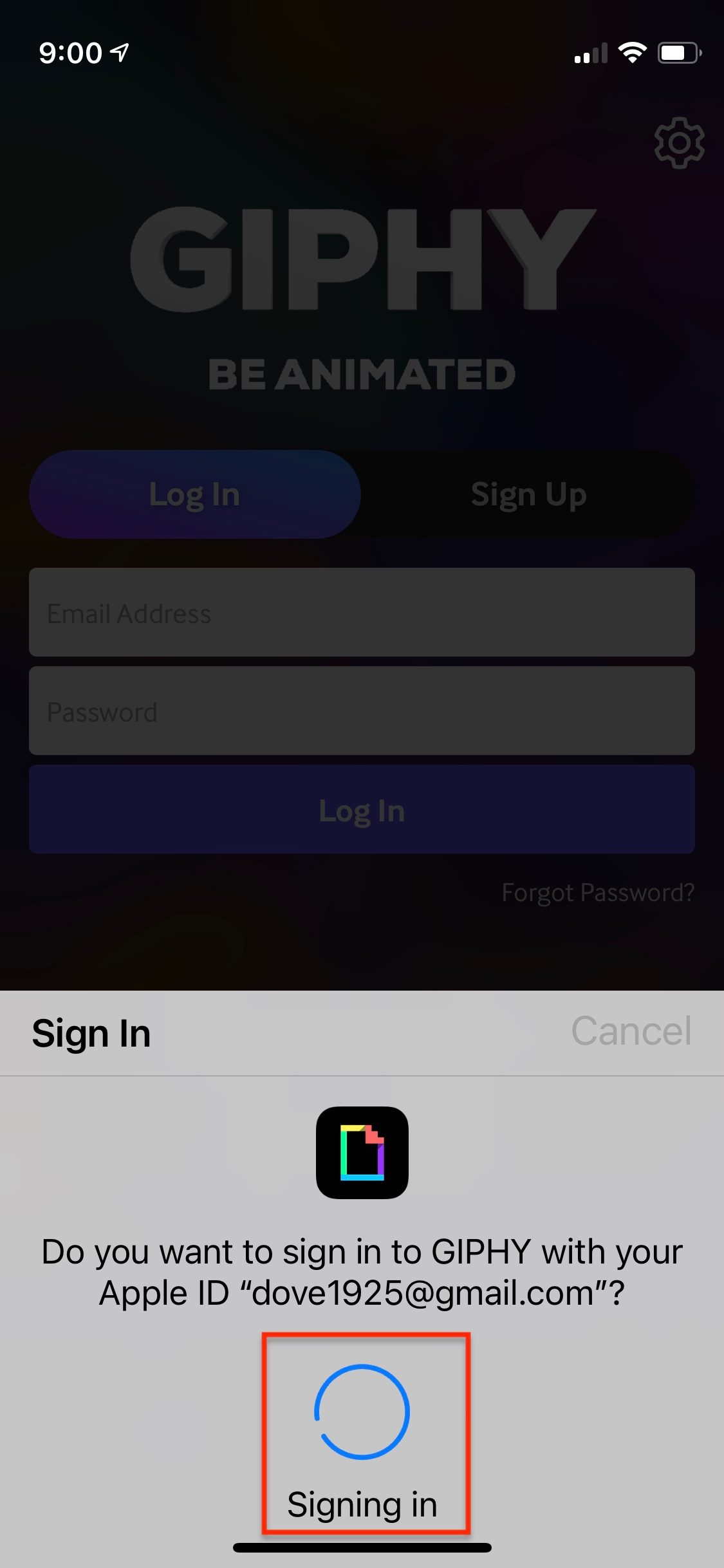
- Tap Continue and confirm with Face ID, Touch ID, or your device passcode.
If you don’t have Face ID, Touch ID, or a passcode, you can use your Apple ID password. As long as you are signed in to your device, you stay signed in to those apps. If you need to sign in again, just tap the Sign In With Apple button and repeat the process.
A random email address generated for you by Apple will look something like this: dpdcnf87nu@privaterelay.appleid.com. This is especially useful when you are checking out an app for the first time, or you are not familiar with (or don’t completely trust) a developer. You can change the email addresses or disable email forwarding at any time.

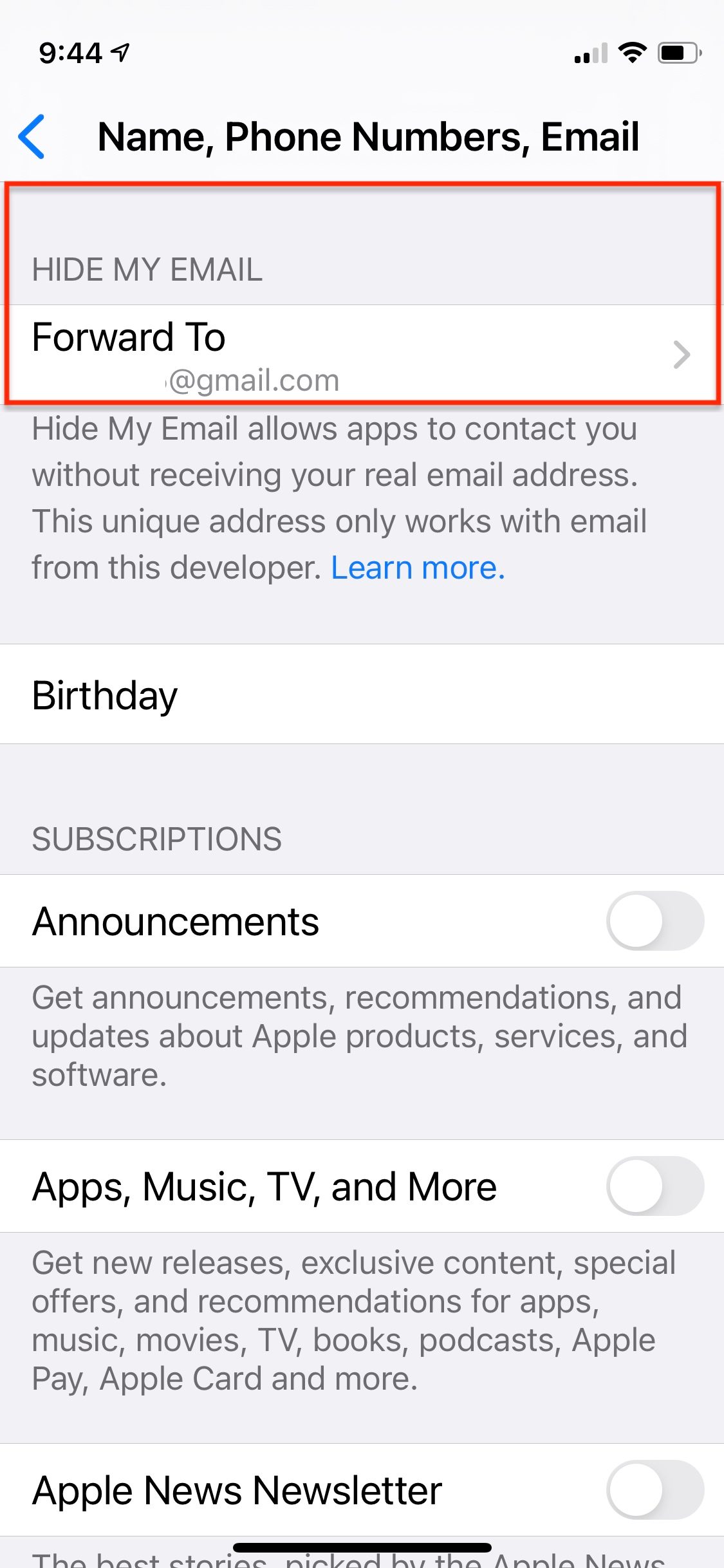
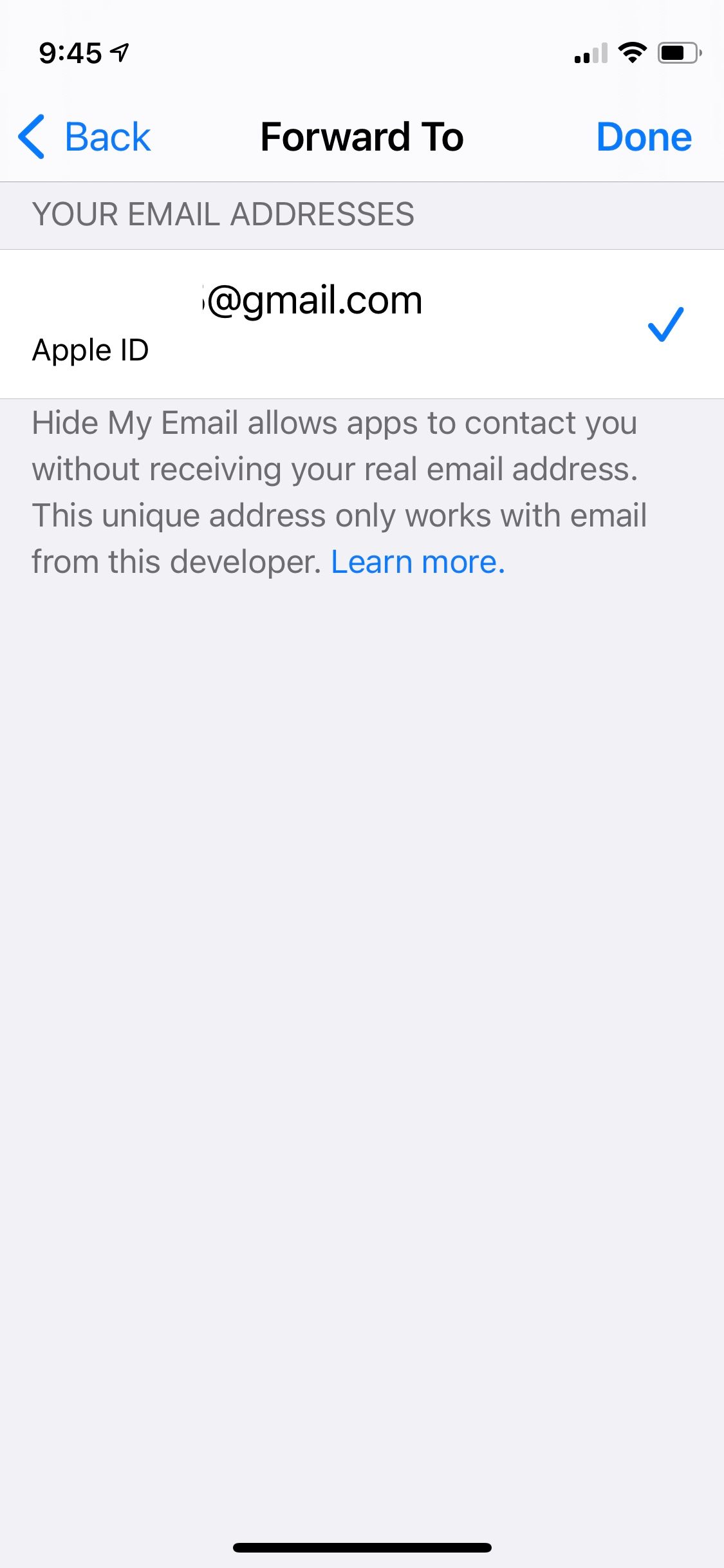
- On your iPhone, go to Settings, then tap your name.
- Tap Name, Phone Numbers, Email, then tap Forward To under Hide My Email.
- Choose the address you want emails to be forwarded to.
- When you choose the email address, this applies to email from all apps and developers using Hide My Email.
Apple’s relay service automatically forwards any messages sent to this address to your real email address. This ability means you can read (and even respond to) these emails, all while keeping your real email address private. Apple does not scan email content, but it does filter out spam. All messages get deleted from Apple’s relay servers seconds after delivery.
Which apps now use Apple ID?


To see a list of your iOS apps that are currently using the Sign In With Apple feature — or to adjust their preferences — do the following.
- Open the Settings app and tap your name.
- Tap Password & Security.
- Tap Apps Using Your Apple ID.
You will then see a list of all your installed apps now using this feature.


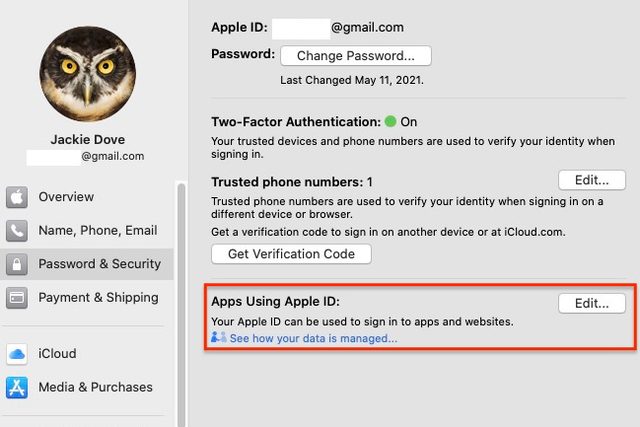

You can access and manage the same list on your Mac via Preferences > Apple ID > Password & Security > Apps Using Apple ID or on the Web via your appleid.apple.com > Security > Sign In With Apple > Manage Apps & Websites.
Disable email forwarding


If you don’t want to receive emails from specific websites or apps, you can block them. You can also go into your settings and turn the Forward option off.
- On your iPhone, go to Settings and tap your name.
- Tap on Password & Security.
- Tap on Apps Using Your Apple ID.
- Find the app you want to discontinue.
- Select Stop Using Apple ID, then on the next pane, choose to Stop Using.
Assuming all your devices link to this same Apple ID, if you use an app without entering your Apple ID on one device, your other devices will also sign you out of the app. Whenever you visit that app or website again, you’ll be given the option to either Sign In With Apple or to Create a New Account. If you want to sign into your original account, choose Sign In With Apple.
Some apps allow you to sign in using a password different from your Apple ID, so you don’t need to use it to access that app. Other apps will allow you to use Sign In for multiple features and apps. Keep in mind, though, that when you stop using your Apple ID or turn off email forwarding, it may apply to all other apps you have installed from the same vendor.