The first thing you fire up when you have a research paper, resume, or another important document to type up is likely Microsoft Word. There are lots of great things you can do with it, but there are also some secrets in Word that might surprise you.
Here are six things you didn’t know you could do in Microsoft Word. We’ll touch all the bases, including voice dictation, cropping images, and much more.
Voice dictation
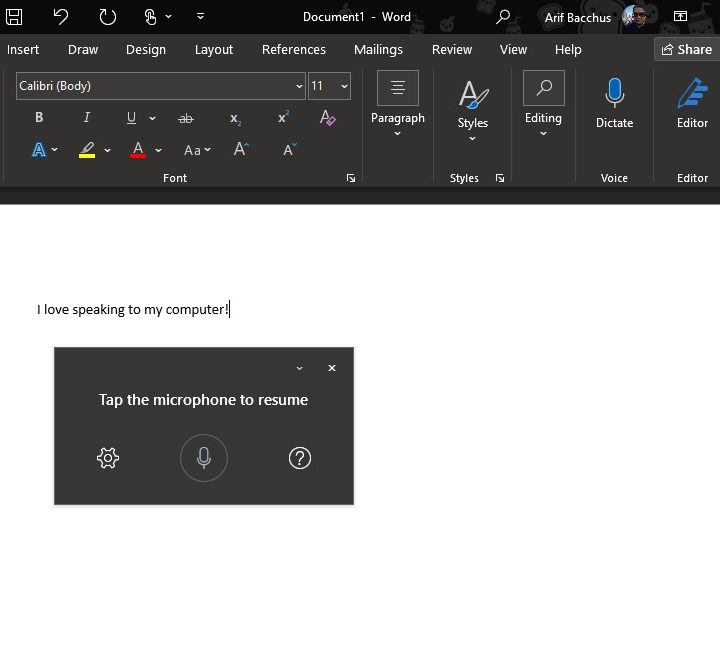
With voice dictation, you can use Word’s speech-to-text feature to speak out your words instead of having to type them on the keyboard. This is great for when you’re feeling lazy, and it could even end up saving you some time.
Microsoft says the feature works across MacOS and Windows 10, and even on iOS and Android — as long as you’re subscribed to Microsoft 365. It won’t work if you own the version of Word included with Office versions, such as Office 2019, according to Microsoft.
We’ll focus on Windows 10 here, but the full directions for other platforms are available on Microsoft’s website. Just open a new document, go to the Home tab, and then look for Dictate. From there, click the Dictate button and wait for the button to turn on and start listening to you.
Start speaking to see the text appear on the screen, and then insert your punctuation by speaking it out loud (such as period, or comma.) You can fix your mistakes by saying things like “undo” or “delete” or “delete last XX words” or “delete that.” Formatting commands like “bold” “italics” “underline” also work.
Translate your documents
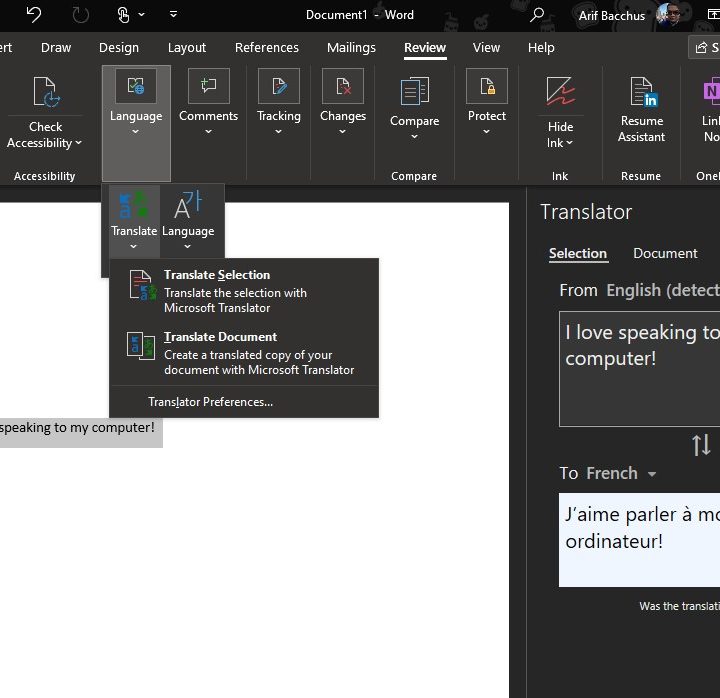
Did you just get a document in another language? Perhaps from a colleague or a friend in another location in the world? You might think this means you’ll have to visit Google Translate and copy and paste your entire document to get it into English. But there’s no need to do that! Word has your back.
In Word for Microsoft 365 (again, we’re talking about the subscription-based version of Office, which includes Word), Word will automatically offer to translate your document for you. You also can translate phrases into other languages. Just make sure you’re connected to the internet and have Office connected experiences enabled to use the feature.
To translate an entire document, you just need to click the Review tab. From there, Word will offer to translate the document, and you can accept. If this does not work, you can click the Review tab and then Translate. A newer, machine-translated copy of the document will then be created for you.
You also can translate individual text to other languages by highlighting the text, then going to Review > Language > Translate. Translating individual text might work in Office 2019, according to Microsoft.
Transcribe your interviews in Word Online
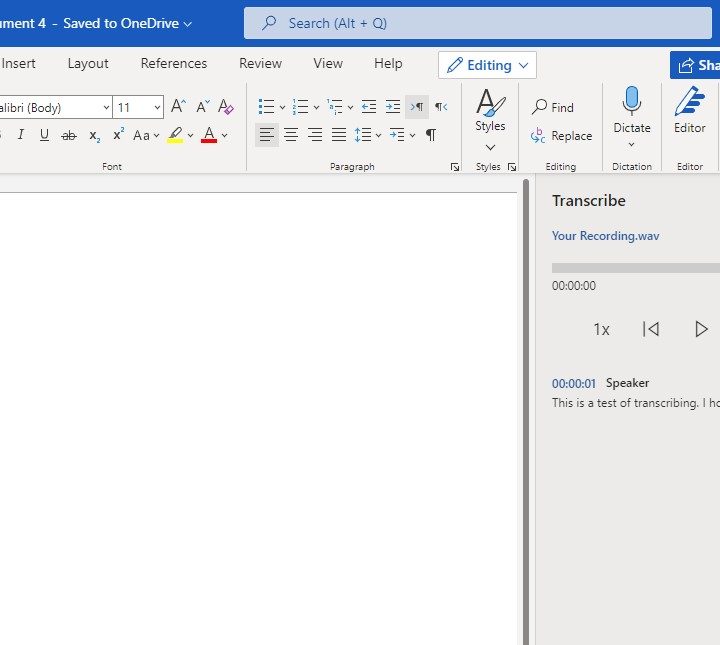
If you’re subscribed to Microsoft 365 to access Word and the other Office apps, there’s a bonus feature for you. If you open Word on the web, then you can turn your recorded interviews into actual words on the screen, without having to do all the typing yourself.
Just open a new blank document online, then click the Home tab followed by Dictate. You should then see the Transcribe button. Click the Upload Audio button, and upload your interview or audio file. You also can start the recording. Word will then do its magic in the background, and output a full transcript in the sidebar. You can click the transcript to edit it or copy it over to your main document.
Resume Assistant in Word
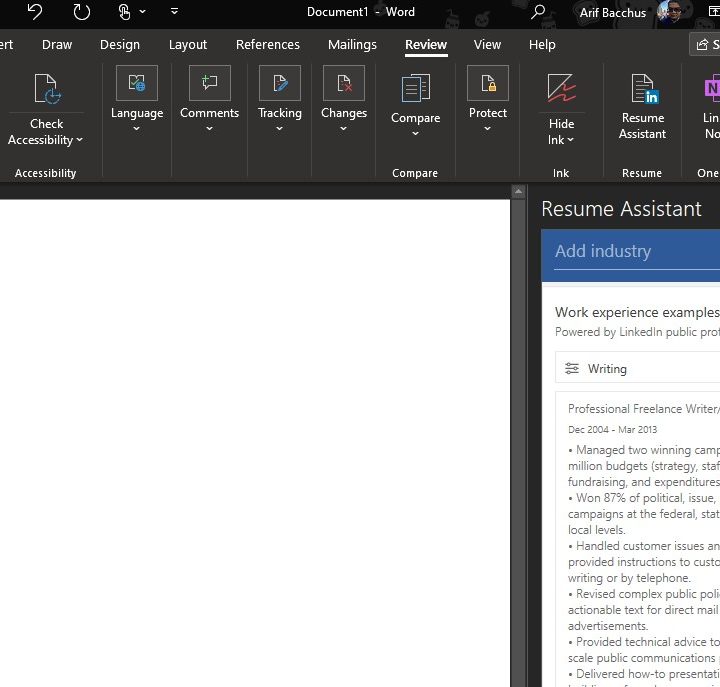
If you’re on the hunt for a job, then Microsoft Word can help. While most jobs prefer a resume that’s based on a template, you can use Word for some inspiration in resume typing and then tweak your resume to stand out from the rest. This feature is known as the Resume Assistant.
You can fire up the Resume Assistant by clicking the Review tab and then choosing Resume Assistant. The entire experience is powered by LinkedIn. Choose the Get Started button and then follow the prompts in the sidebar to complete your resume. It doesn’t get any easier! You’ll see examples for various types of jobs and other fields that might be similar to your own.
Use stock images and crop and edit photos
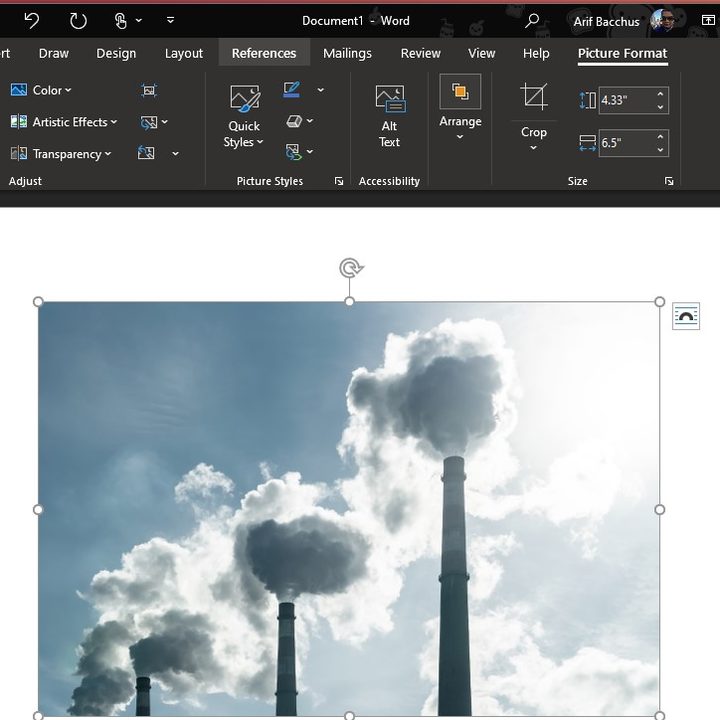
Seeking out some additional images for your document in Word? Don’t go to Google! Word can pull and handle photos from the web.
You can actually insert photos in Word directly from the web. Just click the Insert tab, and then choose Pictures. From there, choose Stock Images. You’ll then be able to search for a specific stock photo that you can use in your document. Use the tab along the top to filter different types, stickers, illustrations, and more.
Once you insert an image into Word, you can alter the image directly. Just click it, and bring the Picture Format tab up. There will be tabs for Corrections, Color, Cropping, Adding Alt Text, and so much more. The sky is the limit!
Use Quick Parts
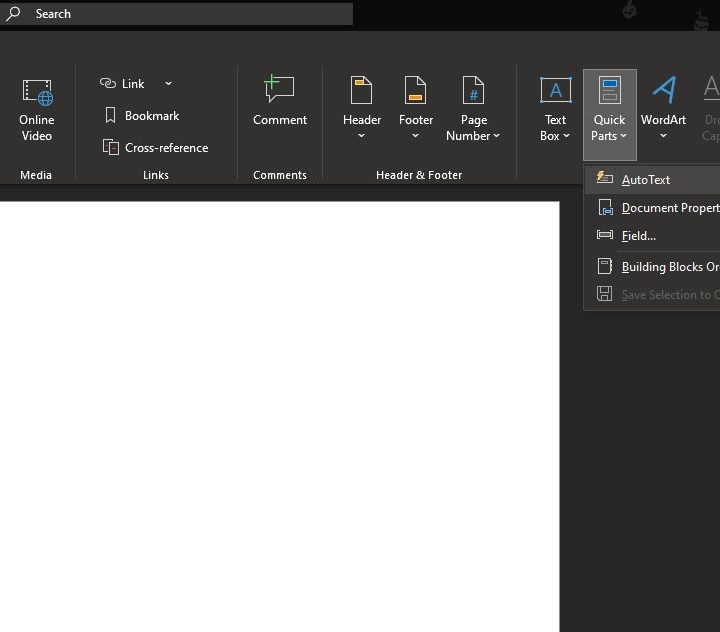
Our final trick on the list is a Word feature known as Quick Part. This feature helps you insert some standard elements of text in your document, without having to manually type things out. Quick Part examples include your name, an abstract, company address, and more. You can see the full list by clicking the Insert tab and then choosing Quick Parts.