Google’s page cache can be a lifesaver. However, the method for accessing cached pages seems to change daily given the tech giant’s move to streamline search results and remove once-notable features such as Instant Previews, Quick View, and other similar, low-usage functions. Cached pages essentially function as quick data snapshots Google compares with your search query, providing a convenient means for accessing back-up versions of webpages that may have otherwise be taken down or are heavily congested due to an overwhelming amount of Web traffic. Although not completely necessary, viewing Google’s cached pages opposed to the regularly-formatted pages grants you quicker viewing access by reducing the site’s overall processing and subsequent loading time.
Additionally, it bestows the viewer with the ability to view earlier renditions of certain pages that may have been altered after their original publication or remain hidden behind a subscription-based pay wall, allowing viewers to see outdated or otherwise restricted content. Google certainly hasn’t indexed all sites on the Web — cached links are typically omitted for sites that specifically request their content not be stored or cached — but most cached pages are available through various links embedded in the search results or directly accessible through the address bar. However, finding the cache can be considered more of a cache-22 of of sorts than an everyday walk in the park.
Here’s our brief guide on how to directly access Google’s cached pages, so you can load pages quicker and discover older content you may have missed. Additionally, check out our guides on how to clear your browser’s cache if you’re looking to retrieve the latest website content, or our guide on how to enable browser cookies if you’re experiencing trouble accessing various elements within a site.
View cached pages through Google search results
Nothing at Google remains the same for long. Although the company once offered the ability to view cached pages within the Instant Preview panel while hovering the mouse over a specified search result, that is no longer the case. However, users can still view cached pages from within the search results using the green drop-down arrow whenever available. It’s quick and easy, however restricted it may be at times.
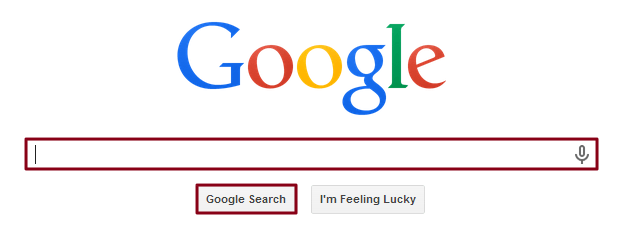
Step 1: Perform a Google search — Navigate to the main Google homepage, enter your desired search query or sought information in the resulting text field below the logo, and click the gray Google Search button located in the bottom left, below the entry field.
Step 2: Access the desired cached page — Locate the the webpage you wish to view within the search results. Once found — and if available — click the small, green drop-down arrow located directly right of the webpage’s respective URL, beneath the blue heading title. Afterward, select the Cached option at the top of the resulting drop-down menu to view the cached version of said page. Although not always the case, a gray banner will typically appear at the top of the cached page indicating the exact date and time when the snapshot was taken. The banner will also supply links to the most recent version of the page, along with additional information from Google pertaining to cached links.

View cached pages using the address bar
It’s not always necessary to search and discover the right webpage if you already have the exact URL in mind. Thanks to Google’s innate address-search omnibar, navigating to a cached page of said site is as simple as entering a word directly in front of the URL. It’s quicker, assuming you have the Web address in mind, if not more convenient.
Step 1: Locate the webpage — Whether you already have the URL on hand or discover the address through a quick search, locate the webpage you wish to view a cached version thereof. As previously mentioned, not all websites offer cached pages, but most offer some cached version of the page however dated it may be.

Step 2: Enter the “cache” in the address bar — Once the desired URL for the page you wish to view a cached version of is inserted in the address bar, enter “cache:” directly in front of the text. If you were viewing www.digitaltrends.com for instance, you would simply want to enter “cache:www.digitaltrends.com” in the address bar to view the cached page instead of the standard version. Although not always the case, a gray banner will typically appear at the top of the cached page indicating the exact date and time when the snapshot was taken. The banner will also supply links to the most recent version of the page, along with additional information from Google pertaining to cached links.

What do you think of our simple guide on how to directly access Google cached pages? Do you know of a better method? Let us know in the comments below.