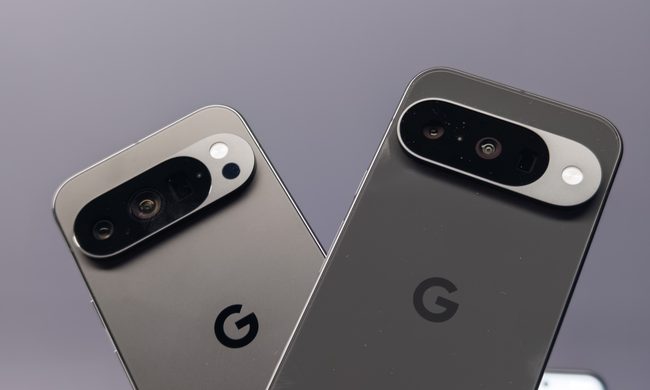
iOS 14 has been around for a while now, and it’s available on every iPhone from the iPhone 6S to 2020’s iPhone 12 Pro Max. It’s since been superseded by iOS 15, but iOS 14 was a huge deal for iPhone lovers when it launched. Why? iOS 14 introduced a bunch of long-awaited features, including home screen widgets, cycling directions, and — the most shocking addition — an app drawer so you don’t have to keep your apps on your home screen.
Make no mistake, iOS 14 was one of the biggest new software releases of 2020. But talk is cheap. How can you actually get your hands on it? Here’s how you can download iOS 14 onto your iPhone.
Every device that could download iOS 14 can now download iOS 15. That’s right, iOS 14 is no longer the latest iOS update. Looking to update to the new hotness that is iOS 15? Follow our guide on how to download iOS 15.
Why should you download iOS 14?
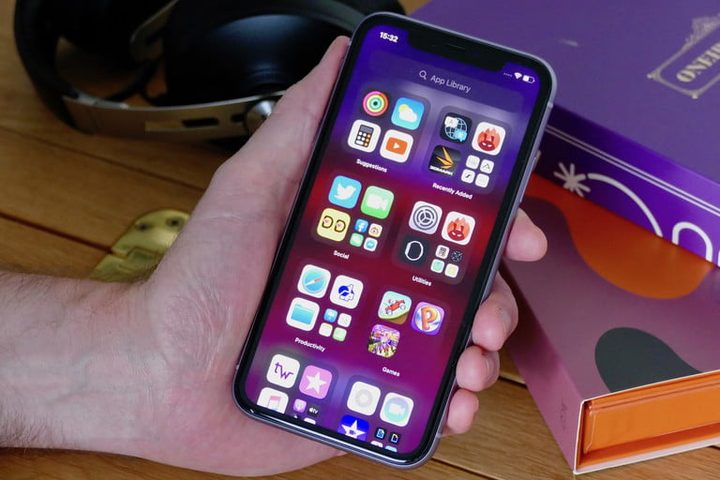
Before we get started, you might be asking yourself why you should bother downloading iOS 14. Simply put, iOS 14 is one of the biggest changes in iOS history, and it adds a lot of new (and long-awaited) features to compatible iPhones and iPods.
Top of the list has to be the addition of an app library and home screen widgets. The new app library gives you an alternative option if you’re not keen on iOS’s default of storing all apps on your home screen, and you can use the library to keep your apps off the home screen and tucked away until you need them. What do you do with all this new space? Fill it with widgets, of course. Long a staple part of Android, widgets are essentially app snippets that live on your home screen and give you limited access to some of that app’s features. Examples might include the weather, stock market movements, and music widgets to start playing music quickly.
Those are only the tip of the iceberg, too. Check out our list of the best iOS 14 tips and tricks for more. But also keep in mind that iOS 14 got up-to-date security patches as well, so if you care about keeping your phone’s data private, it’s worth updating to the newest version.
Compatible devices
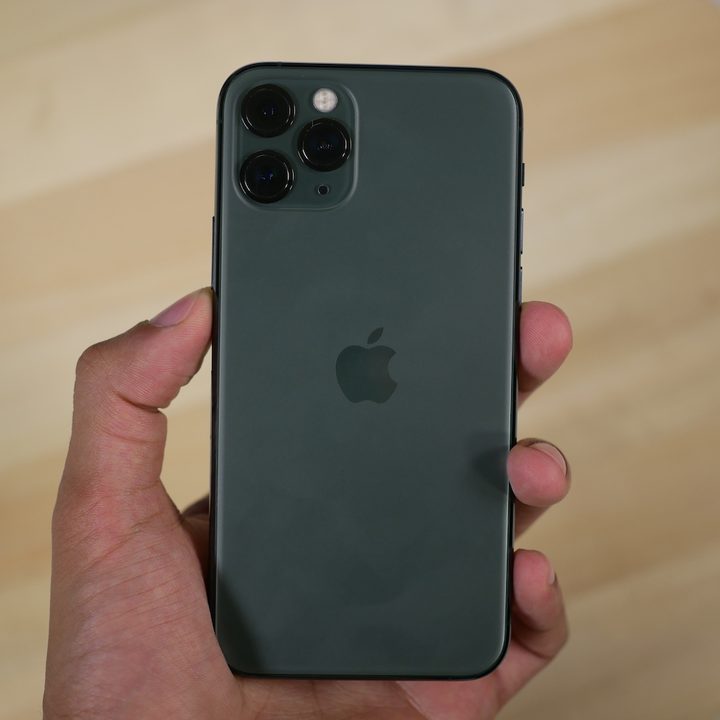
Only a certain number of iOS devices are capable of accessing iOS 14. Thankfully, Apple continued its long tradition of supporting devices way past their usual use-by date, and iOS 14 was available on an unprecedented number of iPhones. Make sure you have one of the following iPhones before you start the process of downloading and installing iOS 14.
- iPhone 6S, iPhone 6S Plus, and iPhone SE (first-gen)
- iPhone 7 and iPhone 7 Plus
- iPhone 8 and iPhone 8 Plus
- iPhone X
- iPhone XR, iPhone XS, and iPhone XS Max
- iPhone 11, iPhone 11 Pro, and iPhone 11 Pro Max
- iPhone SE (2020)
If you’re rocking one of the new iPhone 12 range, it launched with iOS 14, so there’s no need to upgrade. However, you can still follow the final step to make sure your iPhone has the latest upgrades.
Back up before you get started
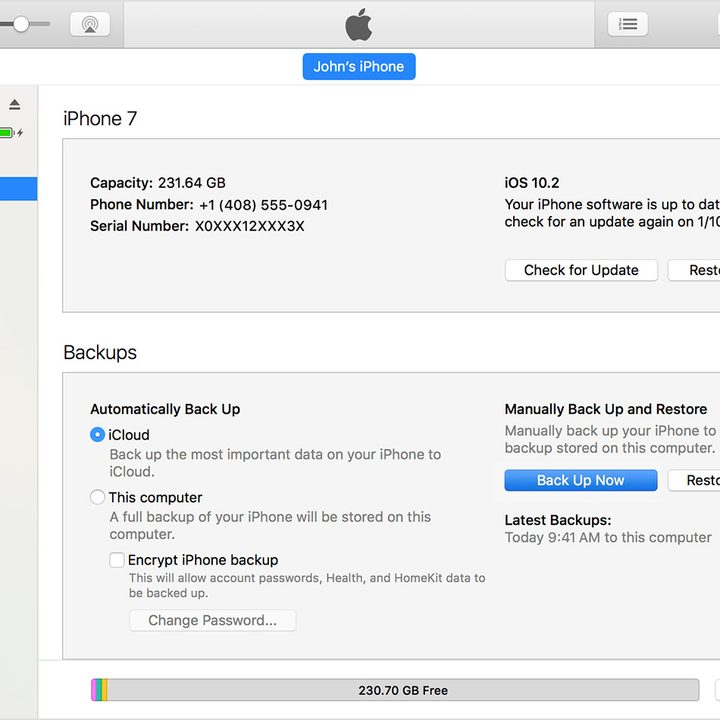
If you’ve got the right iPhone handy, then you’re good to start downloading iOS 14. As a stable release, it’s less of a risk than downloading a beta build. But still, make sure you’ve backed up your data, just in case the worst does happen.
Backing up using iCloud
Apple’s own iCloud is definitely the easiest way to back up your iPhone. Here’s how to do it:
- Connect to a Wi-Fi network.
- Head to your Settings app, select your name, and tap iCloud. If you’re on iOS 10.2 or earlier, then you’ll have to scroll down to tap iCloud.
- Scroll down and tap iCloud Backup > Back Up Now. If you’re on iOS 10.2 or earlier, just tap Backup.
You can check whether the backup is complete by heading back to Settings, hitting iCloud > iCloud Storage > Manage Storage, and tapping on your device on the list.
Backing up on a Mac running MacOS Catalina
While MacOS 10.15 Catalina may have put the kibosh on Apple’s iconic iTunes, you can still back up your iOS device on the new MacOS. Here’s how:
- Connect your iPhone or iPod Touch to your Mac, and make sure it’s up to date.
- Follow on-screen instructions to enter your device passcode, or choose Trust This Computer.
- Open your Finder app, and select your iPhone from the sidebar.
- Hit the General tab, then hit Back Up Now to manually back up.
Backing up on a Mac or PC with iTunes
If you’re blessed with an older Mac or Windows PC, then you can still use iTunes to back up your iPhone or iPod Touch. Here’s how to do so:
- Make sure your iTunes is up to date, and connect your device.
- Follow any on-screen instructions if you need to enter your device passcode, or choose Trust This Computer.
- Select your iPhone or iPod Touch in iTunes.
- Hit Back Up Now to save your data.
Downloading and installing iOS 14

Once you’re finished backing up your phone, you’re ready to start installing iOS 14. Thankfully, this is probably the easiest bit. Head to Settings > General > Software Update and let the system check whether an update is available. If it’s available, tap Download and Install, and wait for the file to download. If it’s not there, make sure you’re using a compatible iPhone, or just wait a little longer — the update isn’t released everywhere at the same time, so it may just not have reached your area yet.
Once the update has been downloaded and prepared, you’ll need to confirm you want to update, and once your phone has restarted once more, you’ll be using iOS 14.