
The iPad Air is here, and the new iPad Mini with Retina is coming soon. Normally, we’d tell you how to sell your old iPad to help finance your new one. But, according to uSell, a ton of you are keeping old gadgets around and not selling them to Amazon, Gazelle or anyone. Even worse, uSell claims that, even though you’re keeping old gadgets, you don’t know what to do with them and they just sit around, unused.
Y’all, we need to talk. Don’t just let that older iPad sit there gathering dust. If you don’t have someone to hand it down to, put it to work. It might not be the newest, the thinnest, or have a Retina display, but it can still serve a purpose. Here are a few ideas.
Mount your iPad to the wall
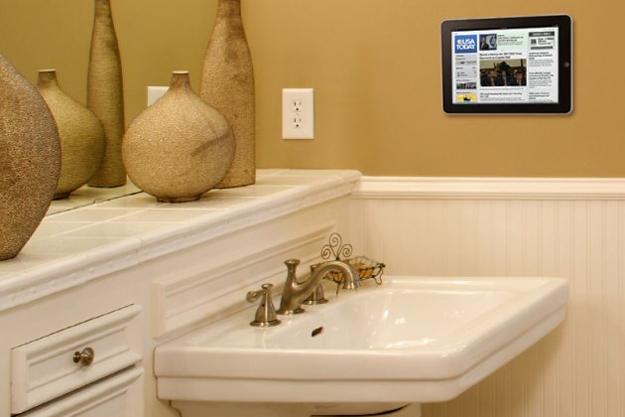 With your new iPad in hand, you won’t need the old iPad right by your side, so why not mount it to the wall semi-permanently? Then it’s out of the way yet still accessible for all the uses we’ll put it to below. You can mount it next to your bed, in the kitchen, or near that other place in your house family members pass so often.
There are several mounting solutions ranging from dirt cheap to expensive. The best one depends on where the iPad will live and how movable you want it to be. The Joy Factory Tournez wall/cabinet mount features an articulating arm that mounts permanently (the iPad is removable easily). If permanence isn’t your groove, the Sea Sucker mounting system uses powerful vacuum cups to attach to both the iPad and a smooth, flat surface. For a more minimalist approach (and a more attractive one), the MagBak makes it possible to mount the iPad on any magnetic surface and comes with O-Rings so you can mount the tablet on any other walls, too. The Boomerang combines a minimalist iPad stand+case and a mounting system that will attach to any surface via magnets, adhesives, or screws.
Of course, you can also DIY a mount with some 3M Command hooks, like this. The white, plastic ones will get the job done, but you might want to check out these nicer-looking brushed nickel hooks if you want the setup to look a bit fancier. If you don’t plan to move the iPad much and want a flushed look, good, old-fashioned Velcro will hold the tablet up just fine. We suggest attaching the Velcro to a simple iPad case just in case you decide to sell or do something else with it down the line.
Turn your iPad into a digital photo frame
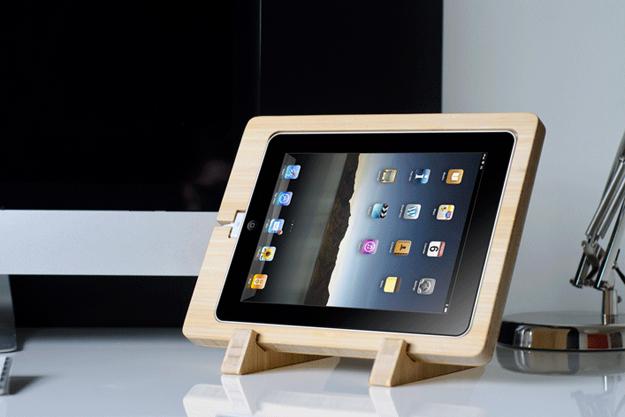 Remember digital photo frames? If you’ve been in a Radio Shack or the photo section of a big box store lately you may have spied a couple still around. Sadly, they are never as easy to connect or update as they promise. Your old iPad can do the digital frame thing much better.
There’s a built-in Picture Frame feature on the iPad (look under Settings > Photo Frame) that will pull from pictures in your Photo Stream and albums and offers a few standard transition options. But that’s basic and boring. Plus, you might not have all the pictures you want to show on your iPad or in iCloud. Consider one of these apps (compatible with iOS 5/5.1, so they can work with any iPad, even the original):
Unbound HD for Dropbox: This is a good solution for people who want to be more select about the pictures they show. Unbound is a photo browser for Dropbox that happens to have a slideshow function. The great thing is that you can point it to a specific Dropbox folder to grab photos. It’s easy enough to move images in and delete them if you don’t want them in your slideshow using Dropbox’s web interface. It’s a great solution if you plan on giving the iPad to a less tech-savvy family member. Drop in the latest photos of grandkids or nephews and nieces and, surprise, they show up in the app automatically!
Flickpad HD: The slideshows on those other apps are pretty basic and not all that interactive. In Flickpad’s normal view you can see several pictures at once as if they were laid out on a table, then delve in for more info or to like and comment right from the interface. There’s a standard slideshow, too. Flickpad pulls pictures from Flickr and Facebook and can be connected to multiple accounts.
To complete the look, slide the iPad into a wooden mount or dock to give it more of a picture frame look. We’re fond of the Chisel from iSkelter.
Use your iPad as a home camera monitor
 iPads don’t have world-class cameras, but they’re good enough to use for an inexpensive home monitoring system. This works with old smartphones, too. All you need to do is download a camera monitoring app to your old iPad and your new one (or an iPhone or iPod touch), set the old iPad in the room you want monitored, and keep it plugged in.
We suggest the Presence by People Power app since it’s free and includes motion detection. It only works on the iPad 2 and newer since it utilizes the front-facing camera.
Use Your iPad to control your home
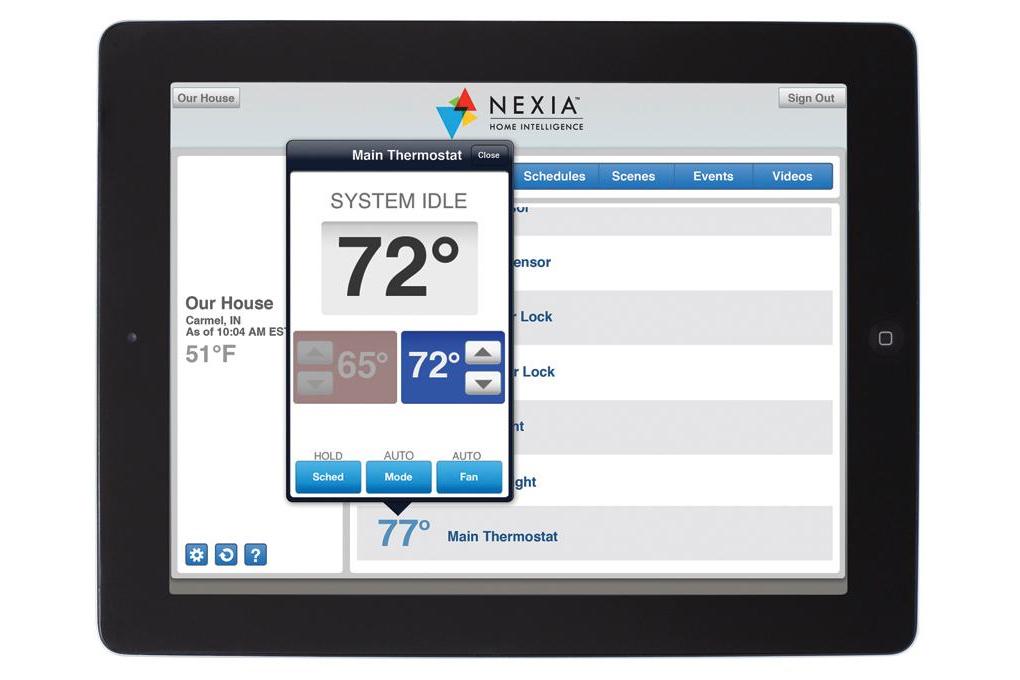 You don’t have to be rich and ridiculous to have sci-fi levels of smart home automation these days. Bit-by-bit you can add upgrades to your home that allow you to control the thermostat, turn lights on and off, check your laundry status, and even unlock your door from an iPad. Of course, many of these functions are designed for control when you’re not in the home. Some are still useful to control from a mounted iPad. You can change the thermostat from the basement or bedroom; make sure all the lights are out before going to bed without getting out of it; set a timer for the dishwasher or the coffee maker while brushing your teeth. There’s a lot of potential.
There’s also a lot of choice when it comes to home control systems. Belkin’s WeMo system can control lights and just about anything you plug into an outlet via the iPad. AT&T’s newly launched Digital Life system can control and monitor even more parts of your home, such as door locks and energy usage. Nexia Home Intelligence also goes this deep. It’s on the expensive side, but can be built piece-by-piece over time.
Want more home control suggestions? Check out: Your home is dumb, but making it smart is cheaper than you think
Use your iPad as a computer monitor
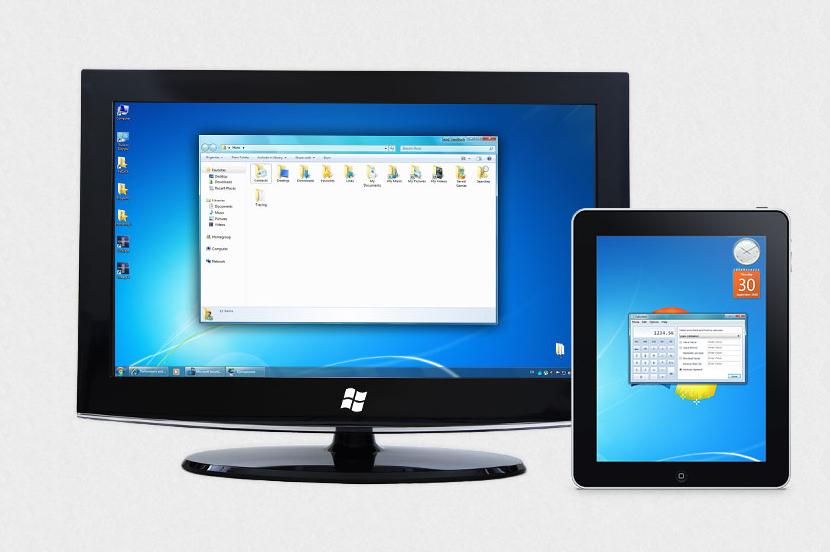 As anyone with a multiple screen setup will tell you, adding a second monitor can greatly increase your productivity. There isn’t always room on a desk for another display and adding them costs money. Money you might not have since you’re buying a shiny new iPad. So use the old one for this purpose. It doesn’t take up much space and (as we mentioned above) can be mounted on the wall.
There are a handful of apps that make the second monitor thing possible. Splashtop XDisplay is the best performance-wise but a bear to set up. Air Display is far easier; the trade-off is that it’s not as fast.
Get crazy
All of the ideas above are pretty practical, but there’s far more potential in an old iPad than just this stuff if you’re the creative type. You could make the iPad part of a piece of art like Debra Lill does with digital picture frames. If you have more than one iPad, why not start a band? Or go super DIY and mod the iPad into something new(ish) like these people. Get creative! Then tell us all about it in the comments.


