Anyone who likes their smartphone big will have trouble seeing past the Samsung Galaxy Note 3 right now. If you opted for Samsung’s super-sized flagship then you might be in the market for some advice on getting the best out of it. You’re in the right place. Dive in and see what tickles your fancy in our bucket of Galaxy Note 3 tips and tricks.
How to use it one-handed
The big, 5.7-inch screen is a real selling point for the Note 3, but it does make one-handed use tricky. Luckily you can do something about it. Head into Settings and under Controls you’ll find One-handed operation. In there you can select to turn it on for the keypad, keyboard, calculator, and unlock pattern, which will give you small arrows you can tap to move the aforementioned over to one side of the screen or the other, making it easy to type one-handed. You can also try the Use for all screens option, which shrinks the screen down and allows you to resize it and drag it to wherever you want.
How to have two windows open simultaneously
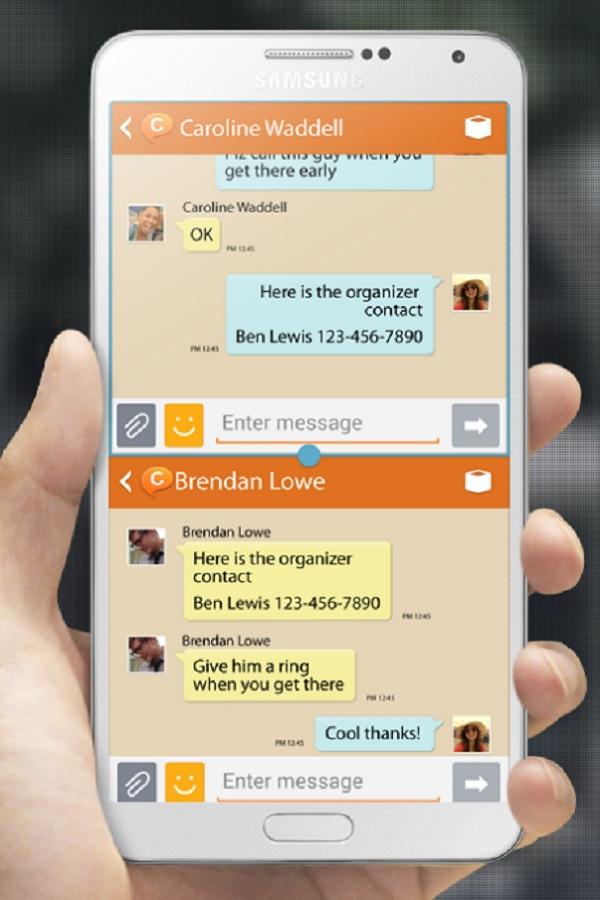
What’s the point of all that screen real estate if you don’t advantage? Samsung’s Multi window can be turned on via the notification shade toggle or in Settings > Device. It allows you to long press the Back button to get a small tab on the left of the screen. Tap the tab and you’ll see a selection of apps that you can drag onto the screen; you can even run the same app in two windows for things like email or the Web browser. Create your own custom combinations by tapping the grey arrow at the bottom of the app list and selecting Create. Choose Edit to change which apps are listed.
How to check your phone without touching it
You can wave your hand over the Note 3 to bring the screen to life for a peek at the time, notifications, and a few other things. The Quick glance feature can be found under Settings > Controls > Motion control > Air gesture and if you tap on it you’ll find the full list of options for what it should display.
How to quickly find anything
Hold down the Menu button and you’ll see S Finder pop up. It can search the phone for whatever you need and it has various filters to help you narrow the field.
How to take a screenshot
You’ve got a lot of options for capturing screenshots on the Note 3. The obvious way is to hold down the Home button and the Power button together. You can also head into Settings > Controls > Palm Motion and turn Capture screen on which enables you to swipe your hand from right to left on the screen to capture a shot. You can use the S-Pen by selecting Screen write from the menu that pops up when you remove the stylus from its holster. You can even grab a screenshot by holding down the S-Pen button and then touching the screen, and if you just want to capture a portion of the screen then hold the button down and draw a frame around what you want to capture. You’ll get a little set of editing tools to neaten it up before you share it.
How to quickly access all toggles
Instead of pulling down the notification shade with one finger, pull it down with two. You’ll get the complete list of available toggles on one page.
How to use your Note 3 as a remote control
Fire up Samsung’s WatchON app and you can set your Note 3 to act as a remote control for your TV, cable box, or DVR. It’s a simple procedure, choose your country or region, enter your zip code, and then choose from the list of supported services. You can also personalize the app to get recommendations based on what you like. The set up as a universal remote via the icon at the top right is every bit as straightforward, just make sure you’re close to the devices when you’re setting it up. Now you never have to search for that remote control again.
How to get more from the S-Pen
When you take the S-Pen out you’ll get a pop-up menu on screen with various options. One of the neatest options here is Pen window. Tap it and draw a box on screen and you can select an app to fill it. You can minimize the window, move it around, and resize it, and it allows you to continue working on the phone behind as normal.
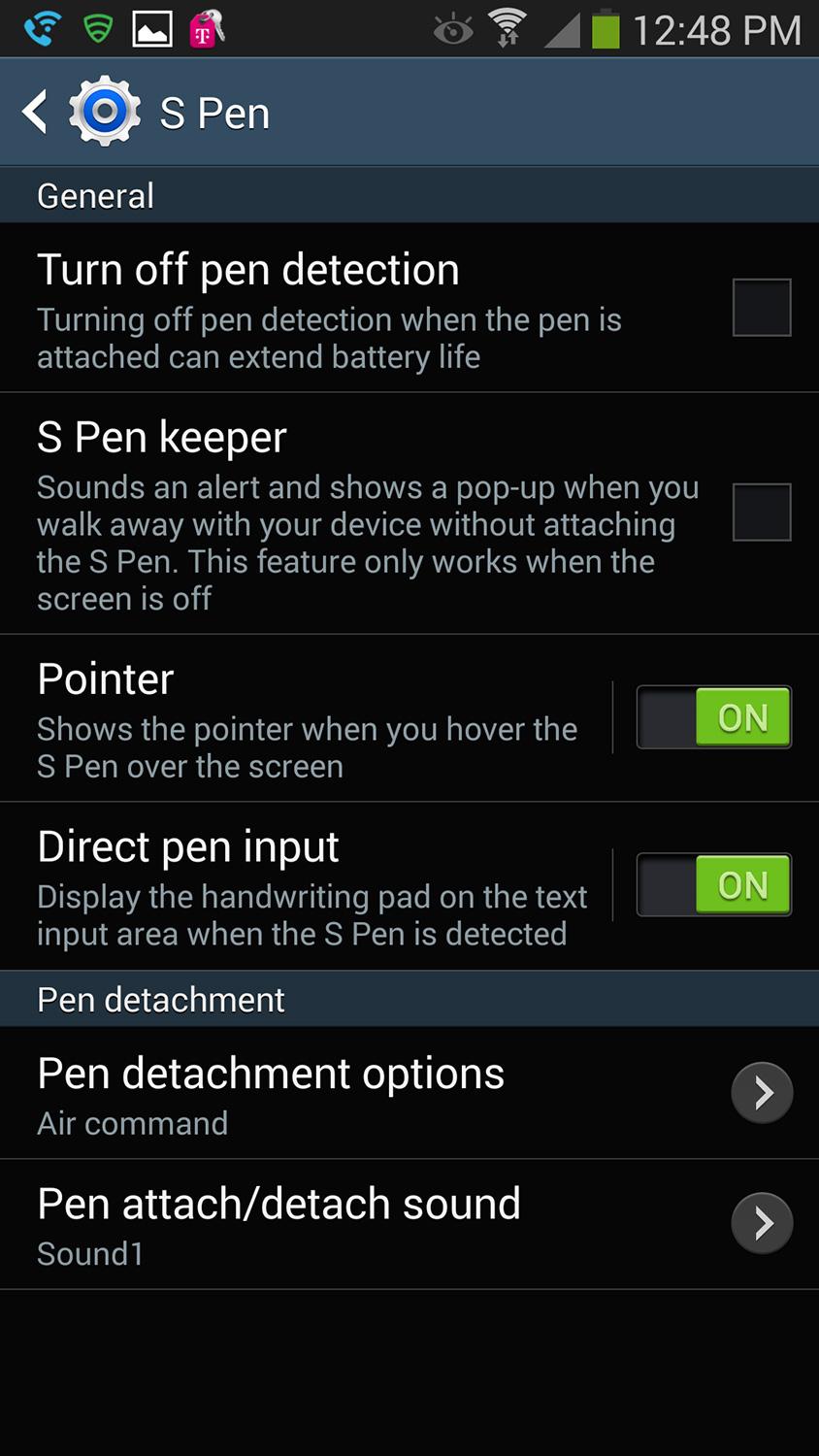
You can actually turn the S-Pen menu off if you find it annoying via Settings > Controls > S Pen > Pen detachment options. You’ll also find the option to turn S-Pen keeper on in here. This feature helps to ensure you don’t lose your super-charged stylus by sounding an alert when the Note 3 screen goes off and you walk away without the S-Pen.
How to use voice controls
Samsung’s smorgasbord of software features extends to a wide variety of voice controls and you can find them in Settings > Controls > Voice controls. This enables you to take hands-free calls, set and stop alarms, take photos, and control your music. It’s ideal for when you’re driving, or for taking selfies, but you’ll want a relatively quiet environment for it to work well. There is also a proper Hands-free mode under Settings > Controls which can read messages to you and allow you to answer with a wave.
How to block everything
If you want to make sure that your phone doesn’t disturb you then switch on Blocking mode at the bottom of the Settings > Device menu. If you tap on it you can configure exactly what is blocked and you can set it for a specific time period; ideal if you need a good night’s rest. You can also set a white list of contacts who can bypass Blocking mode so you don’t need to worry about missing an emergency.
How to quick message or call contacts
When you browse through your Contacts app you can swipe any contact to the left if you want to message them or to the right if you want to call them, there’s no need to tap on the contact and then choose.
How to use the S-Pen instead of typing
Just tap in the message field if you would rather use the S-Pen to write a message than the keyboard. You can also hover the S-Pen over an area until you see a little box with the S-Pen logo on it and then tap that to open a handwriting window. This works for the URL field in the browser as well.
How to take incoming calls in a small window
Go into Settings > Device and scroll down to Call then check the box next to Incoming call notifications and you’ll get a small pop up window at the bottom of the screen, instead of a full screen alert, when there’s an incoming call. This is ideal for using Google Maps to navigate, or other times when you don’t want anything to interrupt what’s onscreen.
How to customize the sound and display
You can actually make sure the sound and display on your Note 3 is tailored to your own tastes. Go into Settings > Device > Sound > Adapt sound and follow the instructions before you tap on Start. Now you can configure the sound profile to suit you. You can tweak the display if you go into Settings > Device > Display > Screen mode and choose Adapt display.
How to take notes in a hurry
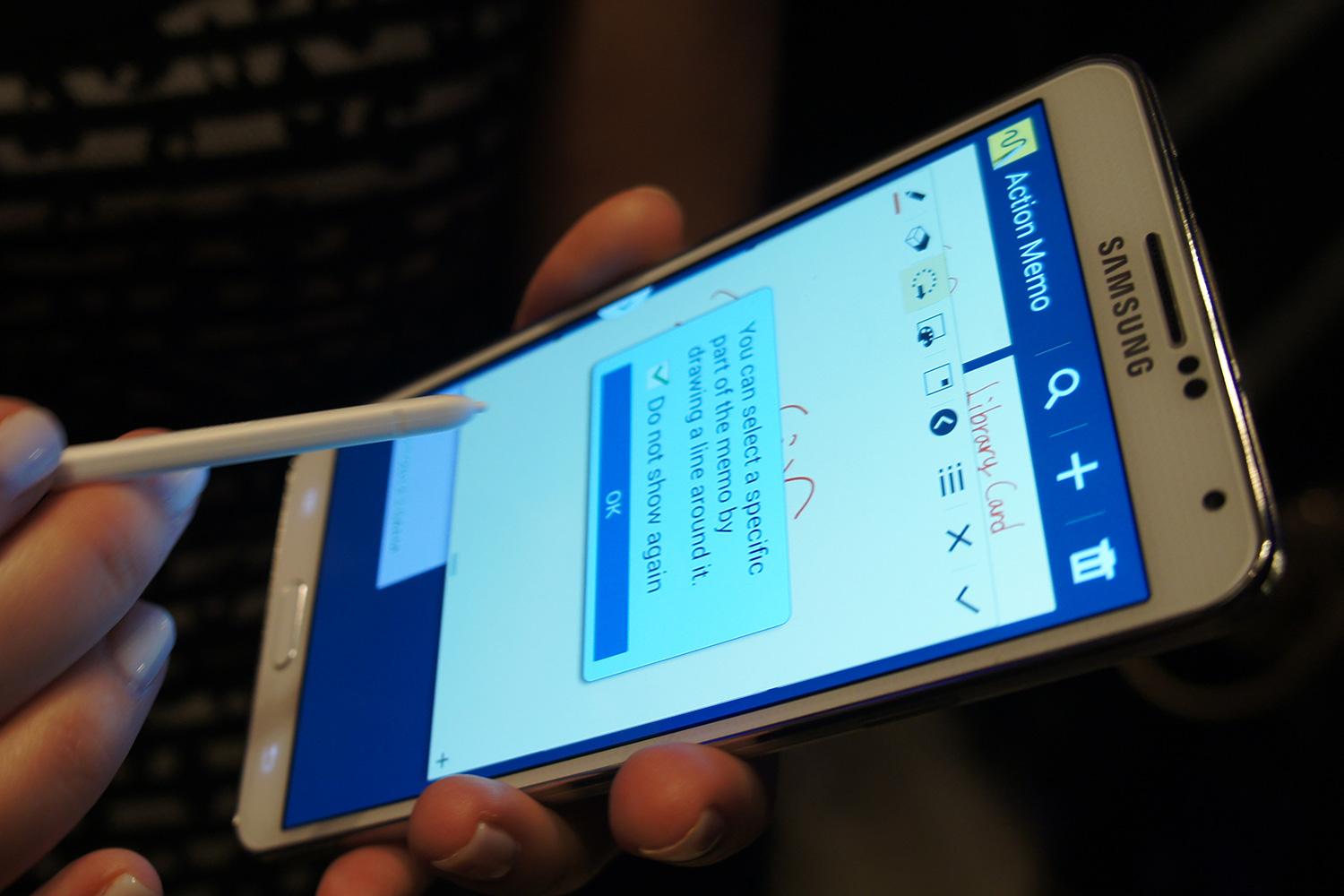
If you want to be able to record your eureka moments before they fade away, then you have to be able to jot down a note at a moment’s notice. The Note 3 can do it. Go to Settings > Device > Lock screen and check the box next to Action memo on lock screen. Now you can whip out the S-Pen hold down the button and double tap on the screen to bring a memo window up and write down your thought without having to unlock the phone first.
That’s it for Galaxy Note 3 tips; we hope you found something useful. If you want to suggest a tip please post a comment. We will update this piece with new tips in the future.