  1. Home
  2. Photography
  3. News

How moving an adjustment layer in Lightroom can save you time

Add as a preferred source on Google

One of the most helpful tools in Lightroom is the adjustment brush. It allows you to selectively adjust various parts of an image by simply brushing a mask in place and tweaking the settings until it looks as you want it to.

One of the lesser-known and lesser-used features of the brush tool is the ability to move the adjustment brush edits after you’ve brushed them in place. If you’re wondering why you’d want to move around the edit after you meticulously shaped it in Lightroom, you’re not alone.

Recommended Videos

Here to explain why you might want to move the brush is photographer and Lightroom guru Scott Kelby of KelbyOne.

In this three-minute tutorial, Kelby explains how the ability to move a brush edit can be incredibly helpful when you’re trying to edit a series of images that were captured in the same pose and same lighting environment, but are composed slightly different due to hand-holding the camera.

As shown in the video, the process involves creating a brush adjustment layer on the first image of the series and using Lightroom’s Autosync feature to apply it to all of the photos. With the first image taken care of, go to each image and fine-tune the placement so it lines up with the area you want altered.

By effectively batch editing the adjustment layer and fine-tuning it from image to image, you save yourself the problem of painting in the layer on each image in the series.

It’s a small feature and a niche trick, but it’s one that may very well save you valuable time in the future. For more Lightroom tutorials, head on over to the KelbyOne YouTube channel and subscribe.

Gannon Burgett
Former Editor
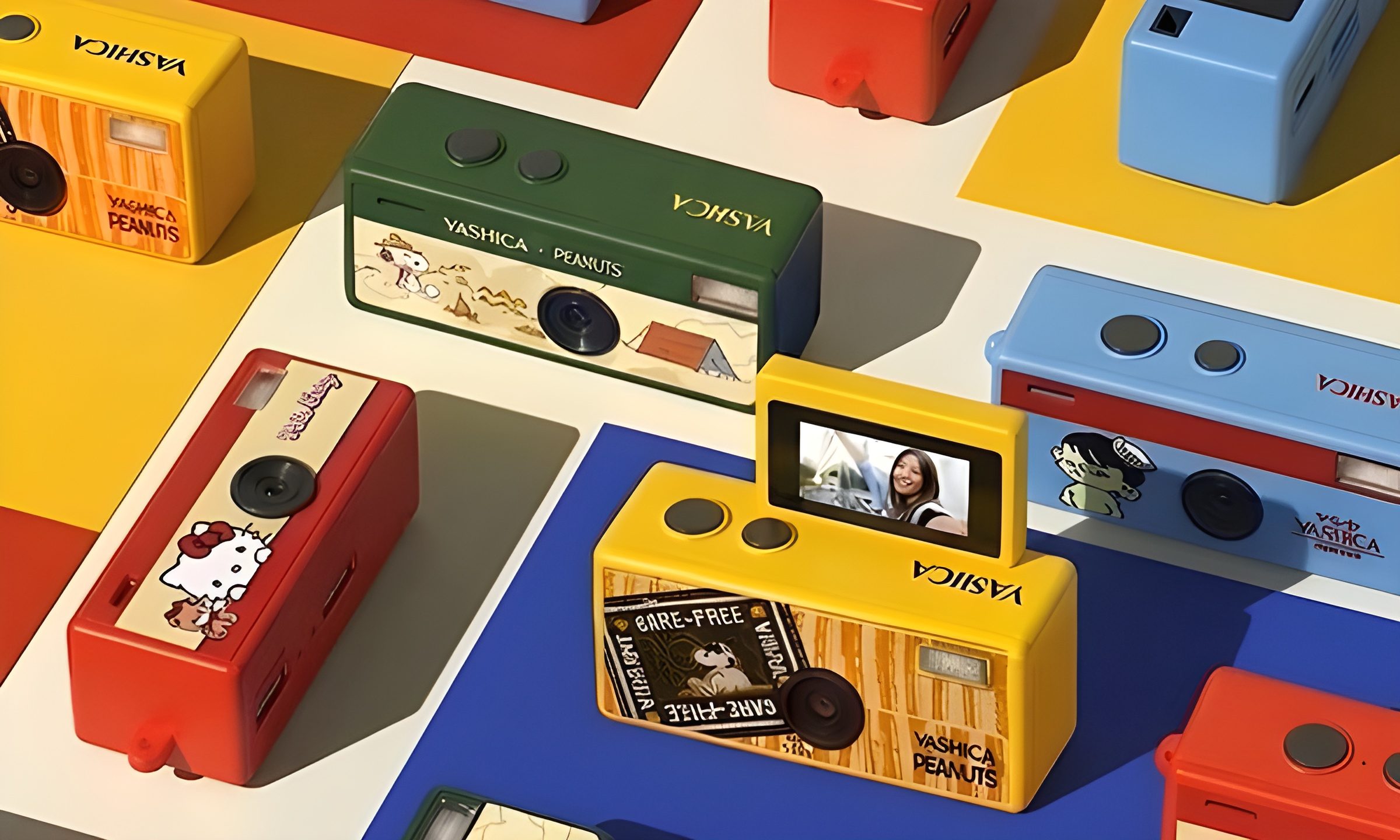
This new $30 keychain camera is coming for Kodak Charmera with a flip screen for selfies
Yashica's new camera makes toy photography more fun
YASHICA Funtastic Keychain Camera in multiple variants

Tiny digital cameras are all the rage, and Yashica is now offering a very cute toy photography experience of its own. The company’s new Funtastic Keychain Camera is exactly what the name suggests, a miniature digital camera small enough to clip onto your keys, bag, or lanyard. The popular Kodak Charmera is the obvious comparison, which brings a tiny blind-box keychain camera that became a viral collectible.

Now, Yashica's version lands in the same novelty-camera lane, but adds one very useful trick, which is a 180-degree flip screen.

Read more
Google releases big v4.0 update for its popular Snapseed editing app on Android
Electronics, Phone, Mobile Phone

After years of sitting on its hands, Google appears to have remembered it owns one of the best photo editing apps on mobile. Snapseed 4.0 is now rolling out to Android, bringing the platform up to speed after a stretch of iOS exclusivity that left Android users watching from the sidelines.

The story starts last June, when Google quietly broke Snapseed out of its long dormancy with a significant 3.0 update for iPhone. It was a surprise move that suggested the company was serious about the app again. Google then confirmed at the start of this year that Android wouldn't be left behind for long, and true to that word, the Play Store listing has now been updated to reflect version 4.0 — skipping straight past 3.0 for Android users and landing both platforms on the same version simultaneously.

Read more
Google Photos gets new editing tools that are all about subtle touch-ups
Google Photos just made your camera roll feel like it came with a makeup artist included, and the results are refreshingly understated.
Google Photos Touch Up feature in action.

Whether it is dark circles from a late night of work, a blemish that showed up uninvited, or something similar that could use additional brightness, Google Photos now has you covered.

Google has officially rolled out a new Touch Up suite inside its Photos app editor, integrating face retouching tools directly into the app for the first time. Previously, such adjustments were only available inside Google’s Camera app at the time of capture. 

Read more