God of War may have come out in 2018, but it’s back in 2022 with a vengeance and a high-end PC port in tow. Based on the enhanced PS5 version, God of War on PC promises higher frame rates and resolutions. But to squeeze out the most performance, you need the best settings for God of War on PC.
I tested each setting, upscaling mode, and resolution to find the optimal settings for God of War on PC, and in this guide, I’m going to run you through the performance you can expect. Although there are still some issues with the PC port — keyboard and mouse controls chief among them — the performance is solid.
The best settings for God of War PC

I tested the individual graphics options in God of War to find the best settings. My testing was originally done at 4K, focusing solely on the graphics card. However, I referenced the presets several times during testing at different resolutions to make sure the performance would scale.
Thankfully, there aren’t too many options to tweak. Here are the best settings for God of War:
- Texture quality: High
- Model quality: High
- Anisotropic filtering: High
- Shadows: High
- Reflections: Original
- Atmospherics: Original
- Ambient occlusion: Original
I leaned heavily on the Original preset to gauge performance. This preset looks great, and a combination of options from it with higher settings is the key to a higher frame rate. The differences in image quality are most stark between Original and High. Ultra settings don’t look much better than High ones, and many of the Original options still look great.
Shadows provided a big performance increase — around 9% compared to baseline — but it also looked the worst. The shadows wash out into a blurry mess, and it’s distracting. I recommend keeping this setting on High for the best balance of image quality and performance but consider bumping down to Original if you’re running into issues.
Outside of shadows, the atmospherics quality gave me the largest performance increase. When turned down to the lowest setting, it brought an 11% increase in my average frame rate. Even better, this setting doesn’t hurt image quality that badly. The Min setting looks rough — like individual plumes of smoke — but the Original setting is excellent.
You can see the difference (or lack thereof) in the comparison screenshot below. There are differences in image quality, but you’ll rarely notice them while playing the game.

Overall, my recommended settings improved performance by 33%. It’s just not worth running the game at Ultra settings across the board. I saw very little difference in image quality with reflections, model quality, and anisotropic filtering. God of War is a great looking game, and although the Ultra preset looks the best, a combination of High and Original settings is very close.
God of War PC system requirements
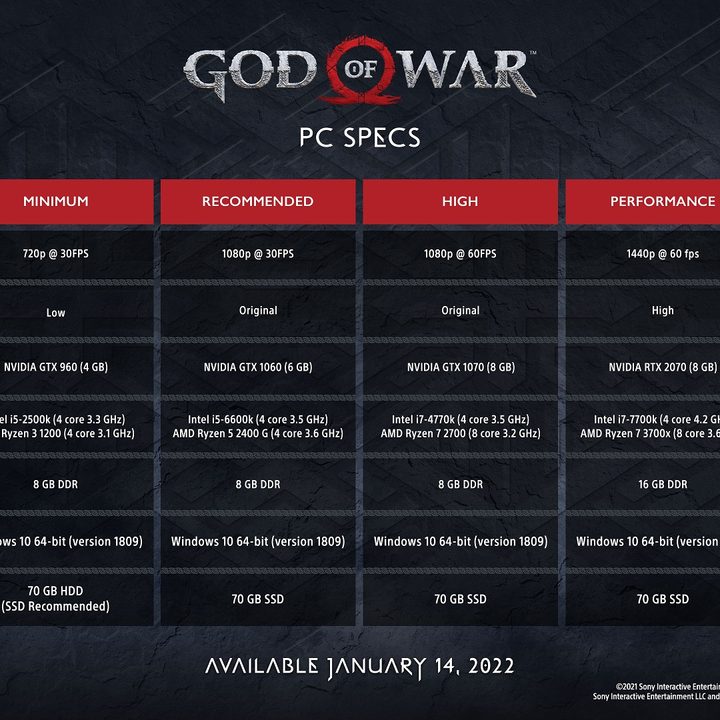
Keeping with the trend of recent PC games like Back 4 Blood, PlayStation offers a range of system requirements based on the performance and image quality you’re looking for. There are five tiers ranging from 720p at 30 frames per second (fps) to 4K at 60 fps, but I’m going to focus on the top four tiers. Only 0.29% of the Steam player base has a 720p monitor, after all.
God of War doesn’t require a lot, with the GTX 1060 getting by at 1080p at the game’s original frame rate. Based on my testing, the recommended specs are much higher than what you actually need, at least in the graphics department. I almost managed 60 fps with the weaker RX 580 with the recommended settings. With the Original preset, the RX 580 sat at a comfortable 65 fps.
That’s likely on the back of CPU performance. You don’t need a beefy graphics card to run God of War at 1080p, but an older CPU and limited RAM will dull the experience. I’d recommend sticking with the 8GB recommended by PlayStation and processor for the last few generations.
Above the recommended specs, the chart above is surprisingly accurate. You don’t need an RTX 3080 for 4K at 60 fps, for example. But it maintains that frame rate much better than the RTX 3070. Similarly, the RTX 2070 is your best bet for 1440p, but an RTX 2060 can cross the 60 fps mark with a few settings tweaks.
God of War PC performance, tested

As with our other performance guides, I tested God of War on PC with three graphics cards targeting three resolutions: The RTX 3070 for 4K, the RTX 2060 Super for 1440p, and the RX 580 for 1080p. These cards are actually below the recommended spec, but they still managed around 60 fps at their respective resolutions.
I paired the cards with a Ryzen 9 5950X and 32GB of DDR4-3200 memory to focus on GPU performance, and all of my tests were run on Windows 10. Here are my results:
| RTX 3070 | RTX 2060 Super | RX 580 | |
| 1080p Ultra | 120 fps | 72 fps | 42 fps |
| 1080p Recommended | 154 fps | 97 fps | 56 fps |
| 1440p Ultra | 94 fps | 55 fps | 32 fps |
| 1440p Recommended | 121 fps | 70 fps | 40 fps |
| 4K Ultra | 57 fps | 34 fps | 19 fps |
| 4K Recommended | 72 fps | 39 fps | 23 fps |
None of the cards reached 60 fps at their respective resolutions, though they came close. The RTX 3070 shouldn’t have issues playing at 4K with a few settings tweaks, and with upscaling turned on, it’s a monster. Unlike a game like Halo Infinite, resolution is more important than frame rate in God of War. 60 fps is the target, and the RTX 3070 hits it at 4K.
The same was true of the RTX 2060 Super at 1440p, where it just barely skirted under the 60 fps mark with the Ultra preset on. My optimized settings offered up a solid 27% performance increase at 1440p, pushing the card well above 60 fps. Keep in mind these results are without upscaling, so you could squeeze out an even higher frame rate.
The RX 580 was the only card that struggled, barely managing 42 fps at 1080p with Ultra settings. I checked against the Original preset, and I was able to hit above 60 fps. If you’re struggling to hit your target frame rate, bump down to the Original preset. It looks great, and it offers a lot of extra performance.
DLSS and FSR performance in God of War PC
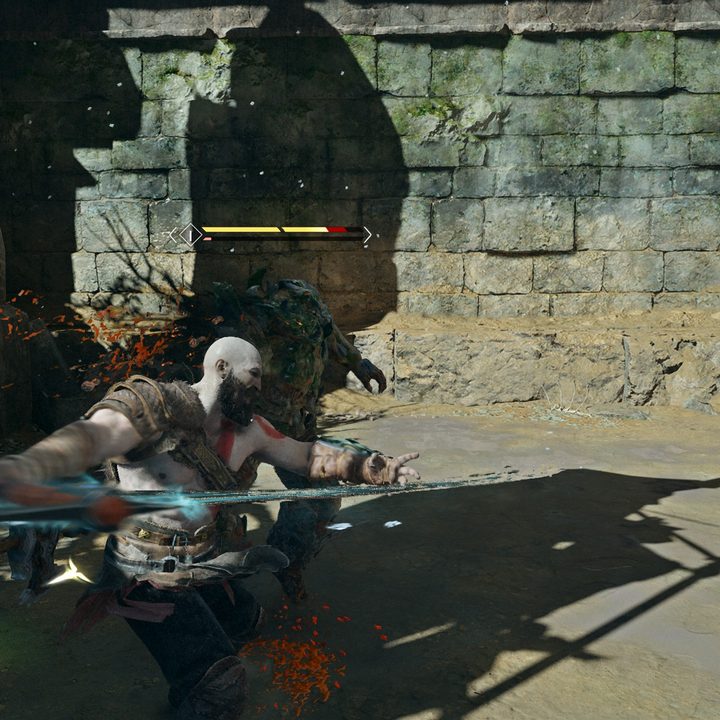
God of War is one of the few games to include Nvidia Deep Learning Super Sampling (DLSS) and AMD FidelityFX Super Resolution (FSR). You should use one of these upscaling tools depending on what graphics card you have. But there are some major differences in image quality.
| RTX 3070 | RTX 2060 Super | |
| DLSS Ultra Performance | 105 fps (84%) | 64 fps (88%) |
| DLSS Performance | 93 fps (63%) | 56 fps (65%) |
| DLSS Balanced | 85 fps (49%) | 50 fps (47%) |
| DLSS Quality | 76 fps (33%) | 46 fps (35%) |
Starting with DLSS, I found around an 85% increase at the most aggressive Ultra Performance mode. At this mode, DLSS is rendering at 720p and upscaling to 4K. For all of the upscaling modes and graphics cards, I kept 4K Ultra as the target. It’s an aspirational scenario, so I recommend paying more attention to the percentages in each table than the actual frame rates.
As is the case with other DLSS games, simply turning the upscaling feature on does a lot of the heavy lifting for you. Most people should stick around the Quality or Balanced settings, getting a nice blend of image quality and performance. The issue with DLSS is that it only supports RTX graphics cards. They are some of the best graphics cards you can buy, but they’re tough to find right now.
| RTX 3070 | RTX 2060 Super | RX 580 | |
| FSR Performance | 109 fps (91%) | 62 fps (82%) | 34 fps (79%) |
| FSR Balanced | 93 fps (63%) | 56 fps (65%) | 33 fps (74%) |
| FSR Quality | 85 fps (49%) | 50 fps (47%) | 29 fps (53%) |
| FSR Ultra Quality | 74 fps (30%) | 43 fps (26%) | 25 fps (32%) |
AMD’s Super Resolution works with any graphics card, and based on my testing, it offers comparable performance to DLSS at the relative quality mode. Unfortunately, the more aggressive Performance and Balanced modes give up too much image quality to be worth it. If you have to resort to one of these modes, I’d recommend turning down your resolution first.
FSR isn’t a bad option overall, though. Although it’s clearly not the best option for peak image quality, the modest Ultra Quality mode still offers a solid performance increase without a big loss in image quality. I wouldn’t recommend going to a more aggressive mode beyond Ultra Quality, though.
DLSS and FSR image quality in God of War PC
DLSS and FSR may offer comparable performance in God of War on PC, but they don’t offer comparable image quality. Keeping with what we found in our Super Resolution review, AMD’s upscaling tech doesn’t produce the results that have made DLSS such a must-have feature for AAA gaming.

You can see the highest quality modes side-by-side above. In case you can’t see from the enlarged images, DLSS is on the left and FSR is on the right in all of the screenshots here. Even at the highest quality mode, FSR doesn’t stack up to DLSS. The rock on the left is muddy with FSR, and the distant tree lacks any fine detail.
What stands out most, though, are the specular highlights on Kratos’ head. They look vague with FSR, while the highlights are clear with DLSS. This illustrates the main difference between the two upscaling modes: DLSS looks close to native resolution while FSR just looks like you’re running at a lower resolution.
That’s even more clear at the highest performance modes. DLSS Ultra Performance almost looks like FSR Ultra Quality, and that’s not good. As with the comparison above, everything looks softer with FSR. That becomes too big of a deal to ignore at the more aggressive performance modes, with FSR washing out details not only in the background but the foreground too.

What’s so surprising about this image quality comparison is that DLSS is working with less information. FSR’s Performance mode renders the game at 1080p when upscaling to 4K, while DLSS renders at 720p. Despite the huge difference in internal resolution, DLSS still offers similar levels of performance and better image quality.
It handles artifacts better, too. DLSS showed a bit of shimmering at its Ultra Performance mode, and it was distracting. But FSR handles all aspects differently, leading to shadows, distant moving objects, and direct lighting displaying visual artifacts in one form or another.

You can see that in the shadow comparison above. Both DLSS and FSR struggle with shadows, but DLSS goes much further to smooth them out. Look at the shadow just under the rock. FSR is confused about rendering snow or the shadow, leading to a checkboard pattern that’s too dark in some areas and too light in others.
DLSS shows the same checkerboarding, but it’s not nearly as aggressive or distracting. For DLSS, it’s a shadow laying over snow. For FSR, it’s a gray area of pixels that ends up making the whole scene look worse.