  1. Home
  2. Computing
  3. How tos

How to remove a picture background in Canva

Add as a preferred source on Google
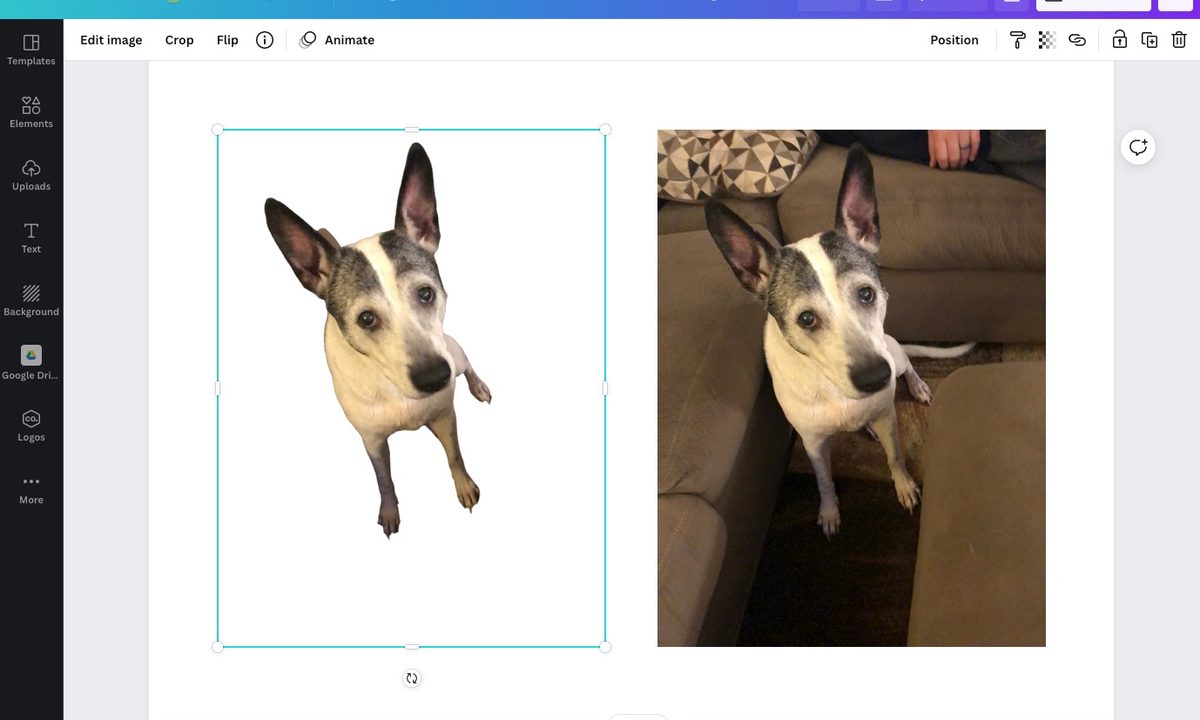
Pictures in Canva with one background removed.
Image used with permission by copyright holder

Most times, you want the subject of your photo to be the center of attention with no distracting background. You might have a photo bomber behind your subject or simply a background that you don’t need for your project.

With Canva Pro, you can remove the background of a picture. Then, use that important part that remains in your Canva project. We’ll show you just how to remove a background in Canva.

Recommended Videos

Difficulty

Easy

Duration

5 minutes

What You Need

  • Canva Pro account

Upload and add your picture to Canva

If you’ve already uploaded the picture you want to use, you can jump down to the next portion explaining how to remove the background in Canva.

But if you don’t have your image uploaded yet, you can add it easily.

Step 1: Open your project and select Uploads on the left side.

Step 2: Choose Upload Media or use the Three Dots to import an image from Google Drive, Dropbox, Facebook, or Instagram.

Upload media in Canva.
Image used with permission by copyright holder

Step 3: Select the image and click Open or follow the prompts per the location you choose.

Step 4: On the Images tab, pick the picture you want to insert or drag and drop it onto the canvas on the right.

Insert an image in Canva.
Image used with permission by copyright holder

Remove the picture background in Canva

With your image on your canvas, it’s super easy to remove the background.

Step 1: Select the picture and click Edit Image in the toolbar at the top.

Step 2: You’ll see the Edit Image options to the left. Pick Background Remover at the top.

Background Remover tool in Canva.
Image used with permission by copyright holder

Step 3: After a few moments, you’ll see your picture transformed to one without a background.

You can then make an adjustment if there’s more of the background you want to eliminate.

Image background removed in Canva.
Image used with permission by copyright holder

Step 4: Select Erase to remove additional portions of the image. Then, adjust the slider to set the brush size you want to use. Use your cursor to click or swipe through the other parts of the picture you want to remove.

To see the background again but dimmed, check the box for Show Original Image.

Use Erase to remove more of an image background.
Image used with permission by copyright holder

Step 5: If you accidentally erase something you want back, click Restore. Then use your cursor to bring back those portions of the picture as they were originally.

Use Restore to bring back part of an image background.
Image used with permission by copyright holder

Step 6: When you finish, click Done at the top to save your edits. If you change your mind, click Cancel instead.

Then, click Apply in the sidebar.

Apply to save your changes using the Background Remover.
Image used with permission by copyright holder

As mentioned, the Background Remover tool is available with Canva Pro. You can check out the Canva website for subscription options.

Sandy Writtenhouse
Sandy has been writing about technology since 2012. Her work has appeared on How-To Geek, Lifewire, MakeUseOf, iDownloadBlog…
Gemini will now take notes for you in Google Meet for you, if you the minimum $20 AI tax
Yet another Google subscription just dropped for Gemini
Google Meet Take Notes for me Gemini

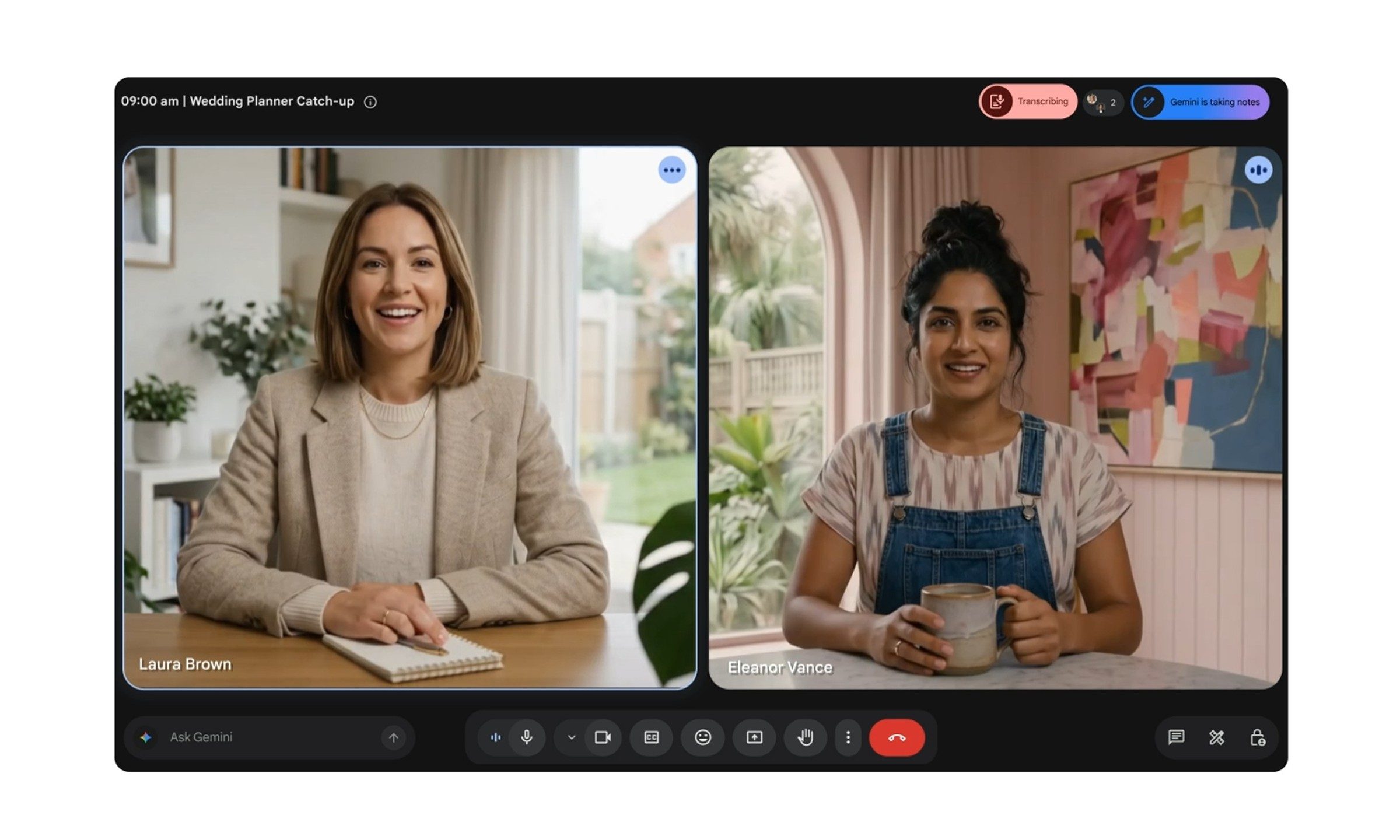
Google has just released a useful Gemini feature, which you can try if you are a paying member of course. The company is now bringing "Take notes for me" for Gemini, which will be available in Google Meet for Google AI Pro and Google AI Ultra subscribers, along with eligible Workspace business customers.

For personal users, the feature starts with Google AI Pro, which costs $19.99 per month in the US. In other words, Gemini can now take your Google Meet notes, provided you pay the minimum AI tax.

Read more
After iPad Pro and MacBook Pro, the iMac could be the next in line for an OLED screen upgrade
iMac with M4

The iPhone got an OLED panel in 2017, while the iPad Pro followed in 2024. Even the MacBook Pro is expected to follow later this year or early next year. But what about the iMac?

According to TrendForce, the iMac could get an OLED upgrade. There's no timeline yet, but the direction is clear. Apple wants to replace its current display technologies with OLED, raising the bar for color quality for both regular users and professionals.

Read more
This $1,299 gaming PC wants to be a Steam Machine without waiting for Valve
Valve’s Steam Machine dream is already real in MetaPC's new prebuilt
MetaPC's Steamroller is a new Steam Machine rival

Valve’s Steam Machine may be the face of SteamOS, but the platform isn't exclusive to it. A big announcement after Steam Machine's unveiling was that SteamOS would be arriving on systems outside of the new hybrid console. Now, MetaPCs is one of the first to take advantage of this by opening the preorders for the Steamroller, a new prebuilt gaming desktop that ships with SteamOS installed by default.

Though Steamroller is not trying to be a tiny console-like cube. It is a normal desktop PC with standard parts and a real upgrade path. The system costs $1,299 and is listed with a preorder date of July 3, 2026.

Read more