Dealing with a mess of spare cables is an ongoing struggle, even if you’re not a tech enthusiast. To keep those spare micro USB and HDMI cables from piling up, I have a few tips and tricks I use to cull down my cable collection and organize what I have.
In the spirit of spring cleaning, it’s time to dig out the cables from the back of your drawer, wrangle the spares hanging out off the back of your PC, and finally deal with that one charger you just can’t find the device for. Here’s how to do it.
Which cables do you need?

You probably don’t need that drawer of mini USB cables you’re hanging onto. The first step toward getting a grip onyour cable collection is to take stock of what you need. You could aim for one cable per device, but that’s taking it a bit far. It’s just about looking at what you have, what you need, and where you need some wiggle room.
Here are the essential cables for most devices, as well as some recommendations for what you should hang onto:
- USB-C: Keep several USB-C cables around, as most devices either use USB-C for charging or connection. I like having one of the best USB-C cables per device, as well as a bag of spares (I have five extras for traveling, but you don’t need that many).
- Lightning: The only devices that use Lightning cables are Apple devices, so you only need one of the best Lightning cables per device. If you have a lot of Apple devices, maybe keep a couple of spares around.
- Micro USB: Fewer and fewer devices use micro USB as a standard, but I like to keep a couple of spares around just in case. You don’t need more than two or three of the best micro USB cables.
- USB-B and Micro-B: External hard drives, peripherals, and even monitors use USB-B, so keep some of these around.
- HDMI: Keep one per device connected to a display. Almost every device you buy that uses HDMI will come with its own cable, so stock up on the best HDMI cables for the devices you own and get rid of the rest.
- DisplayPort: Even fewer devices use a DisplayPort connection compared to HDMI, so only keep one cable per device connected to a DisplayPort display.
- 3.5mm cables: You never want to be caught without an AUX cable, but these tend to pile up. Keep cables you are actively using and a couple of spares.
- Ethernet: Ethernet cables aren’t as common as HDMI and USB cables, so hang onto a couple of short cables if you need them for devices. Unless you plan on redoing the cabling in your home, get rid of any lengthy Ethernet cables you aren’t using.
- Toslink: Toslink cables handle digital audio, and they’re great for a lot of the best soundbars. These sensitive cables should be in use, not stored, so only keep the ones you’re using.
And for the cables you should almost always get rid of:
- Mini USB: A mostly outdated standard, so only hang onto these cables if you have a specific device that uses them.
- Old phone chargers: Unless you plan dusting off the old Blackberry, get rid of your old phone chargers. Modern smartphones use standardized connections.
- DVI and VGA: Maybe keep a few if you have older monitors, but these two display standards have been out of date for several years.
- Composite: Those red, white, and yellow cables you used to hook up your VCR with? They’re out of date, and you can get rid of them. If you only have red and white cables, those are for audio and they may be useful, but only if you have an A/V receiver and home theater setup.
- Coaxial: Coaxial cables are still useful for cable and internet, but your service provider will provide them. If you have spares, get rid of them.
This is far from a comprehensive list of cables you may have stuffed in a drawer, but these cables are the most common ones you’ll run into. If you have a box of cables and don’t want to go through them, you may just want to throw the whole unit out. Most cables are a dime a dozen, and you never need more than one of a unique cable for a specific device you own.
Organizing and storing cables
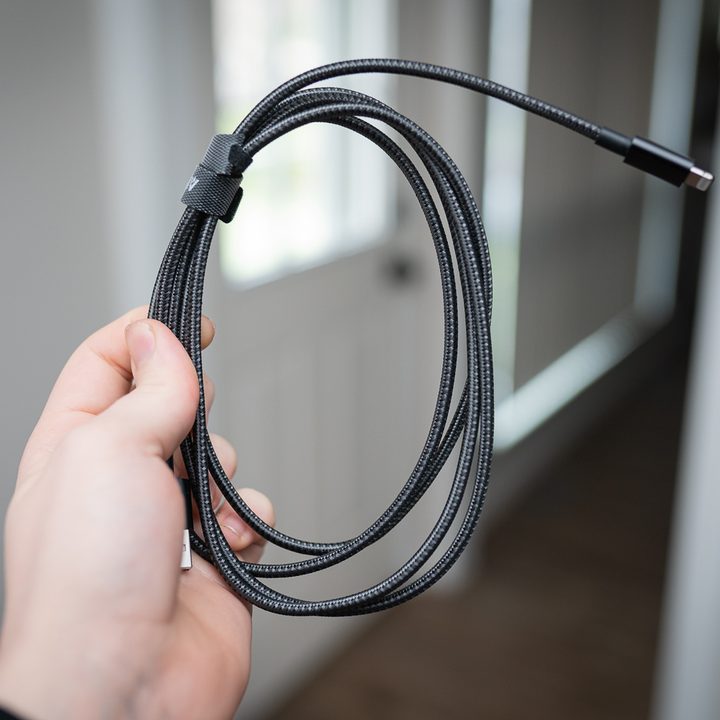
You have the cables you need, so now it’s time to organize them. It’s not the most exciting topic, but keeping your cables organized will help you find what you need and help you go through your collection when you have to visit this process again.
Here’s what you’ll need:
- Gallon-sized freezer bags
- Reusable cable ties
- A permanent marker
You probably just need the cable ties. I like the Velcro brand ones, and you can pick up a pack of 100 for less than $10. If you browse on Amazon, you can even find some different colors if you want to add a little flair to your organization. And who doesn’t?
The key is to use one cable tie per cable, and in some cases, two. Loosely wrap the cable around your hand and secure the cable tie. If it has kinks, pull out a second cable tie and attach it at the opposite end. The goal is to create a circle smaller than the size of a gallon-sized freezer bag.
Group together cables you have multiples of — USB-C, 3.5mm, and Lightning cables are prime candidates here — and give them their own bag. For your cables you only have one or two of, group them with other cables that serve a similar purpose. For example, you might put together your spare HDMI and DisplayPort cables.
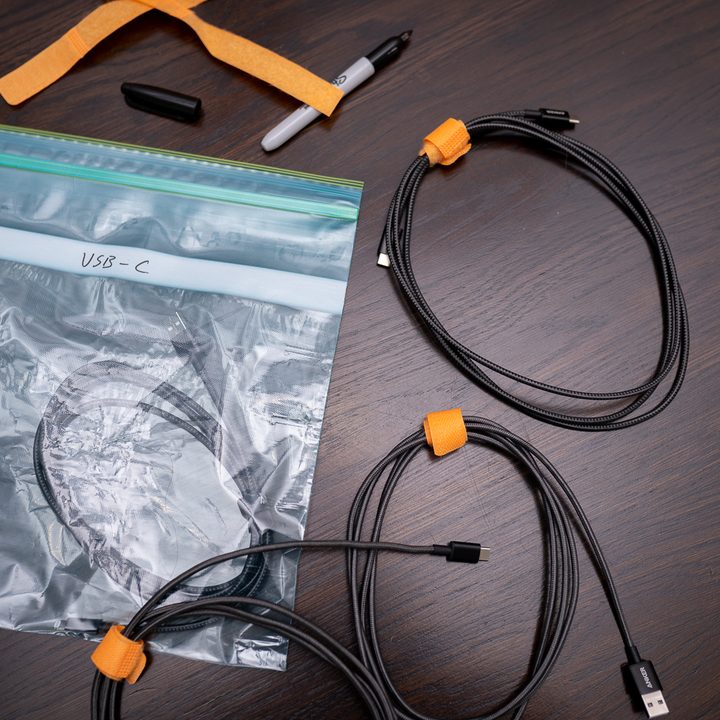
Label the bag with your marker and toss it in a storage basket (I use a wicker basket I picked up from Target, and it’s similar to this one I found on Amazon). If you want extra points, use some masking tape to create tabs and put the bags upright in the basket.
Getting rid of your old cables

You should be left with a pile of cables you’re getting rid of, but don’t toss them in the trash yet. E-waste is a massive issue, and your cables have reusable materials in them.
Call your local Best Buy and see if they offer in-store recycling. Most Best Buy locations offer in-store recycling for free, and you can drop your pile of cables off with a clear mind. Many local governments offer electronics recycling as well, which includes cables.