  1. Home
  2. Computing
  3. How tos

How to factory reset the Meta Quest 3

Add as a preferred source on Google
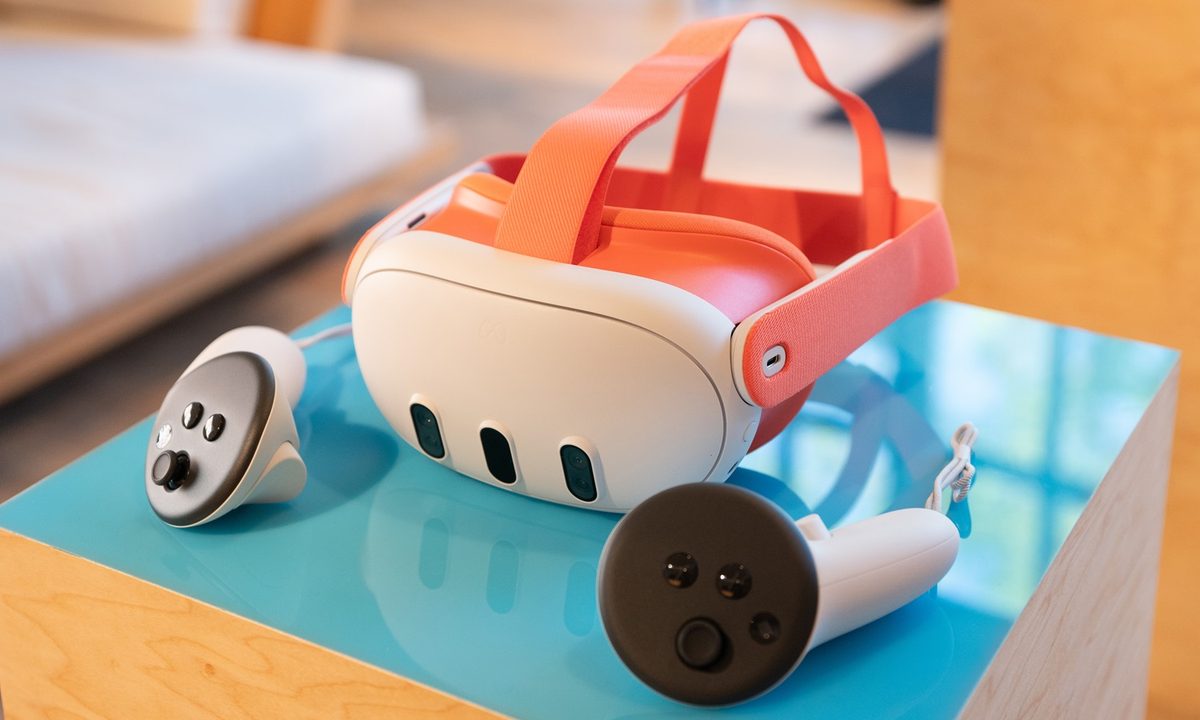
Meta Quest 3 sitting on a display table.
Meta

As with consoles, PCs, and other tech devices, you may occasionally find a reason to factory reset your Meta Quest 3. Whether you're selling your headset or simply wanting to get a fresh start, you'll want to be sure your data is fully cleared from its memory. In this guide, we'll explain two methods you can use to factory reset your Quest 3

Recommended Videos

Duration

5 minutes

What You Need

  • Meta Quest 3

Note: Performing a factory reset on your Quest 3 won't delete the games you've purchased or make any changes to your Meta account. It will, however, erase all of the games you have downloaded on the headset itself, meaning you'll also lose access to any save data that isn't stored in a cloud. Proceed with caution and be certain you're ready to wipe the headset before continuing.

Lens on the Meta Quest 3 headset.
Fionna Agomuoh / Digital Trends

How to factory reset Quest 3 using the headset 

The simplest way to reset your Quest 3 headset is to do it on the device itself. It doesn't require a mobile device or navigating through any complicated settings.

Step 1: Make sure your Quest 3 is turned off before beginning.

Step 2: Hold down the power and volume (-) button on your headset at the same time until you notice the boot screen lhas loaded.

Hands pressing the volume and power button to reset the Quest 3.
Meta

Step 3: Using the volume buttons on your headset, navigate to Factory Reset, then press the power button.

Step 4: Using the volume buttons on your headset, navigate to Yes  and press the power button once more to begin the factory reset.

The factory reset prompt next to someone pushing the volume and power buttons.
Meta

How to factory reset Quest 3 using a phone

Step 1: Enter the Meta Quest app using your mobile device.

Step 2: Tap on Menu, then select Devices.

Step 3: Select your headset from the listed devices.

Step 4: Choose Headset Settings, then tap on Advanced Settings.

The factory reset settings on a phone screen for the Quest 3.
Meta

Step 5: Select Factory Reset, then choose *Reset *to begin the factory reset.

Billy Givens
Billy Givens is a freelance writer with over a decade of experience writing gaming, film, and tech content. He started as a…
A Windows 11 bug may be quietly eating hundreds of gigabytes of your storage
Windows 11’s storage-eating bug now has a fix from Microsoft
Windows 11 suffering from RAM crisis

If your Windows 11 PC suddenly looks low on storage, your downloads folder or game library may not be the problem. According to Windows Latest, a bug tied to a Windows system file can silently consume tens or even hundreds of gigabytes on the system drive.

The file in question is called CapabilityAccessManager.db-wal, and it sits inside Windows’ Capability Access Manager folder. Windows Latest says the issue may appear as unusually high “System files” usage in Windows 11’s storage breakdown, even though the Settings app does not clearly identify the exact file responsible. In some reported cases, users saw it grow to 200GB, and even more.

Read more
Your next Teams meeting could have an AI teammate that answers questions for you
Teams is getting smarter, cleaner, and quieter about it. The AI features are opt-in, the chat cleanup is automatic.
Computer, Electronics, Laptop

Microsoft Teams is getting a meaningful update that overhauls almost every part of how you use the app, from AI-assisted meetings to a cleaner chat layout. Most of the changes are already in testing, and several are scheduled to roll out before the end of the summer.

Starting with the most interesting addition: an upgraded AI Facilitator that can listen to your meeting, spot when someone seems confused, and generate a response (via Windows Report). 

Read more
A hacker’s arrest just revealed how Microsoft can track your Windows device
Microsoft knew what websites his Windows PC visited.
Windows 11 on a laptop

A teenager allegedly used a VPN to cover his tracks while hacking a US jewelry retailer, but Microsoft knew anyway.

Court documents unsealed in the US case against Peter Stokes, a 19-year-old dual US-Estonian citizen accused of being a member of the notorious Scattered Spider hacking group, reveal that Microsoft provided the FBI with records tied to a tracking mechanism called the Global Device Identifier, or GDID. 

Read more