  1. Home
  2. Computing
  3. How tos

How to upload images to ChatGPT

Add as a preferred source on Google
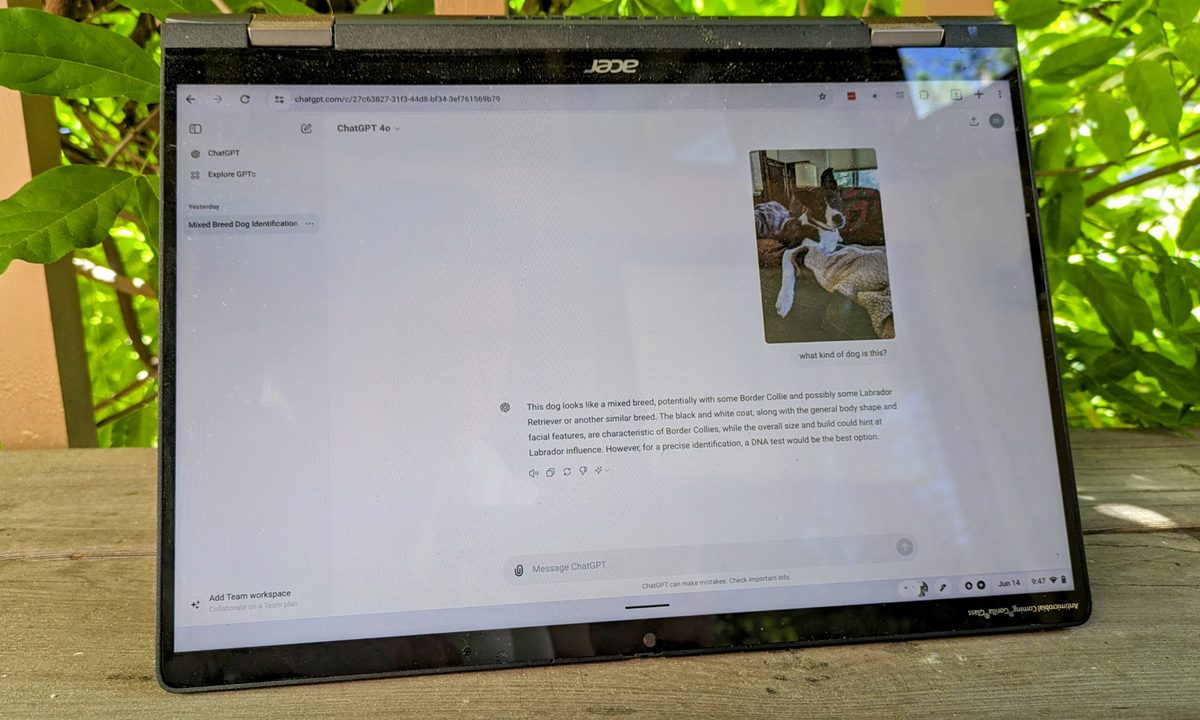
The chatGPT chat screen with an uploaded image, on an Acer, on a bench, on a deck.
Andrew Tarantola / Digital Trends

ChatGPT is far more than a simple AI wordsmith. While it excels at written interactions, incorporating images can breathe new life into your prompts and unlock myriad more machine learning capabilities. This guide will explain how you can upload images to ChatGPT, transforming it from a text maestro to a true multimedia mastermind.

Recommended Videos

Difficulty

Easy

Duration

5 minutes

What You Need

  • Laptop or mobile device with internet connection

  • ChatGPT Plus account

How to upload images to ChatGPT on desktop

Right off the bat, you will need a paid ChatGPT Plus or Enterprise account in order to upload images as that feature is not currently available for desktop users on the free tier. To access the Plus tier, simply click the Upgrade Plan icon on the side panel of the ChatGPT home page, select your plan tier, and follow the prompts.

Step 1: Go to the ChatGPT website, log in using your credentials and start a new chat. Make sure you're using either the ChatGPT-4 or 4o model (click on the drop-down menu in the upper-left corner of the chat window to select).
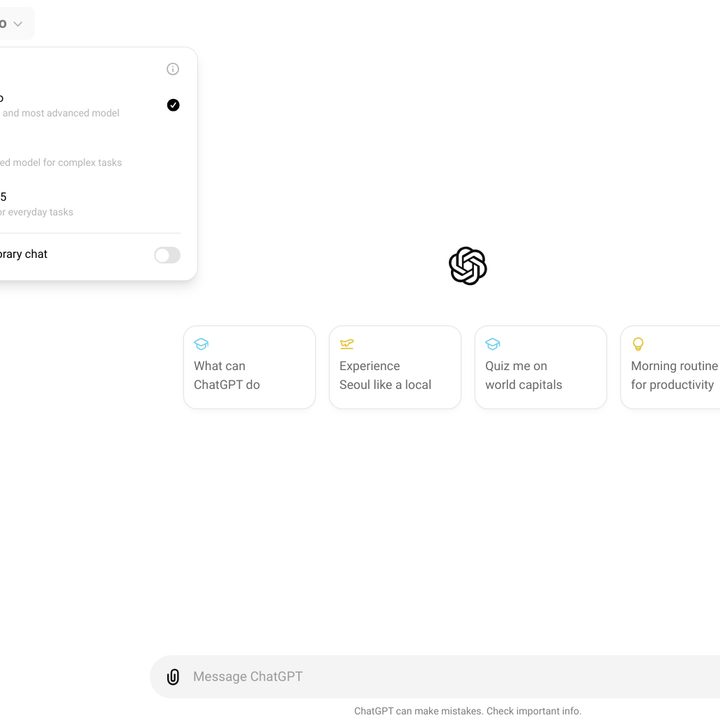
The ChatGPT Plus home screen showing the model select menu
OpenAI

Step 2: Select the paperclip icon to the left of the prompt input window at the bottom of the chat screen. This will pop up a three-item menu allowing you to choose to connect to Google Drive, Microsoft OneDrive, or upload the image from your hard drive.

Image upload in ChatGPT
OpenAI

Step 3: Select your image and click to attach it. ChatGPT can accept .gif, .png, and .jpeg formats. From there, simply fill out the prompt with whatever you need the AI to do with that image, and start chatting.

The ChatGPT Plus home screen showing a chat about an uploaded picture of a dog
OpenAI

How to upload images to ChatGPT on mobile

Unlike the desktop version, ChatGPT on mobile does allow users to upload images from the device, from the camera roll and directly from the camera itself, all while on the free tier.

Step 1: Open the ChatGPT app on your device. Log in using your free tier credentials.

Step 2: Click on the "+" button to the left of the prompt input window to reveal three icons denoting, from left to right: the camera, the camera roll, and the device's internal storage. If you select the camera icon on the left, it (unsurprisingly) launches the camera app. The middle landscape icon opens your camera roll where you can upload images you've already taken. The file folder icon on the right opens your device's on-board file system.

Step 3: Select the images you want to upload and click Add. The image below is intentionally blurred to protect the identities of people and pets.

Step 4: Once the image is attached and visible in the prompt window, type in whatever you need the AI to answer about the contents of that photo and click the up-facing arrow button on the right side.

Uploading images for analysis is straightforward with ChatGPT, and the results may surprise you. Did you know you can also upload PDF files to ChatGPT for analysis and summarising?

Andrew Tarantola
Former Computing Writer
Andrew Tarantola is a journalist with more than a decade reporting on emerging technologies ranging from robotics and machine…
Asus and Gigabyte just made your next RTX 50 GPU even more expensive
One canceled order shows exactly how brutal the current market has become for buyers.
asus-nvidia-GeForce-RTX-5060-evo

After weeks of rumors around another round of hikes, Asus and Gigabyte have pulled the plug. They’ve made the impending price hike official, increasing prices across their entire RTX 50 lineup, and even AMD's Radeon RX 9000 cards. 

It’s worth mentioning that both companies already raised prices in January, blaming the ongoing DRAM and NAND memory shortage and surging costs. From what it looks like, things have only gotten worse since. 

Read more
Huawei made an utterly sleek laptop that’s 35% lighter than MacBook Air. Too bad you don’t need it.
The MateBook Pro S weighs less than 800 grams but runs HarmonyOS instead of Windows
Pen, Notebook, Computer

Huawei has made one of the most tempting ultralight laptops most people will probably never consider buying. The new MateBook Pro S weighs just 798 grams in its lightest configuration, making it around 35% lighter than the 13-inch MacBook Air. It is slightly thicker at 11.9mm, but Huawei still managed to fit a larger display and a 54Wh battery inside its magnesium-alloy chassis.

Its color options are pure eye candy, too. The soft pastel finishes immediately reminded me of the MacBook Neo and give the laptop far more personality than the usual sea of silver, gray, and black ultrabooks.

Read more
Wispr Flow launches an AI note-taker that works without joining calls
The new Wispr Flow tool called Notetaker creates live transcripts, summaries, and follow-up notes
Page, Text

Wispr Flow has launched Notetaker, an AI meeting assistant built into its existing Mac app. It can record conversations, show a live transcript, and prepare notes covering decisions, deadlines, assigned work, and unresolved issues.

Wispr Flow is best known for its dictation tool, which turns spoken thoughts into edited text wherever the user is working. Notetaker takes the company beyond voice typing and applies its transcription technology to meetings, interviews, and in-person conversations.

Read more