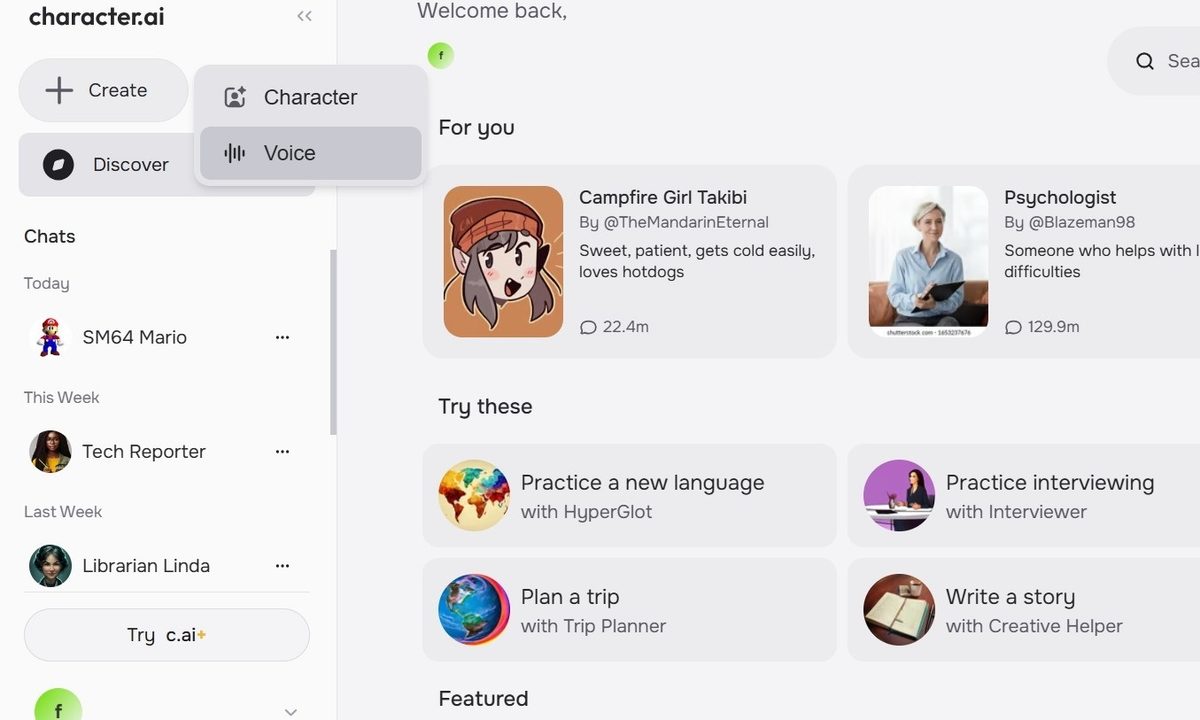
The Character.AI chatbot service includes several features to optimize your AI communication experience. The primary function of Character.AI is a text-to-speech chatbot that allows you to type queries and read responses from various characters including modern and historical figures, popular fictional characters, and helpful personas, among others. However, you can also implement a voice feature that allows you to listen to responses from the characters in a human-like voice. This can work as an accessibility option, or if you simply don’t feel like reading your responses.
Character.AI allows you to enable voice options on the third-party characters you’re interacting with and also lets you upload custom voices for characters on your own account. Here are the ins and outs of working with voices on Character.AI.

How to enable voice on a third-party character
As said, the enabled voice feature on Character.AI allows you to hear a character’s voice when it responds to your comment or query in a conversation. Say you are chatting with a Super Mario character that might resemble the famous plumber with voice-enabled.
Step 1: To turn on the voice feature for a third-party character chat, open a chat and click the sound icon that looks like sound lines with a slash crossed through.
This will automatically enable voice, and the icon will turn blue. You will also see a voice-enabled notice pop up and quickly disappear.
Step 2: Alternatively, you can click the three-dot icon to the right of the sound icon. In the drop-down menu, hover over the sound icon — and it will read Turn sound on.
Step 3: Click the icon, and it will enable voice from there.

How to create a custom voice
To create your own voice sound on Character.AI, you will need to upload a clear audio clip between 10 and 15 seconds. So start off by getting that ready.
The service will use this clip to train the algorithm so that characters will be able to respond in detail based on that short sound. You can preview the voice again, but now it will be cut down to about three seconds based on your intro and processed to sound a bit cleaner and more bot-like.
Step 1: Once you’ve customized your settings, click Create Voice. If you choose to make your voice public, you’ll receive an extra confirmation notice, click Confirm and the voice will be available for use. Click Done and you’ll see the voice in the voices section of your public profile.
From here, you’ll be able to add the voice to any new characters you make. If you made the voice public, it will be available among the Character.AI community for others to use for their characters.
If you ever want to delete the voice, you can select it in your public profile, click Edit, and Delete.
Step 2: To start off, click Create on the Character.AI home tab and then click Voice.
Step 3: This will take you to the Create Voice page, where you can drag and drop your clip or click Upload to select your audio from your computer files. Your raw sound will automatically upload, and you’ll have the opportunity to preview and reupload it if there are any issues.
If not, you can then click Generate Voice.
Step 4: The next page is a New Voice settings page, where you can input details about your voice, including an intro, a voice name, and a description. There is also an option to make your voice public.

How to add a voice to a new character
Including a voice is necessary to create a character in Character.AI, so the steps to do so are simple.
Step 1: Click Create on the Character.AI home tab and then click Character. This will take you to the new character page where you fill in all of the details necessary for a new Character.AI character, including name, tagline, description, greeting, and definition.
Step 2: When you get to voice, click Add and a box with voice options will pop up. You can scroll or search through voice options in the Discover tab.
Step 3: Switch to the Your Voices tab to search through any voices you’ve created. Hover over the voice you want and click Select.
Step 4: Fill in the rest of the settings information and then click Create Character to complete the process.
Step 5: Once your new character is live, you can interact with it just like a third-party chat in your account and enable voices to hear your custom voices on your own chat.