The only thing people enjoy less than sitting through a slideshow presentation is making a slideshow presentation. But with the integration of Gemini AI into Google Slides, that process is about to get a whole lot easier.
In this guide, we’ll explore everything you need to seamlessly incorporate Gemini AI into your workflow. Whether you’re looking to enhance your design elements, streamline content generation, or simply save yourself some time, Gemini AI offers a suite of features that can transform the way you build your presentations.
How to integrate Gemini into Google Slides
As with using Google Gemini with Google Sheets, Gemini AI is not available for use with Slides at the free tier. You’ll need a $20/month subscription to the Google One AI Premium Plan to gain access; otherwise, a work or school account through a Gemini for Google Workspace add-on will work.
Simply click on the Try Gemini Advanced! radio button in the top-right corner of the Gemini home screen and follow the prompts.
Getting started with Gemini
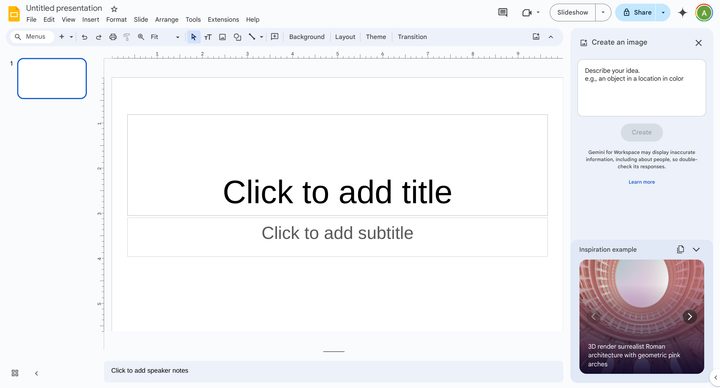
To begin, open a new or existing Slides presentation, then click the Ask Gemini button in the top-right corner of the screen (to the right of the share button). This will expand the Gemini AI sidebar running down the right side length of the screen. On the sidebar, you’ll be able to either enter your idea directly into the prompt window or take inspiration from the AI-generated image slideshow at the bottom of the screen.
What Gemini can do in Slides
Primarily, Gemini AI can create images, generate new slides, summarize a presentation, and write and rewrite content. It can also reference Drive files or Gmail as you write, as well as search the internet for current information and statistics to answer questions that arise while you write. Basically, it works as a writing and research aide, same as it does when using Google Gemini with Google Docs.
What you can do with Gemini in Slides

Gemini takes the grunt work out of the slide creation process and accelerates my workflow to a startling degree. While I’ve watched countless slideshows as a journalist (on earnings calls, product demos, keynote events, and the like), I’ve been lucky enough to not have had to make one myself in well over a decade. Suffice to say, actually producing a professional-looking slide deck these days takes me ages to accomplish, what with all the bullet points, image sourcing, thematic formatting, and whathaveyou.
But with the help of Gemini, I was able to pop out a solid eight-slide introduction to the Seattle, Washington, region that discusses the city’s main attractions, the state of its housing market (both sales and rentals), its education and health care systems, and reasons why folks should move to the region — all using simple prompts like, “add a slide discussing the education system in Seattle, the number of primary schools in the Seattle area, and Washington’s average education ranking among U.S. states.” I did all of that in under 10 minutes.

Gemini AI’s limitations
There were a few limitations to what Gemini could help me with, mind you. I repeatedly asked it to incorporate motion transitions between each slide (because who doesn’t love a good star wipe?); however, the system kept generating slides discussing transitions as a subject topic instead. I ultimately had to add those effects by hand.
Also, if I were actually giving this presentation in public, I’d have to spend a good amount of time going back through and confirming the veracity of each of the bullet points to ensure the system didn’t hallucinate anything, but without the AI, just creating this deck by hand would have taken me a couple of miserable hours at least.
Unsurprisingly, you can do many of the same tasks with Microsoft 365 and its own AI tool. Perhaps its time to compare Copilot Pro and Gemini Advanced?