Microsoft and Meta teamed up on a new feature that lets me use my Windows PC while wearing a Quest 3 or 3S, and it’s super easy to connect and use. I simply glance at my computer and tap a floating button to use Windows in VR on large displays only I can see.
Meta’s new Quest 3 and 3S are among the best VR headsets for standalone gaming and media consumption. When I want more performance or need to run one of the best Windows apps that aren’t yet available in VR, I can connect to a much more powerful Windows PC.
Setting up Mixed Reality Link

Meta says the software that allows this quick connection will be built into Windows in the future. I already had the necessary Quest update to Horizon OS v72, but I needed to install Microsoft’s Mixed Reality Link from the Microsoft Store.
There’s an initial step to link my PC and headset. Thereafter, I can simply look at my computer keyboard to find a floating Connect button. If I select it, a large virtual window appears and my PC monitor goes dark. This happens in about five seconds and feels almost seamless.
More and bigger monitors
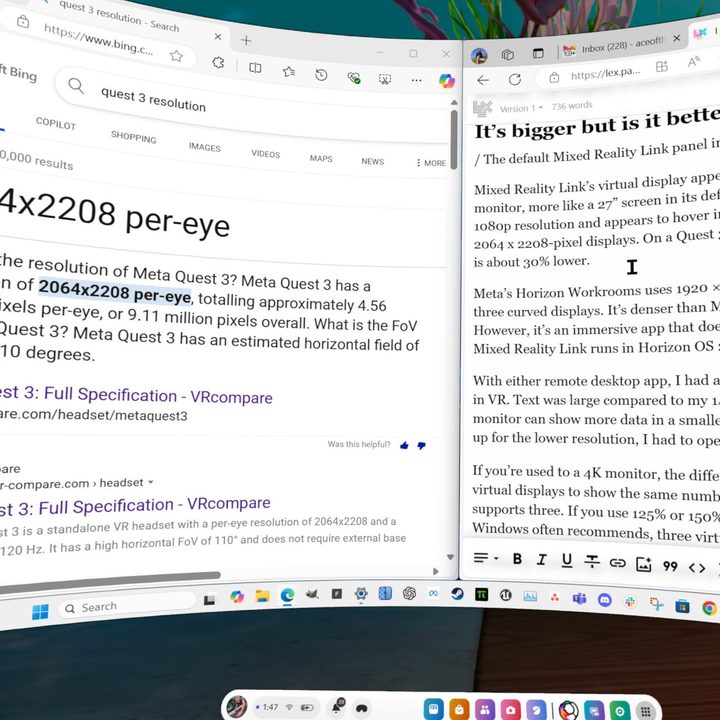
Mixed Reality Link’s virtual display appears bigger than my current 24-inch physical monitor, more like a 27-inch screen in its default size and position. It has the standard 16:9 aspect ratio and appears to hover in 3D space within the Quest 3’s dual 2064 x 2208-pixel displays. I can also use cinematic mode to make it a very large curved screen. It’s so big that it’s hard to capture in a screenshot.
On a Quest 3S or older Quest, the resolution is about 30% lower, and the Fresnel lenses aren’t as clear. To enjoy sharper visuals than a Meta Quest can provide, you’d need a high-performance PC VR headset or an ultra-premium Apple Vision Pro. Mixed Reality Link won’t work with those headsets, but there are other solutions.
Adding more VR windows is simple. I point at the lower-right corner to reveal a menu and pinch the plus sign twice to add one another to the right and left sides. We’ve seen this trick before with Horizon Workrooms and VR apps like Immersed and Virtual Desktop.
What’s different is these are Horizon OS windows that I can move and scale with Quest hand tracking or controllers. I can open Quest 2D apps alongside Windows in a blended environment.
I can use passthrough mode to see my surroundings filled with up to six floating windows or I can switch to a virtual environment, which is more fun. As I type, I’m surrounded by schools of fish, sea turtles, manta rays, and whales in Meta’s Oceanarium. It’s quite peaceful and can help with focus when working in a busy or crowded space.
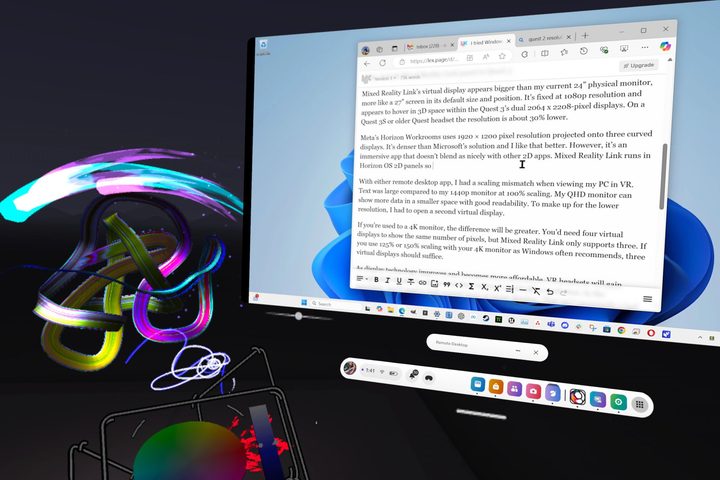
I can even enter an immersive app like OpenBrush to paint a 3D shape, then press the Meta button to switch to my Windows desktop without leaving that environment. It feels like the future.
When I want to reach for my coffee, I can easily switch to passthrough mode with a double-tap to the side of the Quest 3 or by selecting a button on the dock.
Mixed Reality Link UI
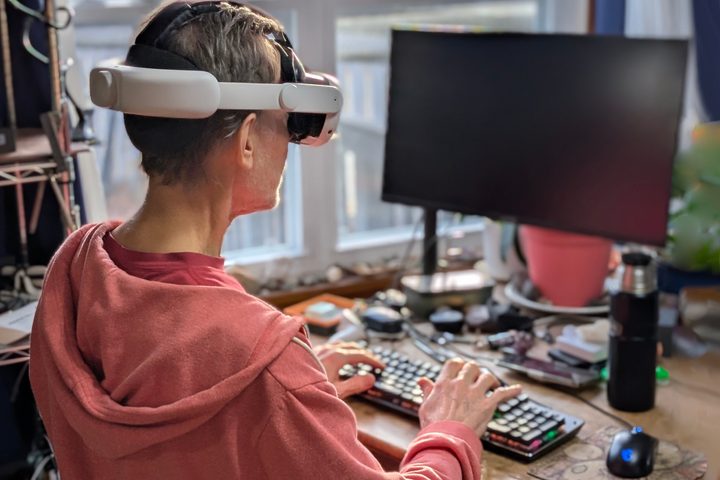
Microsoft’s Mixed Reality Link is in beta, but it’s already a good solution for using Windows in my Quest 3. Mixed Reality Link’s user interface is nice. I like the way the connect button appears above my keyboard and how quickly I can connect to my PC. I still use my keyboard and mouse to interact with Windows and apps on my computer, but I control Horizon OS with my hands.
When I lift my hands away from the keys, the Quest 3 tracks them and responds to pinch and drag gestures. I can resize and reposition windows, add more virtual displays, and open Horizon OS apps alongside Windows apps.
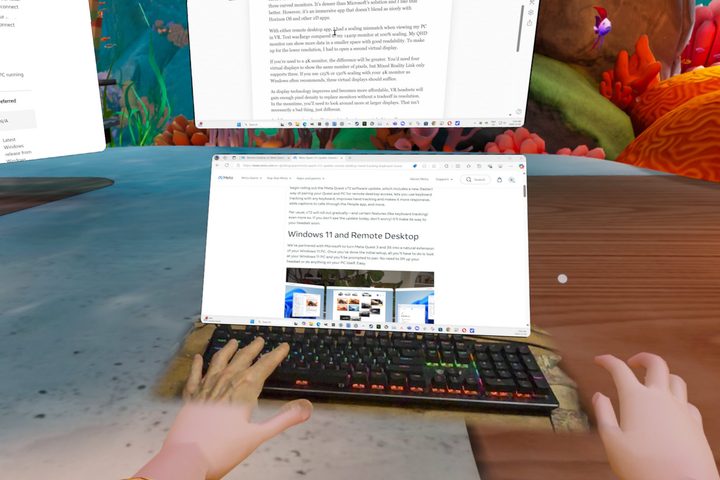
In passthrough mode, I can see my room and desk with virtual screens and the dock hovering in space. In immersive mode, I’m surrounded by a mountaintop campsite, a misty valley with waterfalls, an Old West mining town at night, or any Horizon OS environment.
When I’m fully immersed, my keyboard looks like a light gray outline. If I move my hands near the keys, a rectangular portal reveals my keyboard. I can see a portion of my mousepad and mouse, enough to grab it without searching.
Beta issues
Mixed Reality Link is currently in beta testing and there are a few issues with VR display arrangement and the keyboard portal. These aren’t serious bugs, but unexpected annoyances can add up and become frustrating. I have a few tips that should help.
When I resized the VR windows, I was disappointed to see black bars appear at the sides or top and bottom if I didn’t get a perfect 16:9 shape. There’s no snapping so it’s difficult to avoid getting black borders.
The default display arrangement is OK, but I prefer vertically stacked monitors, so I set the main display at eye level and moved one below. The Horizon OS dock got in my way so I moved it to the side and manually positioned two displays exactly where I wanted.
The magic of hand tracking is very good but it was difficult to place the lower window since it kept switching to the keyboard. Keep the dock and virtual displays away from your keyboard for more reliable operation.
I worked very comfortably for a few hours, then stepped away briefly, leaving my headset behind. When I returned, the link had timed out so I reconnected. That’s quick and easy, so no worries there. However, Horizon OS didn’t save my custom window arrangements. I didn’t feel like re-creating my ideal placement, so I just used the default settings.
Mixed Reality Link has great potential
I really enjoyed Mixed Reality Link, and it has great potential. I’m happy to finally see the Meta and Microsoft partnership bear fruit. Earlier efforts like Microsoft Office on Quest were disappointing.
Already, Mixed Reality Link is a quick way to use Windows in a virtual environment adding even more value to my Quest 3. If custom display arrangements were saved, it would be a great way to work at a computer in VR. Third-party apps like Immersed, Virtual Desktop, and others are still more versatile productivity solutions since I can pair a keyboard and mouse to my headset and connect to my PC from anywhere.
You can use Mixed Reality Link for gaming, but for PC VR gaming, it’s hard to beat wired headsets like the Pimax Crystal Light that feature sharp 2880 x 2880 resolution and uncompressed visuals for a more realistic and immersive experience.