A decade ago, Apple introduced a new feature called Live Photos on the iPhone. Technically, what the camera captures is a short clip, 1.5 seconds before and after pressing the shutter. You can even add looping, bouncing, and long exposure effects to these live photos.
As cool as that sounds, it has also emerged as a nuisance for many shutterbugs. For example, it is enabled by default. And even after you disable it in the camera viewfinder, it activates again once you relaunch the camera app. Only a trip to the settings section can put it to sleep — for good.
Of course, Live Photos take up more storage. They don’t play well with non-Apple products and services. (WhatsApp has just begun testing support for Live Photos, and so has Dropbox — ten years later). And more importantly, they supposedly cause image quality issues in low-light scenarios.
So, why keep Live Photos?

Well, the biggest reason many users stick with Live Photos is that they preserve a longer scene of your memories as a video, instead of a photo. For a lot of parents and families out there, a 3-second clip can capture a loved one’s memory with a dynamic “behind the scenes” peek at it.
The reasoning is fully justified. “As a parent, I don’t have 1000 photos of my son, I have 1000 mini movies, and that’s huge when you go back reliving those cute little moments that are impossible to capture in a photo and would be inconvenient to capture and show in a video,” wrote one user on Reddit two years ago.
Live Photos were an issue when Apple Storage came at a premium. For example, the base storage model on the iPhone 6s was just 16GB. That means even if the average difference between a regular still and a live photo was just one megabyte, and you clicked a thousand of these in a year, you’ve eaten up one gigabyte of extra local storage and cloud space.
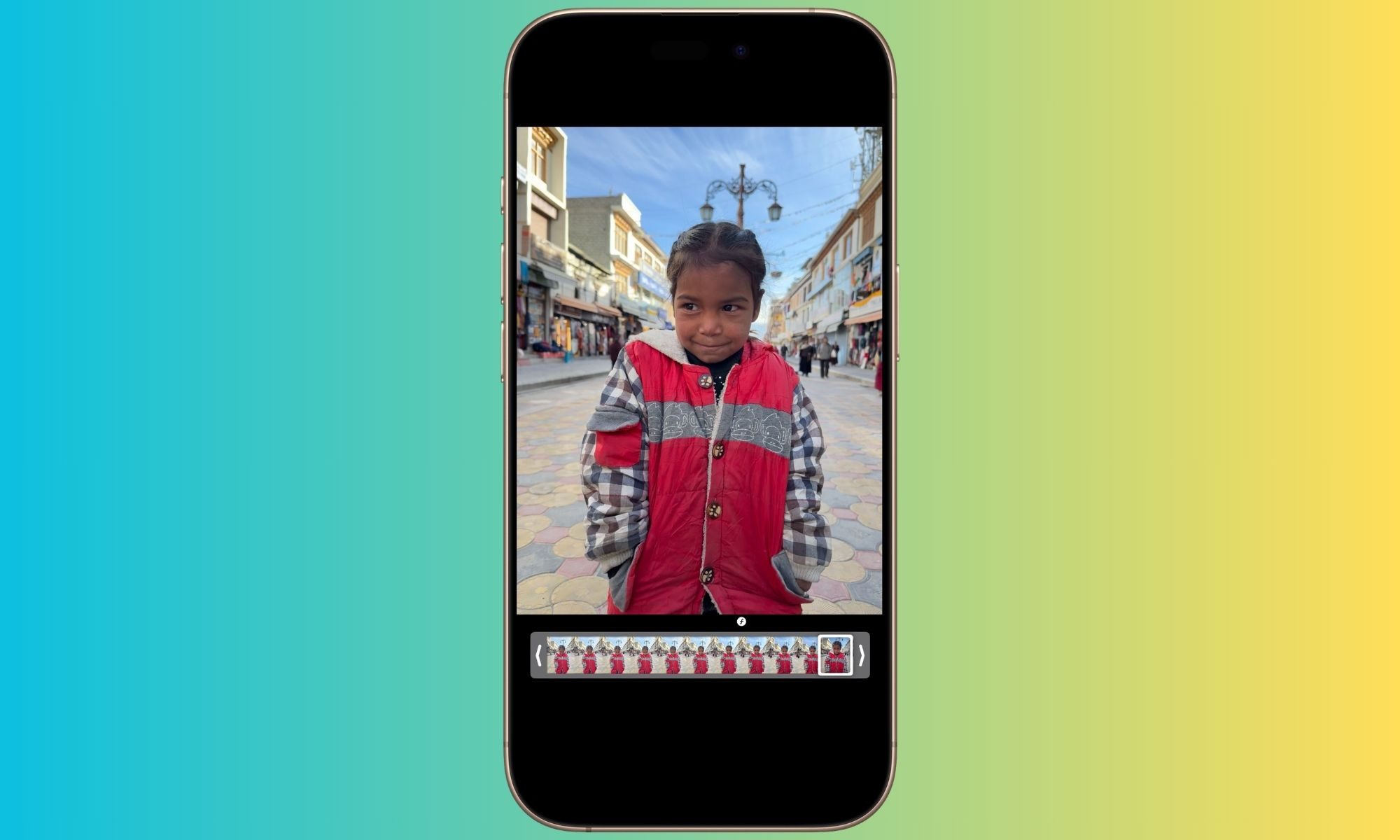
On a phone with just 16GB of space that keeps shrinking, it’s a problem. On a device with at least 256GB of storage? Not so much. But there’s a side of Live Photos that comes as a savior, and not many people realize it. Here’s a sample of what I clicked and the better shot I eventually recovered from the Live Photos clip.
Why is it a fail-safe tool?
I don’t keep Live Photos enabled to save video memories. I keep it active as a fail-safe method. Instead of seeing it as a clip, I look at it as a collection of photos that were clicked consecutively in a 3-second span, and one that gives you an opportunity to pick the perfect moment. In a nutshell, a burst shot by another name.
Take a look at the key frame saved in the Apple Photos app:
And this is a more playful shot I extracted from the same Live Photos file:
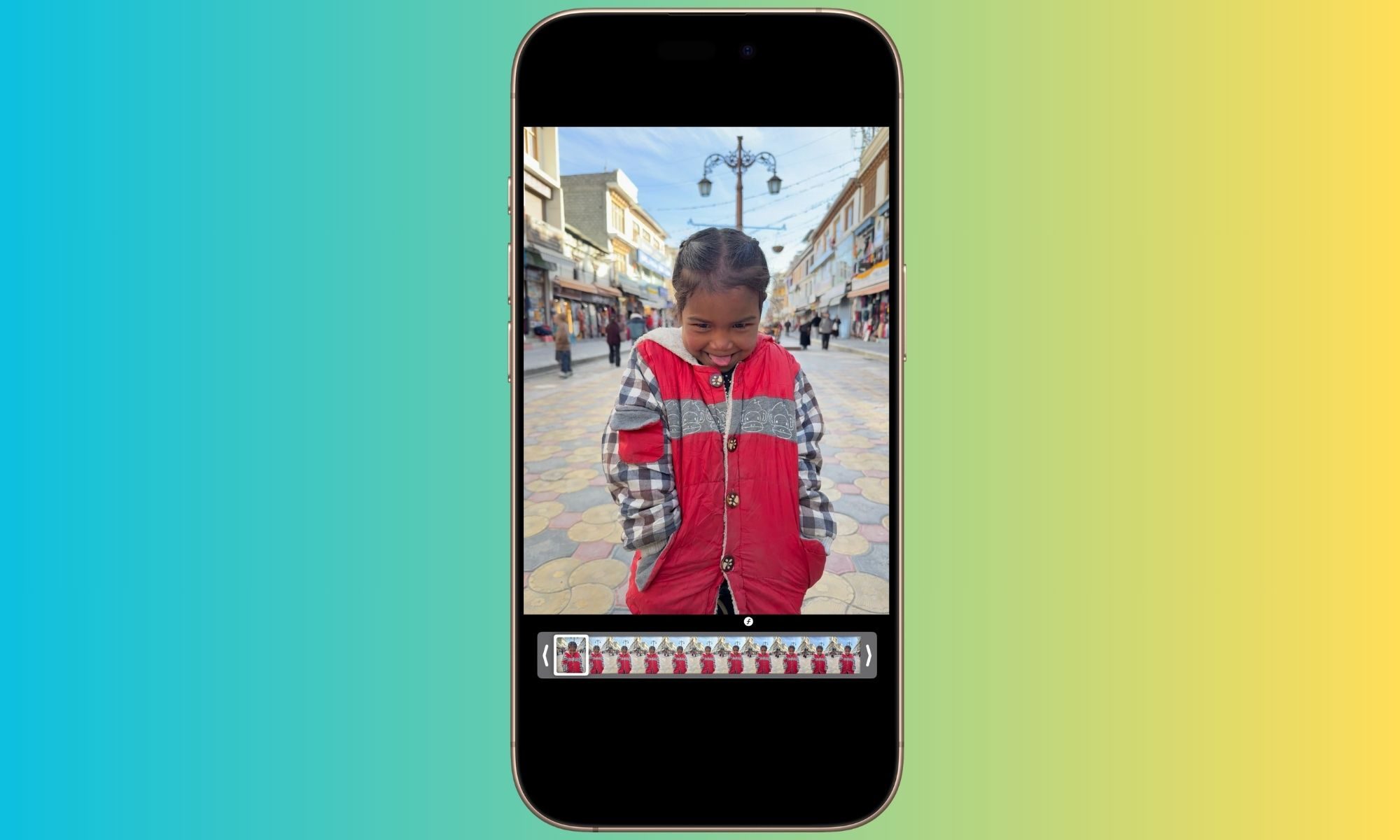
I predominantly live out of a suitcase, and clicking pictures is usually an on-the-go experience for me. The experience won’t be any different for anyone who has been tourist-y spots and doesn’t find the space (or time) to patiently compose the frame. This is where Live Photos come to the rescue, because you can extract any frame you like from within the clip, edit it, and share it freely.
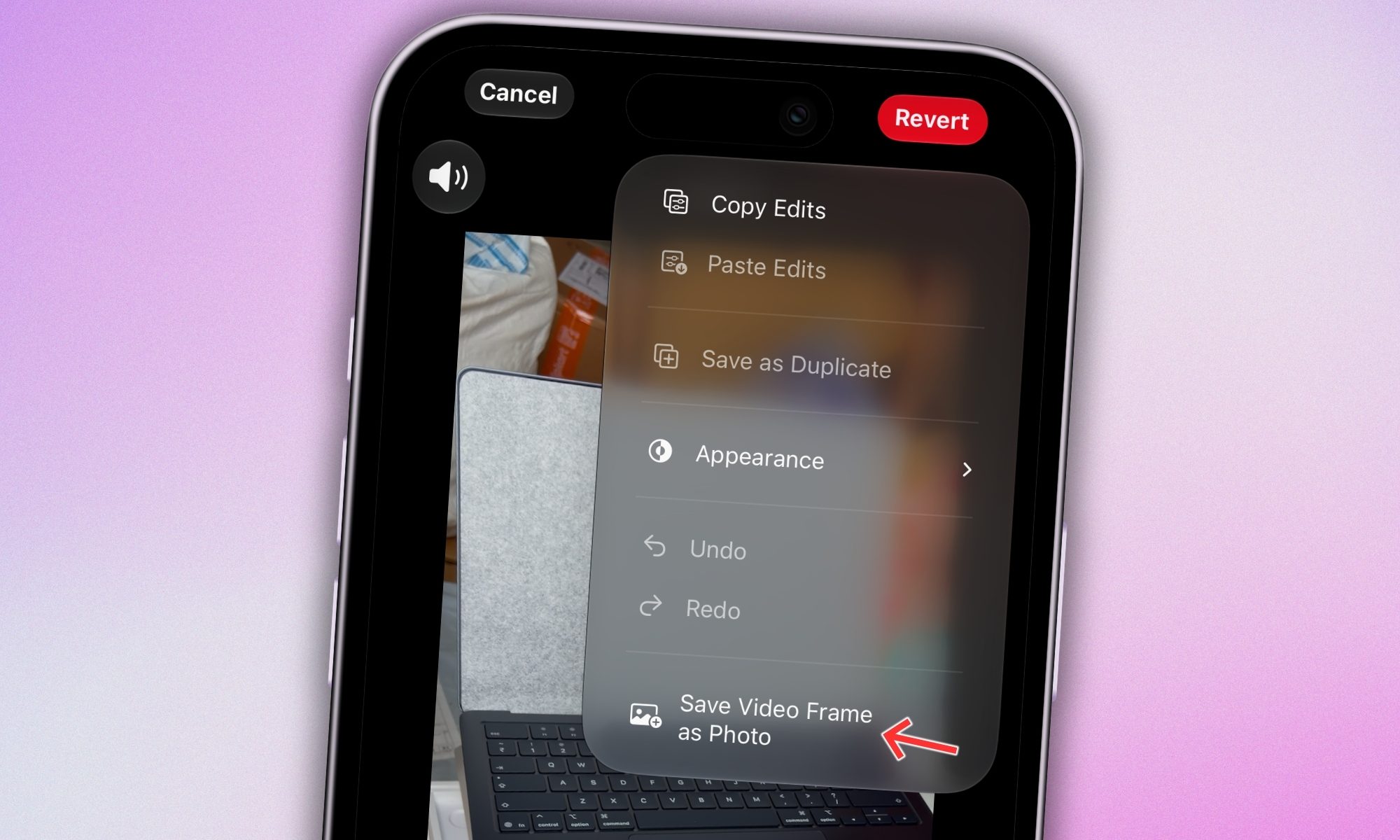
It can all be done within the Photos app, though the process is not straightforward. Here’s how you can do it:
- Open the Live Photo in the Photos app and tap on the edit button at the bottom. The icon is three parallel lines with circles drawn on each one of them.
- When you enter the editing interface, tap on the Live icon at the buttom to open a carousel of the frames.
- Slide your fingers on the carousel to pick the frame that is sharpest or looks best.
- Select the best shot and tap on the “Make Key Photo” button that appears over it. Next, tap on the yellow “Done” button in the top-right corner of the screen.
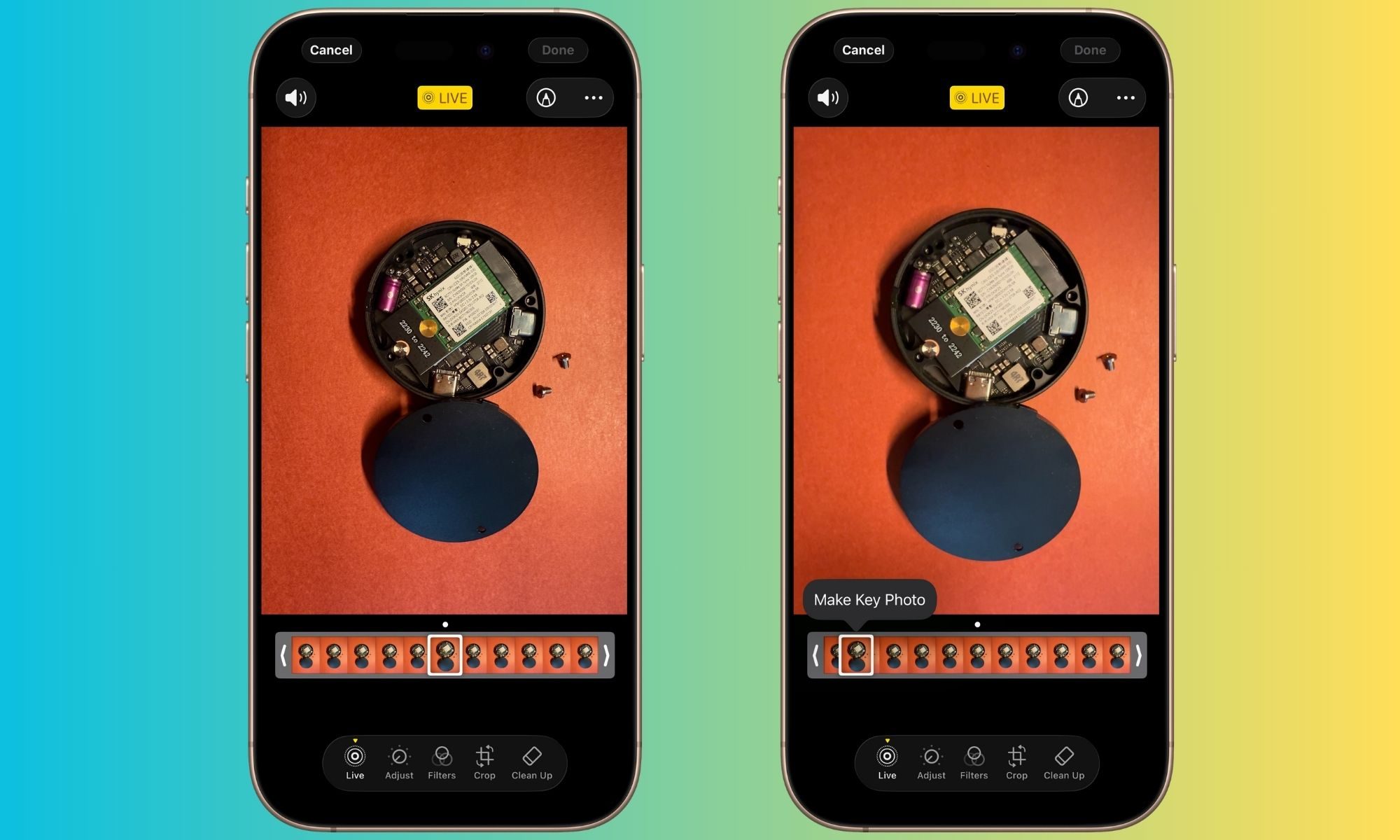
This key frame is now the shot that is ready for sharing. Whether it’s AirDrop, a social media app, a communication platform like WhatsApp, or editing software, this frame is the file that is exported for further action.
Now, this is not a magic pill for total photographic rescue. As I mentioned above, this works best for scenarios where you are on the move, struggle with shaky hands, or just don’t have the chance to properly compose a stable frame. The frames you extract from the Live Photos clip aren’t necessarily the same quality as a well-composed still shot.
Morever, you will need some patience sliding through the whole carousel of shots to pick the one that looks the sharpest with the best color contrast and focus. There’s a high chance that you will find at least one or two shots that will work just fine.
It can work wonders with selfies and group photos, too. Have a look at this memory from last year that I captured on a trip:
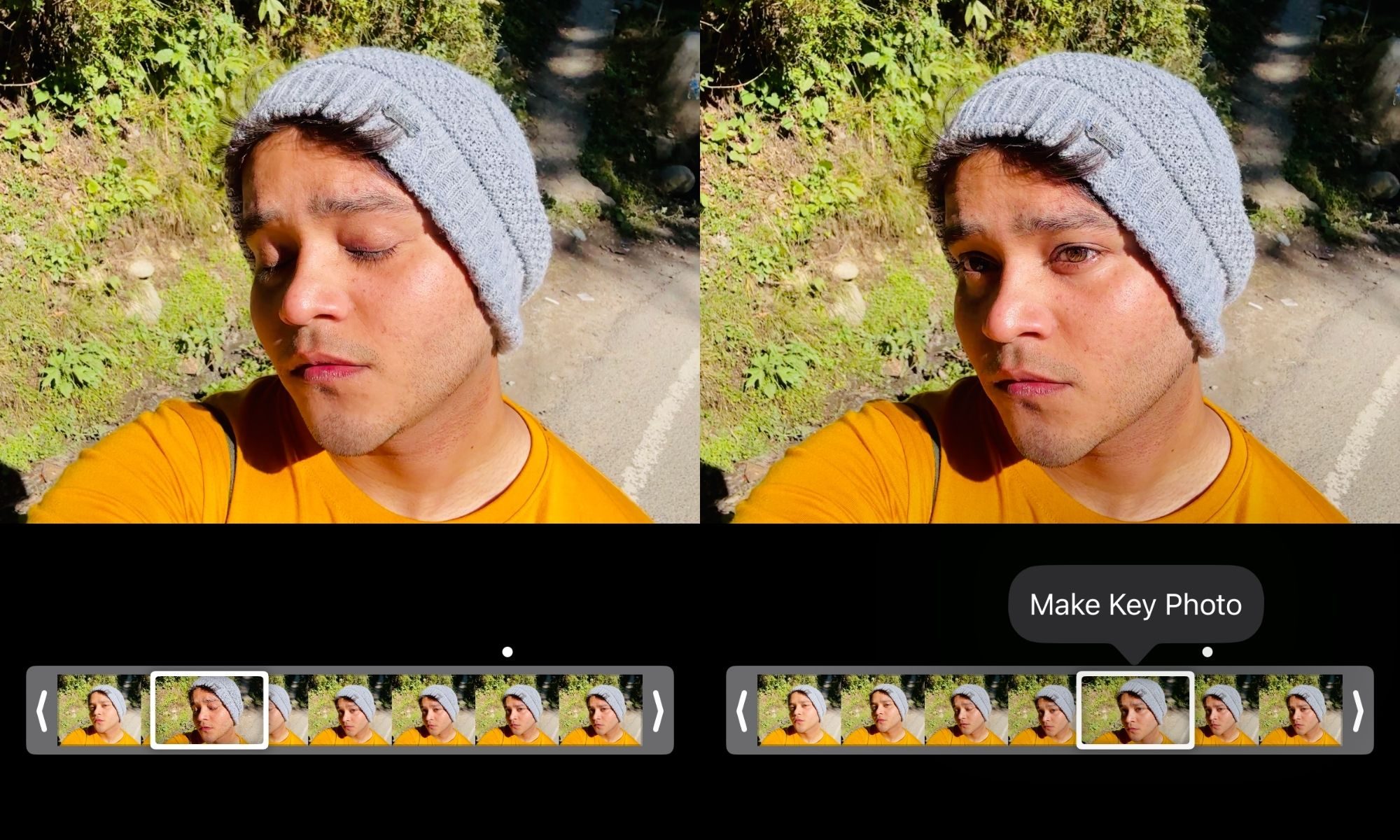
Some of them might require a bit of touch-up, but in general, a Live Photos clip saves a healthy few photos that are good enough for sharing without any edits. The whole idea, at the end of the day, is to recover one — or a few — useful shots from an otherwise non-optimal photo capture session.
This strategy works best when you are capturing a moving subject, or a flickering light source. With the latter, the light bleed, and shadows can often become a problem, especially when the natural flicker frequency is not quite in line with the phone’s shutter speed in auto mode.
Extracting a frame from Live Photos is not a universal fix for rescuing bad photos. As I recently highlighted in my camera overview of the OnePlus 15, a bit of experimentation and learning is the best way forward for getting the best out of your phone’s camera. But in situations where those learnings can’t be applied in all their glory, Live Photos can come in clutch.