“The Tango PC is a good fit for those with light computing needs. However, at this stage of development, it's not without its blemishes.”
“Why you can trust Digital Trends – We have a 20-year history of testing, reviewing, and rating products, services and apps to help you make a sound buying decision. Find out more about how we test and score products.“
The Tango PC is a good fit for those with light computing needs. However, at this stage of development, it’s not without its blemishes.
Small form factor desktop PCs are becoming more and more popular, yet traditional desktop computers are still rarely associated with terms like “portable” or “pocket-able.”
Tango PC plans to change that. The company, dubbed Tango Tech, shipped us an “engineering sample” version of its opus to play with for a few days. We got to mess around with it, toy with the dock, and see how this unit handles day to day life. Keeping in mind the base price of $349 (which includes one dock, though you can add extras for $89 each), we set out to see if the Tango PC has a potential place in this world.
Here’s how it held up.
It takes two for the Tango to twirl
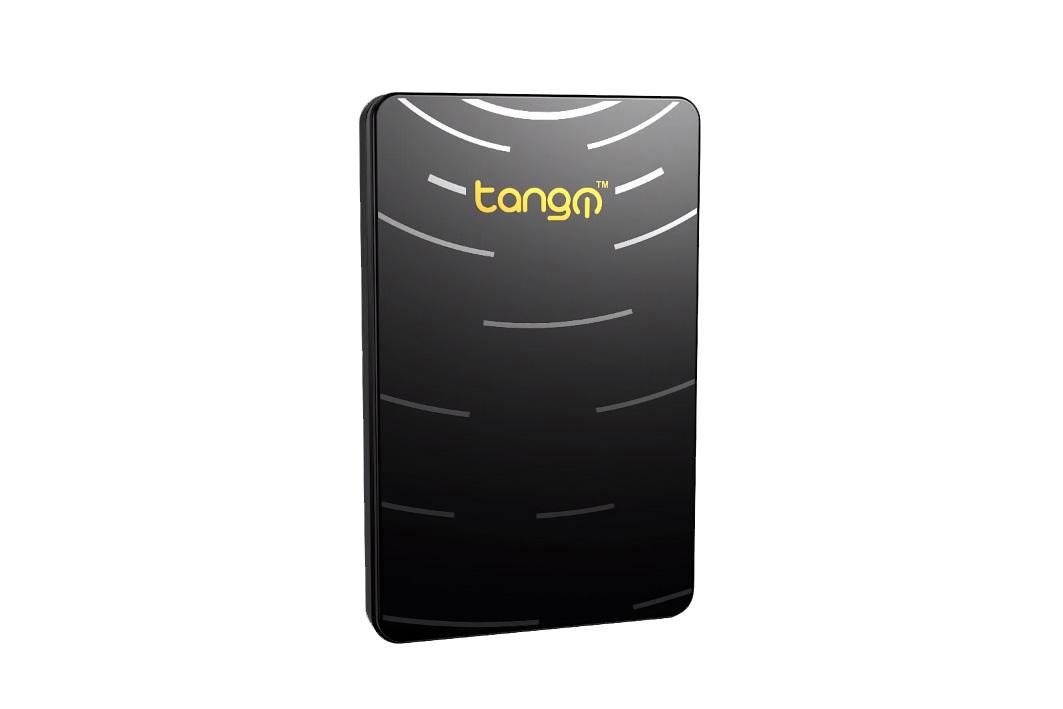
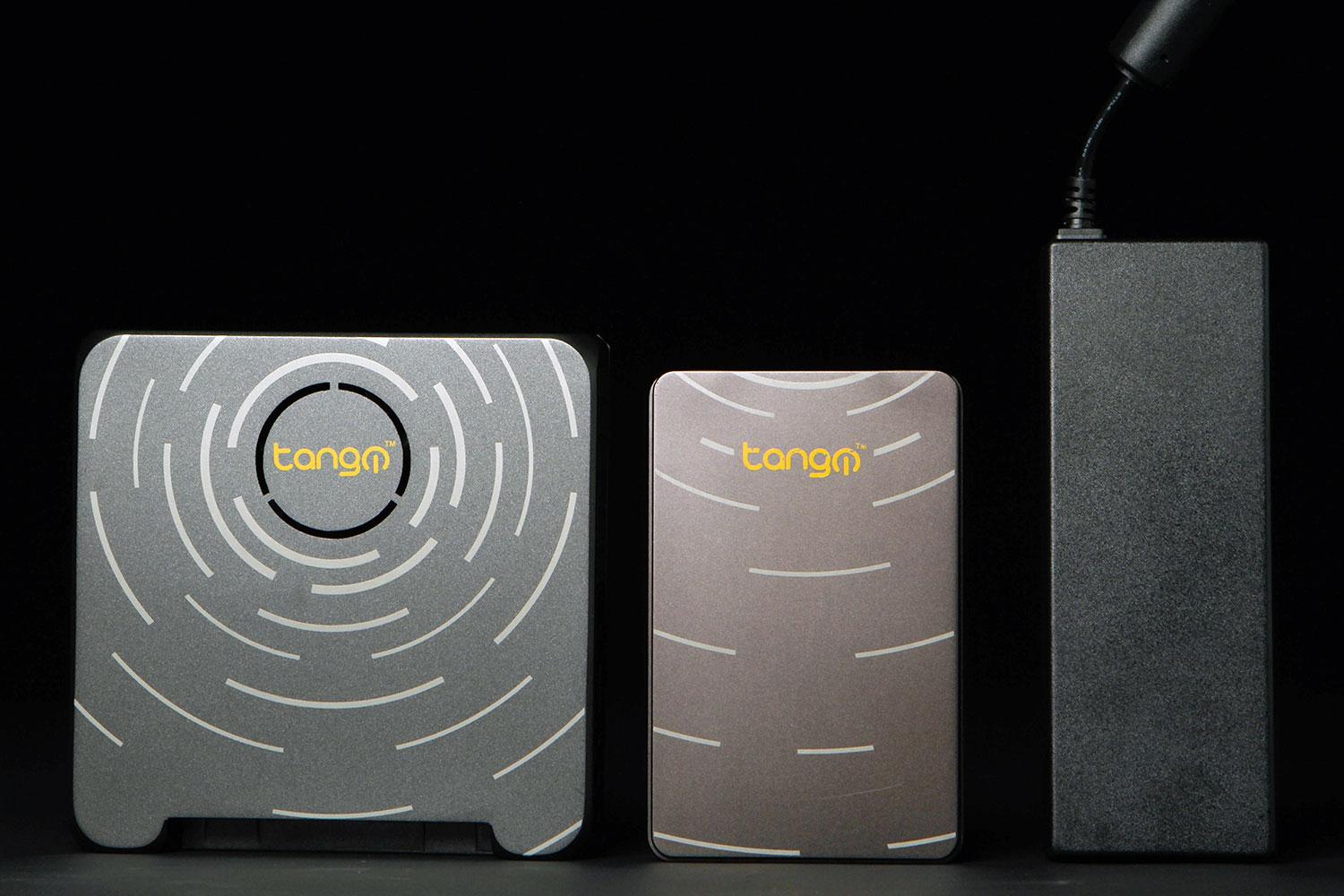
The Tango PC consists of two parts: the dock, which looks a bit like an external optical drive, and the unit that goes into the dock, which reminds us of external hard drives. The dock includes all of the ports, the power connector, the fan, and the heatsink. Meanwhile, the part that you insert in the dock stores all of the other core components – CPU, GPU (or in this case, an APU), SSD and RAM.
It’s worth noting that the $349 price only includes a trial version of Windows.
It’s worth noting that the $349 price only includes a trial version of Windows. You’ll eventually need to shell out for your own copy. Hopefully, you have one lying around. If you don’t, Windows 7 still costs roughly $100, despite the fact that it is approaching five years of age. Windows 8 is about the same price. What about Windows 9? We’ll see soon enough, as a release for Microsoft’s next OS could be slated for sometime in Spring 2015.
Set up
Setting up the Tango PC is pretty straightforward. We unboxed the dock, plopped it on our desk, and slotted the accompanying Tango PC into it facing upward. Once done, we plugged in the included power brick — and were surprised to find that the wrong power cable was included by mistake. We cannibalized one of our office PCs for a standard power cable to use instead.
As soon as we navigated that snafu (Tango promised us that this wouldn’t occur once the units start shipping), we plugged in all the other stuff you would connect to a standard PC – keyboard, mouse, and display.
The Tango PC had just enough ports for our needs. It has three USB 2.0 ports, and one USB 3.0. We occupied the three USB 2.0 ports with basic peripherals – keyboard, mouse and a webcam. The fourth ideally is used as a port for a USB 3.0 external hard drive or flash drive. If your headset sports a 3.5mm audio jack, then you’re in luck, because the Tango PC has one. Otherwise, you’ll have to use one of the USB ports. Other ports here include HDMI for your monitor, and Ethernet. We appreciate the Tango PCs ability to connect to the Internet via a hard cable, but 802.11n Wi-Fi is standard as well if you prefer to minimize cable clutter.
Once done, we hit the power button, and the Tango PC was off and running. About 10 – 15 seconds later (thanks in large part to the mSATA SSD), we found ourselves staring at the Windows 7 desktop. As of now, all of the backing options on the Kickstarter page feature Tango PCs loaded with Windows 7 only.
Is that a Vuvuzela I hear?
The first thing we noticed when we powered up the Tango PC is that it’s loud. The fan whirrs constantly, regardless of what I was doing. Whether I was gaming, watching a video, writing an email, or just sitting idle, the fan is super noisy, and the assault on the eardrums is inescapable. I even heard it from the bathroom when I took the Tango PC home with me – with the door closed!
The Tango PC’s fan reminds me of two sounds. Remember the sound that old school optical drives made whenever discs started spinning in them? Sure, some were quiet, but the loud ones were audible from quite a distance away. Even so, the sound eventually went away when the drive wasn’t in operation. Not the case here.
The Tango PC handles day to day use without choking, though it emits a few deep breaths at times.
For what it’s worth, in my conversations with Tango Tech CEO Bhavesh Shah, I was assured that the noise was an anomaly that’s specific to this engineering sample. I popped open the Tango PC (at the CEO’s request), and noticed that the fan spins at the same rate regardless of what the Tango PC was doing. Shah told me that this should not be the case, and that the fan’s speed should vary depending on workload. We’ll see if that’s the case once we get a full review unit this fall. Shah suggested that the noise was a result of some internal blockage, due to a rogue piece of tape or foam. Once I popped open the dock, I found no such obstructions.
Hot swappable – literally
One of the nice things about the Tango is that you can remove the portion that you insert into the dock at will, and insert it back in once you’re ready to go again. Tango Tech envisions a dock at home and another at work, and you simply transport the Tango PC from one place to the other. We were supplied with only one dock, so we weren’t quite able to test this vision. We made do by simply removing and re-inserting the Tango PC into the one dock we did have.
We removed the Tango PC, but before we re-inserted it into the dock, we noticed that the device was quite hot. Shah said units that will ship this fall will do a much better job of facilitating airflow, and therefore, the machines will run much cooler than this one does. But again we shall see. All we know is, this particular Tango PC runs quite toasty.
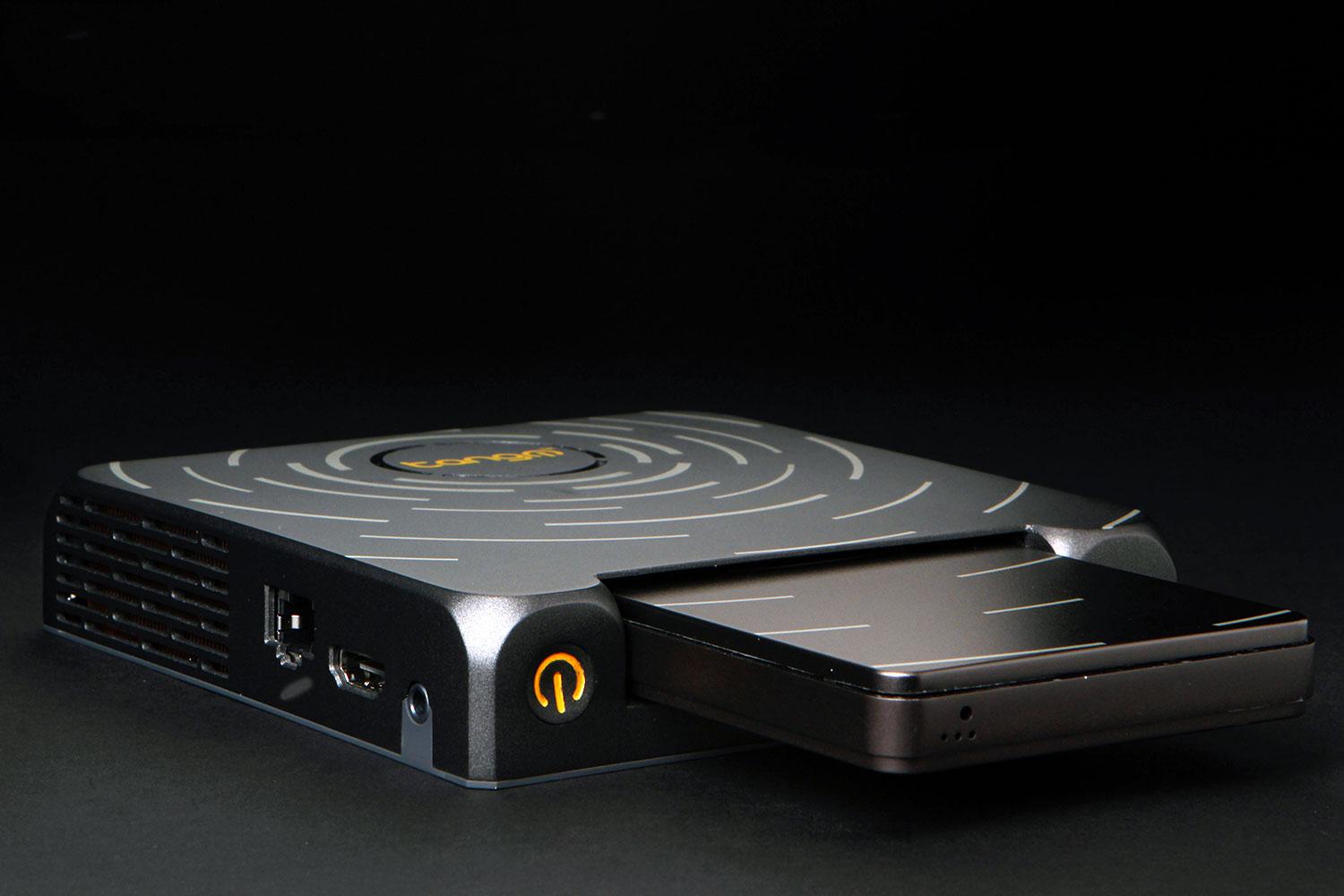
Anyway, once we re-inserted the Tango PC back into its dock, all we did was push the power button once again. A few seconds later, the same windows that we had opened when we un-docked the Tango PC were right where we left them. Tada! Our hot swapping experiment worked, but ideally, this would be best with two or more docks. That way, you would only have to carry around the Tango PC itself, while leaving the docks behind.
Performance
The Tango PC is marketed as a mobile-ish device with the power of a traditional desktop – within reason that is. After all, it does include an AMD APU from last year. No Core i7s or i5s here, and no dedicated graphics either.
We started off with the Tango PC by seeing how it could handle the strains of day to day use – Web browsing, multitasking, etc. We found that the Tango PC handles the workload without choking, though it emits a few deep breaths at times. We opened up 20 – 30 browser tabs in Google Chrome, while installing/downloading a game in the background. We listened to music via YouTube, switched between tabs, scrolled up and down pages, social networked, and checked up on email as well.
There were moments where there was a teeny tiny delay when it came to switching between tabs. At one point, the song I listened to paused for roughly a second or two, but then resumed. There was some very minor stuttering when it came to scrolling up and down Web pages at times. Other than that, the Tango PC holds up well in these situations.
If your favorite game is a casual title, the Tango PC should hold up just fine.
Once in the game, I put the graphical settings on High and started a new campaign. Keep in mind that the opening sequence, which is what we used to test the Tango PC’s graphics capabilities, arguably consists of some of the most demanding moments in the game.
Frame rate jumped throughout the sequence from the low teens to the low 30s, but usually lived in the mid to high teens. Then I dropped the visuals to Medium, and replayed the opening sequence. The results weren’t much better – the framerate once again bounced between the low teens and the low 30s. Instead, this time I was usually in the low to mid 20s.
So what does this tell us on the graphics front? If your favorite game is a casual title, or a moderately demanding game like World of Warcraft or League of Legends, the Tango PC should hold up just fine. If you hope to play 3D titles like modern shooters, expect to compromise on the visual settings if you want to play at consistently enjoyable framerates. Even then, don’t expect to approach 60 fps often, if ever.
Conclusion
The Tango PC is a fine concept. Though laptops are virtually ubiquitous, not everyone wants to lug one around, especially if you have an achy back or shoulder. Being able to carry something the size of an external hard drive that also has a (roughly one year old) desktop CPU is pretty cool. However, this would work even better with a pair of docks, or more, which you’d ideally place at the points where you use your computer most – work, home, wherever. You can get an extra dock, but you’ll have to shell out an extra $89 to do so.
So, who else is the Tango PC a fit for? Maybe you love your traditional mouse, and cringe at the thought of using a laptop’s touchpad. Perhaps you’ve developed an attachment to your mechanical keyboard, and you won’t settle for anything less. Sure, Chromebooks are a cheap alternative, but maybe you find Chrome OS to be too foreign of an experience for you to warm up to. However, from a pricing standpoint, the Tango PC already has some stiff competition – and not just from Chromebooks. The Yoga 2 11-inch can be had for under $500, and the recently reviewed Acer Aspire Switch 10 starts at $379.99. Dell sells multiple laptops for under $500, with 4th-generation Intel Core processors inside to boot.
It will be interesting to see how the Tango PC shakes out once it is publicly available. We look forward to a getting our hands on a fully baked review unit sometime this fall.
Highs
- Handles basic tasks well
- Portable
- Affordable
- Sturdy construction
Lows
- Loud
- Runs hot
- Base model only includes trial version of Windows 7
- No option for Windows 8/8.1