Sharing your home or office network doesn’t mean you must hand out the password like a business card. You don’t need to text the information, write it down in a folded love note-like manner, or send it in an email. Instead, you just need to generate a QR code to share the information.
This guide shows you how to share your Wi-Fi password from an iPhone to an Android device. Afterward, we reverse course and show you how to share a network password with an iPhone using stock Android 11 and a Samsung phone with Android 10. The methods are extremely simple and are far more secure than dolling out passwords in written and texted forms.
Share your network password from iPhone to Android
Because iOS doesn’t have a built-in QR code generator like Android, you need to install an app like Qrafter or Visual Codes. In this guide, we use the latter app, which requires iOS 11 and newer. It’s free to use in this case, but you can unlock the Share & Print Codes feature for $1 and the ability to save scanned codes for another $2.
On the iPhone


Step 1: Tap to open Visual Codes.
Step 2: Tap Add Code.
Step 3: Tap Connect to WiFi.
Step 4: Enter the network’s SSID in the Name field.
Step 5: Enter the password in the Password field.
Step 6: Enter a name for the saved code in the Label field.
Step 7: Tap Create Code.
Step 8: Tap Create Code again to confirm.
Step 9: You should now see a QR code on the Codes page using the name you entered into the Label field. Tap the code you just created to get the full scannable code.


On the Android device
Step 1: Tap to open the Camera app.
Step 2: Position the device so it can properly scan the QR code displayed on the iPhone.
Step 3: Tap the Wi-Fi network pop-up, as shown above, to connect your Android device to the network.
Share your network password from Android to iPhone
Since we’re here, why not shift into reverse and see how an Android device can share the network password to an iPhone.
On Android 11


Step 1: Slide a finger down from the top to expand the Notification Shade and then tap the cog icon.
Step 2: Tap Network & Internet.
Step 3: Tap Wi-Fi.
Step 4: Tap the cog icon next to the network you want to share.
Step 5: Tap Share and then verify that it’s you.
You should now see a QR code that you can scan using an iPhone (or some other device).
On Samsung phones (Android 10)


Step 1: Slide a finger down from the top to expand the Notification Shade and tap the cog icon.
Step 2: Tap Connections.
Step 3: Tap Wi-Fi.
Step 4: Tap the cog icon next to the network you want to share.
Step 5: Tap the QR Code tab located at the bottom.
You should now see a QR code that you can scan using an iPhone (or some other device).
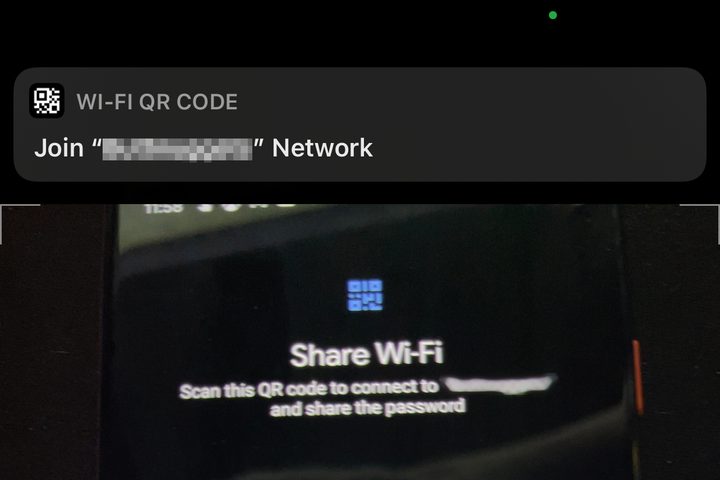
On the iPhone
Step 1: Tap to open the Camera app.
Step 2: Position the device so it can properly scan the QR code.
Step 3: Tap the Join “Your Network Name” Network notification.