
As one of the best Android smartphones on the market right now, life is definitely good with the LG G3. It’s a powerful device with plenty of customization options and a range of software features that could add value for you. Check out these LG G3 tips to find out how to tailor the phone to your liking and get a little more out of it.
How to get split screen
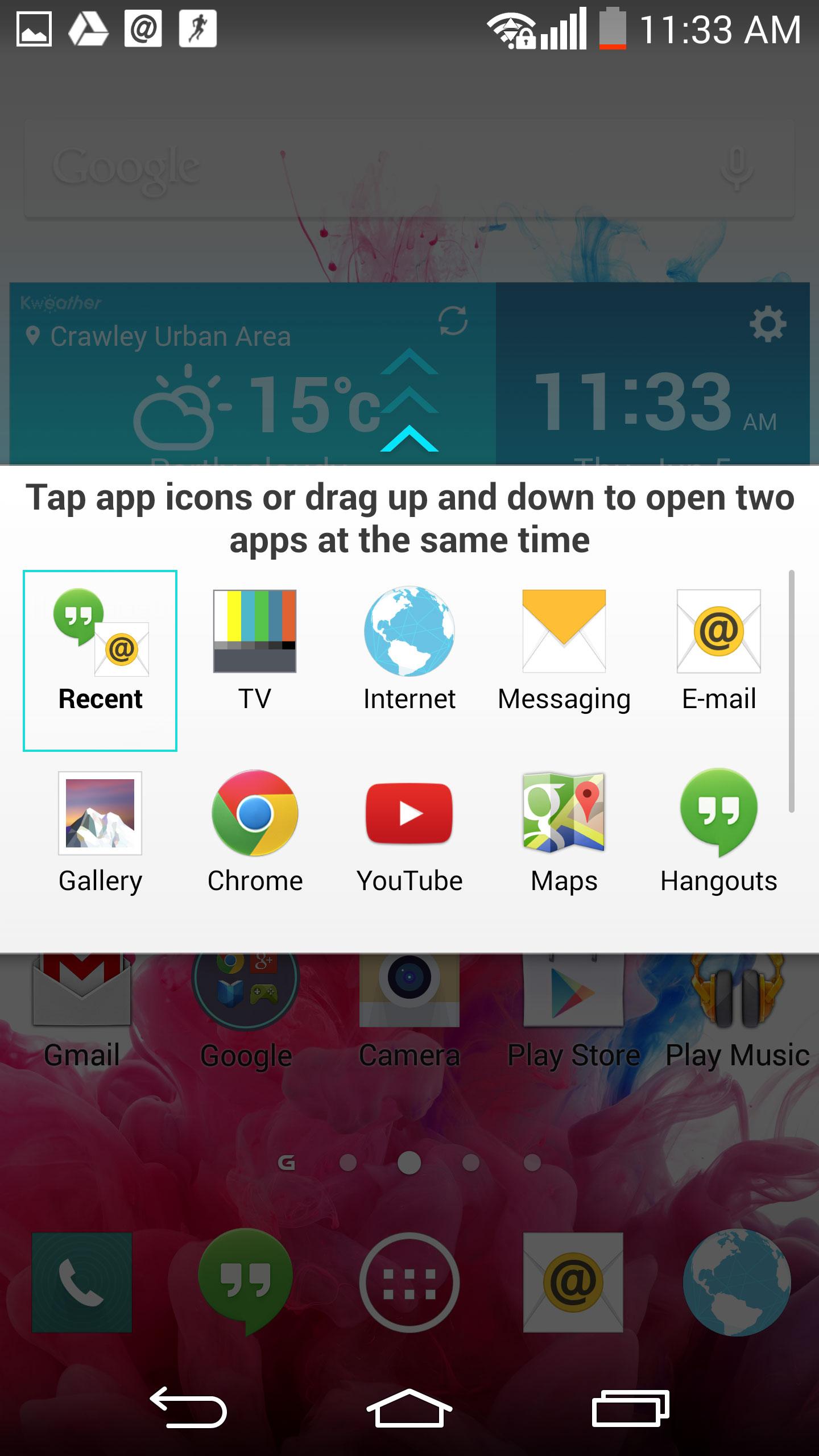
You can have two apps on screen at once with the LG G3. All you have to do is tap and hold the Back button until the menu pops up and select two apps.
Knock Knock
LG has expanded on the popular Knock On feature, which allows you to double tap the screen to bring the phone to life. You can also add a Knock Code if you’re security conscious. By default you can double tap with your fingertip anywhere on the screen to wake your phone, and a double tap on an empty portion of home screen or the status bar will send it back to sleep. If you want to use the Knock Code, then go to Settings > Lock screen > Select screen lock > Knock Code and set your pattern. It divides the screen into four segments and you can create a pattern of between three and eight taps to unlock your LG G3.
How to choose quick toggles
Pull down the notification shade and you’ll see a bunch of quick settings options along the top. If you want to change this list to suit your needs, scroll all the way along to the right and tap the Edit icon and then select which toggles you want and tap and drag to re-order them.
How to quickly launch the camera
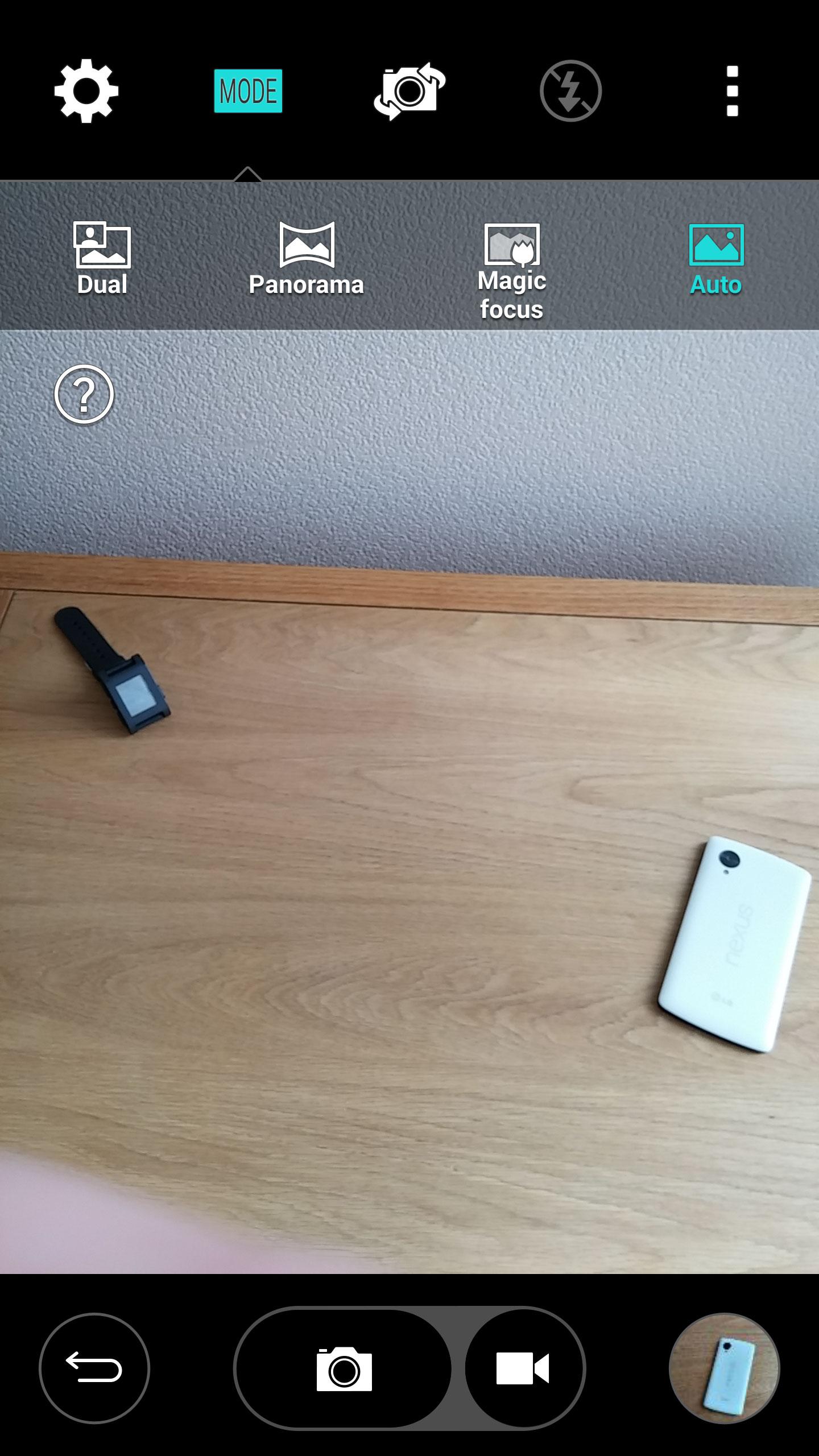
When the screen is off, you can press and hold the Volume down key on the back and you’ll launch straight into the camera. You can also use the Volume down key to snap a shot.
How to get floating apps
LG calls this feature QSlide and you can access it in your notification shade. Toggle it on and you’ll see a list of supported apps. Pick the one you want and it will pop up on top of whatever else you are doing as a wee floating window. You can minimize it, resize it, make it transparent, and drag it around to wherever you want it.
How to share music, photos, or videos wirelessly
If you have another DLNA device on your network, you can use SmartShare to stream content to it. Open up the Gallery or Music app, tap the Menu icon (three dots) at the top right, choose SmartShare, and then Play or Beam, finally, choose your target device then hit Send. You can also access content on compatible devices and stream it to your phone via the Nearby devices option in the menu of the Gallery and Music apps.
How to customize your home screens
Tap and hold on an empty portion of home screen to get your menu pop-up for apps, widgets, and wallpapers. You can choose from the standard Gallery and Live wallpapers, but you’ll also find a Multi-photo option in wallpapers which allows you to choose a different image for each home screen.
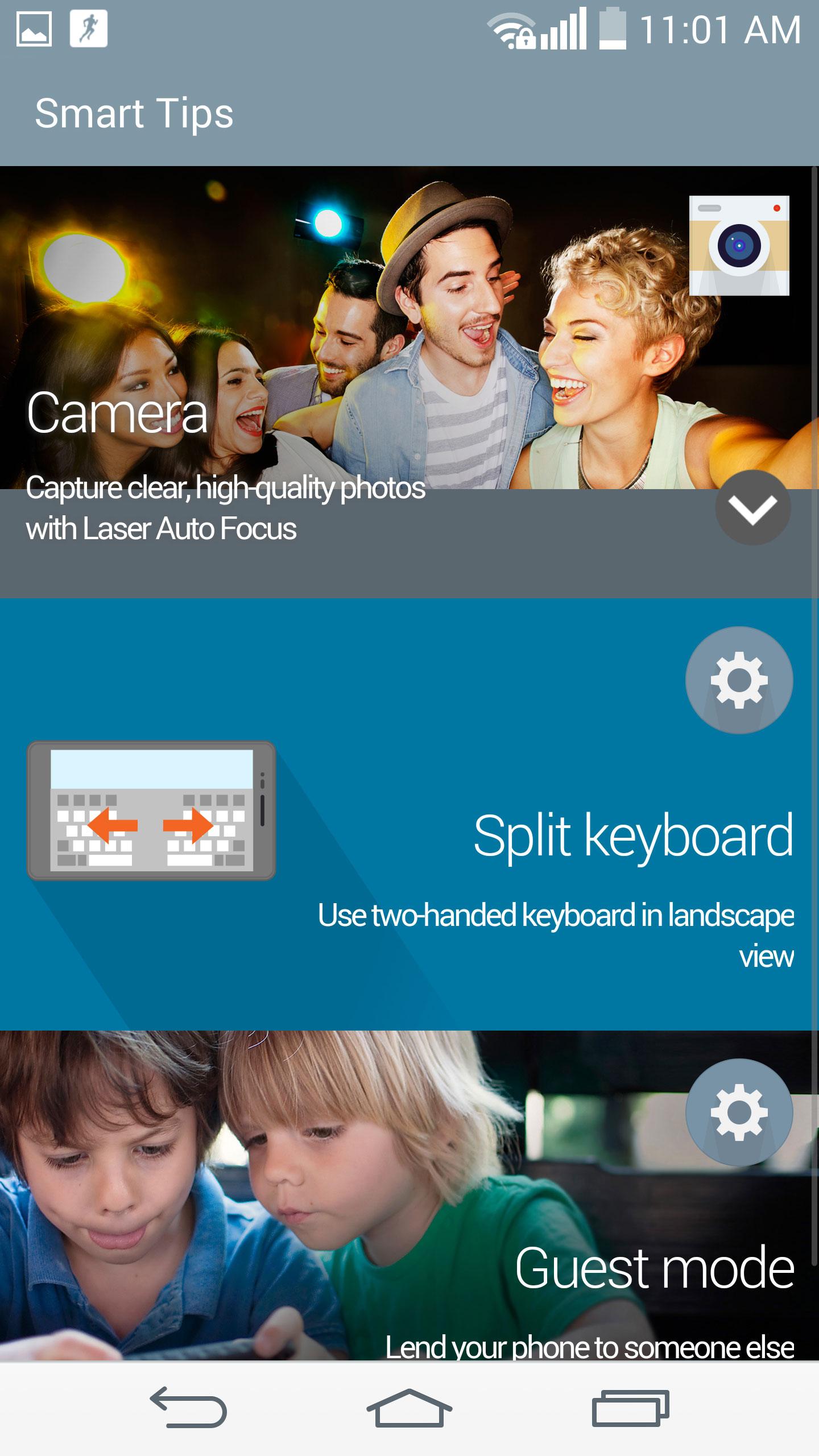
You may also notice that if you slide all the way to the left from your home screen, you’ll get the G3 Smart Bulletin, which defaults to the Health app and some Smart tips to teach you about features of the phone. If you want to get rid of it, go to your app drawer and tap the Menu icon to select Home screen settings where you can toggle Smart Bulletin off. You can also change the transition animations via Screen swipe effect and select Allow Home screen looping in here.
How to change navigation keys
You can actually change the look or order of the three main navigation keys that are ever present at the bottom of the screen. If you open up Settings > Display > Home touch buttons you’ll find options for color, transparency, combination, and the choice to have them fade away when you’re using apps.
How to free up storage space
If you look in Settings > General, you’ll find a Smart cleaning option that can free up some space by deleting temp files, old downloads, and idle apps.
How to launch QMemo
When the screen is off, you can press and hold the Volume up key to launch straight into the QMemo app and make a quick note. If the screen is on, then you can swipe up from the Home key and over to the right to quickly launch the QMemo app. It will take a screenshot and allow you to write or draw over the top.
How to use shortcut gestures
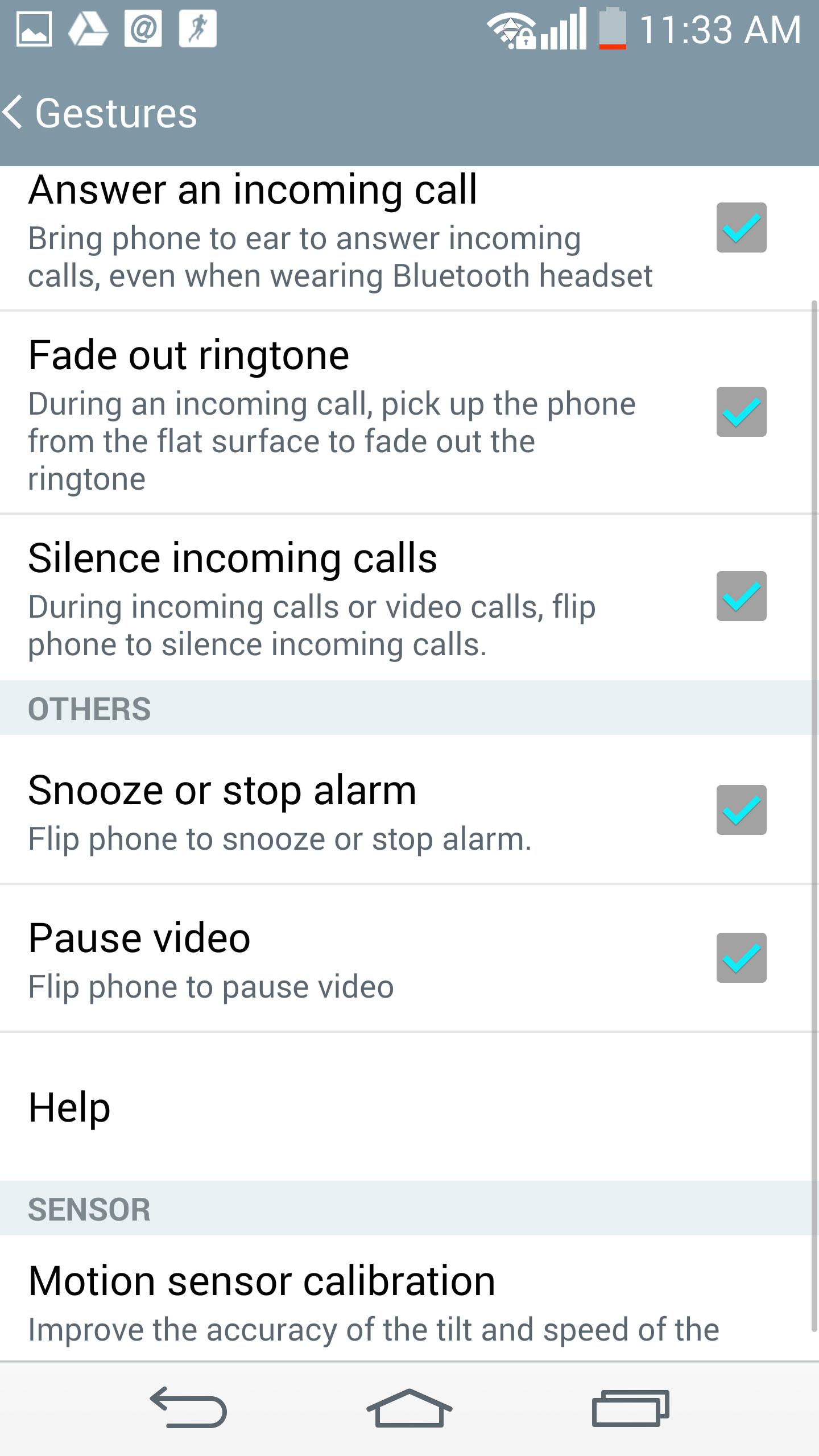
You can flip the LG G3 to silence it, have it fade to quiet if you pick it up, and take incoming calls by simply lifting it to your ear via the Gestures in Settings > General.
How to launch Google Now
If you have the Google search widget on your home screen, then you can launch Google Now by saying “Ok Google” when you’re on the home screen. You can also swipe up from the Home key at the bottom to quickly launch Google Now.
How to share your phone safely
If you want to allow someone else to use your phone, but you really don’t want to give them unlimited access, then you should go into Settings > General > Guest mode. You can set a different unlock code to launch a limited subset of your phone’s apps with no access to your private stuff.
How to customize the keyboard

If you’re typing in landscape, you can make things a little easier by swiping out from the center with both thumbs to split the keyboard. If you want to actually change the default layout, then you need to go into Settings > General > Language & input and hit the settings icon next to the LG keyboard and then Keyboard height and layout to tweak the size and key order.
How to move the cursor
When using the keyboard, you can touch and hold on the spacebar and then move right or left to move the cursor.
How to use the G3 one-handed
You can make the G3 easier to handle with one paw by going into Settings > General > One-handed operation and having the dialer and keyboard lean over to the left or right, depending on which hand you use.
How to save battery
Go to Settings > General > Battery and you’ll find the option to display your remaining battery life as a percentage and also the Battery saver, which can be set to automatically turn off specific features when the battery hits a specified level. You might also want to turn on Battery saving in Location mode under Settings > General.
How to set quiet time
You can actually set your LG G3 to automatically go quiet during certain times of day or night, which is handy if you want an uninterrupted night’s sleep. Just go to Settings > Sound > Quiet mode, decide what you want to have silent, and choose Set time > Schedule to have it happen automatically. You can even set a different schedule for weekends.
How to take a selfie with a gesture
You can use a hand gesture to take a selfie. Hold your hand up, palm open, until you see a box appear around it, then make a fist and it will snap a shot.
How to take a photo with your voice
The Cheese shutter feature allows you to snap a shot by using voice commands. Turn it on in your camera settings and you can capture a photo by saying “Cheese,” “Smile,” “Whisky,” “Kimchi,” or “LG.”
We’ve reached the end of our LG G3 tips and tricks, but check back for new additions in the not too distant future.


