1. Home
  2. Computing
  3. Legacy Archives

How to use System Restore in Windows 7

Add as a preferred source on Google

If your computer is on the fritz, acting weird, or behaving sluggishly, you may be able to revert to a time in your PC’s history when it was symptom free, using System Restore in Windows.

System Restore essentially acts like an undo button for your PC, tapping into automatically saved restore points.

Recommended Videos

Here’s our breakdown of System Restore and how to use it. Additionally, feel free to check out our guides for recovering deleted files and making an administrator account on Windows 8, along with our in-depth comparison of the best cloud storage services.

What does System Restore do?

System Restore automatically creates markers on your computer called restore points, which are made regularly without input from you, though you can also create restore points manually. When you do decide to use System Restore, it will provide you with a list of points to revert your PC to. You can always try multiple restore points in the event that you’re still experiencing issues when you revert to a particular state. Keep in mind that System Restore always creates another restore point prior to reverting, so you can always reverse the changes if need be.

How to use System Restore in Windows 7

Step 1: Open System Restore — Click the Start button (or press the Windows key on your keyboard) and enter “System Restore” in the search bar at the bottom. It should be the first result that pops up. Click on it.


Step 1 final

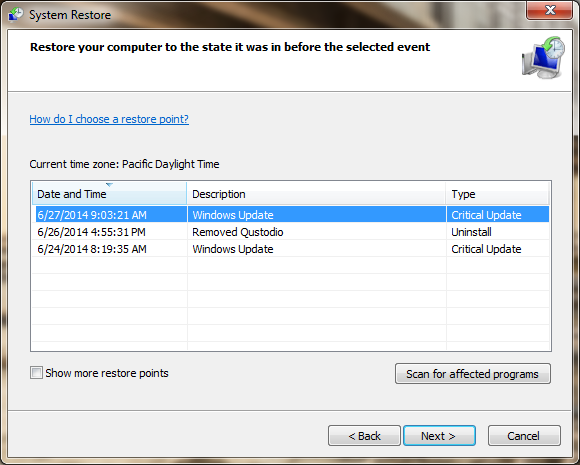
Step 2: Revert to a previous state  — Click “Next,” and select your desired restore point from the list of options. Each restore point tells you what type of restore it is, and has a time stamp that tells you when the point was created. If you want to see all of the available restore points, click the box at the bottom labeled “Show more restore points.” Once you pick a point to restore to, click “Next,” and then click the “Finish” button to begin the process. Once done, you’ll be placed back at the desktop.
Select Restore State
Image used with permission by copyright holder

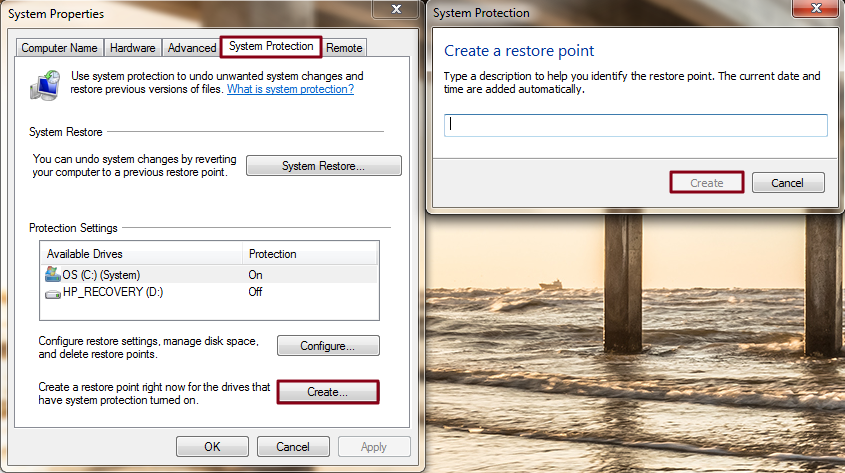
Step 3: Manually create a restore point (optional) —  To manually create a restore point, press the Windows key (or click the Start button), type “Create a restore point,” and click the option of the same name. Click “Create” at the bottom of the System Protection tab in the new “System Properties” window that pops up, and enter a description for your restore point. Then, click “Create” to begin.
Create Restore State
Image used with permission by copyright holder

[Image courtesy of Serg64/Shutterstock]

Emily Schiola
Former Contributor
Emily Schiola is an editorial assistant at Digital Trends where she covers mostly social media and how-to pieces. In her…
A YouTuber 3D printed an entire outfit, but the comfort and cost are more complicated than you’d think
The 3D-printed outfit is real. Whether it's practical is a different conversation entirely.
Adult, Male, Man

YouTuber Matthew Trahan has made a career out of 3D printing increasingly unusual things. He has printed musical instruments, bedroom furniture, and, in one particularly memorable video, himself.

His latest project is a full outfit, from shirt to shoes, belt to glasses, because apparently nobody told him 3D printers are for creating engineering prototypes or structures that aren’t otherwise feasible, not for fashion week.

Read more
The memory crisis isn’t going to ease, and you will pay the price for it, says a research firm
Forty to 50% higher this quarter, 30 to 40% more next quarter, and no real relief until 2028. Plan accordingly.
RAM memory chips

If you were hoping the memory crisis was about to ease up, I have some bad news for you. It comes directly from Wall Street.

Your next smartphone, laptop, or tablet could cost even more, regardless of whether it has recently been subject to a price hike.

Read more
Apple’s next Mac Studio could get a new M5 Ultra chip and a cooler upgrade
The desktop workstation is tipped to receive an M5 Ultra this year, an M7 Ultra later, and a redesigned heat sink.
Apple Mac Studio Featured

Apple's Mac Studio may not be getting a fresh new look anytime soon, but it could be getting a meaningful upgrade where it matters most. According to Mark Gurman in the latest edition of his Power On newsletter, Apple is preparing an M5 Ultra-powered Mac Studio as early as this year, while an even more powerful M7 Ultra version is already on the company's roadmap for 2028. Interestingly, the report also claims Apple is redesigning one component most users will never see: the heat sink.

More power is coming, and Apple wants to keep it cool

Read more