You can get books on your Kindle reader by buying directly from Amazon's store, but if you have EPUB files (such as from Project Gutenberg) you have the ability to read them directly on your Kindle. This was once a somewhat tricky procedure, relatively speaking, but has gotten increasingly easier over time. Here, we discuss your primary options in getting your files delivered to your Kindle.
So, grab your free e-book and let's go. These steps will get EPUB (and other types of files) over onto your Kindle from your computer, laptop, or other internet-connected device.
See more
- How to share Kindle books with family and friends
- Best Kindle Oasis cases and covers
- Common Kindle Fire problems, and how to fix them
Of course, there are some caveats. Mainly, those EPUB files need to be free of digital rights management (DRM), so files bought from other stores that have been protected aren't readable on Kindle. However, plenty of DRM-free EPUB books are available.
How to use 'Send to Kindle' to send files to your Kindle
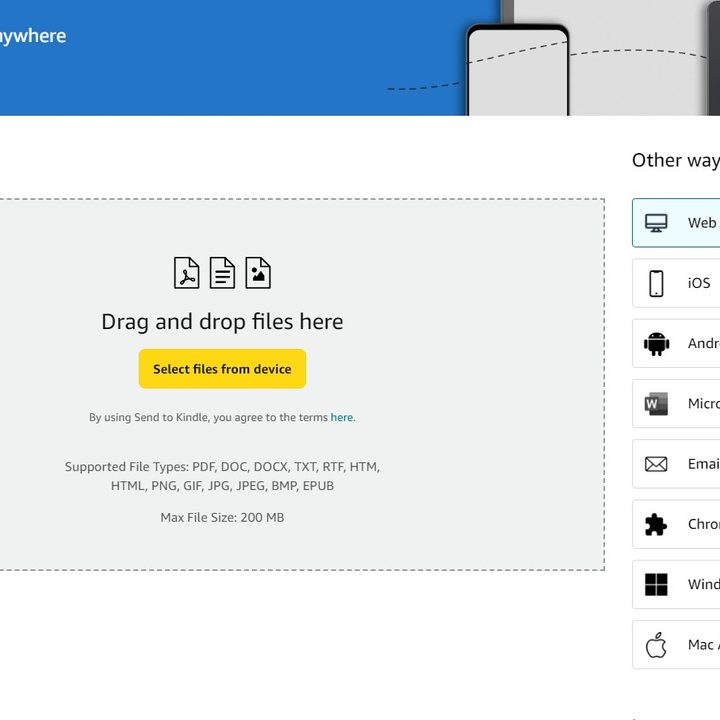
Kindle has an easy method for adding third-party texts to your Kindle via its Send to Kindle service.
Step 1: Head to the Amazon's Send to Kindle page. Make sure you are logged into the account associated with your Kindle.
Step 2: Select your files (max 200 MB) and either drag them to the File Upload area or select them using the 'Select files from device' button. In addition to EPUB, you can use PDF, DOC, DOCX, TXT, RTF, HTM, HTML, PNG, GIF, JPG, JPEG, and BMP.
Step 3: Once the file is uploaded, add it to your library (for all connected devices) by leaving the 'Add to your library' tab on. Turn off to select which devices to send the file to.

Step 4: Once you have finished your selections, tap 'Send'. After a few minutes, you can locate the new file in your Kindle's library.

How to read EPUB books using email
Another way to send an EPUB to your Kindle is to just directly email the file to your Kindle. Here's how to get your Kindle's email address and send the file.
Step 1: First, you'll need to get your Kindle's email address. Each Kindle has a specific email address just for it. Head to the Content and Devices page on your Amazon account.

Step 2: Select the Devices subhead and select the device you want to send your file to. Be aware that you might have to click the device twice to view its information.

Step 3: After you can see the data, you'll see that your Kindle has an email address attached to it. You can also change it to something more memorable, if you like.

Step 4: Open your email client of choice, start a new email, paste in your Kindle's email address, and include your EPUB file as an attachment.
Step 5: You should receive the file in a few minutes or so if the Kindle is successfully connected to Wi-Fi or mobile internet. You'll also receive a receipt to your email address if the process has been successful.
Can you send EPUB files to a Kindle with a USB cable?
Unfortunately, you can't send EPUB files through a USB cable. It seems this method is still subject to the same restrictions, so you'll need to convert your EPUB file into another format before you can send it over.