Even if you’ve never heard of a “hijacked browser” before, you’d probably recognize the symptoms. They usually come in the form of an annoying webpage or pop-up that keeps endlessly replicating or redirecting you, and won’t let you navigate away no matter what you do. That’s a piece of malware that’s hijacking your browser and corrupting your settings. While it rarely causes permanent damage, it’s also very, very annoying. Some types of hijacking won’t go away even after you reboot your computer — and they certainly don’t care what you were working on.
Here are several methods of reclaiming your hijacked browser ASAP so you can get back to work!
Close the hijacked tab using a Favorite link (Edge)
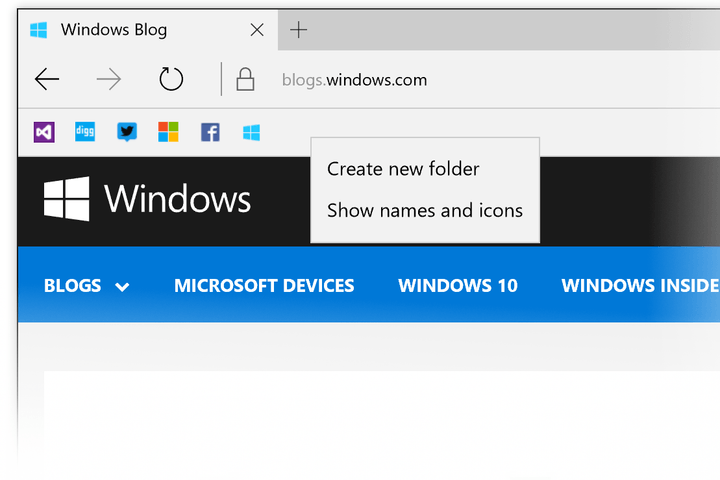
If you use Windows 10, try using this quick Edge trick before you dive into more complex solutions. If it works, you’ll be able to shut down the hijacked tab in record time and get on with your business. Here’s how to do it:
It is often helpful, though not always necessary, to restart Windows 10 through the Start menu. There are many other ways to do this, however, if you can’t access the Start menu because of malware issues.
When you’re ready, go to your Favorites. If you aren’t sure where it is, search for “favorites” in the search box or go to Quick Access to find favorite pinned links. You’re looking for the folder that is a collection of URLs.
Open one of the Favorites URLs — it doesn’t matter which.
This will open Edge again, but with an additional tab for your Favorite link. The hijacked tab should still be there, right beside it. Without going to the hijacked page, click on the “X” on the hijacked tab to close it.
If successful, this will alleviate the issue so you can get you back to business. However, you probably shouldn’t visit that particular site again, and you may want to try some of our other steps to be on the safe side.
Restore your browser to its default settings (Edge, Chrome, Firefox, Opera)

A serious hijacking may have installed a malware extension, or otherwise messed with your browser settings. To remove the problem, you’ll have to restore your default settings. This is a bit more comprehensive than it sounds. Restoring default settings can remove your hijacking problem, but it can also remove any add-ons or customization that you may be used to. Proceed with caution.
Edge
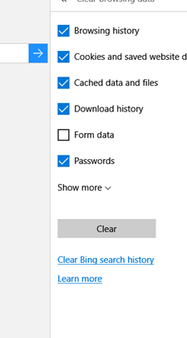 Edge doesn’t actually have an option for restoring your settings, but it does have a “clear browser data” option that essentially does the same job. Start by heading to the Settings menu, which can be found by clicking the three dots in the upper-right corner. Click on Settings and choose Clear browsing data.
This will give you a quick checklist of the types of data to clear and a Show more option for more choices. Click Show more and select all data options, from your history all the way to permissions.
Click the Clear button to start removing the data. It may take a while — and it will remove your passwords, auto-fills, history, and so on. This is a major reset, and afterward, you may have to spend some time setting your browser up the way you like it again.
Chrome
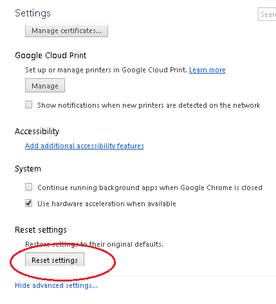 Head to the menu button, aka the “hamburger” menu in the upper-right corner. Click here, and choose Settings. You may have to open a new Chrome window to do this, or shut down your computer and reboot it, depending on how serious the hijack is.
Navigate through Settings and choose Show advanced settings.
In the list that follows, look for Reset settings. Choose this option, and then confirm to begin the process. This will remove most customization — i.e. your pinned tabs, themes, homepage — outside of your accessibility options.
Firefox
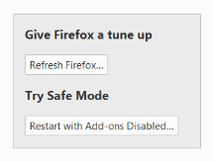 Firefox gives you both a Refresh and Safe Mode option. The Refresh option is a good place to start. Begin by opening a clean version of Firefox, then choosing the menu button, which is represented by three bars in the upper-right corner of the browser window. Here, choose Troubleshooting Information.
This will open a new window with many topics to choose from. Look for a section of window in the upper right that begins with “Give Firefox a tune up.” Underneath, you should see a button that says Refresh Firefox… Click this button to start the process.
This will restore Firefox’s settings to their default state. However, Firefox will try to save as much essential information as possible.
Opera
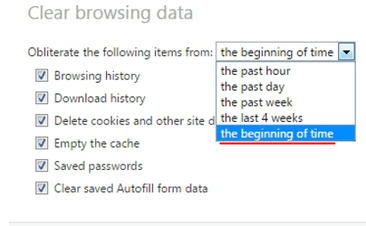 Like Edge, Opera doesn’t have the ability to restore to default. That said, you can manually do the same thing by deleting all browser data. Start by going to the Customize and control Opera button and then pick out the Settings choice (Alt-P).
In Settings, choose Privacy & Security and select Clear browsing data.
In the pop-up window that follows, select all the boxes to delete all data. When it comes to the timeframe, use your own discretion. Deleting your browsing data for the past day or week may remove the problem while saving some of your data, but only a full wipe may ultimately solve the problem. When ready, select Clear browsing data.
Note: For a “lite” version of restoring settings, see if you can simply disable all your extensions and add-ons. Chrome, Firefox and Opera allow you to do this. Disable all your extensions and then try them one at a time to see if you can pinpoint the ones that are actually helpful. This may be a little time-consuming, but it may also be worthwhile if there’s a lot of browser data you don’t want to delete.
It’s also worth noting that some programs, like Norton Power Eraser, allow you to use a third-party program to reset your browser settings and scan for problems. This can be a useful solution if you can’t get your browser to respond at all.
Use a malware scanner (all browsers)

Another option is to perform a malware scan to identify and fix any potential problems with your browser. The advantage here is that a malware scan may allow you to solve your hijacking issue without requiring you to delete your data. The downside is that it may not work at all, especially if your malware scanner hasn’t been updated recently.
You may already have a preferred malware tool on your computer — that’s great! Make sure it’s updated and use it to see if the software can spot the hijacking problem. If you aren’t sure where to begin, we have a few extensions and scanning solutions you can try based on browser. Click the links below to check them out.