If your MacBook is in a restarting death spiral, it’s important not to panic. Any one of the fixes we go through in this article could alleviate your issues. Some of the common causes of looping restart issues on a MacBook include:
- Out-of-date MacOS
- Software issues
- Peripheral devices causing a malfunction
- Settings that need to be reset
- A flaw in MacOS that requires reinstallation
Before you try any of our suggested solutions, make sure, if at all possible, to back up your MacOS settings and valuable data on an external hard drive. Sometimes solutions require wiping your Mac or other measures that will lose any locally saved information.
MacOS isn’t updated

Sometimes a missed MacOS update or an update problem can cause issues with your Mac settings and the update process. This confuses your Mac and can lead to repeated restarts.
The easiest way to fix these issues is to install all available updates that are compatible with your Mac. You may need to restart several times if you are behind on updates — that’s okay! It’s just your Mac working through all the important software changes in sequence.
If you can’t install the latest MacOS software because your Mac is just too old, then you should consider an upgrade for better performance and stability.
Your software is causing an error

Sometimes, apps you install may cause problems. The code makes a request that isn’t expected by the operating system and/or the underlying hardware, forcing MacOS to reboot and resolve the conflict.
This is called “kernel panic,” which presents a message upon restart that says, “Your computer was restarted because of a problem.” A kernel panic doesn’t always mean there’s something irrevocably wrong with your Mac, but it does mean you may need to make changes. It’s especially true if recent software is causing the issue.
First, look at the popup message and see if there’s a More Info button. This doesn’t always tell the average user much, but sometimes the report shows the name of the software causing the problem so you know where to look.
Manually update any third-party software, as sometimes that’s all you need to fix a problem. If this doesn’t work, try removing recent third-party software and restart. If removing the software fixes the problem, then avoid downloading that particular app until it’s updated by the developer. On the plus side, removing unneeded software is a good way to speed up your Mac.
Your peripheral devices are causing a malfunction
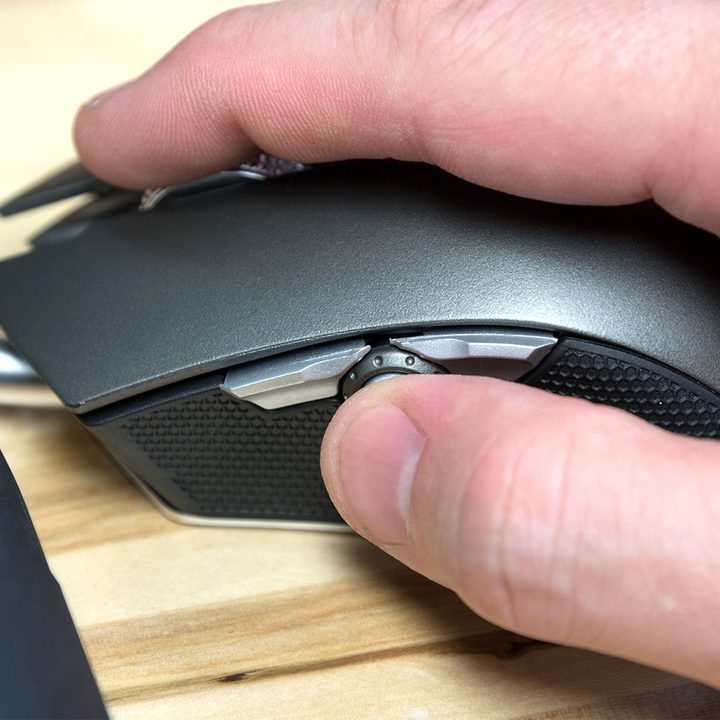
Another common cause of kernel panic is an accessory or peripheral that isn’t working properly. It may cause kernel panic immediately on startup or within a few minutes after booting your Mac.
Fortunately, this is an easy problem to diagnose. Simply remove everything attached to your Mac — including mice, keyboards, drives, and so on. If you can restart successfully and your Mac continues to operate without incident, then you know one of the peripherals is probably at fault. Reattach each peripheral one by one until you discover the repeat offender.
Your settings need to be reset
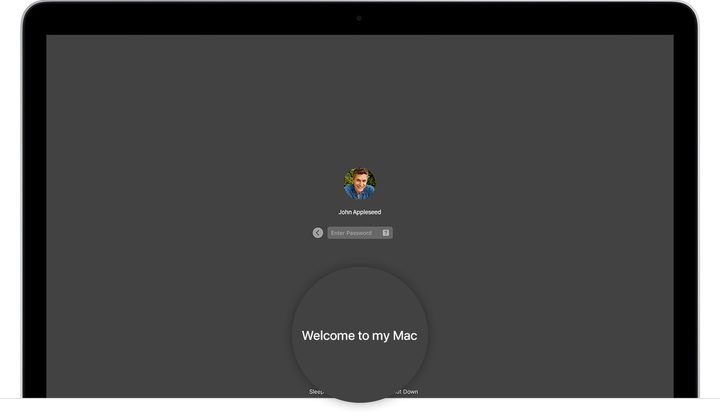
Sometimes there isn’t anything intrinsically wrong with your Mac, but a recent change caused problems on startup that initiate a kernel panic. When this happens, your Mac may try to reboot just as it’s loading up. It may not even allow you to access anything beyond the login screen.
You can often fix this issue by resetting your Mac hardware settings. This will revert any changes you’ve made, such as the screen or battery behavior. However, it can also fix your problem.
First, reset your NVRAM or PRAM. The easiest way to do this is to press the Option + Command + P + R keys simultaneously as your Mac turns back on. Hold these keys down for around 20 seconds.
Second, reset your System Management Controller, or SMC. There are a few different ways to do this based on your Mac model, so take a look at the specific instructions for each case.
If these resets solve your problem, your Mac should be good to go.
There’s a flaw in MacOS and you need to reinstall it

Sometimes minor resets aren’t enough to fix the problem. In these cases, kernel panic is rooted deep in a native operating system problem and perhaps even tied to faulty hardware.
Reinstalling MacOS is your solution. The good news is that this should fix any native MacOS problem that causes a kernel panic. The bad news is that your data may not survive. It won’t resolve any hardware issues either, like a failing fan that causes your Mac to overheat and restart.
To start, try restoring MacOS. However, double-check that your documents, photos, and personal information are all completely backed up before doing anything. It’s possible that if there’s still an issue after the restoration, you’ll need to erase the disk. We want to ensure that you don’t lose any critical data, so take the extra step to back up your computer.
Contact Apple
Fortunately, if you’re having trouble getting your device to function properly, authorized Apple providers, like the Apple Store or Best Buy, are prepared to help you. You can simply set up an appointment or connect with Apple Support directly for assistance solving your Mac’s specific issue. They can walk you through backing up your device, restoring to factory settings, and more. Reach out to a professional if you have any questions at all to ensure the problem is solved carefully and quickly.
Sometimes there just aren’t any reliable solutions for a laptop, though. If that’s the case, check out our best MacBook deals to find a new computer that may fit your budget.
Frequently Asked Questions
Why does my MacBook keep restarting?
If your MacBook keeps restarting, it could be an indication of any of the following:
- Out-of-date MacOS
- Software issues
- Peripheral devices causing a malfunction
- Settings that need to be reset
- A flaw in MacOS that requires reinstallation
Fortunately, there are solutions to each of these issue, like performing a PRAM and SMC reset.
Why won’t my MacBook turn on after restarting?
If your MacBook won’t turn off after restarting, it could be first and foremost a power issue. Apple suggests double checking your power cord and ensuring that it’s properly connected. If that doesn’t solve your issues, try a power cycle (holding down the power button until it restarts). If that doesn’t fix it, try disconnecting external accessories and restarting again. Finally, if none of these troubleshoots work, you’ll want to try booting up in Safe Boot mode.
How do I get my MacBook out of restart loop?
If you’re in a dreaded restart loop on your MacBook—i.e., your computer keeps restarting over and over—one potential fix is to reset your NVRAM or PRAM. Press the Option + Command + P + R keys simultaneously as your Mac turns back on. Hold these keys down for around 20 seconds.