We’re all familiar with Siri by now. The famous intelligent voice assistant debuted in 2011 with the iPhone 4S, and since then Siri has appeared on pretty much every Apple device you care to name. To use Siri, you usually say “Hey Siri” near your Apple device, and the voice assistant will talk back to you.
The thing is, you may not necessarily like Siri’s voice. Perhaps you’d like “her” to be a “him,” or perhaps you want Siri to speak with a British accent. Either way, we explain in this article how to change Siri’s voice, covering the iPhone, iPad, and Mac. We also explain how to change Siri’s language, in case you want to speak to Apple’s assistant in another tongue.
How to change Siri’s voice on iPhone and iPad


Changing Siri’s voice on iPhone and iPad is easy. Simply go to Settings > Siri & Search > Siri Voice.
You will now see a couple of different sections to modify Siri’s voice in different ways:
Accent: You can pick from a variety of accents — if Siri is speaking English, for example, you can choose an American, Australian, British, Indian, Irish, or South African accent.
Voice: As of iOS 14.5, Siri has four voice options to choose from, including both male and female voice options. When you select each voice, you will hear a sample phrase so that you know how it will sound. Leave your selection on the voice that you prefer.
Note that Siri’s four voices are only available on the English version of the voice assistant for now. Oh, and if you ever want to go back to the original, it’s the American Voice 4 option.
How to change Siri’s voice on Mac
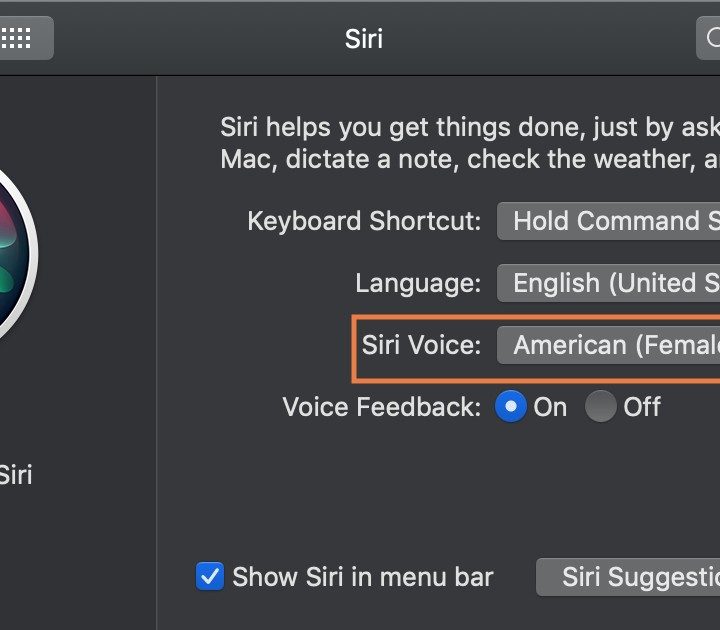
Changing Siri’s voice on a Mac is also extremely easy. Just go to the Apple logo > System Preferences > Siri > Siri Voice. Again, you’ll have the option of choosing from a range of accents and either the male or female gender. Select accordingly and then go about your usual business.
How to change Siri’s language
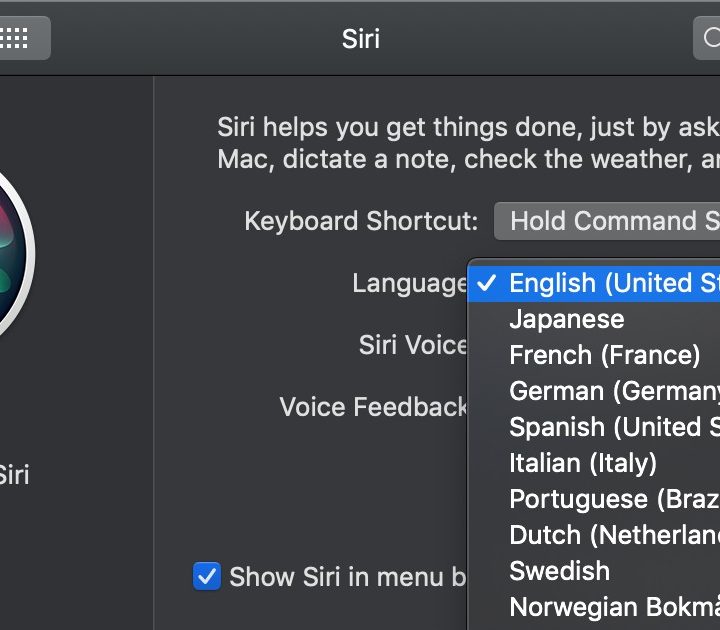
You may have noticed from the screenshots above that you can also change the language Siri uses. This is similarly easy to do, and may be useful if you’re multilingual, or you simply want some practice speaking to robots in a foreign language.
For iPhones and iPads, simply go to Settings > Siri & Search > Language. You’ll have a wide range of options to choose from, although bear in mind that changing the language will effectively reset Siri. You’ll need to switch Listen for “Hey Siri” on again, and you’ll need to teach Siri how to recognize your voice in whichever language you’re now choosing.
If you want to do this for Mac, go to the Apple logo > System Preferences > Siri > Language.
It’s worth noting that changing Siri’s language, on a Mac or with iOS, will change the range of accents available to you. So if you change to French, for example, you’ll have a choice between French and Canadian accents, and so on.