Google Chrome is the most popular web browser in the world, but did you know it holds some secrets, too? You might be using Chrome to access your social media, work-related programs, and more, but there’s a lot of other interesting built-in features in the web browser that can prove to be very useful throughout your busy day.
From sending webpages to your phone to controlling media more easily to so much more, we’ve uncovered several things that you didn’t know you could do in Google Chrome.
Group and manage your tabs with built-in controls
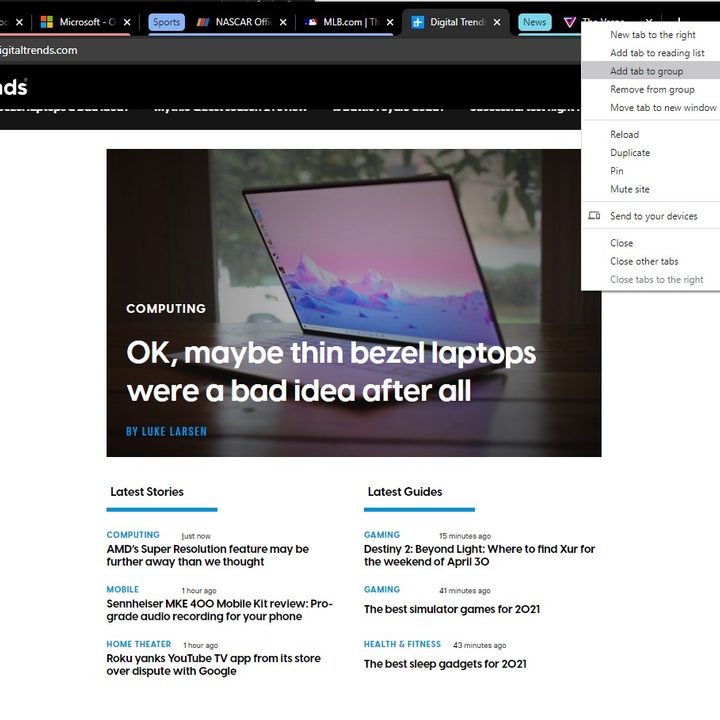
Are you a person who has a lot of tabs open at once? You might be doing some shopping or working on an important project for school or work. Well, Chrome has your back with several built-in features. These include Tab Group, as well as some manual tab controls that are built into the right-click menu on the New Tab bar.
We’ll start with Tab Groups, which lets you couple together tabs under a specific color and name, rather than keep them separate across the top of your browser window. This is useful for separating out the things you might be shopping for online, for example, or a specific part of a research project, or even anything you might be currently actively browsing for or on.
To use Tab Groups, you need to have a set of tabs open. Then, right-click on the tab that you want to group and choose Add tab to new group. You can then name the tab group and assign it a color. Any subsequent tabs can be added to the group by also right-clicking and then choosing Add tab to group. You can close and remove groups at any time by just right-clicking the group.
You also can manage your tabs manually from the right-click menu on that tab. If you right-click a tab, you’ll see access to controls for moving the tab to a new window, closing all tabs to the left or right of it, or even opening a new tab next to it. Our dedicated guide to using Tab Groups in Google Chrome goes more in-depth.
Send webpages to your other devices
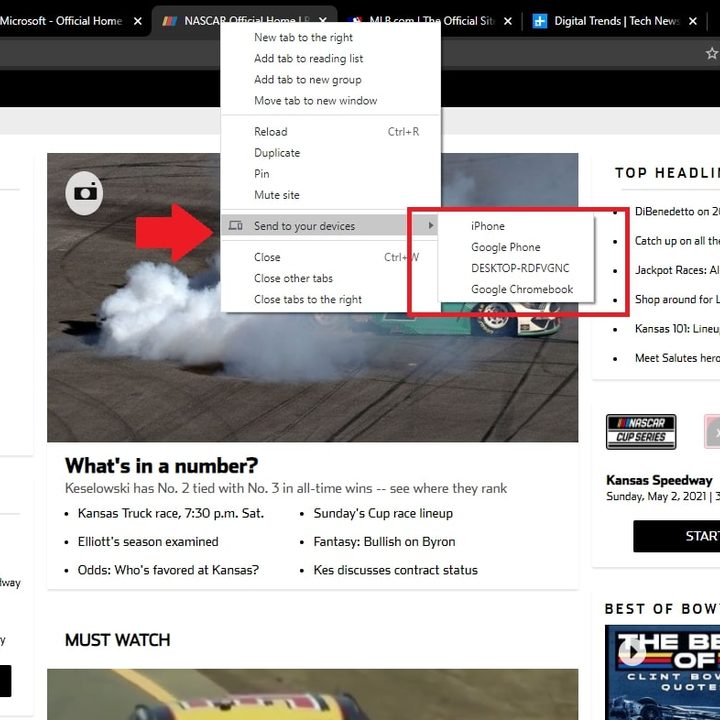
Want to send a webpage you’re currently looking at on your PC to another device you own? Chrome makes it easy to do this. If you’re using the Chrome app on iOS, Android, and your other devices, and are signed in to the same Google account, you can send pages across devices with just two clicks.
All you need to do is simply right-click on the tab at the top of the tab bar in Google Chrome. From there, choose Send to your Devices. You’ll then see a list of your devices with Chrome installed, and you can quickly send the link from there. Just make sure that Chrome is active on the device you want to open the link on and choose the Open link on the Tab Received pop-up you see within Chrome.
Reopen that window or tab you accidentally closed
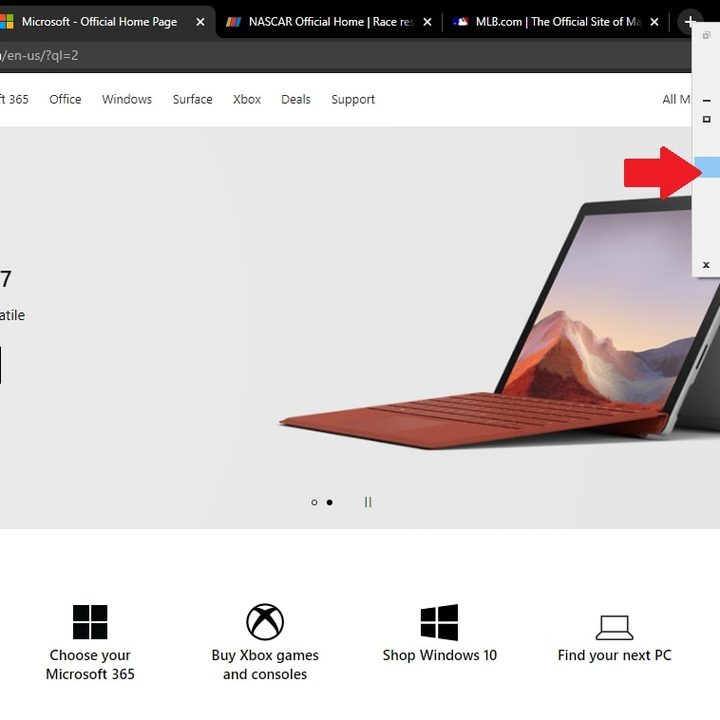
Were you working on something important and accidentally closed the tab or the window? No worries, accidents happen and Chrome has your back. All you need to do to get your tab back is to right-click on the new tab button and select Reopen closed tab. This also works for Reopen closed window, too. This is a nice shortcut that keeps you from having to go through the history menu.
Scan a QR code so you can open a website on your phone
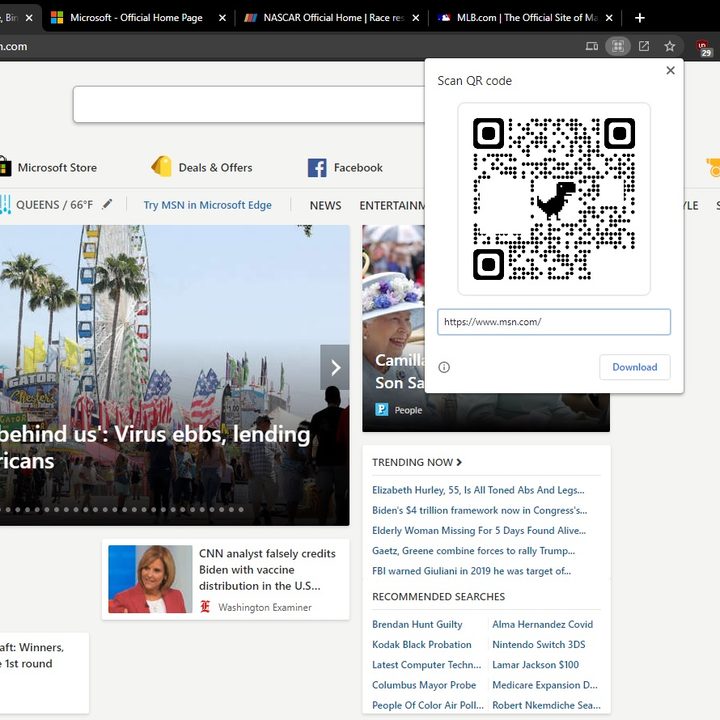
We mentioned sending open Chrome tabs to your other devices earlier, but this requires signing in with a Google Account. If you’re not using Chrome with a Google account, you can still open websites on your phone, without the use of Chrome or even a Google account.
This is possible thanks to the use of a QR code. Just note that only certain websites support it. You’ll know when it is supported when you see a little QR code in the address bar when you click a URL (it will show up next to the favorites icon.) Just click on the QR code icon to summon a special QR code for sharing.
After that, you can swipe down on the home screen on your iPhone and search for Scan Code. Click Code Scanner to open up a barcode reader. You can then scan the code you see in Chrome on your desktop. Your iPhone will show you a cool animation and will automatically open up the Chrome webpage from your desktop in the default web browser on your iPhone — it doesn’t have to be Chrome!
Use the integrated media controls
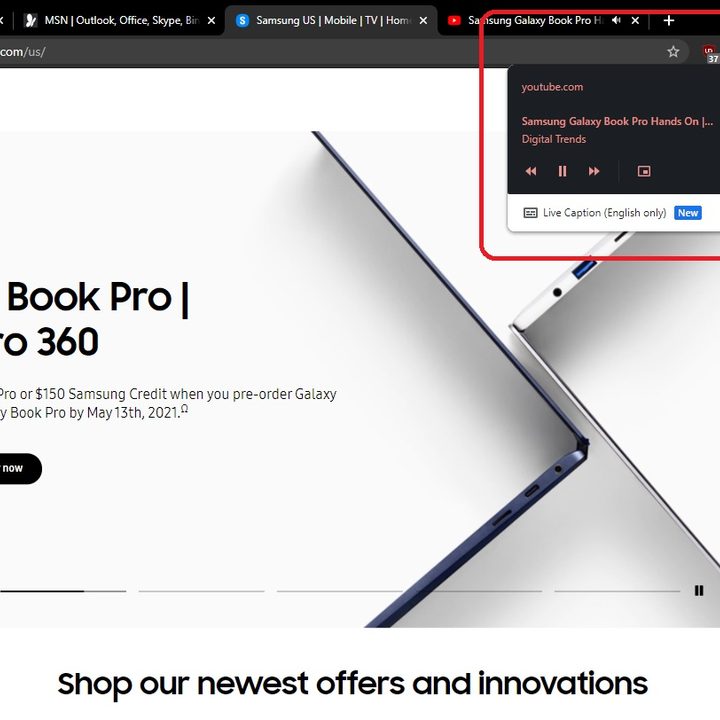
Listening to some tunes on YouTube? Or how about watching TV on YouTube? If you want to play or pause the song or video, you don’t actually need to head into the tab or the video player itself. Chrome has built-in media controls.
To control media that’s currently playing from an active tab, or another tab, you’ll just want to look for the little music icon next to your profile icon in the top bar in Google Chrome. If you click this, you’ll see a media player, with pause, fast forward, and rewind buttons. On some websites like YouTube, you even can pop out the video from here, too. This will ensure the video follows you around.
Change the default search engine
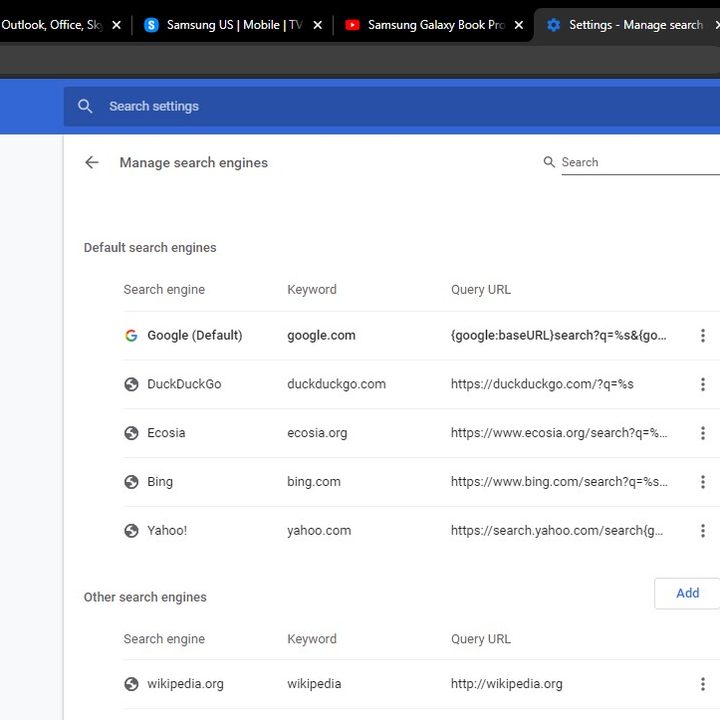
If you find yourself looking through another search engine other than Google Chrome, maybe DuckDuckGo, you can actually save yourself some time by adding that website as a search engine inside Chrome. Doing so will allow you to use the Chrome address bar to search the site, rather than having to go through the website itself
You can add a website as a search engine manually by clicking the three downward-facing dots next to your profile icon, and then choosing Settings. From there, pick Search Engine from the sidebar. Then, click the Manage Search Engines > Add. In this case, we’ve added Wikipedia manually, but you also can search for it using the Search feature. Now, any time you type Wikipedia into the address bar, you’ll see a prompt to press Tab to search through it!
Cast your screen
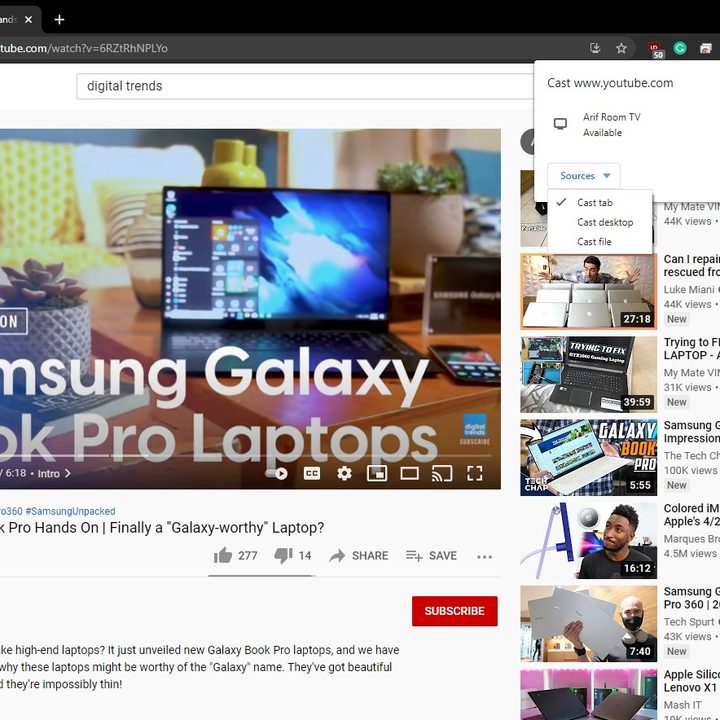
If you want to connect your laptop or PC to a second screen to showcase something, you might think you need wires to do so. However, if you purchase (or already own) a Google Chromecast or other Chromecast-enabled device and then hook it up to your TV or monitor (they are usually around $20), you can wirelessly beam whatever is on your Chrome tab or desktop right to your display.
To cast in Chrome, you just need to click the three downwards-facing dots next to your profile icon and then choose Cast. Be sure that your Chromecast-enabled device shows up in the list. From there, you can then select Sources, and pick a source from the list.
Finally, if you like making the most of your browser, why not style it the way you want with a Google Chrome theme?