Owning a Windows PC is like owning a car. You need to do routine maintenance to make sure your computer is always operating at peak performance.
You might think that you need to download sketchy third-party tools to boost your Windows performance, but you don’t need these. Windows 10 (and Windows 11) have some amazing tools built right in that can help you out.
Disable unnecessary startup programs
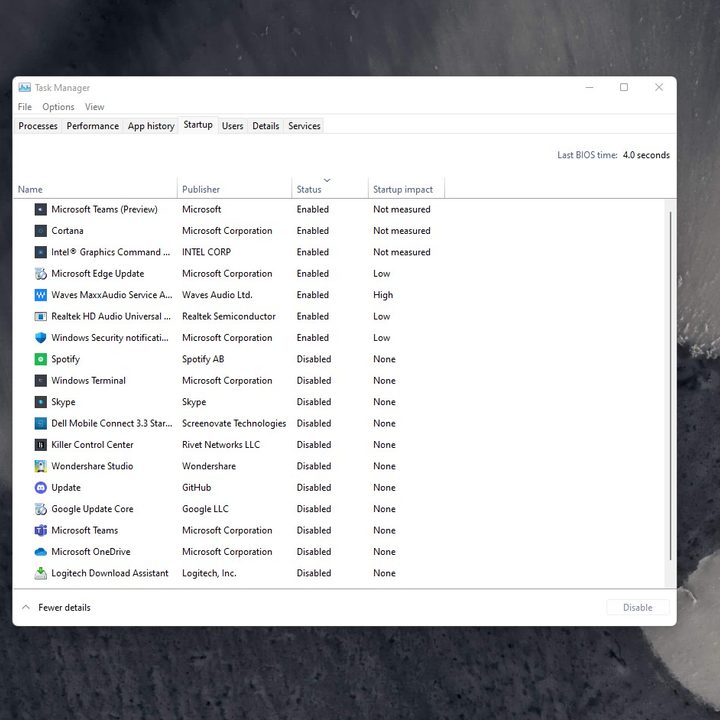
The top suggestion we have for increasing performance in Windows has to do with startup programs. Whenever you turn on your PC, some programs might start automatically in the background. Usually, it is because the program’s installer changed the Windows settings to allow it to run at start to give you faster access.
That might sound good, but these programs will take up system resources like RAM and CPU, which will slow down your device. You can easily turn these off to spare your PC. Here’s how.
Step 1: Open Task Manager by right-clicking the Start Menu and choosing it from the list.
Step 2: Click the Startup tab to see a list of programs that run at startup.
Step 3: Click the program you want to disable from starting up and choose disable.
Note that some startup programs in Windows 10 and Windows 11 are critical to have running at startup. You might see things like Intel Graphics, WavesMax, Realtek Audio. Be sure to not disable things from Microsoft or your device maker, as it could impact your day-to-day use of your PC.
Increase the page file size
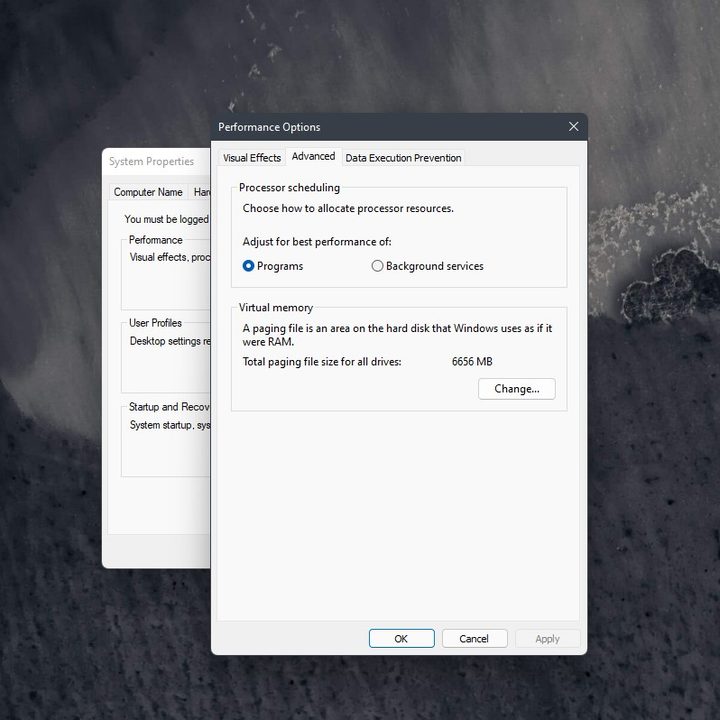
Our second tip is a little bit more technical. This one involves tweaking the page file size. If you didn’t know, the page file is a space on your SSD or HDD that Windows uses like memory. If your PC doesn’t have a lot of RAM available (say when gaming or during extreme multitasking), then it will go to the page file to keep the system running smoothly. Changing the page file size gives Windows a bit more space for that management. The steps to do so are the same on Windows 10 and Windows 11.
Step 1: In the Start Menu, type Advanced system and then select View advanced system settings, which has Control panel listed underneath it.
Step 2: Click the Advanced tab.
Step 3: Under Performance Options, click Settings.
Step 4: Click the Advanced tab in the window that pops up.
Step 5: Change the Virtual memory setting to a higher number and then click Apply. Keep in mind the size is in MB, so 1,000 MB will be equal to 1 GB.
Once you finish making these changes, you’ll need to restart your PC. The changes will be applied, and the next time you’re working on something that needs a lot of processing power, your PC will run through it smoothly.
Adjust the visual effects in Windows

Windows is quite fancy, particularly Windows 11, with its new animations and glass-like aero effects. All of this can take a toll on your CPU and GPU, but Microsoft gives you some ways to control this. You can adjust the visual effects in Windows so it’s less taxing on your system resources. This can be useful if you’re sporting a PC with a low amount of RAM or a slower CPU.
Step 1: Type Performance in the Start Menu and then choose Adjust the appearance and performance of Windows.
Step 2: In the Visual Effects tab, select Adjust for best performance and then click Apply.
Step 3: Restart your PC to apply the changes.
If following the steps above does not help with your PC, then try using the Custom option, and unchecking the various animations and effects. You also can look into trying some of the other methods Microsoft mentions on its support page. These include checking your PC for viruses, restoring your PC from fresh, uninstalling OneDrive, cleaning up disk space, and updating Windows to the latest version.