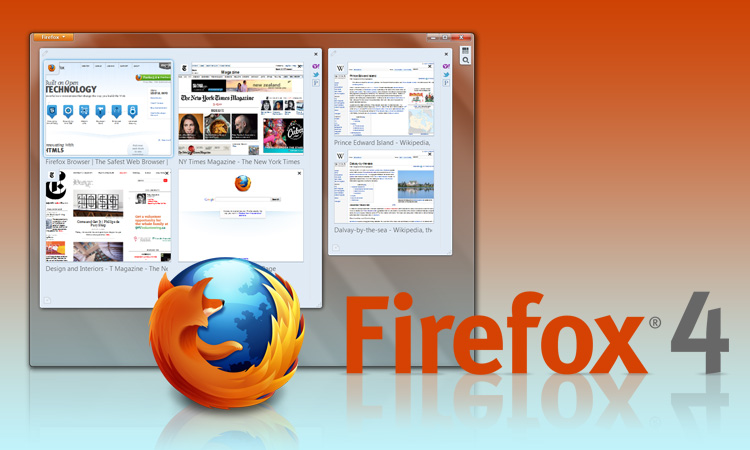
The browser war heated to a burning orange glow Tuesday with Mozilla’s release of Firefox 4. Just as Internet Explorer 9, Opera 11 and Chrome 10 before it, Firefox 4 has cut away the fat, and morphed into a lean, mean browsing machine armed with a ninja’s speed and agility. It still has the Firefox feel, but with a major, much-needed makeover in both the user interface and performance departments. The transformation is so complete that Mozilla appears to have beaten back the sudden onslaught of competition in the form of IE9. It may even triumph over Chrome 10 — but that fight’s one to watch closely.
Changes to version 4 are many, widespread and far exceed those of recent updates. Seeing as Firefox 3 launched in 2008, and the most recent version, 3.6, landed in January 2010, this update is long overdue. From look and feel to security and graphics, here’s everything you need to know about Firefox 4.
User Interface
Awesome Bar
No longer simply the place to type in a URL, the address bar, dubbed the “Awesome Bar” by Mozilla, has been retooled to serve as the command center of Firefox 4. From here, users can easily pull up previously visited and bookmarked sites, and even currently open tabs and windows. Like Opera 11, Firefox 4 has retained both its address bar and a dedicated search field. (IE9 and Chrome have only a single dual-use field for both URLs and searches.) Some may think Mozilla should have shed its two-field system. But with all the various functions the Awesome Bar performs already, a dedicated search field seems a wise move.
Tab design
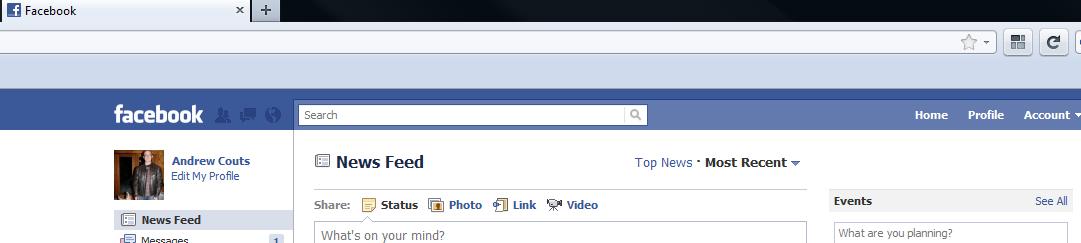
How Firefox 4 handles tabs is key to its UI improvements. Like all of its major competitors, Firefox 4’s tabs now appear above the address bar (Awesome Bar), search bar and other control buttons. This is a definite upgrade over past versions of Mozilla’s browser, both in terms of usability and look, which are now as simple and uncluttered as the rest. If you prefer the old tab layout, however, simply click the menu button in the top corner, choose “options” and un-check “tabs on top.”
Switch to Tab
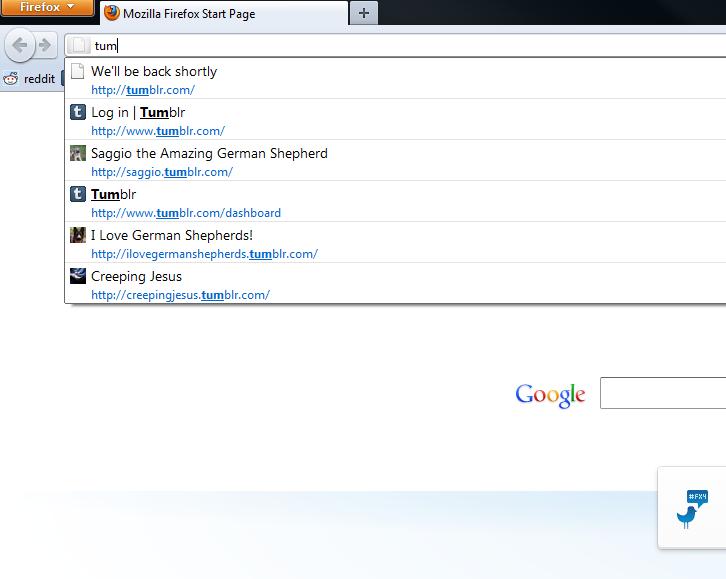
Tab management takes a center role in Firefox 4, starting with the new “Switch to Tab.” One of three new tab management features included in this update, Switch to Tab enables users to access already-open tabs by simply typing into the address bar. If the website you’re looking for is already open in another tab, the option will appear at the top of the drop-down list, along with bookmarked and history items. Click, and you’re switched to your desired tab.
This feature helpfully works with tabs that are open in other Firefox windows, as well as the one in which you’re working. And it significantly reduces the time it takes to find a particular tab when many widows and tabs are open.
Our tests found that Switch to Tab functioned excellently — most of the time. The one site that Switch to Tab didn’t work for was Twitter.com, which would only display as a history item, not a tab. In all other instances the feature worked without fail.
App Tabs
The next, more robust, tab feature is “App Tabs.” This function enables users to easily shrink the size of “pinned” tabs, which are then placed unobtrusively on the far left side of the tab bar. While App Tabs can be used with any open tab, this feature is meant for websites that you might keep open throughout the day, like Pandora, Twitter or Gmail.
If, for example, you keep Reddit up constantly, simply right click an open Reddit tab, and select “Pin as App Tab.” The tab will immediately shrink to a fraction of its size, and be moved conveniently out of the way, but still available for quick access.
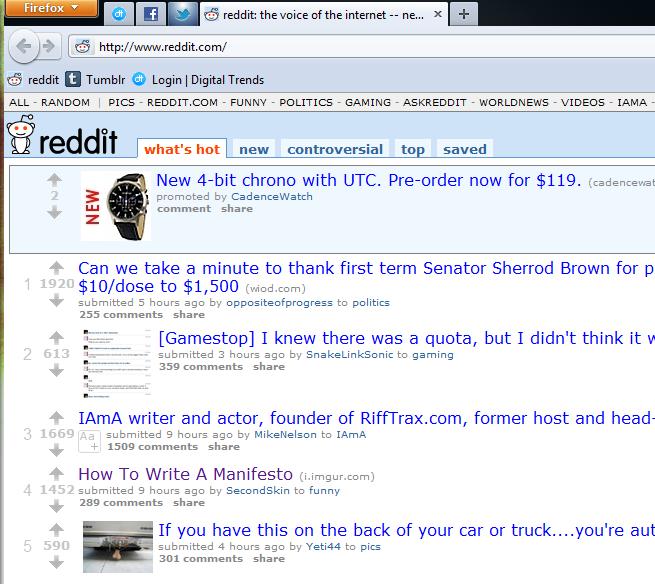
From what we can tell, this simply but handy function works exactly as advertised. And as with all the tab management updates that come loaded in Firefox 4, this one is most useful when a large number of tabs are open at once.
Panorama tab grouping
When working with a particularly high number of tabs open (think 100+), the new “Panorama” feature can greatly simplify the logistics of working with so many tabs. Originally released as test version Add-On under the name “Tab Candy,” the “Panorama” feature gives users the ability to group tabs together into manageable groups, which can be named, organized and edited simply.
To activate Panorama, right-click on any tab, then choose “Move to group,” where you can select “new group” at the beginning of a fresh session, or select a group you’ve already created.
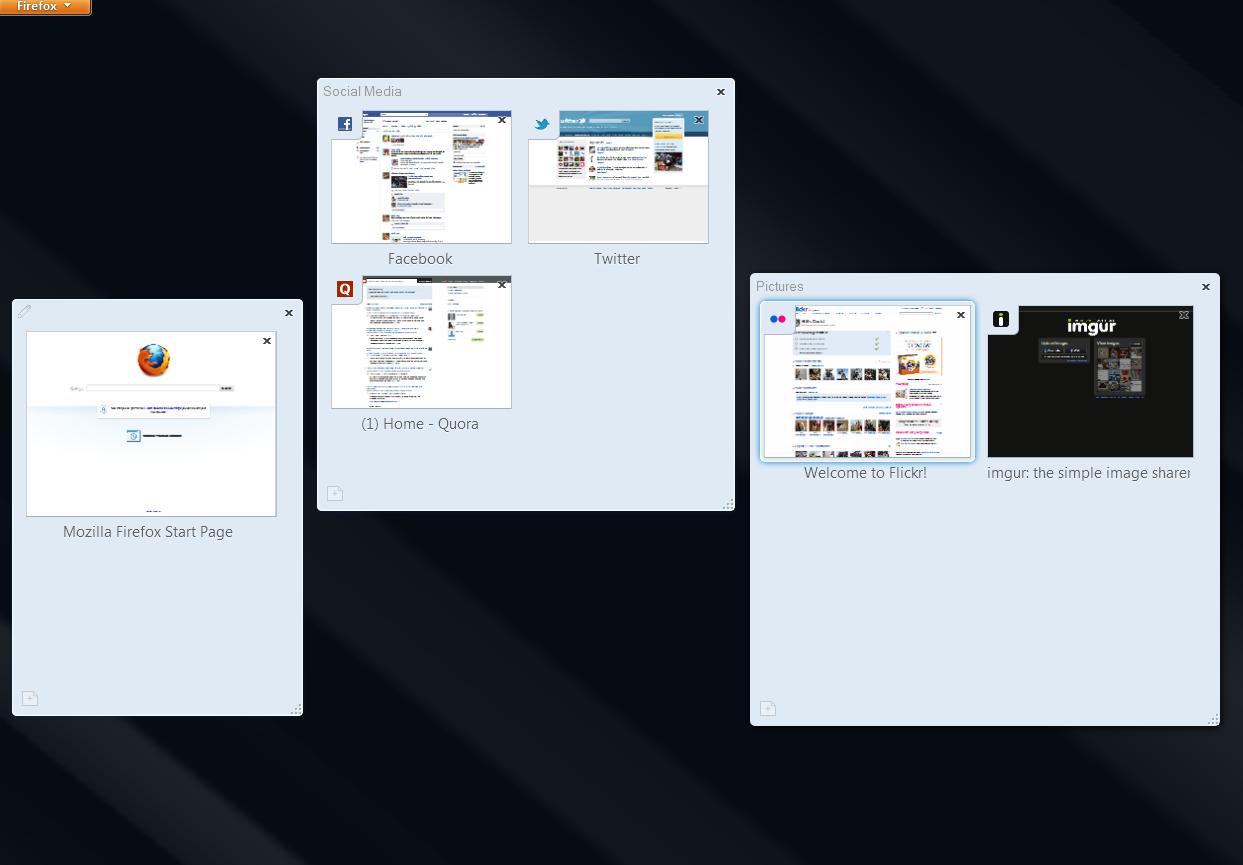
Customize your navigation or bookmarks toolbar to include the Tab Group icon, which automatically puts all open tabs in a window into a group, and launches Panorama view, where you can navigate from group to group, move and resize group icons, and rename and edit groups.
Heavy tab users will love Panorama for its sheer usefulness, and it looks and functions great. But its somewhat complicated operating procedure could keep the feature from becoming widely used. Of course, a few tweaks and an update could fix all that.
Menu button
A particularly noticeable default change to the Windows version of Firefox 4 is the “Firefox button,” or the browser menu, which has been reduced to a small orange button that appears in the top left corner of the browser. The new menu button nearly matches the menu button found in Opera 11. Chrome and IE9, on the other hand, both have their more discrete menu buttons on the right.
Mozilla has whittled away the open menu window to a short, two-column block, which houses all the functionality of the menu bar of Firefoxes past. Here, you can quickly access some of the more often used choices, like Add-Ons, tool bar customization and bookmarks.

The redesigned menu bar so far seems like a vast improvement over the earlier version, which feels unnecessarily complicated after using the new button. Users who want to compare for themselves can easily revert to the classic menu bar.
Other button changes include “stop” and “refresh,” which have been packed into a single icon that is integrated into the right side of the Awesome Bar. The bookmarks button has also been redesigned.
Add-Ons
Mozilla is heavily promoting Add-Ons and customization with Firefox 4. The update includes a redesigned Add-Ons Manager, which makes it easier to discover more of the 200,000 Add-Ons now available, as well as add custom skins, or “personas,” as Mozilla likes to call them. And now that there’s no restart needed to install Add-Ons, trying new ones is basically painless. Users may now also view and manage third-party Add-Ons in Firefox 4.
Security
New additions to security include “Instant Web Site ID,” which gives users personal analytics data about websites, like how many times they’d visited a certain site, or whether they’d saved their password there, which is designed to help users determine whether or not they should trust a particular domain. “Do Not Track” enables users to block websites from installing cookies, which track people’s browsing habits to be sold to advertisers. And the somewhat seedy-feeling “Forget This Site” feature erases any evidence of the site on your computer.
Silent bells and whistles:
Firefox 4 didn’t just get faster with magic, unfortunately. Firefox 4 is powered by the Gecko 2.0 rendering engine. This incorporates an emerging web standard, WebGL, which displays 3D graphics. Firefox also includes the new JagerMonkey Java Script engine, HTML 5 support and a new hardware-accelerated graphics for faster video and other graphic-heavy web content.
Web developers also received a bounty of tools, including greatly improved CSS3 support, and Fabulous Fonts, among others.
Firefox 4 also provides high-definition and 3D video support, crash protection and multi-touch for Windows 7. And the Firefox Sync allows user to sync tabs, passwords, histories and bookmarks across multiple mobile and PC devices.
Speed
The most noticeable difference between Firefox 3.6 and 4 is the speed. Mozilla claims the browser to be “six times faster” that previous versions. Less obvious, however, is how Firefox 4 compares to the new breed of browsers from competitors.
We conducted a very unscientific test between the top browsers by loading Yahoo.com, Facebook (dashboard page), Gmail (inbox full load) and Digital Trends. Each page was loaded three times. The times listed are an average of those three page loads. The test were performed using the stopwatch on an iPhone, so all numbers here will be on the slow side. Your tester’s fingers aren’t nearly as quick as a computer, after all, no matter what “Jeopardy!” might have led you to believe.
Here are the results:
| Firefox 4 | Internet Explorer 9 |
Chrome 10 |
Opera 11 |
|
 |
 |
 |
 |
|
|
Yahoo
|
3.4 seconds |
3.36 seconds |
2.83 seconds |
1.83 seconds |
|
|
2.86 | 1.4 |
3.9 |
2.03 |
|
Gmail
|
4.13 |
3.66 |
4.13 |
3.36 |
|
Digital Trends |
3.53 |
3.9 |
3.53 |
2.83 |
According to our test, Firefox 4 has as much room to boast about speed as anyone (except, perhaps, Opera 11, which came in quickest in all but one test). Chrome 10 beat Firefox 4 in every test. And while IE9 loaded a Facebook dashboard far faster than any other browser, Firefox 4 beat it half the time.
Real-life use tells a different story than the test, however. While the two browsers ranked roughly equal, Firefox 4 felt much zippier than IE9, though it seemed to lag the tiniest bit compared to Chrome and Opera. Activities like switching between tabs were much smoother in Mozilla’s browser. And web applications like Google Docs ran more easily with Firefox than with IE9.
Conclusion
Firefox 4 is so nicely trimmed that there’s very little to dislike. It may not be the absolute fastest browser on the market, but with a wide variety of attractive additional features, intuitive controls and enough power and speed to help you plow through any task, it’s overall the most pleasurable browser to use.
For speed freaks: Yes, Chrome 10 still wins the race (as does Opera). Fortunately for Mozilla fans out there, the company says it plans to drastically increase its release schedule, and deliver three more major updates this year. If Mozilla can do that, then it has a shot at staying in the overall lead.
Also check out our Internet Explorer 9 review.