  1. Home
  2. Computing
  3. How tos

How to resize an image in Photoshop

Add as a preferred source on Google
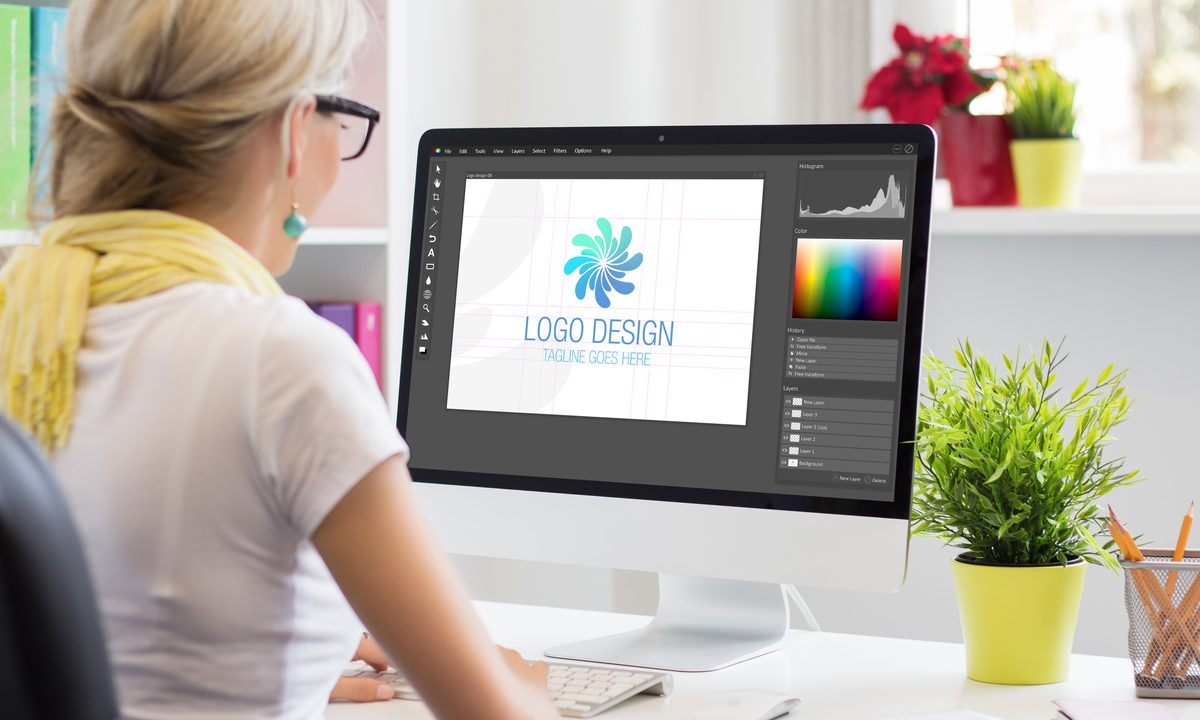
A graphic designer using an image editing program.
grinvalds / Getty Images

Photoshop is not just an application for professionals who require a powerful image editor. It’s also a versatile program that an average user who doesn’t have a deep understanding of editing digital images can benefit from in many ways. One of the most commonly used components of Photoshop is its resize tool.

Here’s how to resize an image in Adobe Photoshop.

Recommended Videos

Difficulty

Easy

Duration

5 minutes

What You Need

  • Adobe Photoshop

  • PC

Using the Image Resize tool

Step 1: Once you’ve opened the image you want to change the size of, click the Image tab. From the drop-down menu, select the Image Size field.

The Image Size option in Adobe Photoshop.
Image used with permission by copyright holder

Step 2: This will open a separate window where you can customize the image’s size via several configuration options. To modify the width or height, highlight the box where its current size is listed by double-clicking the number inside, then enter a new width or height. Depending on which field you selected, Photoshop will automatically enter a new height/width to preserve the aspect ratio.

However, if you want to enter both width and height manually, unselect the Constrain proportions box. Please keep in mind that not entering a suitable width/height can lead to the image becoming distorted.

If you want to resize an image in Photoshop without losing quality (unless you know what you're doing), ensure the Constrain proportions box is selected.

Click OK when you're done.

The Image Size window in Photoshop for changing the size of an image.
Image used with permission by copyright holder

How do I resize an image in Photoshop without losing quality?

In addition to Constrain proportions, another feature Photoshop offers for retaining image quality is its Bicubic smoother preset.

Step 1: Open the Image Size window via the Image tab.

Step 2: If you’re making an image larger, then adjust the image’s size as explained in the previous section. Once you’re done, click the drop-down menu at the bottom and select Bicubic smoother (best for enlargement).

If you’re making an image smaller, select the Bicubic Sharper (best for reduction) option. Click OK.

The Bicubic Smoother option in Adobe Photoshop.
Image used with permission by copyright holder

Adjusting an image’s size with the Transform tool

The Transform tool is another way to modify an image’s size without changing the core dimensions of the file. It also serves as somewhat of a shortcut to resize an image in Photoshop.

Step 1: Make sure the image is selected. Use the Ctrl + A keyboard combination to do so. Now click the Edit tab > Transform > Scale.

The Scale option in Photoshop within the Transform section.
Image used with permission by copyright holder

Step 2: On the corner and sides of each part of your image, drag the small rectangle box to scale the image. Alternatively, use the Ctrl + T keyboard shortcut to enable the Scale tool.

Using the Scale tool in Photoshop to drag an image to scale it.
Image used with permission by copyright holder

Using preset templates to resize an image

Photoshop provides several default image size options that can help you in changing an image’s size without manually changing the width and height yourself. In newer versions of Photoshop, click the Fit to drop-down menu within the Image Size window to see what you can choose from.

Resizing an image in Photoshop is straightforward, but what if you have different revisions in mind? Learn how to crop an image with Photoshop.
Zak Islam
Former Contributor
Zak covers the latest news in the technology world, particularly the computing field. A fan of anything pertaining to tech…
This cheap Steam Machine clone sounds too good to be true because it probably is
A Chinese Steam Machine clone claims impossible hardware at an impossible price
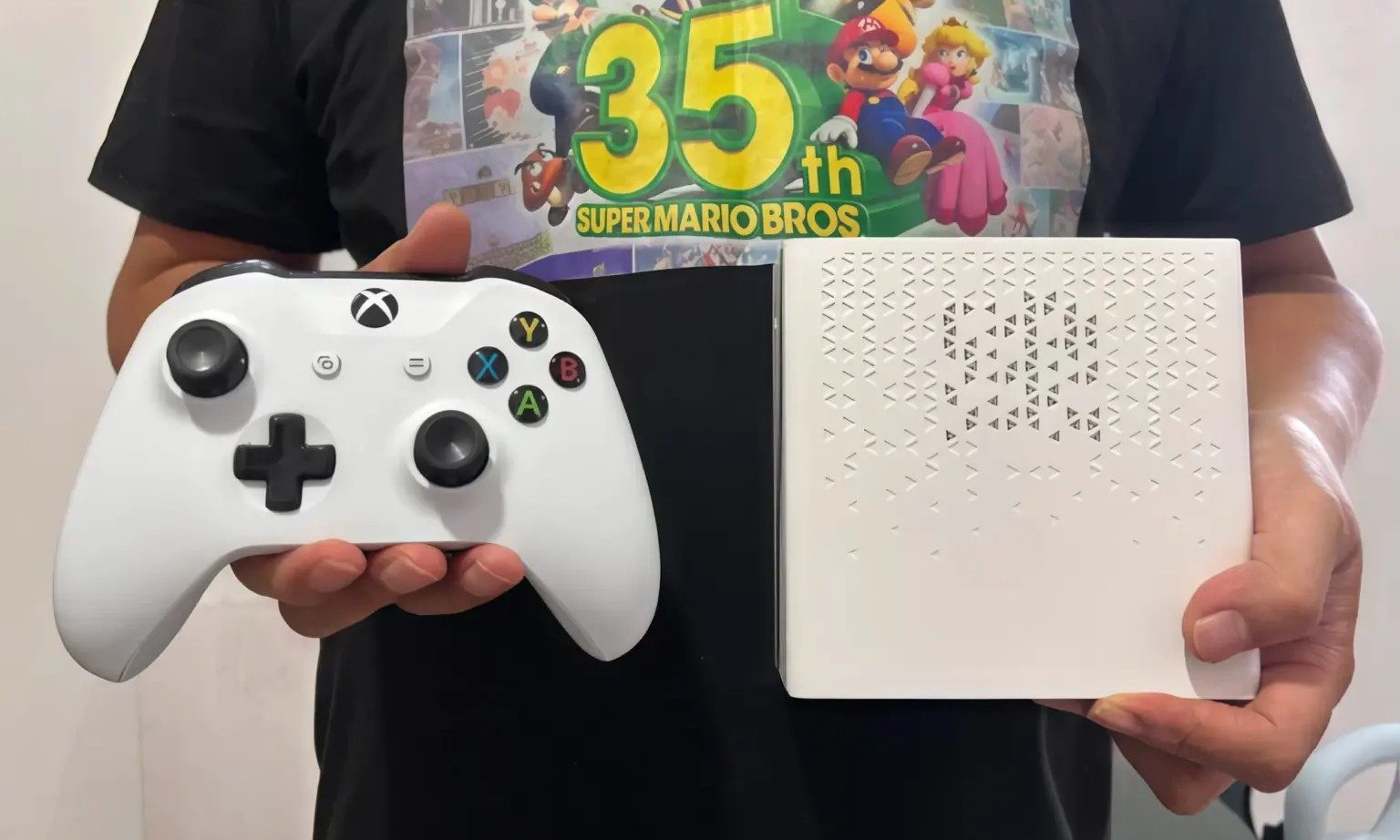
A Chinese rip-off of the Steam Machine

Valve’s new Steam Machine has already caused plenty of sticker shock. So it's no surprise that a flood of cheaper alternatives is hitting the online market. Valve is currently charging over $1,000 for its tiny-living-room SteamOS PC, and of course, people are trying to offer the same feel for less money,

One listing from China is a great example, but it looks a little too suspicious. According to VideoCardz, a Steam Machine-style mini PC listing shared on Reddit claims to offer a compact SteamOS system with a 2TB SSD, AMD Ryzen 5 5500 processor, Radeon RX 6750 GRE 10GB graphics, 16GB of DDR5 memory, and a price of 4,680 RMB, or roughly $688. This sounds incredible... if it were true.

Read more
A YouTuber 3D printed an entire outfit, but the comfort and cost are more complicated than you’d think
The 3D-printed outfit is real. Whether it's practical is a different conversation entirely.
Adult, Male, Man

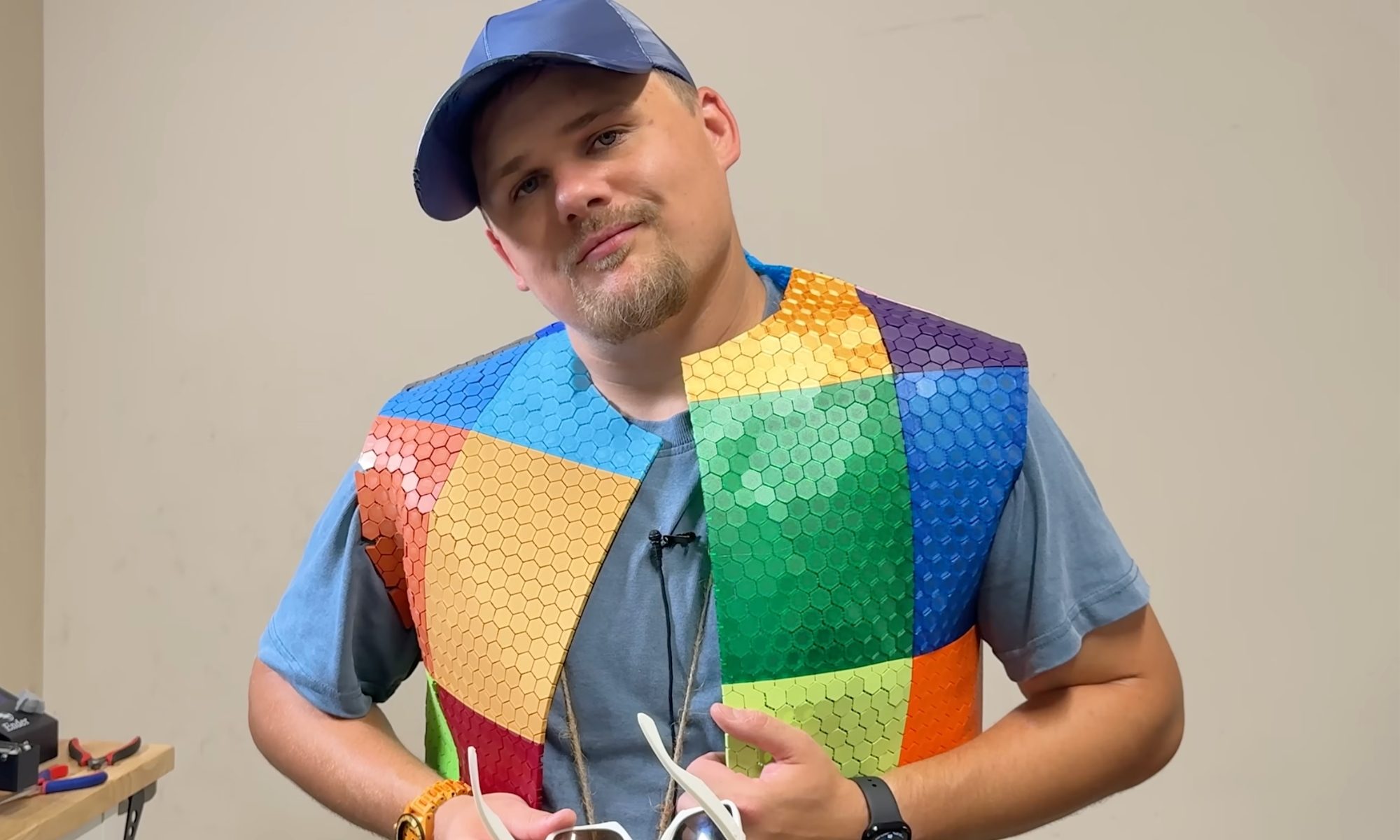
YouTuber Matthew Trahan has made a career out of 3D printing increasingly unusual things. He has printed musical instruments, bedroom furniture, and, in one particularly memorable video, himself.

His latest project is a full outfit, from shirt to shoes, belt to glasses, because apparently nobody told him 3D printers are for creating engineering prototypes or structures that aren’t otherwise feasible, not for fashion week.

Read more
The memory crisis isn’t going to ease, and you will pay the price for it, says a research firm
Forty to 50% higher this quarter, 30 to 40% more next quarter, and no real relief until 2028. Plan accordingly.
RAM memory chips

If you were hoping the memory crisis was about to ease up, I have some bad news for you. It comes directly from Wall Street.

Your next smartphone, laptop, or tablet could cost even more, regardless of whether it has recently been subject to a price hike.

Read more