Microsoft Word is jam-packed with features and formatting options. It also has numerous ways for users to add shapes, diagrams, and other visual elements to regular word processing templates. But even if you know how to use Microsoft Word, you might not be aware that you can even draw and sketch in the application.
Whether you’d like to call attention to a certain part of your document, or you’d just like to add some flair, this guide will teach you the ins and outs of drawing in Microsoft Word.
How to draw a shape in Word
When some people think of the word "draw," it conjures images of creating shapes, lines, and similar objects. Rather than attempt to create perfect circles or squares on your own, you can use Word’s shape feature.
Step 1: Open your Word document and place your cursor where you want the shape.
Step 2: Go to the Insert tab and click the Shapes drop-down arrow.
Step 3: You’ll see a large variety of shapes you can insert. From lines and arrows to rectangles and stars, you’ll find the most common shapes in the list.
Select the shape you want to draw.

Step 4: Your cursor will change to a crosshair symbol. Click the document, drag to create the shape, and release when you finish.

Step 5: You can move the shape by selecting and dragging it. You can also resize it by dragging in or out from a corner or edge.
For additional customizations, select the shape and go to the Shape format tab. You’ll see various tools for styling the shape, such as adding a fill color or using an effect like shadow or bevel.

How to draw freehand in Word
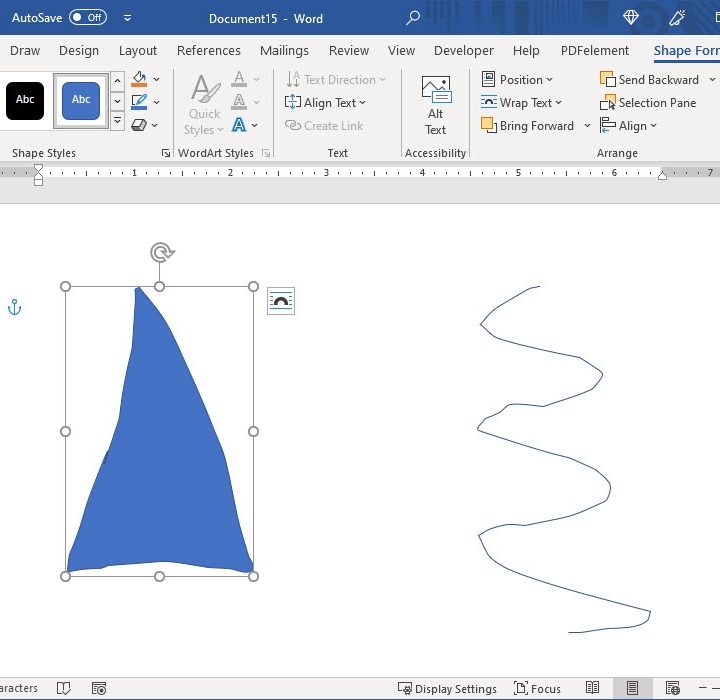
Another way to create your shapes and lines in Word is using the freeform options. You can create a freeform shape or scribble.
Step 1: Place your cursor in your document where you want to draw.
Step 2: Go to the Insert tab and click the Shapes drop-down arrow.
In the top section of the list, you’ll see two options you can use. Select Freeform: shape to create your own shape or Freeform: scribble to sketch any type of drawing.

Step 3: If you use the Freeform: shape tool, you draw the shape and return your cursor to the starting point of the drawing. This basically connects the points to create the shape.
With the Freeform: scribble tool, you can draw anything you like without connecting the start and end points.

Step 4: When you finish, your drawing is within its own space, just like when drawing a specific shape above. This allows you to drag it if you want to move it or drag it in or out from a corner or edge if you want to resize it.
You can also select your drawing and use the tools on the Shape format tab.
How to use the drawing tools in Word
One more way to draw a picture or sketch in Word is with the tools on the Draw tab.
Step 1: Head over to the Draw tab and select a tool at the top. You can choose from various pens, a pencil, a highlighter, or the Action Pen tool. You’ll also notice an eraser to perfect your drawing.

Step 2: To choose a color for your drawing tool, select the tool and then click the arrow that displays in the lower-right corner. You’ll see a palette of colors you can pick from, along with thicknesses for the line.

Step 3: If you want a specific color you don’t see, select More colors and then select a shade or enter the RGB or HEX code for the color you want.

Step 4: Another option on the Draw tab is to use a Drawing canvas. Click this option in the ribbon to create a specific area for your sketch and then draw inside it.

Step 5: When you finish with your drawing, select the large Arrow icon in the ribbon, on the fa- left side, to move or resize your drawing.

Whatever type of picture you want to draw, whether its something detailed with your artistic skills or something simple like your initials or a smiley face, you now know how to draw in Word with its helpful features and handy tools.
Want more Word tricks? Why not learn how to add a watermark to a Microsoft Word document?