Windows 11 boasts a range of useful accessibility options that make using the operating system easier, whatever your requirements. Live Captions, updates to the Narrator, and even full voice access might make Windows 11 the most accessible OS Microsoft has ever released.
Regardless of whether you need accessibility features to navigate Windows 11 or if you just want to make getting around a little easier, we tried out a slew of features to bring you our favorites. If you want to browse the full list, you can find it by opening the Settings app in Windows 11 and selecting the Accessibility tab.
Live captions
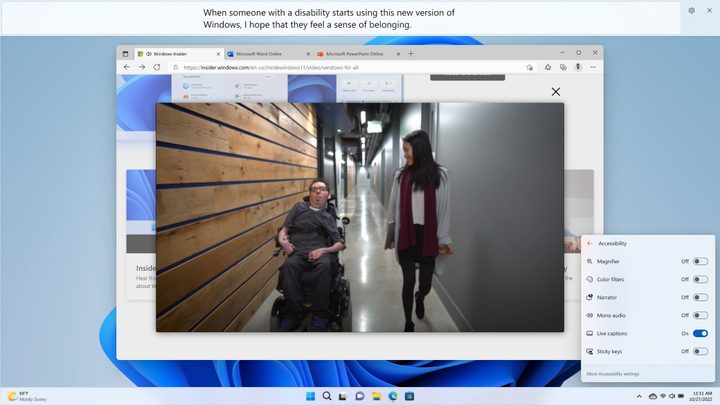
Similar to what you might’ve experienced on recent Android and iOS phones, or read about in a Windows 11 review, Microsoft has added the highly requested Live Captions feature. The OS projects Live Captions not just for audio and video played on your PC, but even your own speech when you speak directly through a microphone. Live Captions also work without an internet connection, so you can use the feature any time you need it.
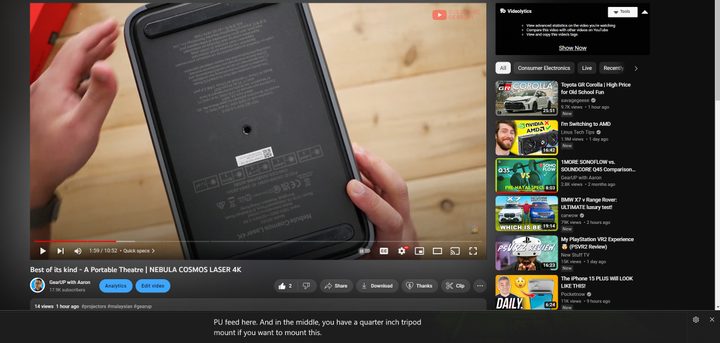
You can switch the caption position either to the top or bottom of the screen, or make it a floating window. We found a negligible quarter-second delay between real time and projected text. The accuracy is solid for the most part, barring enunciation or quality issues from the source audio. Also, we’re not 100% sure if this is a feature or a bug, but during full-screen videos, the captions automatically jump to a floating window rather than your default position.
There’s even an option to filter profanity out. Due to the resource-intensive nature of live, on-the-fly captioning, Microsoft suggests freeing some RAM by closing unused applications, but we didn’t notice any caption performance hiccups with 30 Chrome tabs and Adobe Photoshop running on a standard computer. Using one of the best laptops, it should work perfectly.
Narrator
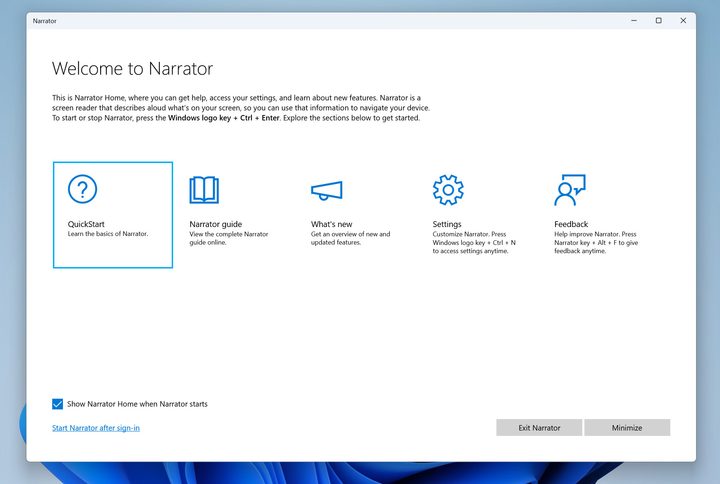
While Narrator itself isn’t new, Windows 11’s iteration brings welcome quality-of-life improvements such as more natural narrator voice packs. Similar to Microsoft Edge‘s Read Aloud function, the Narrator tool in the OS now produces realistic speech with support for USB-connected Braille displays.
Launching Narrator at any time will automatically activate a screen reader, which you can use to explore and navigate pretty much all aspects of the UI and menus on Windows. For greater control over how you want Narrator to work, you can dig deeper into its settings (try the Windows key + Ctrl + N keyboard shortcut) to install different human voices, define how much Narrator speaks while you type, and so on.
If the default language on your PC is set to U.S. English, there will be three installable voices to choose from (Aria, Jenny, and Guy). Once you have a voice installed, you can use it free of the internet. The voices definitely sound more natural than before, but they still lack the realism and fluidity of, say, Cortana, let alone Google’s efforts.
Voice access
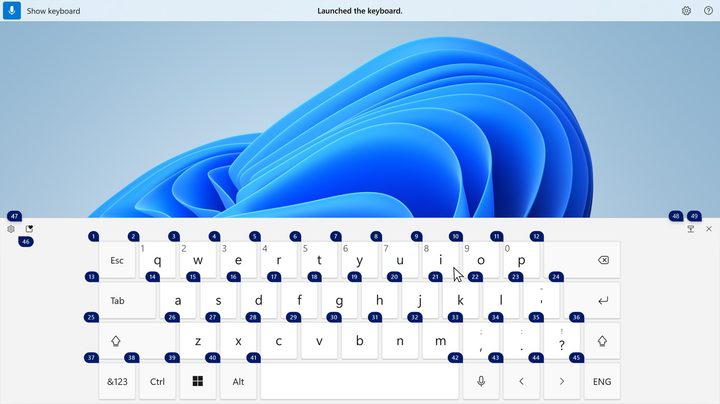
Voice access (and by extension, voice typing) may still be in preview status, but is nonetheless stable and feature-rich in Windows 11. It showcases the idea that with AI and speech algorithms, controlling, navigating, or dictating an email just by voice can be a really effective way to interact with your PC. You can launch and close applications, select and click items, navigate text, and activate keyboard keys — all hands-free.
One caveat to using Voice access is the abundant commands used to control the PC. Windows 11 has a training widget to get you started with the basics, but if your situation necessitates full voice control over your PC, you will need to invest quite a bit of time to learn the commands. It’s great that for on-screen elements, such as color palettes or radio buttons, you can have Windows assign numbers to each interactive element, so you can “click” on the one you need.
Another thing to note is that while third-party apps are supported by voice access, it’s not as well-baked as when using Microsoft products. Using and navigating Edge seems more integrated than with other browsers, for example. We hope that future updates provides stronger application support.
As a tandem function of voice access, voice typing works well, although it does occasionally lag for a split-second before catching up. Punctuation can also be automatically captured, although we found it to be accurate only about 80% of the time.
Focus/Do not disturb
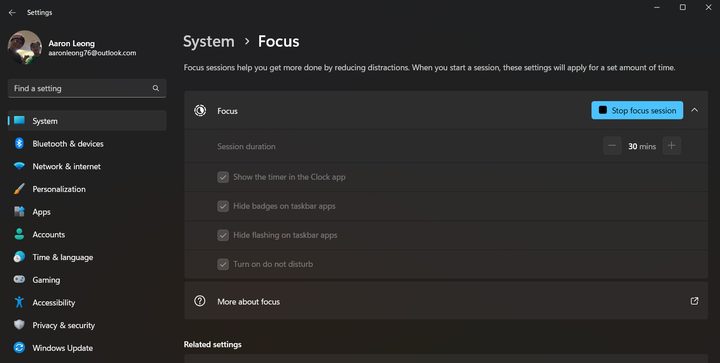
Focus has finally migrated from just being part of the Clock app to being its own feature in Windows 11 that is now called Focus Sessions. During a Focus Session, Windows 11 quiets down systemwide notifications or minimizes UI complexity and clutter. Microsoft says Focus Sessions are ideal for those with neurodivergence, but they also work great just to clear some clutter from your desktop.
Starting a Focus Session automatically enables Do Not Disturb mode. By default, Windows blocks all incoming notifications and prevents any opened or pinned app in the taskbar from flashing, but you can toggle these off. We do wish that customizing which app notifications are allowed was easily accessible directly on the Focus screen; currently, you have to head to System > Notifications > Set priority notifications.
Various other accessibility options are already built into Windows by default. For example, make sure you know which keyboard layout you’re using.