I don’t use OneDrive, but Microsoft is hellbent on making sure I do. When you set up a new PC, OneDrive automatically starts syncing files based on the Microsoft account you sign in with. This isn’t normally a problem, but if you’re a PC gamer who switches devices often, it can cause quite a headache.
It’s not an impossible problem to overcome, and you can always turn OneDrive off. But as someone who bounces around PCs often, I wish that Microsoft’s cloud storage service was opt-in instead of opt-out.
Creating conflict

The main problem with OneDrive and PC gaming is your documents folder. This is one of the default locations that OneDrive automatically syncs when you sign into your Microsoft account on a new PC, and it’s a critical location if you’re a PC gamer. When moving between devices, you can get caught up in conflicts that will lock you out of adjusting settings in games or sometimes block you from playing certain games at all.
Let me provide an example. Red Dead Redemption 2 requires the Rockstar Launcher in order to work, regardless of where you bought the game. Like a lot of programs, your settings for the Rockstar Launcher are stored in your documents folder, which is automatically synced with OneDrive. When you go to launch the game, the Rockstar Launcher will hang with the settings file already stored in OneDrive — assuming you’ve launched the game on another PC — and you won’t be able to play.
The only way to solve this problem is to delete the launcher, delete the settings folder in both OneDrive and locally, quit OneDrive, and reinstall the launcher. Otherwise, you won’t be able to play your game.
Another example happened to me just recently. I was going to benchmark Assassin’s Creed Valhalla on the Asus ROG Zephyrus G14, but my graphics settings wouldn’t apply. After about 30 minutes of troubleshooting and a reinstall, I finally chased down the settings file for the game — and sure enough, it was applying a settings file that had been synced to OneDrive, overwriting my settings changes each time I tried to apply them.
These are both minor problems with straightforward solutions, but it doesn’t feel that way in the moment. Problems like these seem inexplicable in the moment and usually send you down a long road of normal troubleshooting steps that amount to nothing.
I should point out that this isn’t an issue that applies to every game. Most games store things like you settings file in the App Data folder, which doesn’t cause an issue with OneDrive. There are those handful of instances where OneDrive is the culprit, however.
Opt in by default
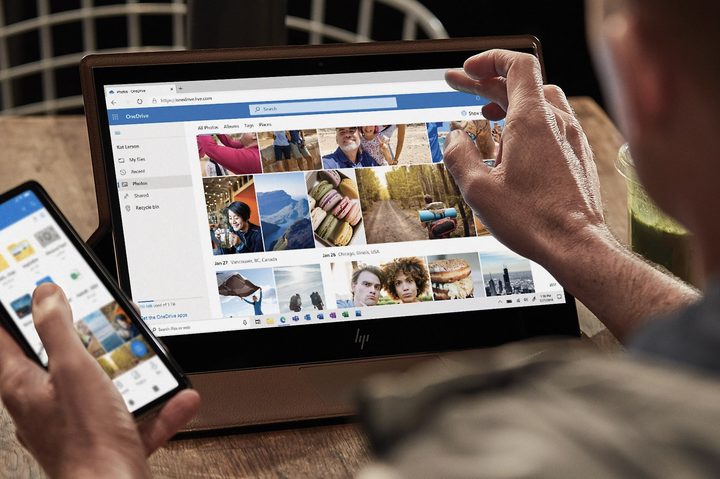
This isn’t a problem unique to OneDrive. If you’re using any cloud storage service and start syncing things like your game settings files, you’re bound to run into some conflicts. The problem specific to OneDrive is that it syncs files automatically on Windows. You could run into similar conflicts and be none the wiser that it has anything to do with OneDrive.
This certainly isn’t the only situation where Microsoft herds Windows users toward its apps. OneDrive is one example, but we also have Microsoft Edge, the Microsoft Store, and even the Xbox app to a certain degree. The Edge situation is so bad that The Verge maintains a dedicated page detailing all the times Microsoft has tried to keep Windows users on Edge instead of a third-party browser.
The situation with OneDrive is unique because it can cause real problems that aren’t always easy to troubleshoot. I appreciate Microsoft including its cloud storage service on PC, but it should be something you need to opt into instead of opt out of.
How to opt out of OneDrive

Thankfully, you can opt out of OneDrive syncing your files across multiple devices. If you’re worried about creating a conflict down the road, you can block OneDrive from starting when you boot your PC. To do so, open OneDrive — it’s not a dedicated application, but opening the OneDrive folder in File Explorer will launch the app in the background.
Head down to your taskbar and right-click the icon that looks like a cloud. Select the cog icon in the upper right corner, then choose Settings. In the window that opens, under Account, select Unlink this PC. This settings menu used to have the option to disable OneDrive from starting with your PC, but it no longer does.
Instead, you’ll have to search for startup apps. Use your Windows key to open the search bar and search for “Startup apps.” You can scroll down and uncheck the box for Microsoft OneDrive. That’s two layers of protection to keep the syncing away from your device if you don’t want it.
Of course, you can also exclude certain files and folders from syncing through the OneDrive settings menu, but I suspect most users won’t want to go through this rather arduous process for PC games.
Regardless, if you’re running into some strange issues with your PC games, particularly when it comes to external launchers and settings files, don’t discount OneDrive’s (or something other cloud storage service) involvement. It can save you a big headache in troubleshooting.