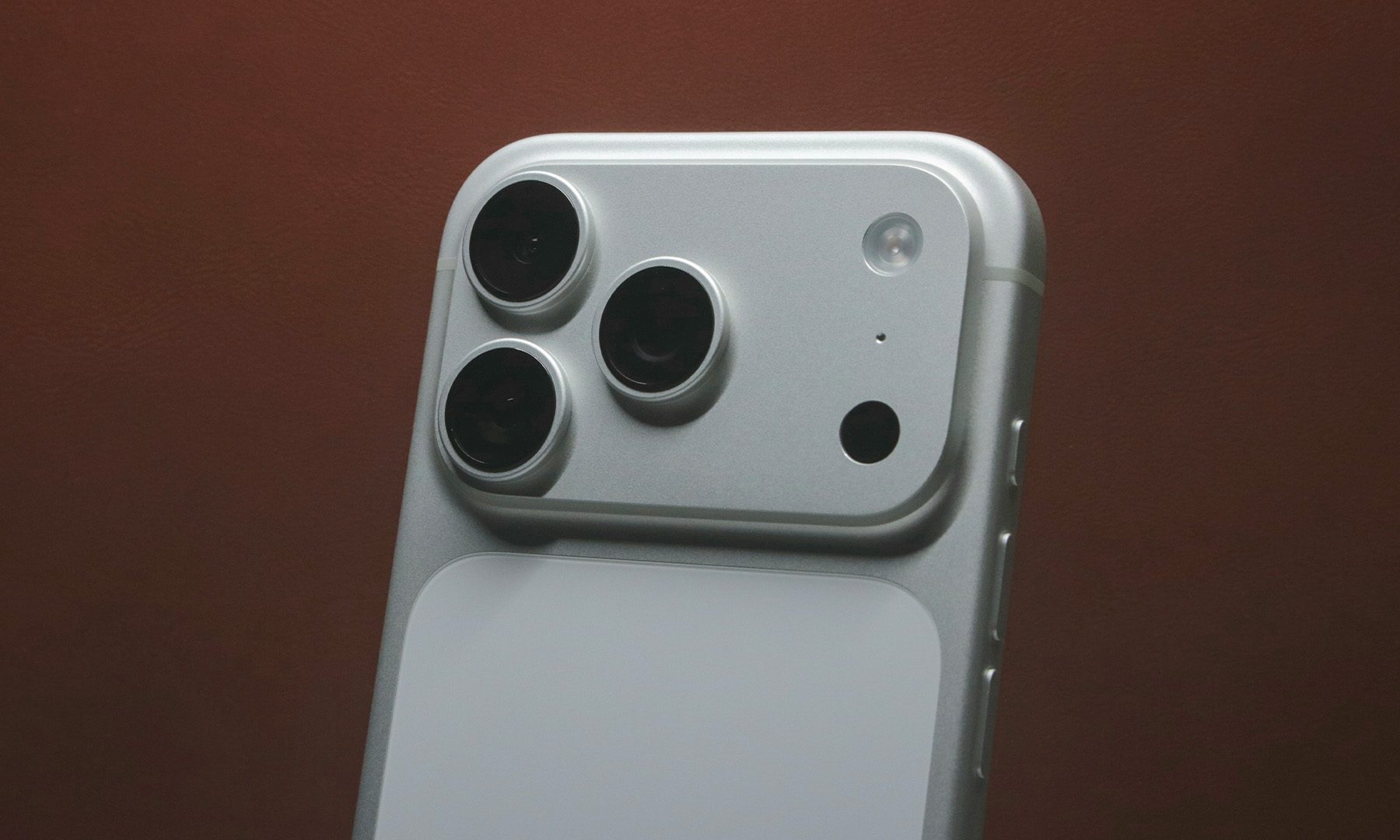
Google’s Pixel 9 is here with four devices in the lineup this year: Pixel 9, Pixel 9 Pro, Pixel 9 Pro XL, and Pixel 9 Pro Fold (ugh, what a mouthful). This year, Google gave all of the Pixel 9 devices a fresh new look, and they’re all quite powerful with the Tensor G4 chip and up to 16GB RAM, a first for the Pixel as a whole.
Though the hardware looks beautiful, Google is putting more emphasis on the software that powers the devices, specifically the AI aspect. The Pixel 9 line has a ton of new AI tools, including Pixel Studio, Add Me, Gemini Live, and Pixel Screenshots.
If you are the kind of person who hates having a ton of screenshots cluttering up your photo gallery, then Pixel Screenshots is a lifesaver. Here’s how it works.

How the Pixel Screenshots app works
The Pixel Screenshots app utilizes the on-device Gemini Nano with Multimodality in order to summarize all of your screenshots and index them so that you can actually search through them.
With the Pixel Screenshots app, any screenshot you take on your Pixel 9 will be saved here, rather than in Google Photos by default. However, you need to first opt-in to the Pixel Screenshots app first before all that happens. Otherwise, your screenshots will still go to Google Photos. So make sure you launch Screenshots first, so the fun can begin.
And in case you need a refresher on how to take a screenshot on the Pixel 9, you simply just press the power and volume down buttons at the same time.
As of right now, the Pixel Screenshots app is only available on the Pixel 9 line, which includes the Pixel 9, Pixel 9 Pro, Pixel 9 Pro XL, and Pixel 9 Pro Fold. It is unknown at this time whether older Pixel devices will get it.
How to search for screenshots in the Screenshots app
If you take a screenshot of something, it’s likely that it’s something you want to refer to later. But again, if you have a lot of screenshots, it can be hard to find what you need. Thankfully, one of the primary uses of the Screenshots app is to search through your screenshots quickly, so you don’t need to scroll through a ton of images to find what you’re looking for (and you might forget as you scroll).
Step 1: Launch the Screenshots app on your Pixel 9 device.
Step 2: Select the Search bar at the bottom of the app.
Step 3: Type in your search query. The Screenshots app will show you results in real time. Optionally, you can select the Microphone and dictate your query instead.

How to add new photos and import old screenshots to the Screenshots app
Sometimes screenshots aren’t from your device itself. Maybe you need to snap a photo of a menu, recipe card, some important notes for school or work, and more. Or maybe you have some old screenshots in Google Photos that you want to import into the Screenshots app so it’s easier to organize. Here’s how to do that.
Step 1: Launch the Screenshots app on your Pixel 9 device.
Step 2: Select the Plus (+) button in the bottom-right corner.
Step 3: For a New photo, select Camera. This launches the camera so you can snap a new photo.
Step 4: Once you’re satisfied with the photo, select the Checkmark button to save it.
Step 5: To Import old and existing screenshots from Google Photos, select Gallery instead of Camera.
Step 6: Select your screenshot(s).

Step 7: Select Add.
How to create collections in the Screenshots app
If you have a bunch of screenshots, it can be a bit chaotic. Sure, the search functionality can help you find what you need at the moment, but it can also help if you organize all of those screenshots into groups, or as it’s called here, collections. Here’s how to do that.
Step 1: Launch the Screenshots app on your Pixel 9 device.
Step 2: At the top under Collections, select the Plus (+) button to create a new collection.
Step 3: Select the text input field and give your collection a name.

Step 4: If you want to, you can select existing screenshots to add to this collection.
Step 5: Select the Checkmark button in the upper-right corner to save your collection.
Step 6: To add screenshots to a collection, go into the collection and then choose Select screenshots at the top. You could also view the screenshot and scroll to the bottom to get the Add to collection button.

How to set a reminder for a screenshot in the Screenshots app
Sometimes you take a screenshot because you need to remember specific dates and times. The Screenshots app has a reminders feature that can come in handy.
Step 1: Launch the Screenshots app on your Pixel 9 device.
Step 2: Select a screenshot to view it.

Step 3: Select the Bell button to bring up the Reminder menu.
Step 4: Choose when you want to set a reminder for.

How to mark up and add a note on a screenshot in the Screenshots app
While a screenshot is useful to help you remember things, sometimes you might need to make additional notes or even mark up a screenshot. You can do both of these things in the Pixel Screenshots app, thankfully.
Step 1: Launch the Screenshots app on your Pixel 9 device.
Step 2: Select a screenshot to view it.
Step 3: Select the Pencil button to Mark up the screenshot as you see fit.
Step 4: Select Save in the upper left to save your changes.
Step 5: To add a Note to a screenshot, just scroll down and type in the Add a note field. You can also select the Microphone button to dictate your note.