1. Home
  2. Phones
  3. Mobile
  4. How tos

How to use the Clean Up tool in iOS 18 to remove objects from your photos

Add as a preferred source on Google
Using the Clean Up tool on iPhone.
Bryan M. Wolfe / Digital Trends

The initial Apple Intelligence features are gradually being introduced into iOS 18.1 developer beta versions prior to a public release later this fall. In iOS 18.1 beta 3, one of the most exciting new AI-based features, Clean Up, has finally been introduced.

Recommended Videos

Difficulty

Moderate

Duration

10 minutes

What You Need

  • An iPhone or iPad running iOS/iPadOS 18.1 beta 3 or later

  • Apple Intelligence activated on your device

With Clean Up, you can easily remove unwanted objects from your photos with just a few taps on your iPhone or iPad. It works with any image in your photo library, not just photos taken with your iPhone.

To use Clean Up and Apple Intelligence in general, you must have a compatible device. This includes the iPhone 15 Pro series, and iPads with M1 or later installed.

Here's how to use the Apple Intelligence Clean Up tool.

How to remove objects from photos using Clean Up

With iOS 18.1 beta 3 or later installed, you can now begin to use Clean Up on your supported device. Activating it is a seamless process.

Step 1: First, open the Photos app on your device.

Step 2: Next, browse your photo library and choose the image you'd like to edit.

Step 3: From there, you’ll need to enter Edit Mode. Do this by selecting the Edit button at the bottom of the screen.

Step 4: Select Clean up.

Screenshots showing how to access the Clean Up tool on iPhone.
Bryan M. Wolfe / Digital Trends

Step 5: Note: The first time you attempt to use Clean Up, there will be a few minutes of delay as Apple must download the AI model to your device.

After tapping on the Clean Up icon, the tool will automatically identify objects to delete, such as people. These objects will be outlined in color.

Step 6: To remove any of the automatically found highlighted objects, select them one at a time.

Screenshot showing how to remove automatically found objects with Clean Up on iPhone.
Bryan M. Wolfe / Digital Trends

Step 7: You can manually remove objects in your image that Clean Up didn’t find by doing any of the following with your finger:

  • Tap on the object
  • Circle the object
  • Color in the object

You can use pinch-to-zoom to get closer to objects you want to remove.

Step 8: Remove the highlighted objects by tapping on them.

Screenshot showing how to manually select images with Clean Up and erase them on iPhone.
Bryan M. Wolfe / Digital Trends

Step 9: One you're finished editing your photo, choose Done.

How to undo the removal of objects with Clean Up

A change made with Clean Up is never permanent if you don't want it to be. After deleting objects, you can revert to an earlier version.

Step 1: To undo a change during the process, tap the Undo button at the top left of the app. This tool is designed to remove each change step by step.

Screenshot showing how to undo changes made with Clean Up on iPhone.
Bryan M. Wolfe / Digital Trends

Step 2: To undo changes later, select the image you wish to edit, then selct Revert. Choose Revert to original to confirm.

This tool is designed to remove all your changes.

Screenshot showing how to revert images that were cleaned up on iPhone.
Bryan M. Wolfe / Digital Trends

The Clean Up tool in Apple's Intelligence is currently in beta, so there may be changes to it before it's released to the public. As a result, the steps mentioned above could change, and we will update this article accordingly.

It is important to note that the effectiveness of the Clean Up tool may vary depending on the image’s complexity and the object you are trying to remove.

Bryan M. Wolfe
Former Mobile and A/V Freelancer
Bryan M. Wolfe has over a decade of experience as a technology writer. He writes about mobile.
Google may finally ditch Samsung’s modem in the Pixel 11, and Tensor G6 could be better for it
FCC paperwork for Google’s next foldable points to MediaTek, raising hopes for lower power use and a cleaner break from Tensor’s Exynos roots
AI recreation of Pixel 11's Pixel Glow feature.

Google may be preparing its biggest Tensor hardware split yet. As spotted by Android Authority, FCC testing for an unreleased foldable Google phone includes a reference to MediaTek radio-frequency software, adding weight to reports that the Pixel 11’s Tensor G6 could leave Samsung’s Exynos modem behind.

Every previous Tensor chip has used Samsung modem hardware. Changing suppliers won’t guarantee better battery life or reception, but it gives Google a fresh path after years of leaning on the same underlying technology.

Read more
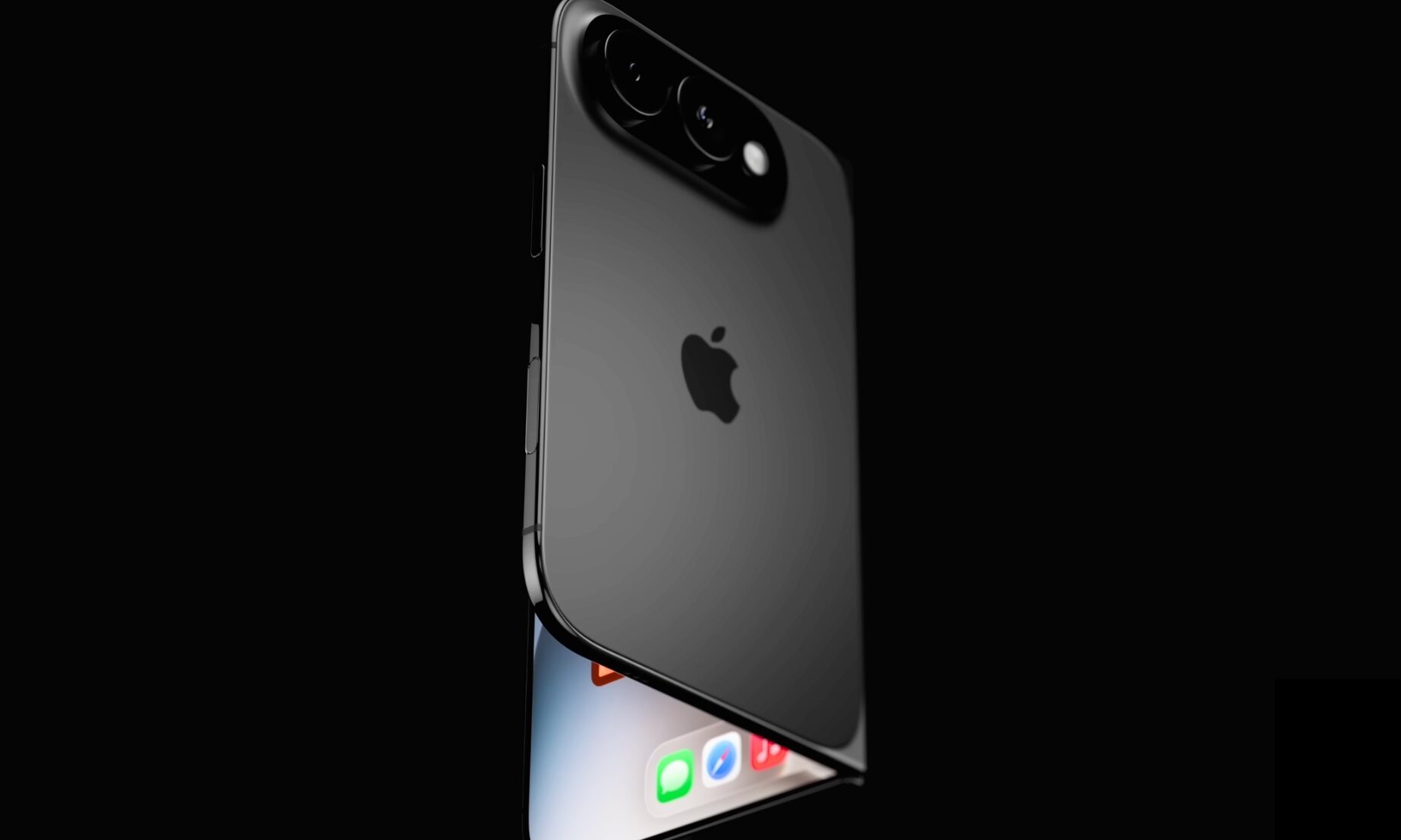
Apple’s iPhone Ultra could one-up the Galaxy Z Fold 7 with a bigger battery
4,883mAh total capacity, two cells, and two screens drawing power. Somewhere between "fine" and "I hope Apple's software does the heavy lifting."
Electronics, Phone, Mobile Phone

Apple's foldable iPhone is getting closer to its September announcement. Despite rumors of a delay, a recent report claimed that Foxconn is hiring temporary workers to ramp up production of the Ultra. Now we have a number for one of its most important specs: the battery.

I'll be honest: when I saw the battery figure, my reaction was somewhere between "that works" and "I was hoping for more."

Read more
The next “flagship killer” is coming from Motorola, but it may not reach the US anytime soon.
The Motorola Edge 70 Max looks great on paper, but only India is getting it on July 15.
Electronics, Mobile Phone, Phone

Motorola is building the most ambitious phone in its Edge 70 lineup, but it might not be available in the United States. 

Specs like a 7,000-nit display and MagSafe-style magnetic wireless charging belong in a conversation that often includes flagships, but it looks like Motorola wants to break that norm. 

Read more