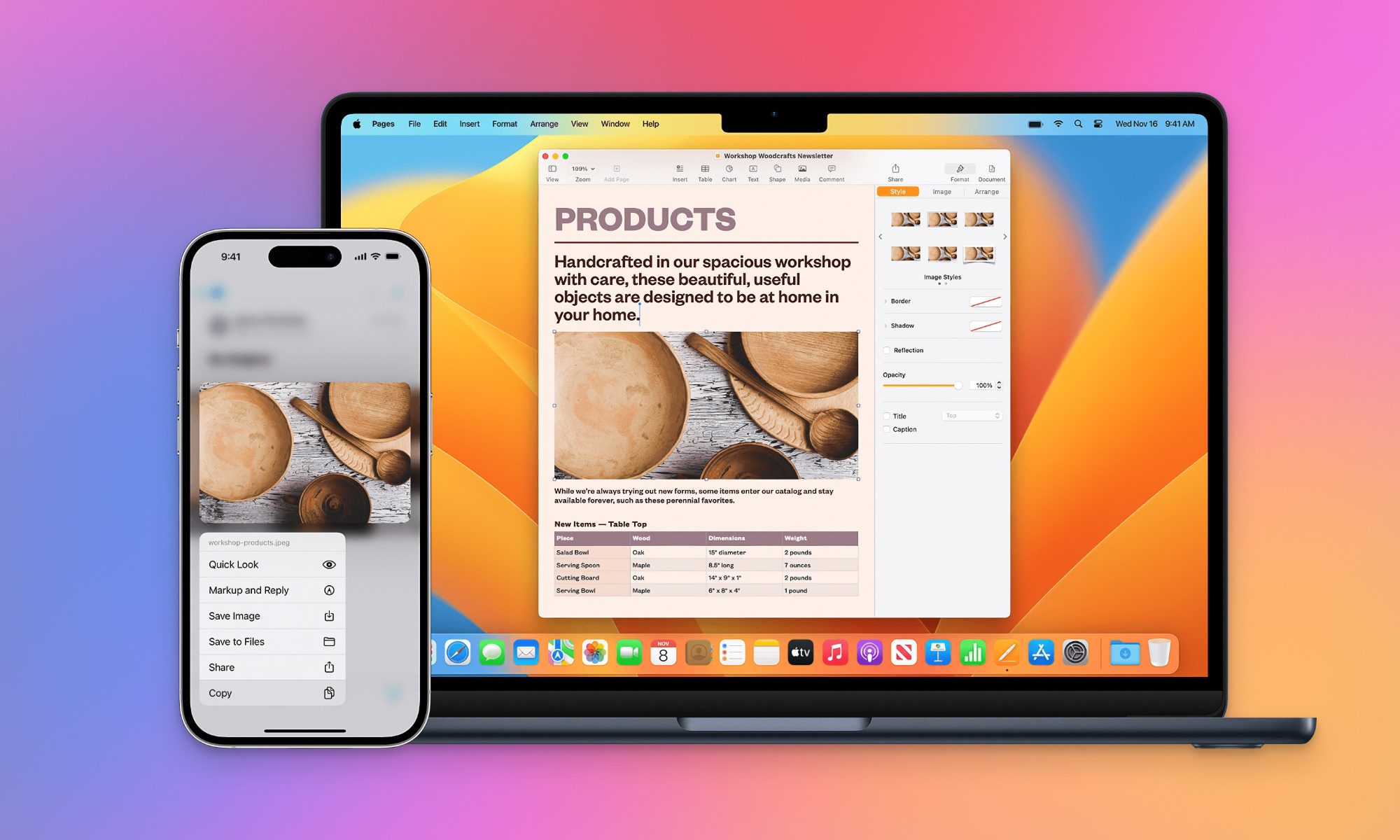
When Apple introduced its new design language for the MacBook Pro with a notch at the top, I was flabbergasted. I was watching the event on a Dell XPS 15’s OLED screen and kept wondering why Apple couldn’t cram a webcam in the thin bezels, just the way Dell handled it.
A few months later, I upgraded to the M2 MacBook Air. And there it was. Doing nothing, except looking like a dark oddity. Apple drilled a hole in the iPhone’s screen and then built a whole functional system around it called the Dynamic Island.
The MacBook’s notch didn’t get any such love. That’s a glaring failure. How can I say this? When Apple adopted the notch on iPhone X, the entire industry copied it. Yet, when it did the same for laptops, no major brand was intrigued. Four years later, the notch remains the same.
Thankfully, the enthusiast community has brought it to life by building a whole functional world around it. NotchNook is fairly popular, but a tad too expensive for a notch utility. Then I jumped into the wonderful open-source community and discovered Boring Notch.
What is Boring Notch?
The Boring Notch is a free app that you can download directly from the developer’s website or pick up the latest release from its GitHub repository. The app is currently not available on the App Store, so you might want to chip in a few pennies to the developer team behind it.
Before you set up the app, especially if you are running macOS Sequoia, you will have to go through a couple of extra steps. The app doesn’t load directly after dragging the DMG file into the native installer. You will have to walk this path first:
Settings > Privacy & Security > Open > Open anyway. This path for running Borning Notch will require you to authenticate your identity, so there’s that obvious confirmation to deal with, as well.

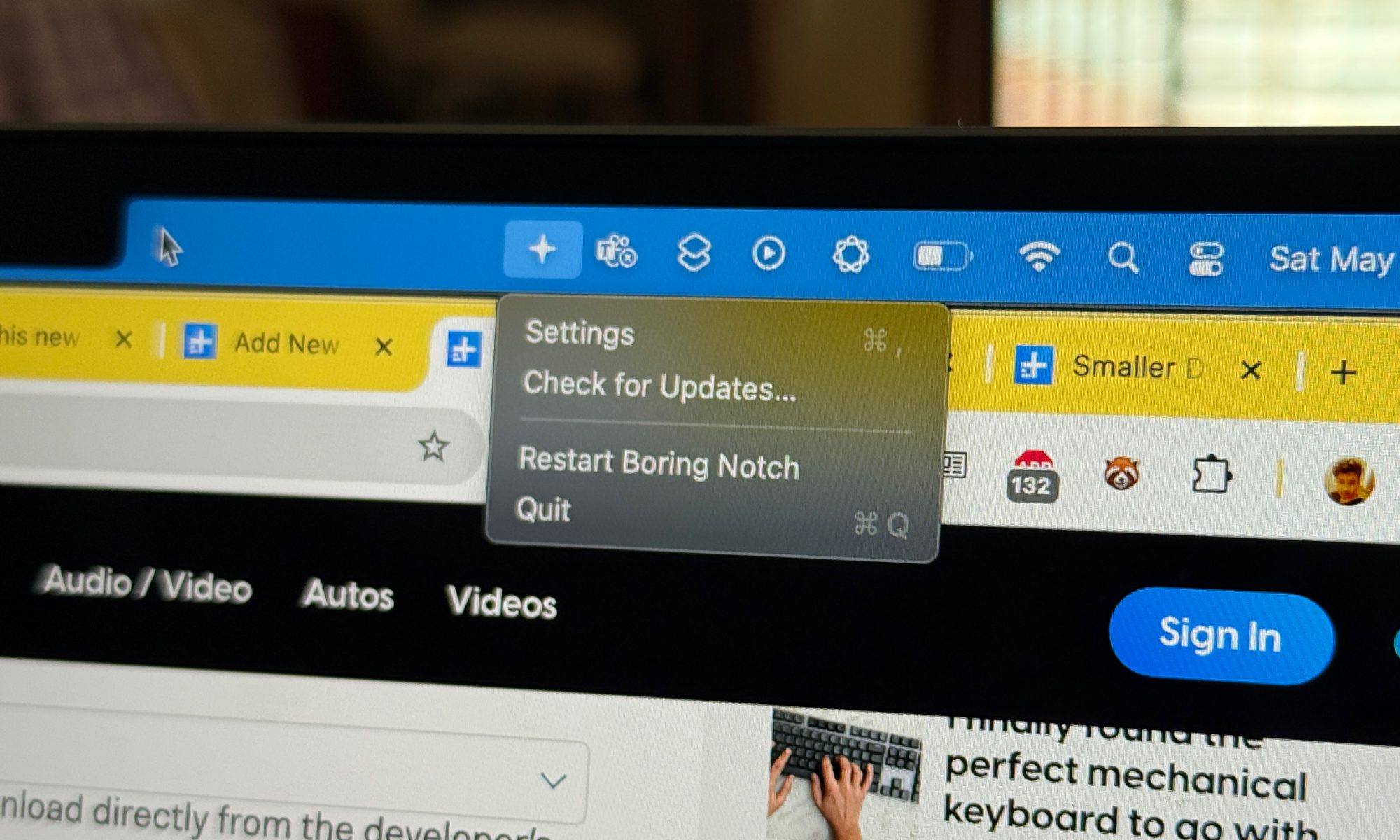
Once the app is installed, all you need to do is launch the app, and it will automatically add a shortcut to the menu bar as a four-pointed star icon. In order to access the notch bucket, just hover the cursor near the notch edges or click behind it.
I love it
Why do I need the Boring Notch? Well, it lets the notch serve a purpose. Second, it makes a few frequent computing chores easier, instead of handling them via dedicated apps. Third, it consolidates a few tasks in a single spot, without any overwhelming complexity.
Now, you can open the notch container by moving the cursor or using a keyboard shortcut. The shortcut is customizable, so t̆̆̆here’s that sigh of relief for power users. You can choose to take a sneak peek or open the full control button to make adjustments.
The app’s most obvious utility is making the core music playback controls within easy reach. Play/pause, skip, and rewind are what you get, paired with zesty animations to go with the playback.

I wish it had volume sliders, but then, it’s already one extra tool compared to the music playback bar in macOS’ control center. Plus, there are dedicated volume buttons at the top of the keyboard deck, and I prefer them instead of dealing with a slider.
On the more fun side of things, you can enable color spectrograms, blur effect for album art, adjust slider color, turn on live music activity, and more. They don’t necessarily add a whole lot of functional bliss, but there are folks over there who appreciate these minor software perks.
Next to the music playback area is a minimalist side-scrolling calendar. Once again, there is not much to dig into, except a quick glance at the events on your calendar for that particular month.
If there’s an event scheduled, you can tap on it to access more details in the Calendar app. Across four categories, you can select which calendar entries appear in the notch area. I disabled holidays and birthdays, and only enabled preview for work-related entries.
Next, we have a battery indicator. Now, by default, Apple doesn’t show the battery percentage of your Mac, save for the dynamic battery cell icon. You can, of course, enable it from within the Settings page. Thankfully, Boring Notch puts that information right at the top.
Just the right amount of granular controls
On the more functional side of things, if you are working on a multi-screen set-up, you can add the notch on all of them. It looks ugly, but hey, at least “this” notch serves a purpose. Right?

The app also has a feature called boring mirror. It’s essentially a small camera preview where you check your camera view and fix your hair, before jumping into a meeting. It’s pretty nifty, actually. I wish there were a clipboard function, but then, I suspect the UI would get too crowded.
Then we have the shelf, a place you can drop files for quick sharing. All you need to do is drag and drop the files into the notch area, and they will be added to a temporary shelf. I often exchange files with my iPad Pro and iPhone 16 Pro. The shelf made it a tad easier to handle them via AirDrop.
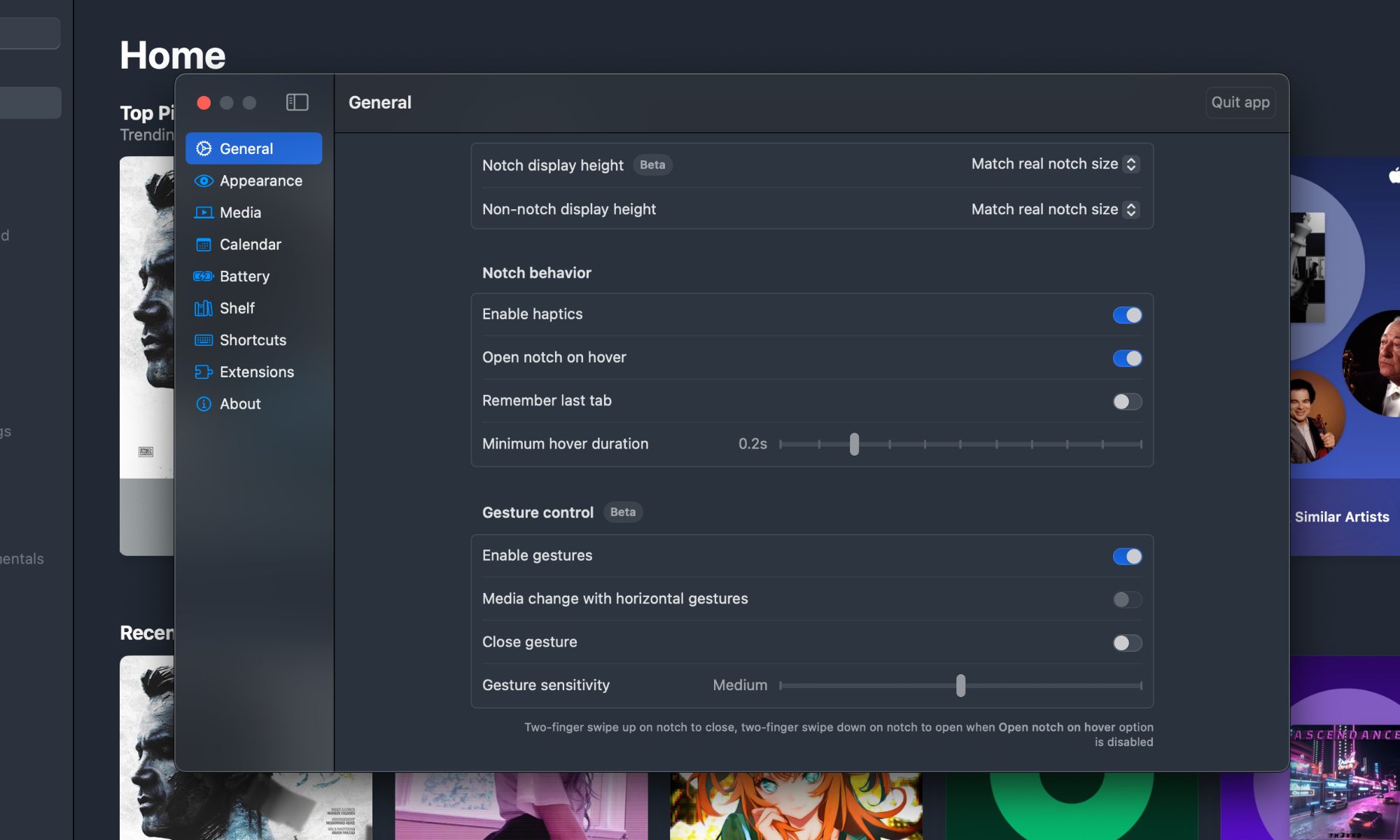
For added flexibility, you can set the virtual notch to match the size of the real thing on your MacBook, or increase it slightly to align with the menu bar. If you need something even bigger, there’s an option for custom size adjustments, as well.

If you are forcing a notch on an external display, or even an older MacBook with a notch-free screen, you still get the aforementioned adjustment controls. I was not expecting a free open-source app to go deeper, but you can also adjust the duration of the cursor hover to expand the virtual notch.
I found my sweet spot at 0.2 seconds, but you can extend it to a full second, as well. There are a total of ten stop levels, so you can find the hover gesture delay that best suits your cursor activity pattern. You can even adjust the notch behavior for full-screen app window modes.
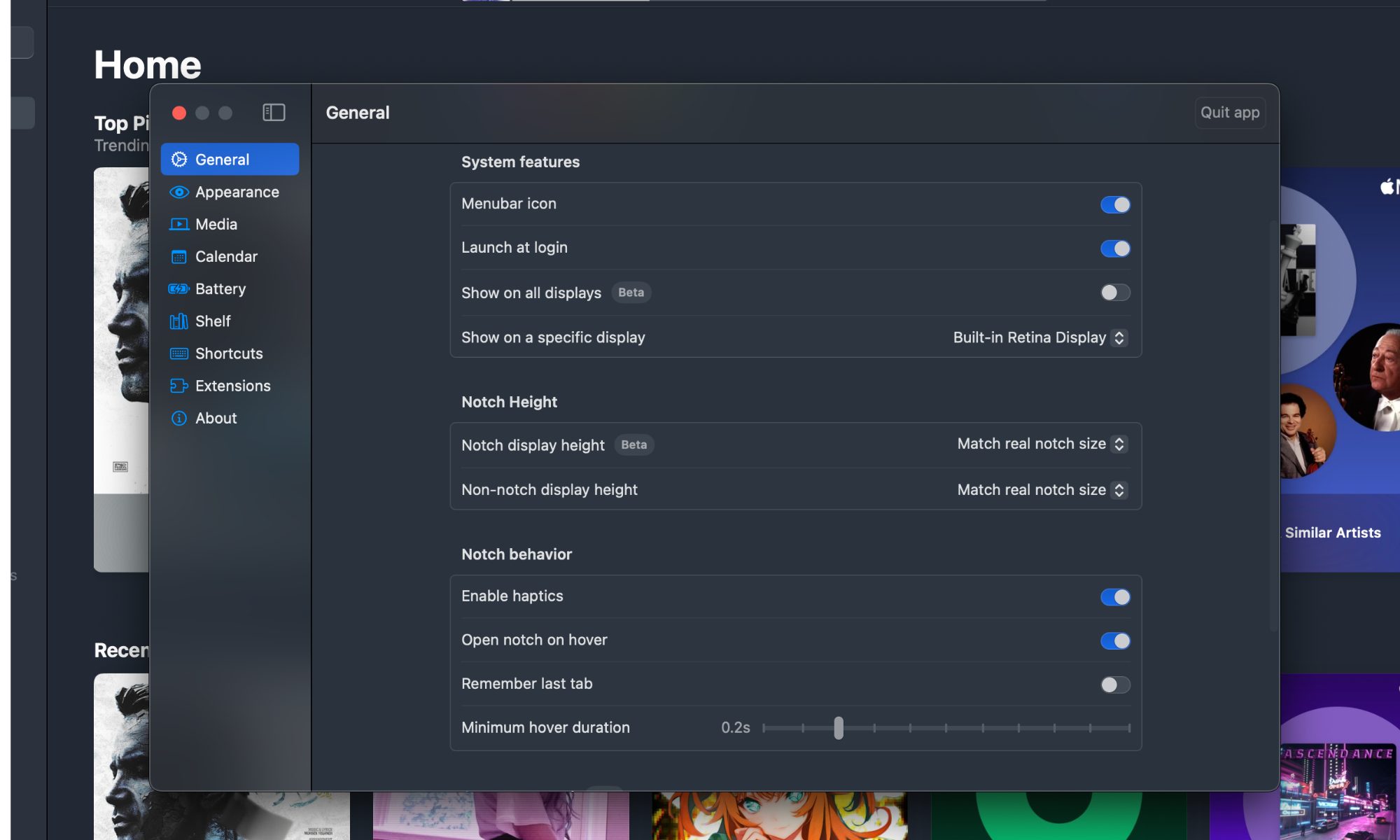
Going a step further, the Boring Notch app also supports two-finger swipe up and down gestures to access the notch controls, instead of relying on cursor hover or keyboard shortcuts. You can also adjust the gesture sensitivity, which is neat.
What’s next?
The Boring Notch is a free utility that turns a useless physical element into a neat little functional powerhouse. There are no ads to bother you, and neither are there any intrusive details. You can choose to disable features like file and camera access at any given time.
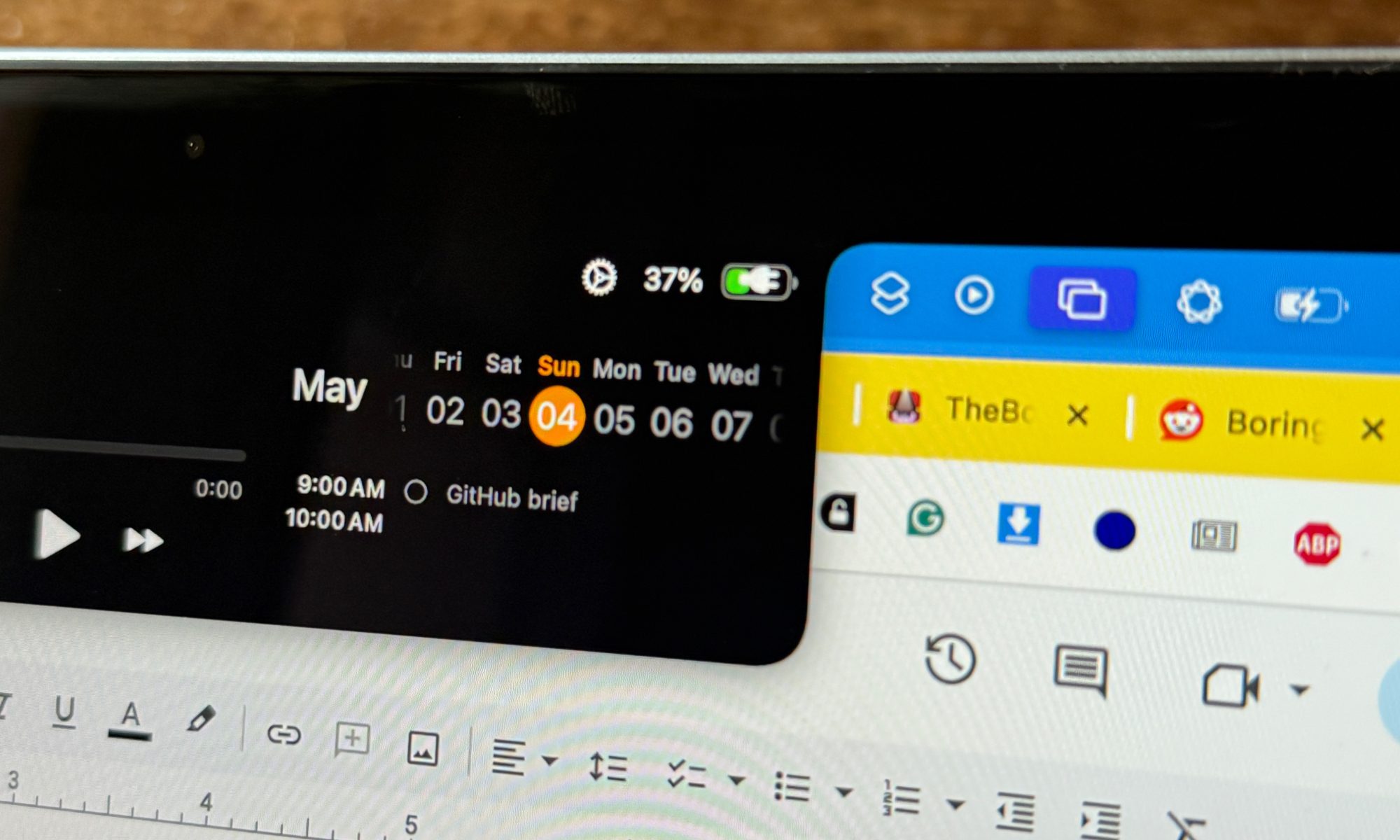
It’s not perfect, as some of the features are still in beta, and a couple of them can occasionally glitch out. Thankfully, the open-source community behind it is pretty active, reporting bugs and helping resolve them.
On the feature situation, the best is yet to come. The team behind Boring Notch is working on adding more controls, such as volume, brightness, and backlight, in the notch bucket. Browser download indicators, extensions, app switching, and custom function buttons are on the horizon.
It’s definitely worth trying out if you are someone who has a hard time ignoring the notch on your MacBook and wishes it could do more. I am one of those folks, and this app certainly toned down one of my top annoyances with Apple’s laptop.