
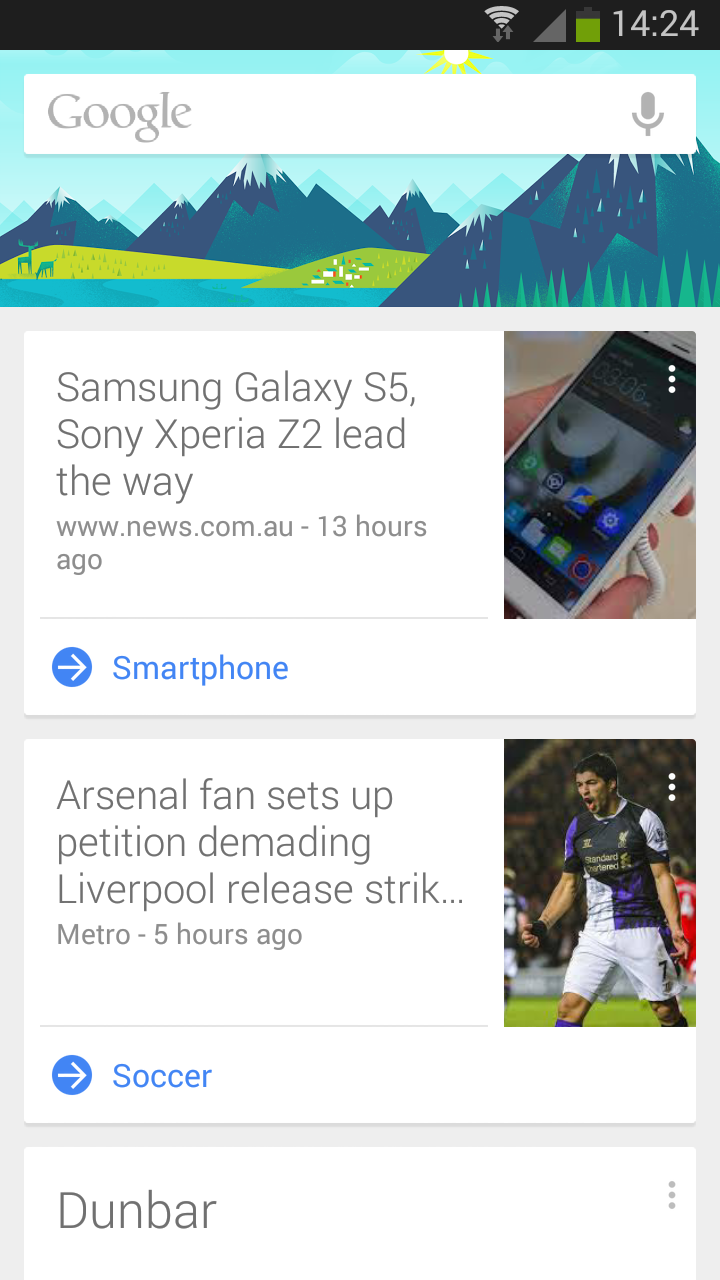
When the Nexus 5 came out it had a clean, elegant new look with slick transition animations and easy access to Google Now. The launcher had super-sized icons, offering greater clarity at the cost of allowing you to display four across the screen instead of five. Google also bumped the widget tab from the app drawer, but the big news was the Google Now integration. You can swipe left to right on the home screen to access Google Now or you can just say “OK Google” and it bursts to life.
It turned out this aesthetic and functionality wasn’t part of stock Android 4.4 KitKat. It was an entirely new launcher, originally called the Google Experience Launcher. Owners of other Nexus devices may have been disappointed that the stylish look didn’t roll out as part of the updated platform, but Google has released it as a free download in the Play Store called the Google Now Launcher. As long as you have a Nexus or Google Play edition device running Android 4.4 or above, then you can go ahead and download it.
Google Now Launcher for Android 4.3 Jelly Bean devices
If you have a device running Android 4.3, you can still get the launcher, but there are a few extra steps. You only need to install one file if you have Android 4.3 on your device.
- To see what version of Android you have, go to Settings > About phone.
- Check that you have the latest version of Google Search. If you fire up the Play Store and check in My apps you’ll be able to see if an update is needed.
- Download the files from XDA Developers and extract the GoogleHome.apk file.
- Go to Settings > Security, or maybe Settings > More > Security on your Android device and scroll down to Unknown sources to check the box.
- Send the GoogleHome.apk by email, Dropbox or Google Drive (or whatever you want to use) and then tap on it on your phone to install. When you hit the Home button you should be prompted to choose your launcher.
Google Now Launcher for other Android devices
Other Android phones can run the Now Launcher, too. You don’t have to root your phone to get it working, either. You will need Android 4.4 if you expect the launcher to work perfectly, but it will work with earlier versions, at least partially. You probably want at least version 4.1. It works flawlessly for us on a Galaxy S3 with Android 4.3. Be warned that installing it on devices running earlier versions of Android may result in flaky behavior, so do it at your own risk.
- Download the APK files in this XDA Developers thread and extract them.
- Go to Settings > Security, or maybe Settings > More > Security and scroll down to Unknown sources to check the box.
- Email the APK files to your phone, you could also use Dropbox or Google Drive, tap on them in the right order to install each one. Install PrebuiltGmsCore.apk, then Velvet.apk, and finally GoogleHome.apk.
- You’re done, hit the Home button and select the launcher.
Using the Google Now Launcher
If you’re wondering how to get widgets now that the widget tab is gone from the app drawer, you can long press on any blank space on a home screen or tap the Menu button and you’ll get Wallpapers, Widgets, and Settings.
Go into Google Now and select Settings at the bottom right. In Voice you can choose whether to have “OK Google” launch the Google Now service. You may have to change your language to English (US) to get it working.
If you encounter force closes using Google Search then change your language to something other than English and then change it back again and the problem should be gone.
Let us know how you get on with it in the comments below.


