Learning how to enable hands-free voice search in Chrome isn't difficult, but it does have a slightly complicated past. In 2014, Google enabled hands-free, always-on voice search in the desktop version of Chrome, the company’s popular web browser. However, Google removed this feature in 2015 due to its low use and impact on laptop battery life, though it’s still a main feature on Chromebooks.
But all is not lost. You can still conduct voice searches in Chrome for desktop using a simple click. You can also enable hands-free voice search on your mobile devices via the Google app. Here’s how to enable hands-free voice search in Google Chrome.
A note on Assistant chaos
Google Assistant is highly convenient (and fun). On Chromebooks and Android devices, it’s similar to using Cortana on Windows 10 and Siri on MacOS. However, if you own stand-alone Google Home devices, like the Mini, search chaos may ensue.
For instance, if you request the weather, the response may blast from a nearby Home device instead. Since you want to see and hear the results on your mobile device or PC, having the information pumped through another device isn’t ideal.
If you want results exclusively on your mobile device or PC, we suggest closing a door or moving it (or the Home device) to another location so both aren’t listening to your command.
How to conduct a voice search in Google Chrome
You can't really enable a hands-free voice search on the desktop version of Chrome. You will have to click once to turn on the microphone. Here's how.
Step 1: Open Google Chrome, and if it opens directly to the Google search homepage, go on to step two. If not, be sure to open a new tab in Chrome by tapping the Plus Sign icon to the right of your existing tabs.
Step 2: On the Google search homepage, tap on the Microphone icon that’s located on the right side of the search bar.

Step 3: After tapping on the microphone, you’ll be taken to another screen in which Chrome will wait for you to issue a search command or question. If Chrome doesn’t have access to your microphone, this can prevent you from using voice search via the Chrome browser. To enable access to your microphone, click on the Video Camera icon (that has a red X) located on the right side of the browser’s address bar. Then select Always Allow https://www.google.com to Access Your Microphone. Next, reload the Google homepage.
Once you’re all set up, just say your command or question clearly and loud enough for the microphone to pick up on it.

Step 4: View your search results. Once Chrome understands your command or question, it should automatically take you to the correct Google search results page to display the information you requested.
How to conduct a voice search in Chrome OS
Here's how to enable a hands-free voice search on a Chromebook via Google Assistant.
Note: Chromebooks bought as part of an education program typically have their voice features disabled, so this option is not always possible in these cases.
Step 1: Enable Google Assistant if it’s not already. Click on the System Clock in the bottom-right corner, followed by the Gear icon displayed on the pop-up menu. The Settings page appears on your screen. Click Search and Assistant listed on the left, and then Google Assistant displayed on the right.

Step 2: On the following screen, click the toggle next to Google Assistant to enable this feature (blue) if it’s not already. You’ll also see an OK Google setting with three selections in a drop-down menu: On (Recommended), Always On, and Off.

Step 3: With Google Assistant active, just say, “OK Google.” A small pop-up appears over the toolbar asking, “Hi, how can I help?”

Step 4: The results appear within the Google Assistant bubble. You can click on or speak additional queries for further information.
If you’re performing a specific voice search and want more results, click the small G Search button located in the bottom-right corner, and the Chrome browser will appear. You can click on or say additional queries for more results.

Step 5: With Google Assistant enabled, it's a good idea to visit the settings page again and select the Voice Match setting below OK Google. This will run you through a basic voice test to help Google recognize your voice when using your Chromebook and reduce the risk of command mistakes.

Step 6: If you plan on primarily using voice commands to work or navigate -- such as for accessibility reasons -- you can switch on the Preferred Input option, which will default to voice commands for your task.
How to enable hands-free voice search on mobile via the Google app
You can enable hands-free voice search on your mobile devices, but it’s not done via the Chrome app. It’s done within the Google app. The method is different depending on whether you’re using an Android or an iOS device.
Step 1: If you’re on an Android device, first run the Google app and tap on your Profile Picture icon. You can find that in the top-right corner of the screen. Then tap Settings.
For the folks using iOS, open the Google app, tap on the Profile Picture icon, and navigate to Settings.
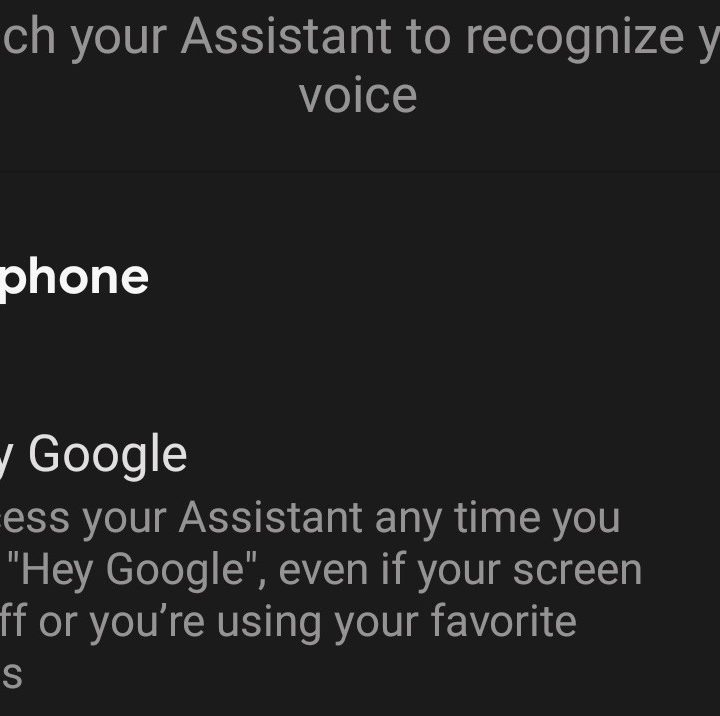
Step 2: Once in Settings, Android users should select the Voice tab. From there, pick Voice Match and be sure to turn the toggle on for the Hey Google feature. By doing so, you’ll turn on the voice search on your phone. For the users who have never had Hey Google on their Android, keep in mind that the software won’t immediately recognize your voice. It’ll take a bit of time to familiarize itself with your voice and preferred commands. If this is the case, you will see several prompts from Google Assistant to speak into the device during the setup process.
iOS users will tap on Voice in their settings. After selecting that option, you’ll need to specify that you’d like to use the term “OK Google” for your device, according to Google. That should launch the voice-activated assistant.