The AirPods support a variety of gestures that can help take action on connected devices. Aside from the usual music playback and calling duties, they can also handle notifications using head gestures. It’s convenient, but pretty embarrassing, especially when you’re in a public place.
But so far, the potential of the built-in gestures hasn’t been fully exploited, especially when it comes to interacting with third-party apps. Apple is reportedly planning to push them for health-centric chores, but those ideas haven’t materialized yet.
The developer community, however, moves faster. And the latest example is an app called ScrollPods. The premise is pretty simple. It lets you push the AirPods (or other Apple hearable devices) as a head-based gesture device for scrolling up and down on a website, document, or social media site. I tried it with my AirPods Pro, and loved the experience.
How does it work?
The whole premise behind ScrollPods is to liberate your hands from the keyboard or trackpad input when you don’t need them. Or, more importantly, when using them is too cumbersome. Imagine going through a schematic while drawing with your hands, or reading a recipe while cooking in the kitchen.
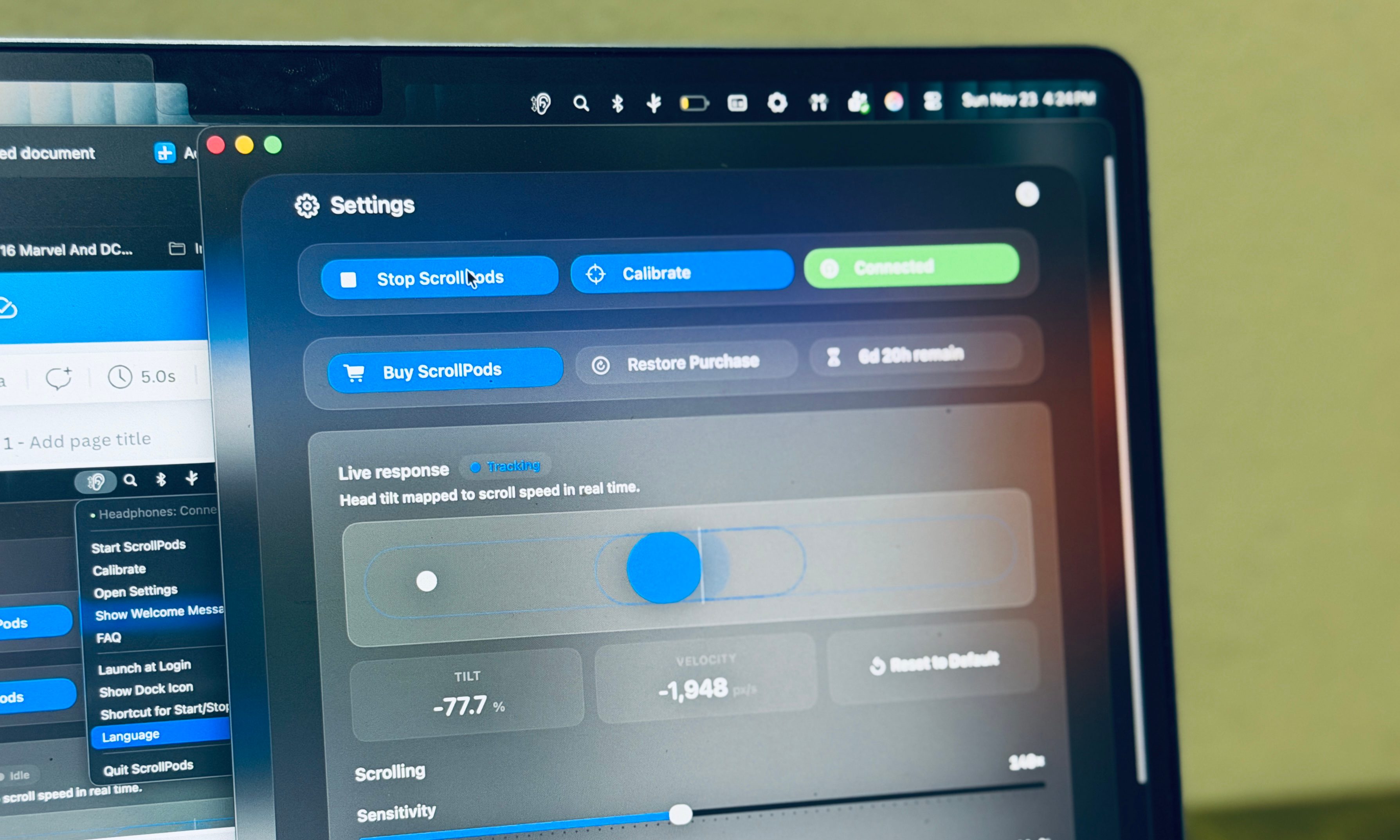
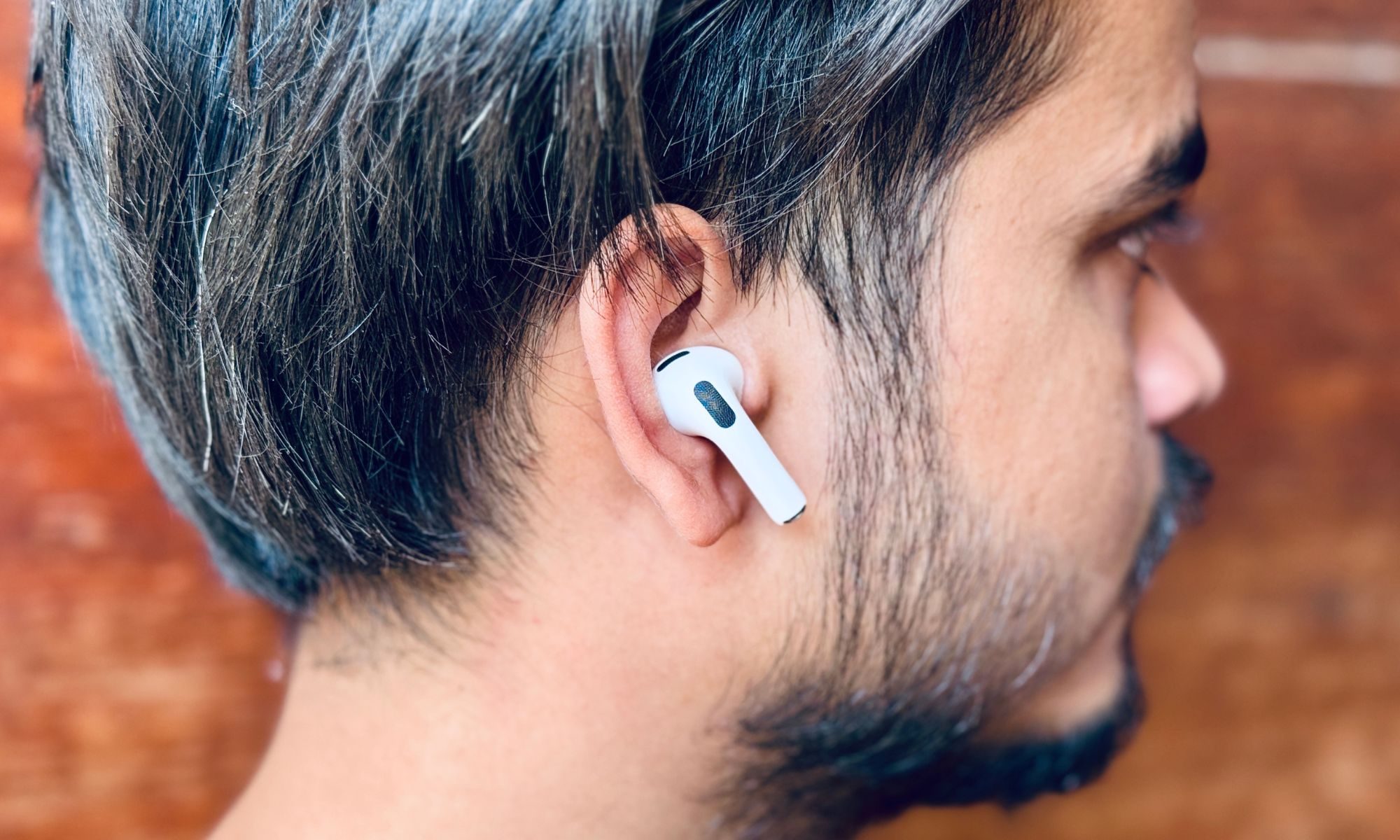
The app relies on the data collected by the motion sensors fitted inside the AirPods and translates it into head gestures for navigating pages on the connected Mac. When you first install the app on your Mac, you will also need to grant accessibility permissions.
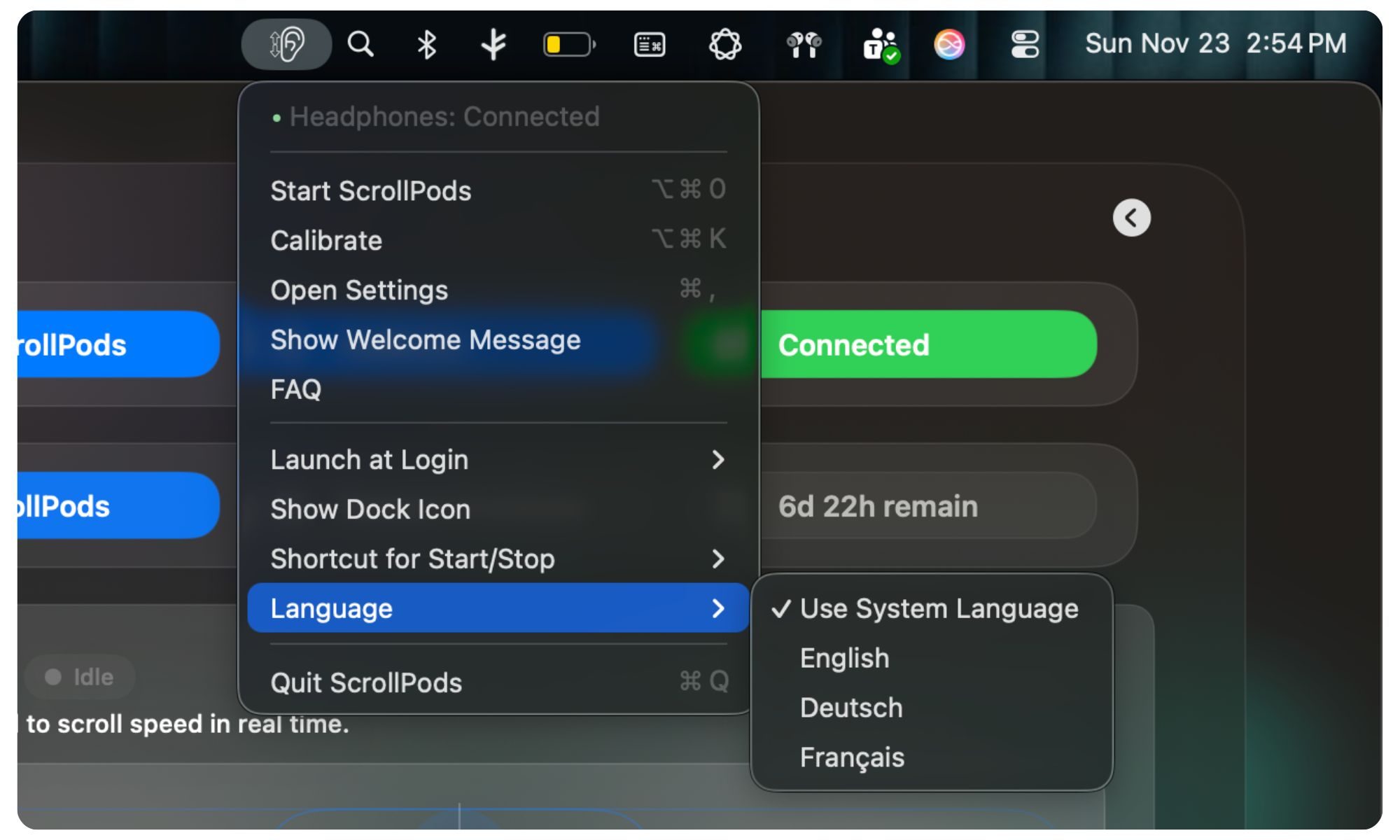
Once there, you’re good to go. I love the fact that the app can run entirely as a Menu Bar utility, instead of taking space in the macOS dock. It’s a straight-to-work experience with this app. There’s a one-time fee for a lifetime license, but you get a free one-week trial without submitting any payment details or agreeing to a subscription mandate.
How’s the experience?
I had my fair share of doubts about the actual performance of this app, because precise calculation and execution of gesture-based commands is a finicky process. And for the average user, it’s usually a slow learning curve with plenty of frustrations.
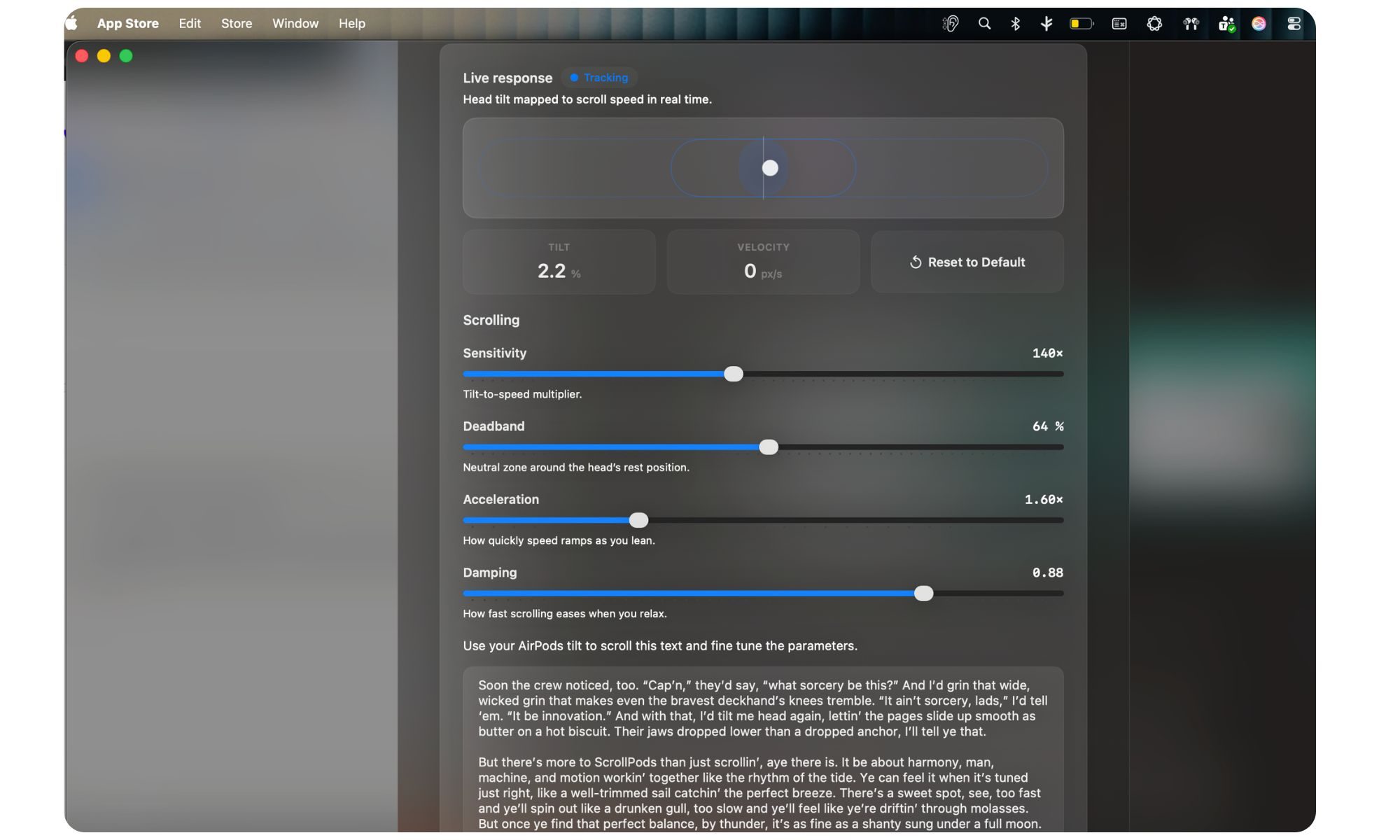
The out-of-the-box calibration of ScrollPods’ head movement-based scrolling is pretty spot-on. It took me less than a minute to get the hang of it. But the best part about scrollpods is that you can calibrate them for every sitting or standing posture in less than a minute.
The app lets you adjust the head tilt sensitivity, scrolling acceleration, and slowdown of the scrolling when the head position is relaxed or fixed. The most important setting is Deadband, which helps you specify the degree of head movement that can be detected as a scrolling command.
If you are working in front of a large screen that is at an elevation, a standing desk, or a vertically stacked multi-monitor setup, you need all the flexibility you can get to avoid mistaken gesture detection.
The desk setup at my home, the shared workspace, and the nearby coffee shops are all wildly different. Last night, as I was reading an article with my MacBook Air propped on the kitchen table and my hands were wet due to cooking.
Before I could get my hands soiled, I calibrated the gesture to align with my natural eye height, reduced the scroll acceleration, and increased the deadband for a more comfortable reading and navigation experience. There were a few panicked moments of error, but overall, it was pretty convenient.
Another neat touch about ScrollPods is that you set up a custom shortcut for launching or quitting it without ever having to open the app or interact with its menu-bar presence. I tried ScrollPods for gesture scrolling web browser, locally-stored files, and social media — and it worked fairly well.
A few unexpected benefits
Every time I head over to the Mac community discussions to discover new software, I am also wary of the toll these next-gen apps will take on the Mac. Local AI apps, in particular, are pretty demanding on the system resources. And then there’s the obvious set of risks that come with installing open-source or third-party apps.
ScrollPods is fairly well-packaged to solve those woes. The file size is just 3MB for the app’s package, and it hogs up merely 50-70MB of RAM space, as per its creator. And it can do its scrolling job on a system-wide basis, so you won’t be running into any app compatibility woes, either.

Coming to the security aspect, this app works fully offline, and all motion data is processed locally. As far as the supported models are concerned, it covers AirPods (3rd gen or newer), AirPods Pro, AirPods Max, and the Beats Fit Pro. But what truly caught my attention was the accessibility aspect.
For people who have trouble using a trackpad or Mac due to nerve issues or movement problems, it’s a convenient solution for long sessions of reading. “Oh my goodness- I have fibromyalgia and using my hands on my computer to scroll can cause terrible pain for me. This is amazing!,” one person wrote after discovering the app.
The developer behind the app, Ahmed Mohamed, says he is currently working on adding tilt-based side gesture support, instead of just vertical scrolling. At the end of the day, even if you’re not the intended user, you should try this just for the sake of a fresh computing experience. You just might end up loving the ease of it.