  1. Home
  2. Computing
  3. Web
  4. How tos

How to update your Gmail picture on desktop and mobile

Add as a preferred source on Google
A man holding a teacup staring at laptop screen.
Andrea Piacquadio/Pexels

There are lots of reasons why you'd want to change your Gmail profile picture. Maybe you have a great, new selfie you want to show off. Or you just want to update your work email with a photo that's recent and professional-looking. Whatever the reason, we can help you update your Gmail picture in just a few quick steps. We've also got you covered whether you choose to change your photo via Gmail's desktop website or through its mobile app.

Recommended Videos

Difficulty

Easy

Duration

5 minutes

What You Need

  • Desktop PC, laptop, tablet, or smartphone

  • Gmail app (optional)

How to change your profile picture in Gmail: Desktop method

Step 1: Navigate Gmail via your browser and log into your Gmail account if you're not already logged in.

Step 2: Click on your profile photo icon, which is located in the top right corner of your screen. From there, you have two options: You can either click on the little camera icon at the top of the menu that appears, or you can click on Manage your Google Account. If you choose the camera icon, just follow the on-screen prompts to change your profile picture and then click Set as profile photo. If you choose Manage your Google Account, go to Step 3.

Gmail profile photo change step 1
DigitalTrends

Step 3: On your Google Account page, select the Personal info tab on the left side of your screen.

Step 4: Within the Photo section, under Basic info, select your current profile picture icon.

Step 5: Follow the on-screen prompts to choose or upload your photo. Then select Set as profile photo.

gmail profile photo change step 5
DigitalTrends

How to change your profile picture in Gmail: Mobile app method

Changing your profile picture in the Gmail app on iOS and Android are much the same as in the web browser. Here's how to do it.

Step 1: Select the Gmail app on your Android or iOS device to open it.

Step 2: Click on the photo icon you see at the top right corner.

Step 3: A window will pop up that says either Manage your Google Account or Google Account button, depending on your version of Android.

Gmail Manage Your Google Account
DigitalTrends

Step 4: When the next screen loads, select Personal info.

Step 5: Find the Basic info header, and click the profile photo that is currently uploaded.

Gmail android app screenshot 2
DigitalTrends

Step 6: A window will appear with an explanation; the message is longer on more recent versions of iOS, but the process is the same. Tap on Set profile photo.

Gmail app step 5 screenshot
DigitalTrends

Step 7: A pop-up window (Android) or slide-up menu (iOS) appears on the screen. Navigate to your photo library to pick an image you’ve already saved, or click on the camera to take a new picture.

Anita George
Anita George has been writing for Digital Trends' Computing section since 2018. So for almost six years, Anita has written…
Gemini will now take notes for you in Google Meet for you, if you the minimum $20 AI tax
Yet another Google subscription just dropped for Gemini
Google Meet Take Notes for me Gemini

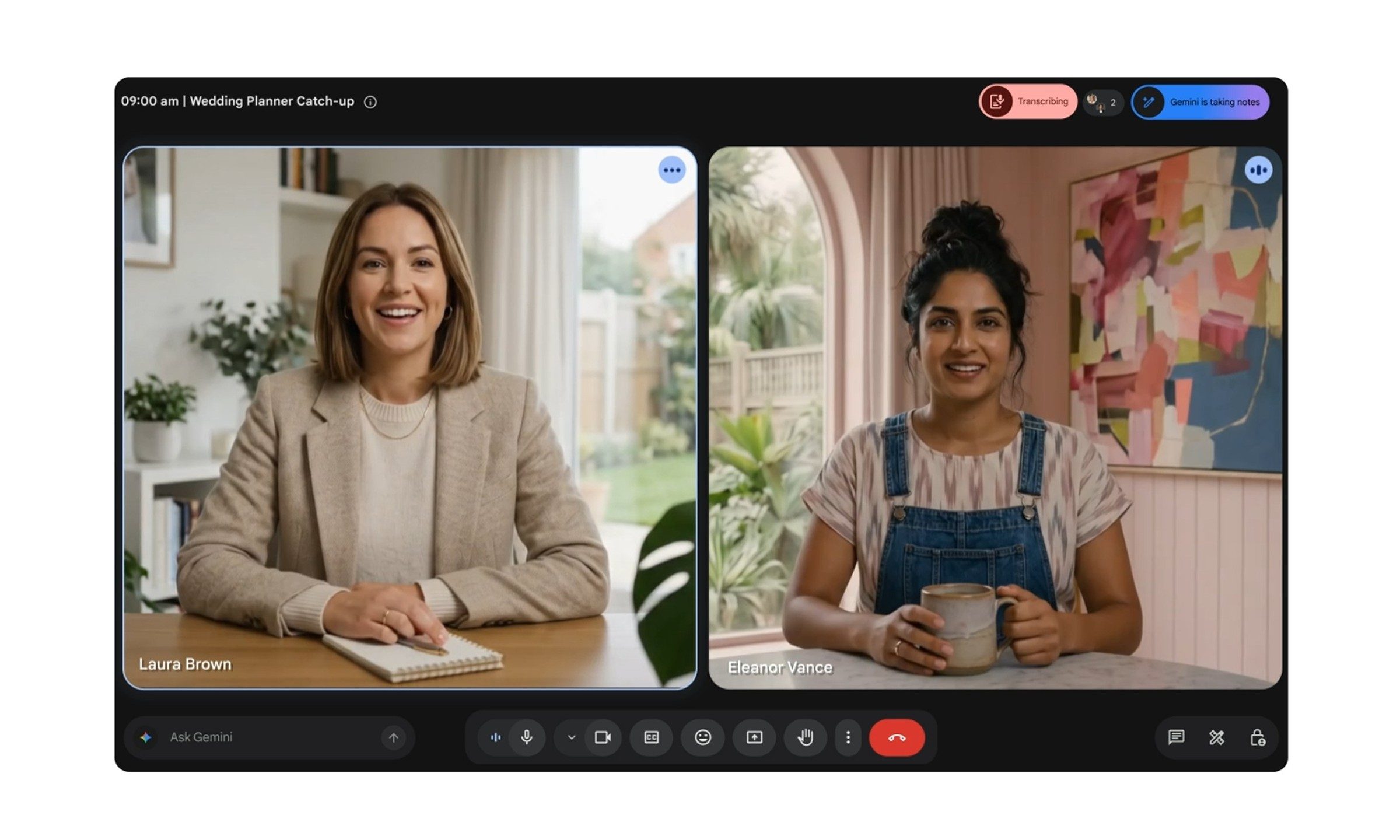
Google has just released a useful Gemini feature, which you can try if you are a paying member of course. The company is now bringing "Take notes for me" for Gemini, which will be available in Google Meet for Google AI Pro and Google AI Ultra subscribers, along with eligible Workspace business customers.

For personal users, the feature starts with Google AI Pro, which costs $19.99 per month in the US. In other words, Gemini can now take your Google Meet notes, provided you pay the minimum AI tax.

Read more
After iPad Pro and MacBook Pro, the iMac could be the next in line for an OLED screen upgrade
iMac with M4

The iPhone got an OLED panel in 2017, while the iPad Pro followed in 2024. Even the MacBook Pro is expected to follow later this year or early next year. But what about the iMac?

According to TrendForce, the iMac could get an OLED upgrade. There's no timeline yet, but the direction is clear. Apple wants to replace its current display technologies with OLED, raising the bar for color quality for both regular users and professionals.

Read more
This $1,299 gaming PC wants to be a Steam Machine without waiting for Valve
Valve’s Steam Machine dream is already real in MetaPC's new prebuilt
MetaPC's Steamroller is a new Steam Machine rival

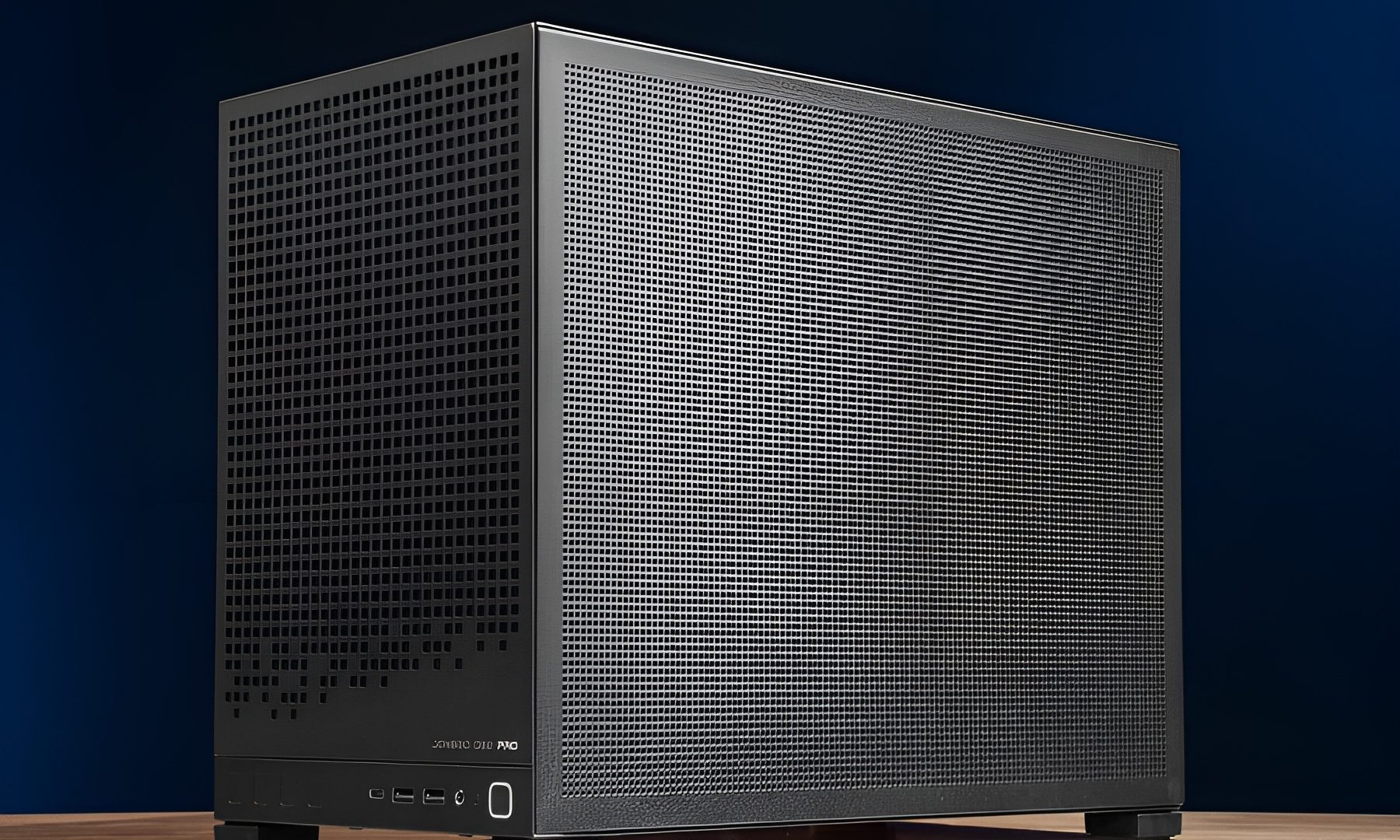
Valve’s Steam Machine may be the face of SteamOS, but the platform isn't exclusive to it. A big announcement after Steam Machine's unveiling was that SteamOS would be arriving on systems outside of the new hybrid console. Now, MetaPCs is one of the first to take advantage of this by opening the preorders for the Steamroller, a new prebuilt gaming desktop that ships with SteamOS installed by default.

Though Steamroller is not trying to be a tiny console-like cube. It is a normal desktop PC with standard parts and a real upgrade path. The system costs $1,299 and is listed with a preorder date of July 3, 2026.

Read more