Slack remains one of the most popular business chat and collaboration apps, and for good reason: The platform provides a wealth of options for managing conversations, collecting or distributing content, and working with other productivity apps for the best possible results for your connected office.
With so many features, it’s possible that some of the most useful Slack tricks have gone unnoticed. We’re going to help fix that with our list of our favorite Slack tips for staying organized and in control.
How to change your status to keep peers updated
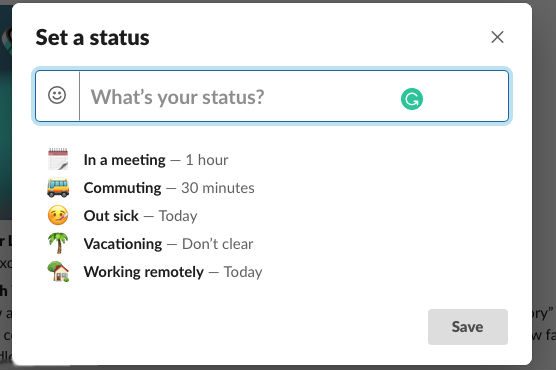
Slack lets you update your status in seconds, and not enough people take advantage of this feature to let everyone know where they are.
Just look in the upper left corner of Slack to find your login name, and select it. From here, choose Set a status. This will open a new window with several options to add a status to your name, like “In a Meeting” or “Commuting.” These are handy, but don’t underestimate the ability to create a custom status for whatever you want, whether updating people on the progress of a project or a change in plans.
How to activate “Remind me about this”
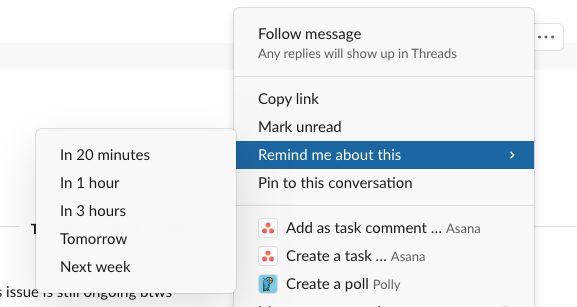
Is there a particular message or part of a conversation that you want to make note of — just not right away? Fortunately, all Slack messages come with an easy remind feature that will pop up a notification later to help you remember it.
Simply select any message, and click the three dots on the right to open up more information. On this menu, select Remind me about this, and then choose when you want to be reminded, anywhere from 20 minutes to next week. Use this for details, issues, and questions that you plan to attend to later during the middle of a busy conversation.
How to search emoji or make your own
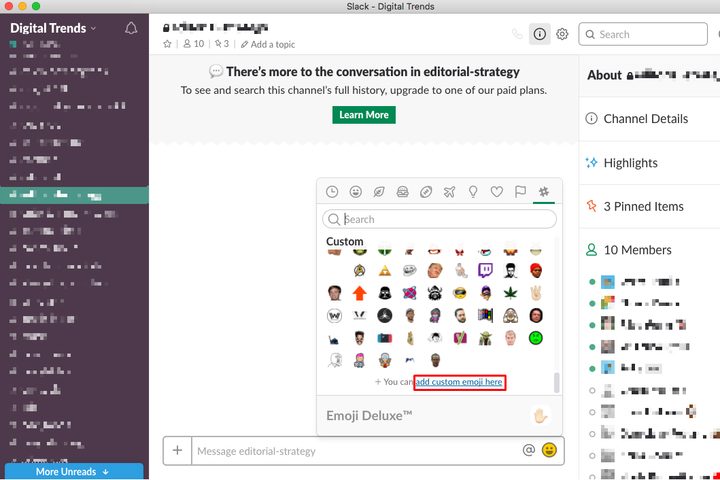
Slack has some rich native emoji options you can easily access.
Start a message in a colon to search emojis, like “:cat” and see what comes up for a direct word search. Or select the smiley face for a broader search that also lets you upload your own images for emojis and create a little private library of emojis to use. Just bracket the emoji title in two colons to immediately plop it into a conversation.
How to start a more private conversation

Group threads are common in Slack, but you can start a private conversation whenever you need to. Use this option to answer questions more directly, address a side issue, split apart with a smaller team, or whatever else you may need when in a big group thread.
Hover over a message with the person you want to talk with, and look to the right to see the icons that pop up. Select the speech bubble to start a brand new thread with that person.
How to customize and prioritize notifications
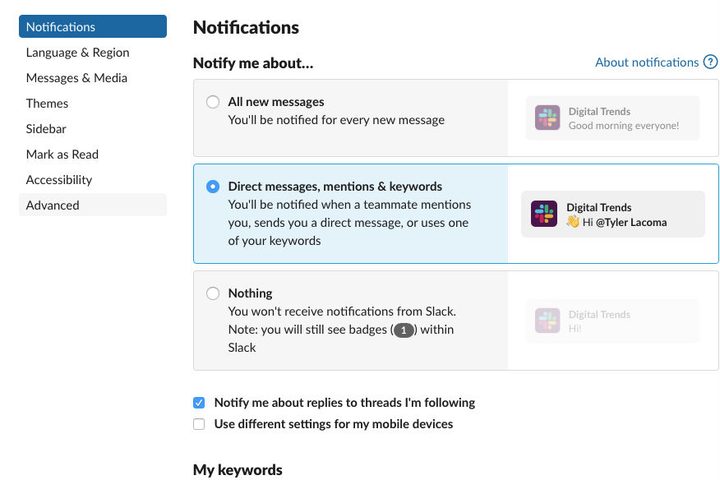
If you are very active on Slack, you probably get a lot of desktop notifications from the service. This can quickly get annoying, but your can customize those notifications very easily.
Select your name on Slack, and go to Preferences. The Preferences window will open on Notifications. Here, you can see all the notification options you have. This includes disabling notifications, only getting alerts for direct messages and mentions, or tweaking notifications so you see a badge if specific keywords are mentioned. You can also set “Do not disturb” times, and customize how your alerts look and sound if necessary. It’s a great section to spend a little time in.
How to add apps to Slack
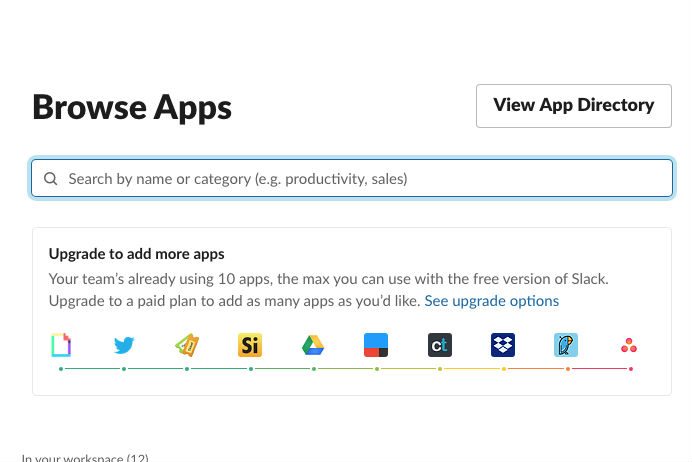
Yes, you can add all sorts of apps to Slack. But even those who have been using Slack for some time may not have checked out what apps they can add, or how app synergy really works. You can look at available apps in the lower left corner of your Slack menu at any time.
Select Add apps to gain access to a fully list of enabled apps for that Slack account. There are hundreds of apps that can be enabled on Slack, but we do specifically want to mention cloud apps like Google Cloud and Dropbox, which make it easy to transfer and share files while using Slack. There are also many productivity apps that your business can use to create employee surveys, gather information quickly, or use your preferred method of web conferencing.
How to access message shortcuts
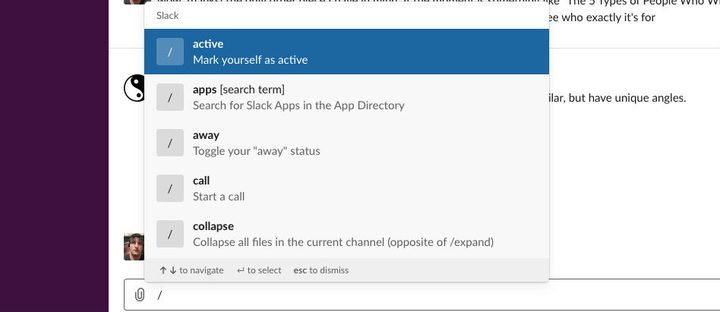
Select your message box and type in a forward slash. This will immediately bring up a menu of useful shortcuts that you can move through with the arrow keys.
These shortcuts let you do all kinds of things, like start a call, invite a user, leave the channel, or collapse all files in the thread to save on space. Some of the abilities we’ve already talked about, like creating a reminder or changing your status, can also be accessed from these shortcuts. Scroll through and get familiar with them so you can start using them to save time.
How to see all your unread messages
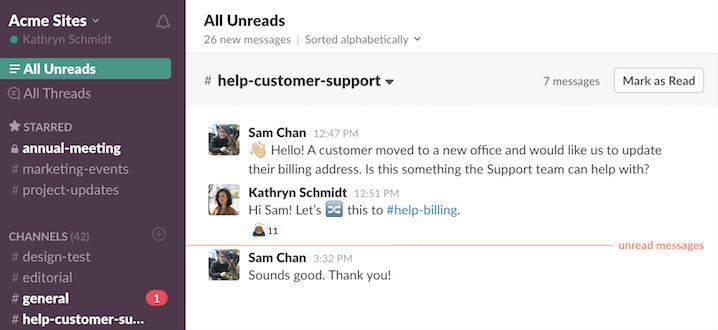
New to Slack? Here’s a useful tip for those who want to get more organized.
In the channel menu on the left side of Slack, you will see an option up at the top that says All Unreads. Selecting this will show you all unread messages from all channels that you are a part of on that Slack account. This is a particularly useful tool if you are part of multiple threads/teams and want to get caught up on everything that has happened since you have last logged on.
How to customize your Slackbot

A list of Slack tips wouldn’t be complete without mentioning Slackbot, an always-on bot that can provide information, entertainment, and much more.
Slackbot pays attention to your messages: You can start a private thread with Slackbot (it’s under Direct Messages and marked with a heart) and type in questions or topics to learn how to do something. But that’s just the beginning. You can also customize Slackbot in a variety of ways, creating tailored responses to specific queries or commands — this gets used a lot for jokes, but it can also provide a lot of value for the office, from reminding people of office passwords to providing set guidelines for a certain situation.