

“The Samsung C410W is a good color laser printer with NFC. If it weren’t for the expensive supplies, we’d recommend it for all users.”
- NFC printing
- Excellent connectivity including Wi-Fi
- Very good quality output
- Easy setup
- Supplies are very expensive
- No automatic duplexing or manual feed
- Printing in color is slow
“Why you can trust Digital Trends – We have a 20-year history of testing, reviewing, and rating products, services and apps to help you make a sound buying decision. Find out more about how we test and score products.“
The world is a colorful place, which is why color printers outsell black and white monochrome units. Not too long ago, having a color laser printer at home meant you were probably well off. But the price of laser printers has since come down significantly, making them more attainable to the masses.
Replacing all four cartridges costs more than the initial purchase price of the printer.
One such new model is Samsung’s Xpress C410W ($230), a compact unit that’s designed for the office environment, but it wouldn’t be out of place as a household printer either. The C410W, along with a MFP variant, is one of the first color laser printers to support near-field communication, or NFC. With this, you can send a print job from a compatible smartphone or tablet simply by tapping a device against the printer. Unfortunately, despite being a good single-function printer, we stop short of recommending it for all users simply because its supplies are very expensive to replace. But if you find yourself needing a color laser printer and you don’t print lots of copies too often – plus you have use for the NFC feature – take a look.
Features and design
Hear the word “laser printer” and, for many of us, visions of massive desktop-eating devices still come to mind. That’s certainly not the case with newer desktop units made for the home and small offices, like the C410W. Part of the Samsung Printer Xpress series, the single-function C410W is a compact and attractive printer with a gray-and-black exterior that, at 15 x 12.2 x 8.3 inches and weighing less than 22 pounds, has a small-enough footprint to coexist peacefully next to your PC or notebook on the same desk.

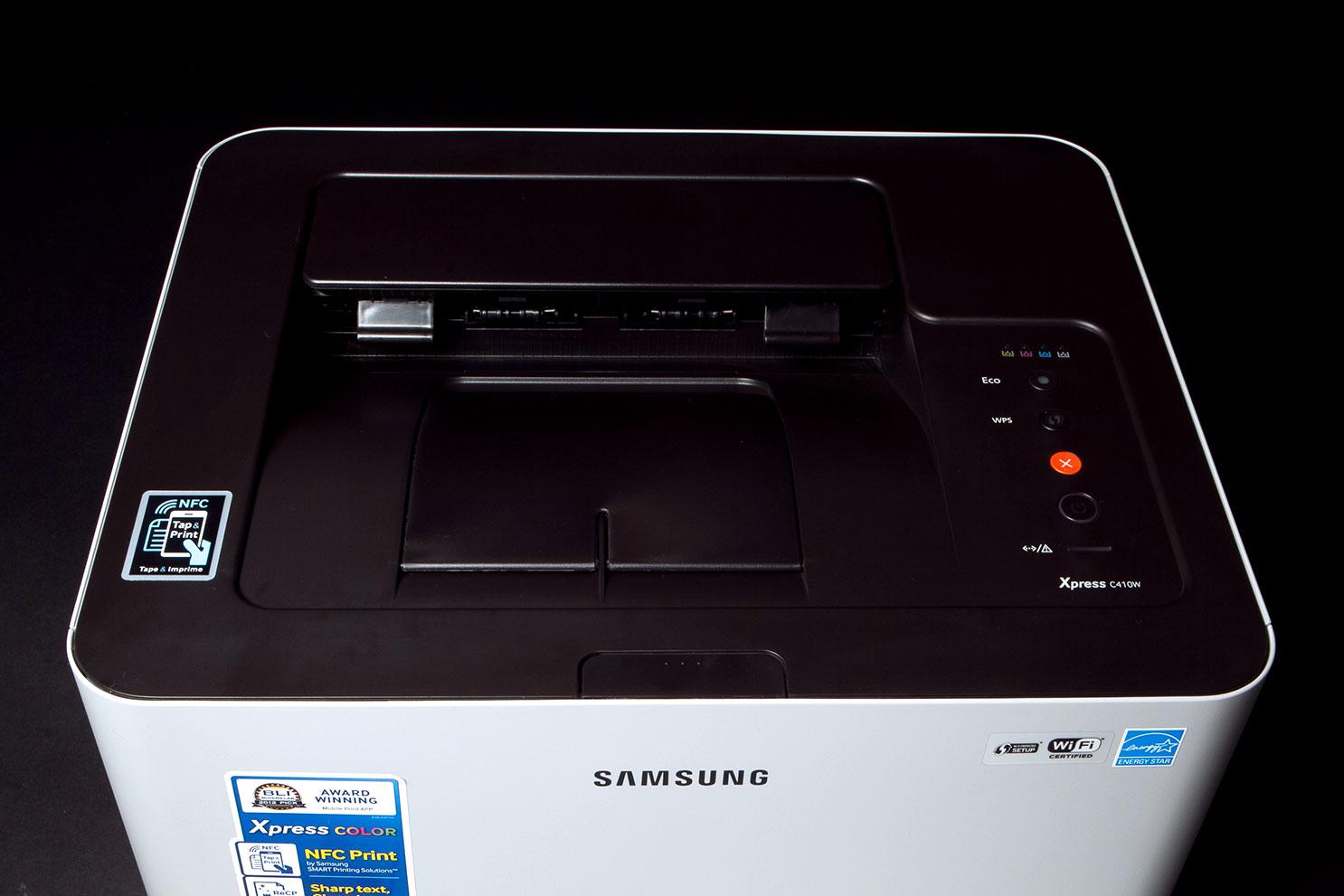
The C410W has very few controls. On the right hand side of the top panel are the power button, a status indicator, and Eco and WPS buttons. The Eco button reduces the amount of toner used to print. In our testing, the only time the print job was visibly affected was in our image quality testing, where the prints were slightly lighter. Eco mode can also be selected in the print driver. The WPS button allows for easy Wi-Fi setup with WPS-compatible routers, and enables Wi-Fi Direct, which is necessary to set up a capable device for NFC.
The C410W is one of the world’s first color laser printers (according to Samsung) to have NFC capability. What’s NFC, you ask? If you’ve seen the TV commercials for Samsung’s Galaxy phones, where two people exchange a photo by simply tapping the two phones together, then you’ve seen a demonstration of NFC. If you tap an NFC device – like said Galaxy phone, for example – to a label on the lower left of the top panel of the printer, you can send print jobs directly from phone to printer. (The connection is technically over a direct Wi-Fi connection. NFC handles the initial contact/pairing, which then hands off the connection to Wi-Fi. But a one-time setup is required for each new device that talks to the printer.)
The highlight of this printer, of course, is NFC – simply tap and print.
In addition to NFC and Wi-Fi, the C410 has the standard USB 2.0 port and an Ethernet port for wired connections. The printer also supports printing with Google Cloud Print from remote locations.
Toner is loaded via a pull-down panel on the front of the unit, which exposes the four color toner cartridges and a waste toner container. If you buy this printer, know this: Toner for the C410w is expensive. The black cartridge, which has a 2,000 yield, costs $64, while the colors have a 1,000-page yield and cost $55 each. Replacing all four cartridges will cost more than the initial purchase price of the printer, and that’s not counting replacing the Imaging Unit (which contains the photoconductor drum). This part has a 16,000-page life expectancy when printing black, and 4,000 when printing color. At $98, this ups the cost-per-page ante considerably. Replacing the Waste Toner Bottle, at 7,000 black pages or 1,700 color pages, is the least expensive maintenance cost, as it is less than $15. If you print a lot and often, like in an office situation, know that this printer will be costly to maintain (which you can probably write off as a business expense).
The C410W does not have a manual paper feed – only a 150-sheet capacity tray at the bottom front of the printer. Output is at the top of the unit, and has a capacity of 50 sheets – only a third of the printers paper capacity – so if you’re printing a long document, or numerous copies, you’ll need to keep your eye peeled to avoid paper winding up on the desk or floor. As is common for laser printers in this price class, the C410W does not provide automatic duplexing.
What’s in the box
In addition to the printer, which has the toners and Waste Toner Bottle preinstalled, there’s a disc with drivers for Windows, the Mac OS, and Linux.Samsung includes a USB cable in addition to the power cord, which is a nice touch and saves you from having to go looking for one to perform the setup if you’re using USB rather than Wi-Fi or Ethernet. There are two posters – a quick setup guide, and a troubleshooting guide for NFC.
Performance and use
Setting up the C410 is easy – unpack it, take off the restraining tapes, and plug in the power cord. Running the included disc installs the necessary drivers and, if selected, a print monitor and/or printer management application. Most users won’t need the management application, as it’s meant for networks with multiple Samsung printers.


The toner cartridges and Waste Toner Bottle are preinstalled, so once you’ve taken off the tape, installed the driver, and loaded paper into the paper tray, you’re ready to print.
The highlight of this printer, of course, is NFC – simply send a print job by tapping a NFC-enabled device against a dedicated spot on the printer, and off you go. This actually worked pretty well once we got it set up. We tested this feature using a Samsung Galaxy S4 smartphone with built-in NFC (Samsung’s Galaxy phones have had NFC since the Galaxy 2, and some other Galaxy mobile devices, like tablets and cameras, also have this feature). NFC is a relatively new thing in consumer electronics, so if your device(s) aren’t NFC capable, this feature on the C410W isn’t going to do you any good.
In general, we were pleased with the output quality. The overall quality for printing a document containing graphics and/or images was more than acceptable.
Samsung rates the C410W at 4 pages per minute (ppm) for color output speed, and that’s almost exactly what we achieved during testing. Monochrome printing is a lot faster at 18ppm. However, both speeds are rather slow for a color laser printer, even one as inexpensive as this. In our recent testing of the Dell C1765, an LED multifunction printer that isn’t any more expensive than the C410W, we achieved 12ppm in color.
When testing laser printers for image quality, we don’t expect the same quality as we do with most inkjets, simply because most laser printer users won’t bother with special papers. We used HP Office Paper for our tests, about the same quality as the paper you can purchase in many office supply stores or even supermarkets. The Samsung can also print on glossy laser paper, which should produce even better output for photos.
In general, we were pleased with the output quality. While saturation varied among the different test prints – one print was very dark, another two much lighter than the reference prints we compare against – color accuracy was excellent. The printer driver provides five settings: Standard (the default), Photo, Business Graphic, CAD, and Web Page. We used the Photo setting in our tests, and while the photos printed did not have the “snap” when using photo paper on an inkjet, the overall quality for printing a document containing graphics and/or images was more than acceptable.
Conclusion
To be fair, Samsung doesn’t position the C410W as a consumer printer – it’s really meant to be used in a small business or small workgroup environment. If it wasn’t for the extremely expensive supply costs, we’d recommend the C410W for a high school or college student – the print quality can produce very good documents containing text and graphics, and the Eco mode does save a bit of toner when you’re printing draft copies. Additionally, the NFC is a neat feature – if your mobile device is capable of using it.
But it’s the expensive supplies and slow print speeds that are this printer’s downfall, despite the device’s low price tag. Even a small business will find it difficult to justify purchasing a printer when a complete set of replacement consumables costs as much as the initial purchase.
Highs
- NFC printing
- Excellent connectivity including Wi-Fi
- Very good quality output
- Easy setup
Lows
- Supplies are very expensive
- No automatic duplexing or manual feed
- Printing in color is slow


