  1. Home
  2. Phones
  3. Mobile
  4. Social Media
  5. How tos

How to delete Snapchat messages

Add as a preferred source on Google
companies advertise on snapchat for super bowl 50 how to use
Image used with permission by copyright holder

If you’ve ever sent a message to someone and wish you could delete it, Snapchat has a feature you’ll like. Yes, it lets you delete Snapchat messages you’ve already sent. Don’t get too excited though, as there are some limitations that can make its usefulness iffy at best. Here’s what you need to know.

Recommended Videos

Difficulty

Easy

Duration

5 minutes

What You Need

  • Smartphone with Snapchat app

How to delete Snapchat messages

Deleting Snapchat messages, like replaying Snaps, is literally a snap.

Step 1: Hold your finger down on the offending message. Then, a menu like the one below will pop up.

Step 2: Tap Delete and then Delete Chat and you are done with your part. This works with one-on-one chats and group chats, too.

how to delete snapchat messages
Image used with permission by copyright holder
snapchat offline data ads mem 2v2
Image used with permission by copyright holder

What happens next

Once your chat message is deleted on your end, that’s not the end of things. Snapchat says that it will try to delete the message from its servers and from your friend’s chat screen, but it doesn’t always work. For example, if your friend has poor internet service when you delete the message, Snapchat may not be able to delete the message from your friend’s side of the conversation until they have better service. This means they may see the message. If they have an older version of Snapchat, your message may be stuck on their screen as well.

Also, it will be obvious something was deleted. This is because a message posts on your side of the chat when you delete a message. Your friend will also get a message that something was deleted. Being sneaky using Snapchat is really hard.

How to delete all the messages

Want to go further than just one message? You can delete the whole conversation, too — sort of.

Step 1: Go to the Friends screen.

Step 2: Hold your finger down on the message thread you want to delete.

Step 3: A menu will pop up. Choose More and then tap Clear Conversation History.

This will remove the conversation from your Friends screen. It won’t delete sent or saved messages, but it’s a good way to declutter your Friends screen so you can find more important conversations more easily.

Alina Bradford
Alina Bradford has been a tech, lifestyle and science writer for more than 20 years. Her work is read by millions each month…
Google just made switching from iPhone to Android much easier with Android 17
Android 17 can now transfer your passwords, passkeys, eSIM, and even your home screen.
Android-17-switch-ios-to-android

Moving from an iPhone to an Android phone has never been an easy process, but Google is trying to change that. With Android 17, the company has introduced a rebuilt Android Switch that can move far more of your data than any past version ever could.

Google worked with Apple to create the new transfer system from the ground up, allowing far more information to move wirelessly than before. The upgraded experience is already rolling out to eligible Pixel devices and is also available on Samsung's new Galaxy Z Fold 8 and Galaxy Z Flip 8 through Smart Switch.

Read more
WhatsApp’s new in-car experience is built around hands-free control
CarPlay and Android Auto users can now hear and reply to messages, view call history, and reach favorite contacts without touching their phone.
WhatsApp new CarPlay experience featured

Meta is overhauling how WhatsApp works in the car, giving CarPlay and Android Auto users a lot more to do than just sending texts and making calls. The company announced the change in a newsroom post today, alongside several other updates rolling out to the messaging app.

WhatsApp finally works hands-free in the car

Read more
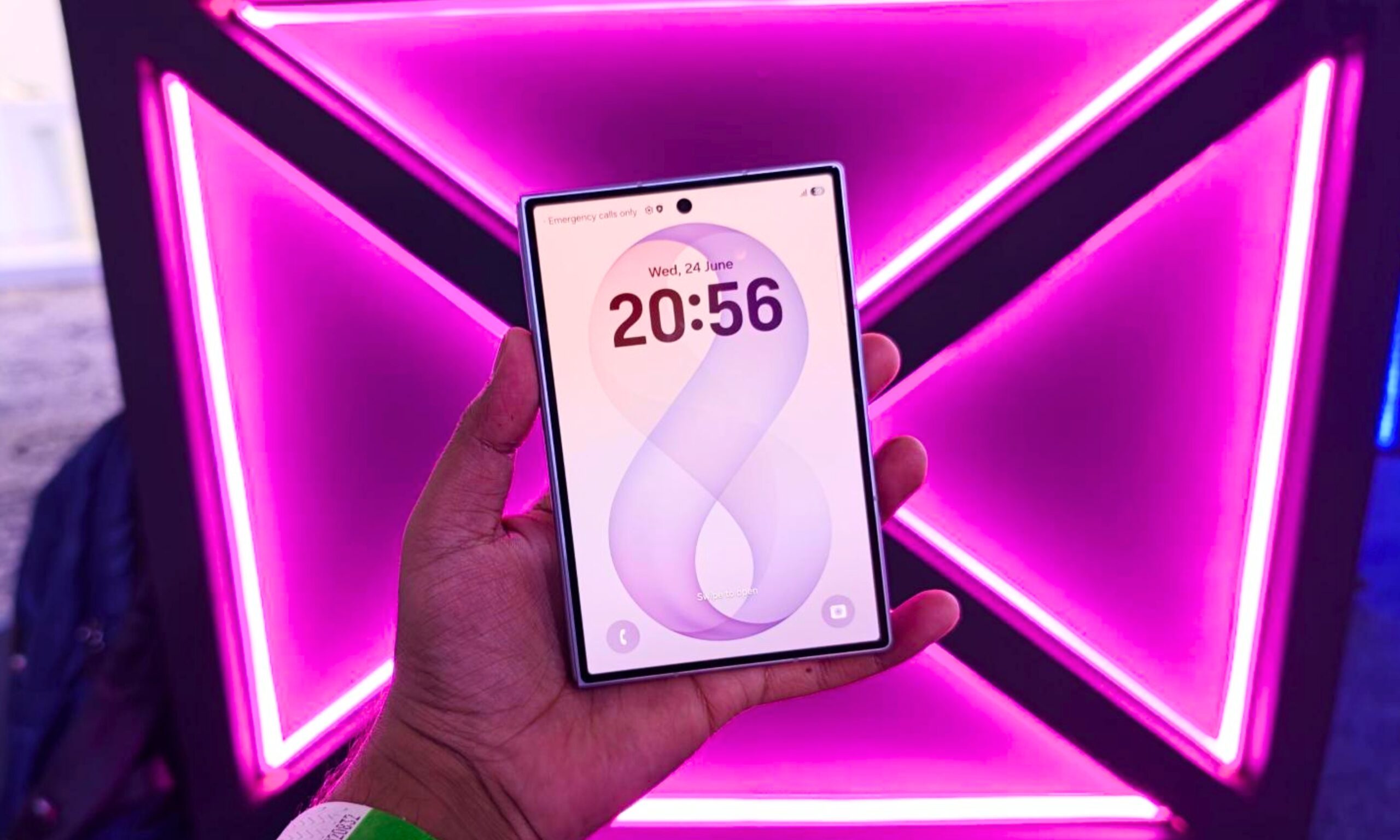
I tried the Samsung Galaxy Z Fold 8 and I am totally in love with this unique foldable
Samsung's Galaxy Z Fold 8 trades bulk for a genuinely pocketable design, and after holding one next to an iPhone 17 Pro, I'm convinced it's the foldable to beat this year.
Symbol, Electronics, Mobile Phone

Samsung is trying to jazz things up once again in the foldable space, and the mantra this time around is going smaller and lighter. The result of those efforts is the Galaxy Z Fold 8, and it’s the first time in years that I vocally said “wow” the moment I picked it up. It’s pocketable, light, sleek, and most importantly, oozes functional charm. 

Just take a look at how petite it is when held alongside a modern-age iPhone. In an age when smartphones are getting thicker and bulkier, the Galaxy Z Fold 8 wants to stand out in a rather unique fashion. Even in the unfolded state, it’s less than a millimeter thicker than an iPhone 17 Pro (9.7 vs 8.75 mm). If you compare the weight, the comparison flips in its favor. The Galaxy Z Fold 8 is lighter than even the smaller iPhone 17 Pro (201 grams vs 204 grams).

Read more