Apple Music — like popular streaming services Pandora and Spotify — allows users to stream on-demand music and podcasts to their devices and listen to specially curated playlists. For those of us who already own an Apple product, Apple Music is a great way to discover new music that integrates well with our existing song libraries. However, since it is an extra fee — $120/year for the standard subscription — there are times when it might make sense to cut ties with the service.
Maybe you’re looking to save some extra cash or after the free three-month trial was up, you realized Apple Music just wasn’t your thing. Whatever your reason is for wanting to cancel your Apple Music subscription, we’ve got your back. Here’s how to cancel Apple Music across your devices, including your iPhone, computer, and Android devices. Note: If you’re trying out Apple Music for the first time through the three-month trial, you can unsubscribe immediately to prevent being billed automatically after your trial is up.
On your iPhone, iPad, or iPod Touch
To cancel your subscription on your Apple phone or tablet, open the iTunes app on your device and locate your account settings via your Apple ID. To do this, scroll to the very bottom of the main music page and tap your Apple ID. If you aren’t currently logged in, you will see a large Sign In button in the same location. Enter your Apple ID and password when prompted, then click Sign In.


Next, press View Apple ID and scroll down until you see Subscriptions, which should be located near the center of that page. On the Subscriptions page, find Apple Music Membership. It will be under the Active heading if you have a subscription, and under Expired if you had one, but are no longer using it. Its location in that menu depends on when you signed up for it. You’ll then be brought to a page that allows you to change your subscription or simply cancel it. Click the red Cancel Subscription button toward the bottom and confirm.


On your PC or Mac
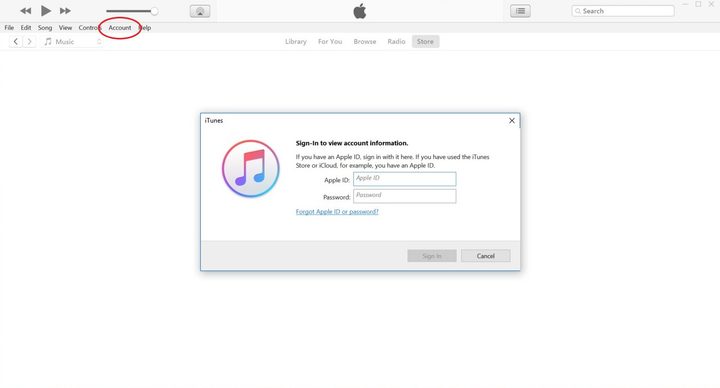
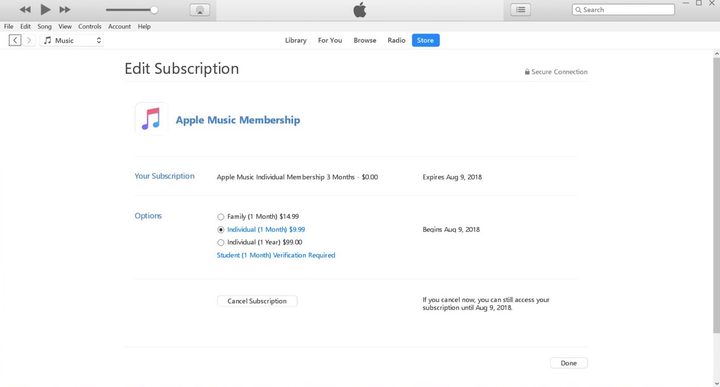
Open iTunes and navigate to your account. The Account button is located near the top left of the window. Press that and View My Account to get to the correct page. Once in your account, scroll down to the bottom of the screen. Under Settings, you’ll see Subscriptions: [number]. To the right of that heading, press Manage. Click Edit to the right of your Apple Music subscription or that heading. At the bottom of the next screen is a white button that says Cancel Subscription. Press it and confirm.
On your Apple TV
Open Settings on your Apple TV and navigate to the Manage Subscriptions tab in this menu. Select your Apple Music Subscription, and hit cancel.
On your Android device
Open the Apple Music app on your device and access the menu (which is located in the upper left corner). Tap your name at the top of that screen, and Manage Membership. Click Apple Music Subscription and turn off automatic renewal. This will end your subscription after your current billing cycle or after your trial is up. Make sure to cancel your subscription at least 24 hours before your renewal date or you may be charged for an extra month.
If you didn’t sign up for Apple Music through the app, you may have to go about canceling it a different way. Certain carrier-bundled memberships will be managed through your cell phone provider. If you no longer have the device you signed up with, you’ll need to download iTunes on your Mac or PC to cancel your membership.