OneDrive is Microsoft’s cloud storage platform, and it’s fully integrated into Windows 10, making it a great choice for file sharing and cloud backups among your devices. You can move files and folders to and from your OneDrive in a few different ways, but none of them are complicated, and all of them are quick. Here’s how to store files on OneDrive on Windows 10.
Interested in other cloud storage options? Check out our guide to the best cloud backup clients.
Step 1: Open the OneDrive folder
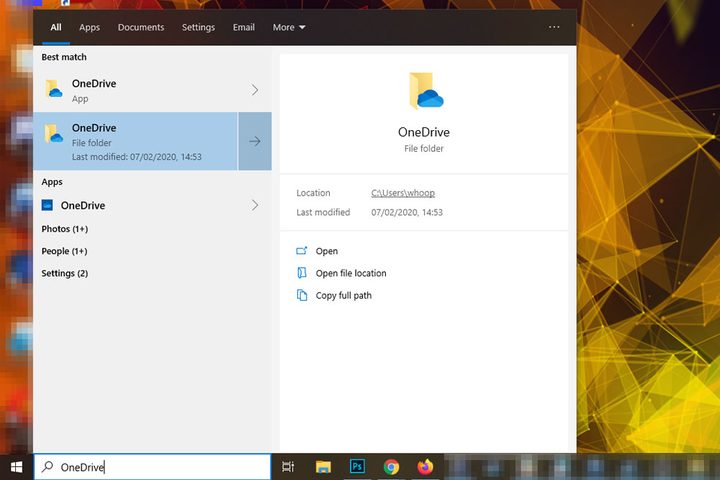
New installations of Windows 10 have a OneDrive folder automatically. To find it, search for OneDrive in the Windows search box near the Start menu. Then select the corresponding result.
Step 2: Move files into the OneDrive folder
Moving files into the OneDrive folder makes them accessible via the cloud storage platform’s various other applications and clients. Depending on whether you want to use OneDrive for backup purposes, or want to store files there instead of on your Windows 10 PC, you can copy and paste, or cut and paste them into the OneDrive folder. For more information on cutting and pasting, check out our guide to Windows 10’s keyboard shortcuts.
Whichever method you use, as long as you’ve moved the files into the OneDrive folder, they are now stored on OneDrive! It’s that easy.
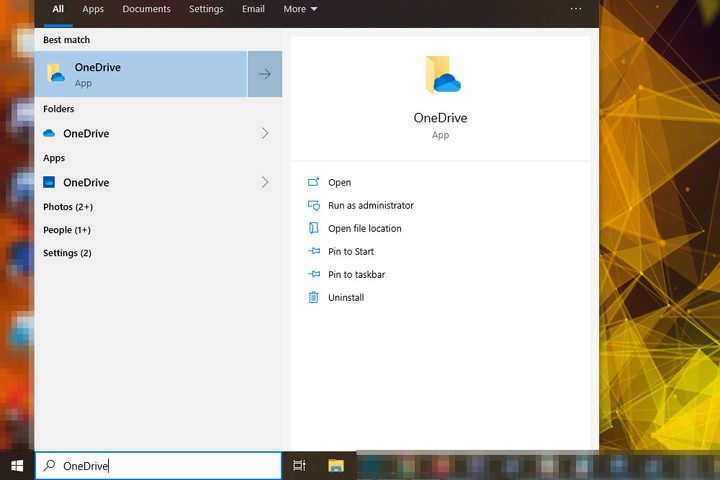
Note: If you find that files you put in the folder have an icon that looks like a pair of rotating arrows, that file hasn’t synced with OneDrive. It may be that you don’t have the OneDrive application running. To do so, search for OneDrive in Windows search and select the OneDrive app, rather than the folder. That should trigger synchronization. If not, right click the file in question and select Share.
Use the OneDrive app
For more functionality with OneDrive on Windows 10, you can use the stand-alone application.
Step 1: Search for OneDrive in the Windows search bar and select the OneDrive application under the Apps heading. If you don’t have it installed, search for Microsoft Store instead and select the corresponding result. Search for OneDrive on the store, select the OneDrive app, and select Get. Once it’s installed, select Launch.

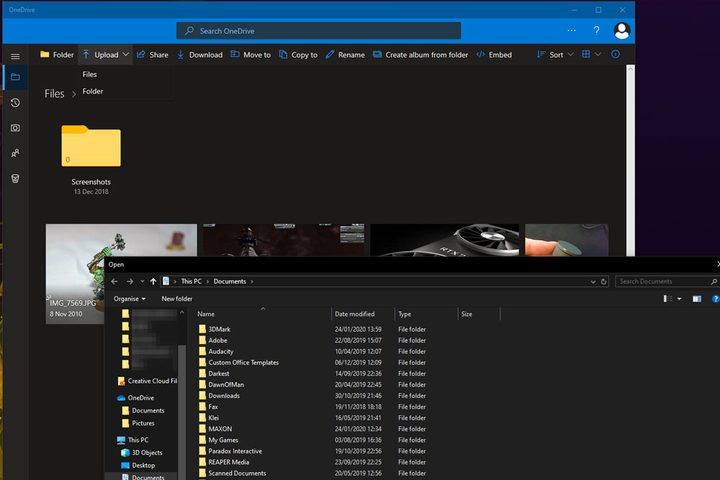
Step 2: Select the folder that you want to store your files in (or create a new one using the Folder icon in the top menu). Then drag and drop any files you want to store there into the main Window and they will automatically be synced with your Microsoft OneDrive account. Alternatively, use the Upload button in the top menu bar to choose which files and folders you want to store there.
Use the OneDrive website
Another way to store files on OneDrive on Windows 10 is through the OneDrive website. It functions in much the same way as the applications, but you can access it on any Windows 10 machine.
Step 1: Head to the OneDrive website and sign in using the link in the top-right corner and your Microsoft account details. It should be the same as your username and password for logging in to Windows 10.
Step 2: Select the folder that you want to store your files in, or create a new one by selecting New in the top menu bar.
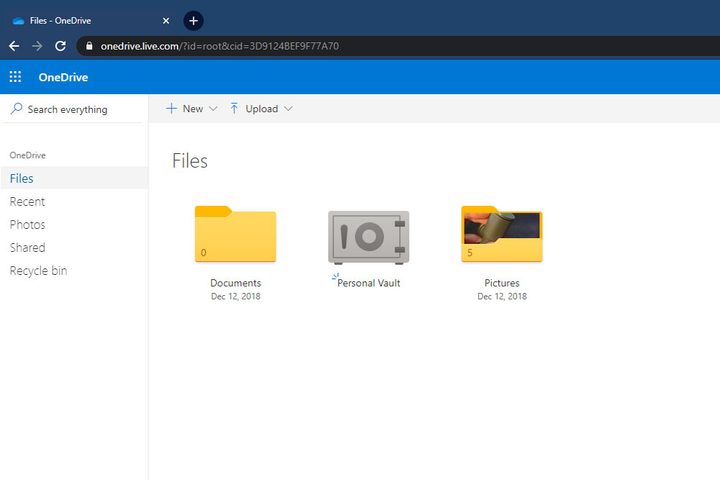
Step 3: Drag and drop any files that you want to store on OneDrive. Alternatively, use the Upload button in the top menu to send any files and/or folders to your OneDrive storage.