In terms of hardware, Samsung makes some of the best phones out there. The Galaxy S21 series, for example, has a stunning new design, Qualcomm’s flagship mobile processor, and an excellent camera. The company also, however, makes a highly customized version of Android for those phones, called One UI. It’s a little more … controversial.
Now, this article isn’t an opinion piece about One UI. Some people love One UI for the ton of customization it offers, its integration with Samsung apps and services, and the insane number of features. Others (myself included) prefer a more stripped-back approach to Android.
Because I don’t love all the in-your-face features on offer by One UI out of the box, there are a number of settings that I tweak on every Samsung phone as soon as I get it. Here’s a list of the tweaks I make immediately.
Disable the edge panel
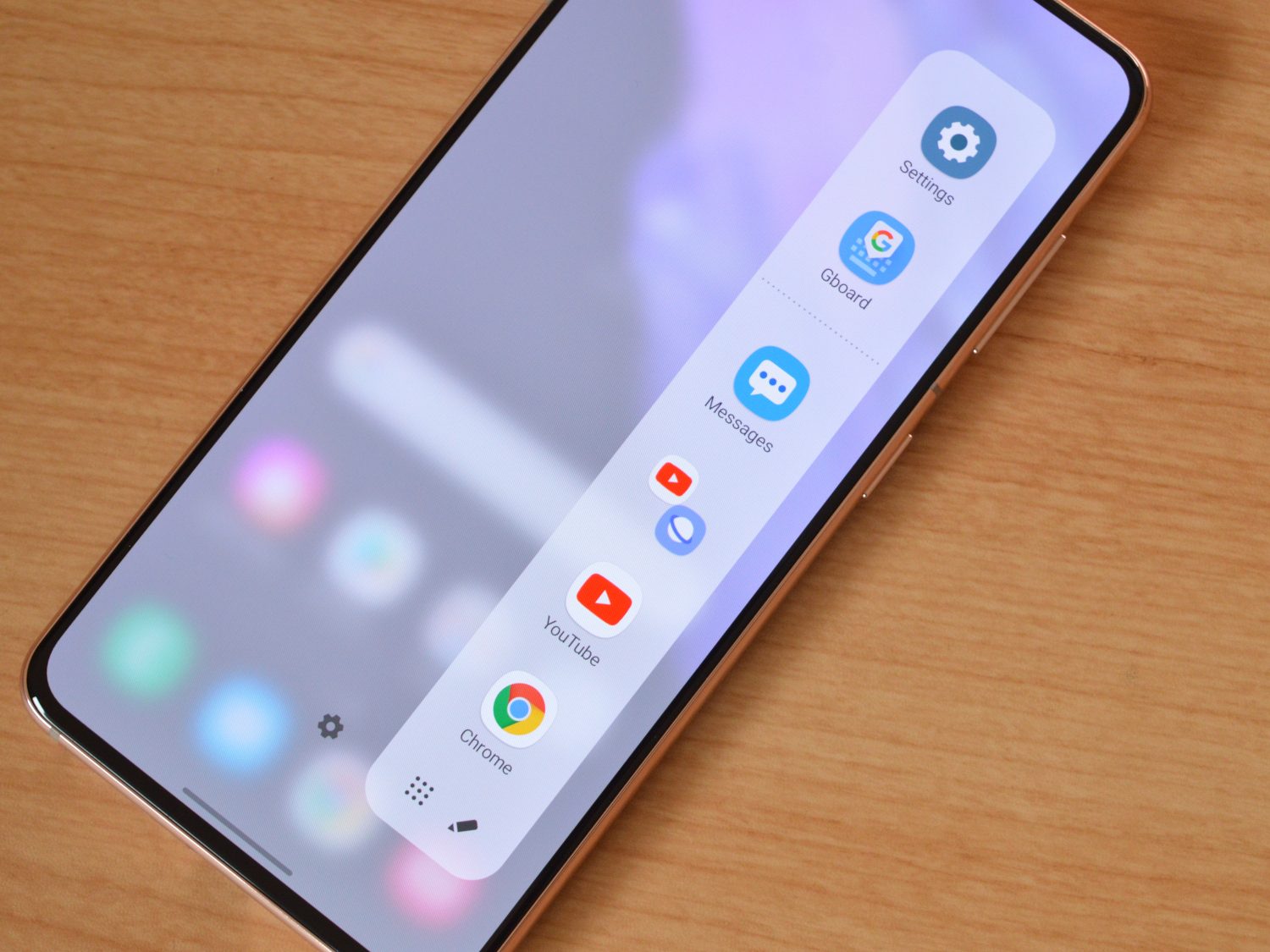
The edge panel is a perfect representation of why some people love One UI. It offers access to some quick settings and apps, heightening the customization on offer by the software. But I don’t want it. To me, it just gets in the way, not to mention that it’s annoying to look at its little drag handle on the screen all of the time.
To disable the edge panel, swipe to open the edge panel, and hit the little Settings button at the bottom of the panel that pops up. Hit the back button to open the edge panels menu, and then turn the switch to the “off” position.
Change power button (side key) behavior
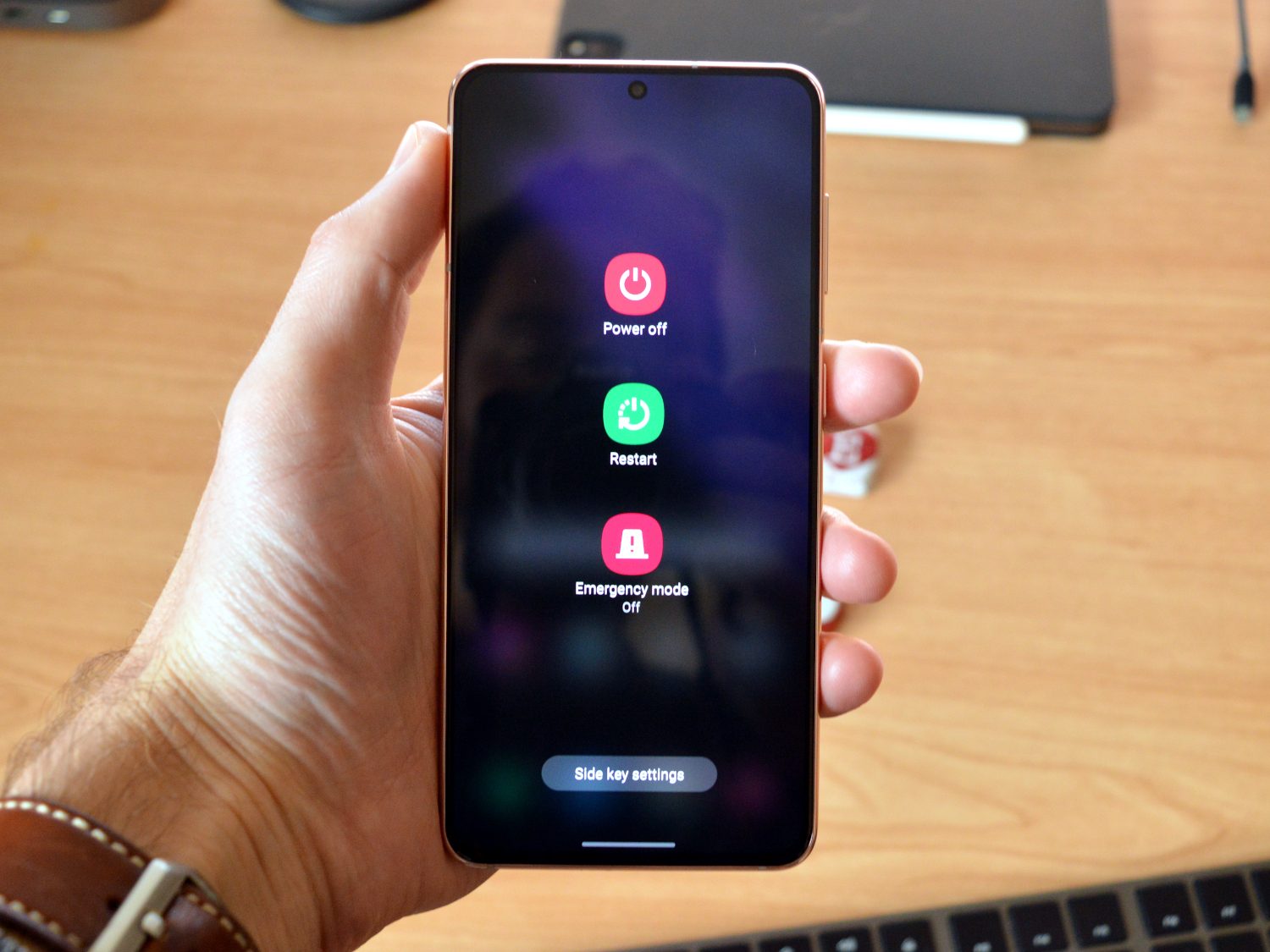
By default, holding down the power button enables … Bixby. Yes, Bixby is still there. While we would have preferred some kind of quick access for Google Assistant, in the absence of that as an option, the power-off menu is an improvement. Enabling this is relatively easy.
Open up the Settings menu, scroll down to Advanced Features, hit Side Key, and change the Press and Hold option to the Power Off Menu. Now, when you hold down the power button, you’ll be able to access power controls.
You’ll still have the option to have a different function for a double press of the side key, like launching the camera, if you wish.
Change default keyboard to Gboard
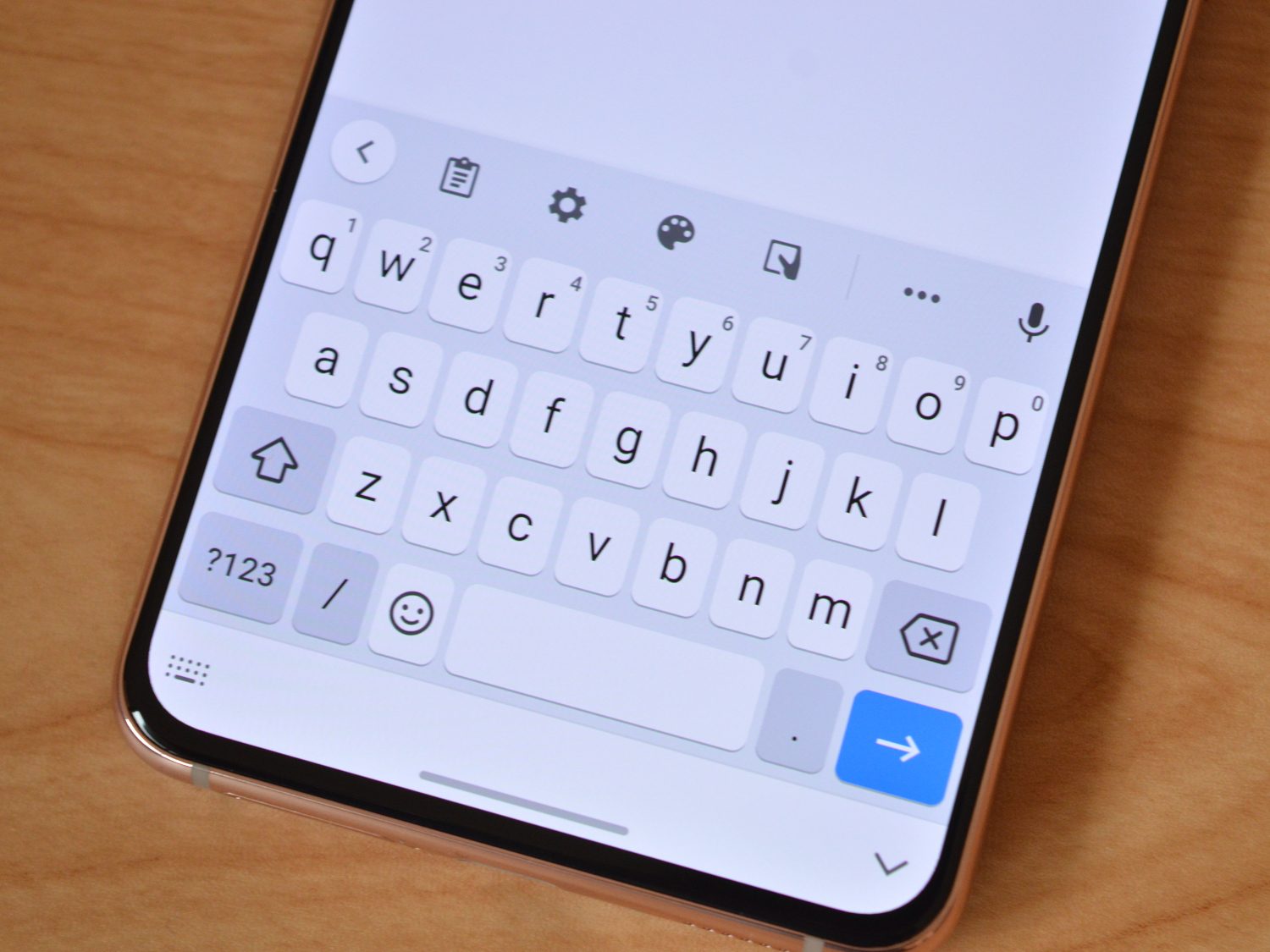
I don’t love Samsung’s default keyboard. It’s not the best-looking keyboard out there, its prediction algorithm is incomprehensible at times, and it doesn’t offer the tight integration that I prefer. Gboard fixes that. You’ll have to download it first, and once you do, you can enable it by simply opening up the Gboard app and following the on-screen instructions.
Once Gboard is activated, you can use all the Google-y features that you would expect, as well as Google’s excellent text prediction and access to its huge number of stickers and gifs.
Set the default browser to Chrome
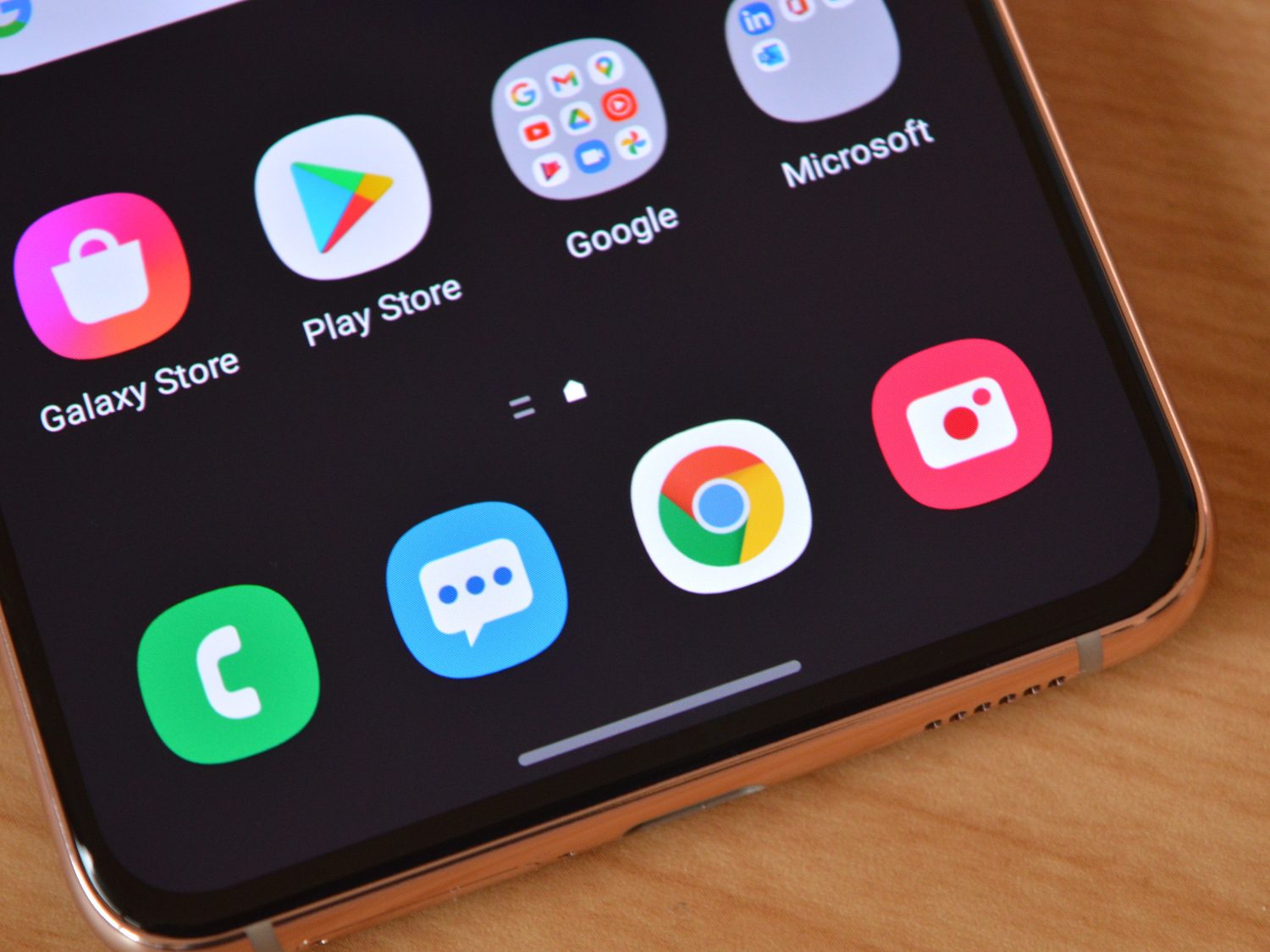
Samsung’s internet app isn’t bad, but again, some probably prefer to stick within the Google ecosystem. That’s especially true for those who use Chrome on the desktop, and want the advantages of using the same browser across devices — being able to sync tabs, history, and autofill is svery useful.
Chrome comes with Samsung phones, but to set it as the default browser, head to the Settings app, scroll down to Apps, tap on the Default Apps option, and change the browser app option to Chrome.
Fix the home screen and app drawer
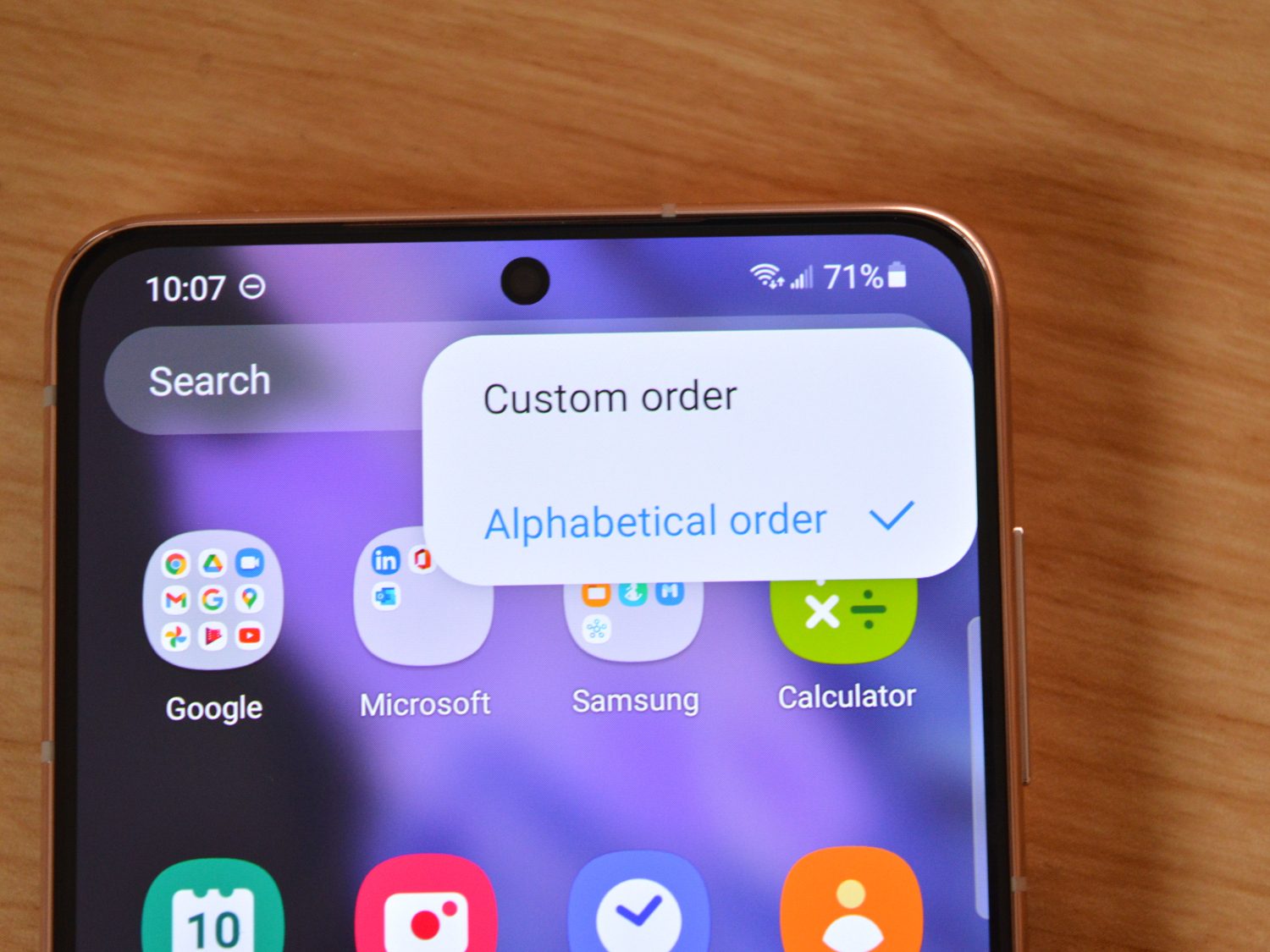
The way Samsung orders apps in the app drawer is infuriating. Sure, ordering apps in a custom order may make sense for those who can constantly and meticulously keep track of their apps, but honestly, who has the time for that? To change the order of your apps to alphabetical, open the app drawer, tap the menu button in the top-right corner, tap Sort, then tap Alphabetical Order. Mercifully, it’ll stay sorted in alphabetical order as you roll in new apps.
Another tweak that many make to the app drawer is getting rid of app folders. After all, what’s the point of an app drawer if you still have to open folders to get to the apps you want? To get rid of the folders, just long press on the folder and hit the Delete Folder button. The apps will relocate to where they fit in alphabetical order.
Last but not least is the app grid. By default, apps are the most spaced out on both the home screen and app drawer — which means that there are comically few apps on the phone’s huge screen. I prefer to see a little more information at a glance. To change the app grid, long press anywhere blank on the home screen, and hit the Settings button. Tap either Home Screen Grid or Apps Screen Grid to change the layout. Chances are you’ll at least want to go to a 4 x 6 grid, or likely 5 x 5 if you have a Plus or Ultra model.
Enable gesture navigation
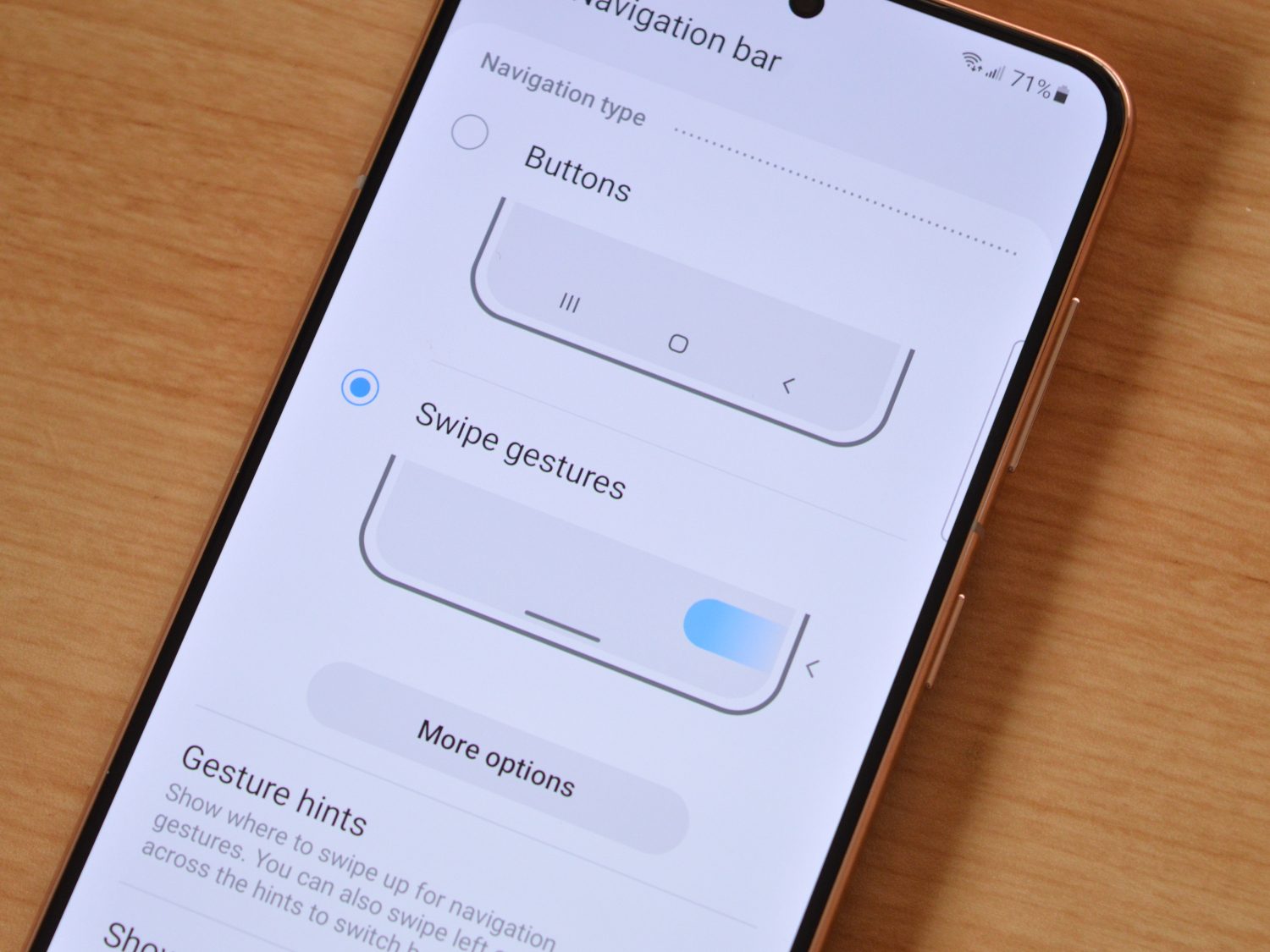
I get it — some people are still just married to the classic Android gesture controls and aren’t willing to give them up. I, however, am fully used to gesture controls, and I recommend you try getting used to them, too. To change the classic controls to gesture controls, head to the Settings app, hit the Display button, tap Navigation Bar, and change the option to Swipe Gestures.
Using gesture controls, you can swipe up from the bottom to go home, swipe up and hold to enter multitasking, and swipe from either side to go back. Give it a shot.
Delete or hide unused apps
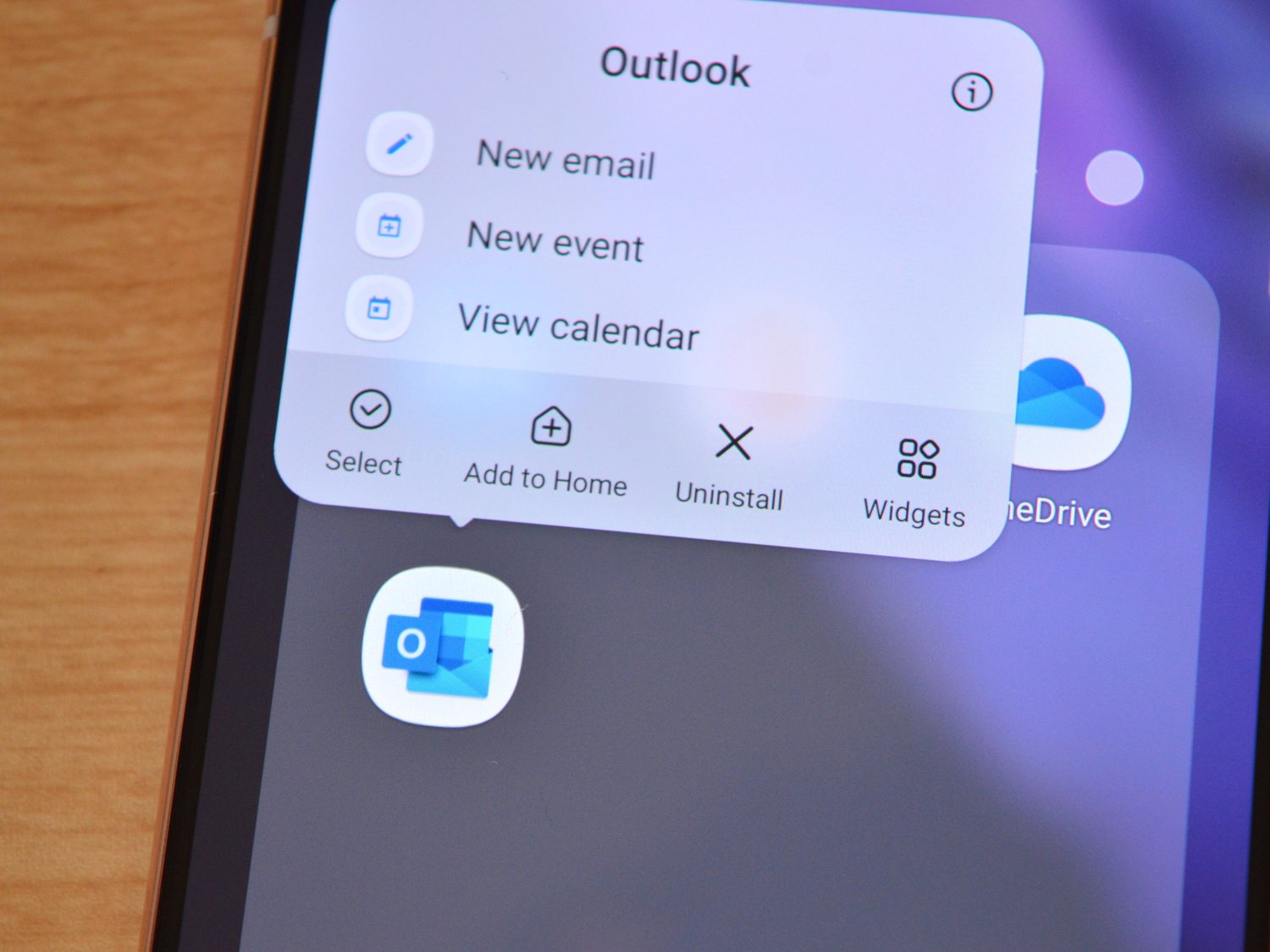
Samsung is getting a little better at not shipping its phones with loads of bloatware, but let’s be honest, it still has a long way to go. Between multiple browsers and all those Microsoft apps, there are probably at least a few that you don’t want or need. You unfortunately can’t delete or hide some of those apps, but others, you can. Do do so, hold down on the app icon, and hit the delete or the disable button.
Change the quick settings menu
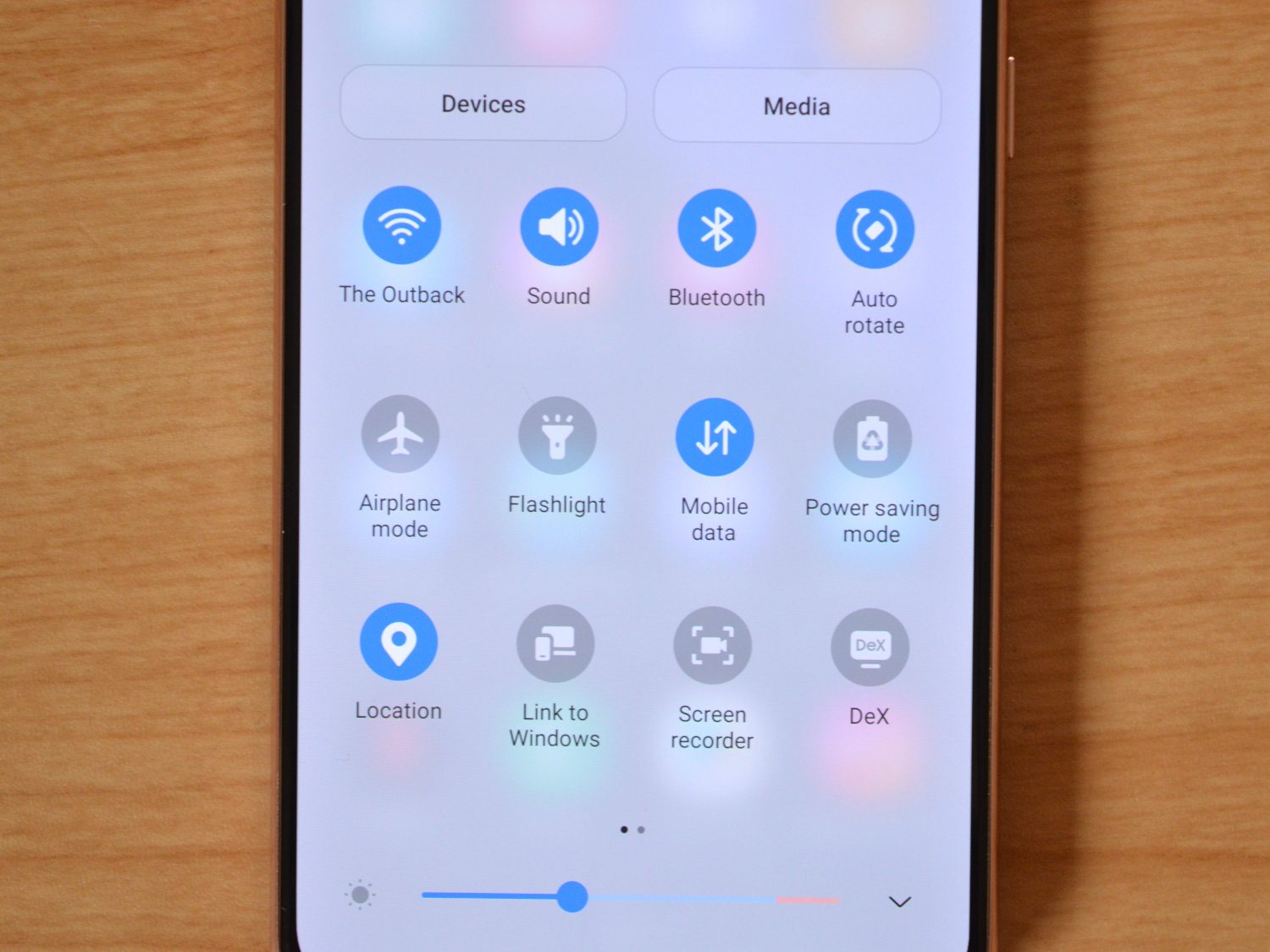
One UI offers tons of customization features, and that means lots of quick settings. Sometimes, those quick settings can feel a little … jumbled. That’s where it helps to be able to rearrange them, so that your most used quick settings are as accessible as possible.
To edit the quick settings shade, pull it down, then hit the the three dot menu button. Then, tap the Edit Buttons option, and you’ll be able to move your quick settings to their desired spot and hide options you don’t need. The top six icons you select will be available at the top of the notification shade, with a single swipe down. The rest will be an extra swipe away, or on a secondary page. If you have no intention to use a button at all, you can also drag it up and remove it entirely.